
1. Introduction
The Ulefone RugKing 2 Pro is a rugged smartphone designed for durability and performance in challenging environments. It features an octa-core processor, 8GB RAM, 128GB storage, a 4500mAh battery, and runs on Android 15. This device is built to withstand water, dust, and drops, making it suitable for outdoor adventures and demanding work conditions. This manual provides essential information for setting up, operating, maintaining, and troubleshooting your device.

Image: The Ulefone RugKing 2 Pro rugged phone, showcasing its robust design.
2. What's in the Box
Upon opening your Ulefone RugKing 2 Pro package, you should find the following items:
- 1x Ulefone RugKing 2 Pro Phone
- 1x AC Power Charger (100~240V)
- 1x USB-A to Type-C Data Cable (100cm)
- 1x Pre-installed Protective Film
- 1x Tempered Glass Screen Protector
- 1x Pry Opener
- 1x Lanyard
- 1x Multi-language User Manual

Image: A visual representation of the Ulefone RugKing 2 Pro phone and its included accessories.
3. Setup
3.1. SIM Card and MicroSD Card Installation
The Ulefone RugKing 2 Pro supports dual Nano SIM cards and one MicroSD card for expandable storage up to 2TB. To install:
- Locate the SIM card tray on the side of the phone.
- Use the provided pry opener to carefully open the SIM card tray cover.
- Insert your Nano SIM cards and/or MicroSD card into the designated slots on the tray. Ensure they are correctly oriented.
- Gently push the tray back into the phone until it is flush with the device body. Ensure the cover is securely closed to maintain water and dust resistance.
Video: Ulefone RugKing 2 Pro Unboxing Video, demonstrating SIM card installation and initial setup.
3.2. Initial Charging
Before first use, it is recommended to fully charge your Ulefone RugKing 2 Pro. Connect the provided USB-A to Type-C data cable to the AC power charger and then to the phone's USB-C port. Alternatively, you can use the optional Desk Charging Dock for convenient charging.

Image: The Ulefone RugKing 2 Pro placed in its optional Desk Charging Dock.
3.3. Power On/Off
To power on, press and hold the Power button located on the side of the device until the Ulefone logo appears. To power off, press and hold the Power button, then select 'Power off' from the options on the screen.
4. Operating Your Device
4.1. Display Features
The RugKing 2 Pro features a 5.45-inch HD+ display with Corning Gorilla Glass for enhanced durability. It offers a 90Hz refresh rate and 650 nits peak brightness for a clear and smooth viewing experience.

Image: The Ulefone RugKing 2 Pro displaying vibrant content on its 5.45-inch HD+ screen.
4.2. Camera Functions
Capture moments with the 13MP rear camera and take selfies with the 5MP front camera. The camera interface provides various modes and settings for different photography needs.

Image: Close-up of the Ulefone RugKing 2 Pro's rear camera module and a sample photo taken with the front camera.
4.3. Battery Management
The 4500mAh battery provides extended usage. In addition to standard charging, the device supports 5W wired reverse charging, allowing you to charge other devices. The optional Desk Charging Dock offers a convenient way to power up.

Image: Visualizing the 4500mAh battery capacity and the convenience of dock charging and OTG reverse charging.
4.4. Built-in Flashlight
The RugKing 2 Pro includes a powerful 110 Lumens flashlight, accessible via a dedicated button or quick settings, useful for various outdoor activities.

Image: The Ulefone RugKing 2 Pro's powerful flashlight illuminating a dark environment.
4.5. Water-Lock Mode
Activate Water-Lock mode to disable touchscreen input when using the phone in wet conditions, preventing accidental touches and ensuring usability.

Image: The Ulefone RugKing 2 Pro mounted on a bicycle in the rain, demonstrating Water-Lock Mode.
4.6. AI Assistant (Gemini)
The device integrates Ulefone AI Pro, offering features like AI Recording Summary, AI Writing Assist, Ulefone Screen Search, and AI Calculator. It also supports Google Gemini, ChatGPT, and Grok for advanced AI functionalities.
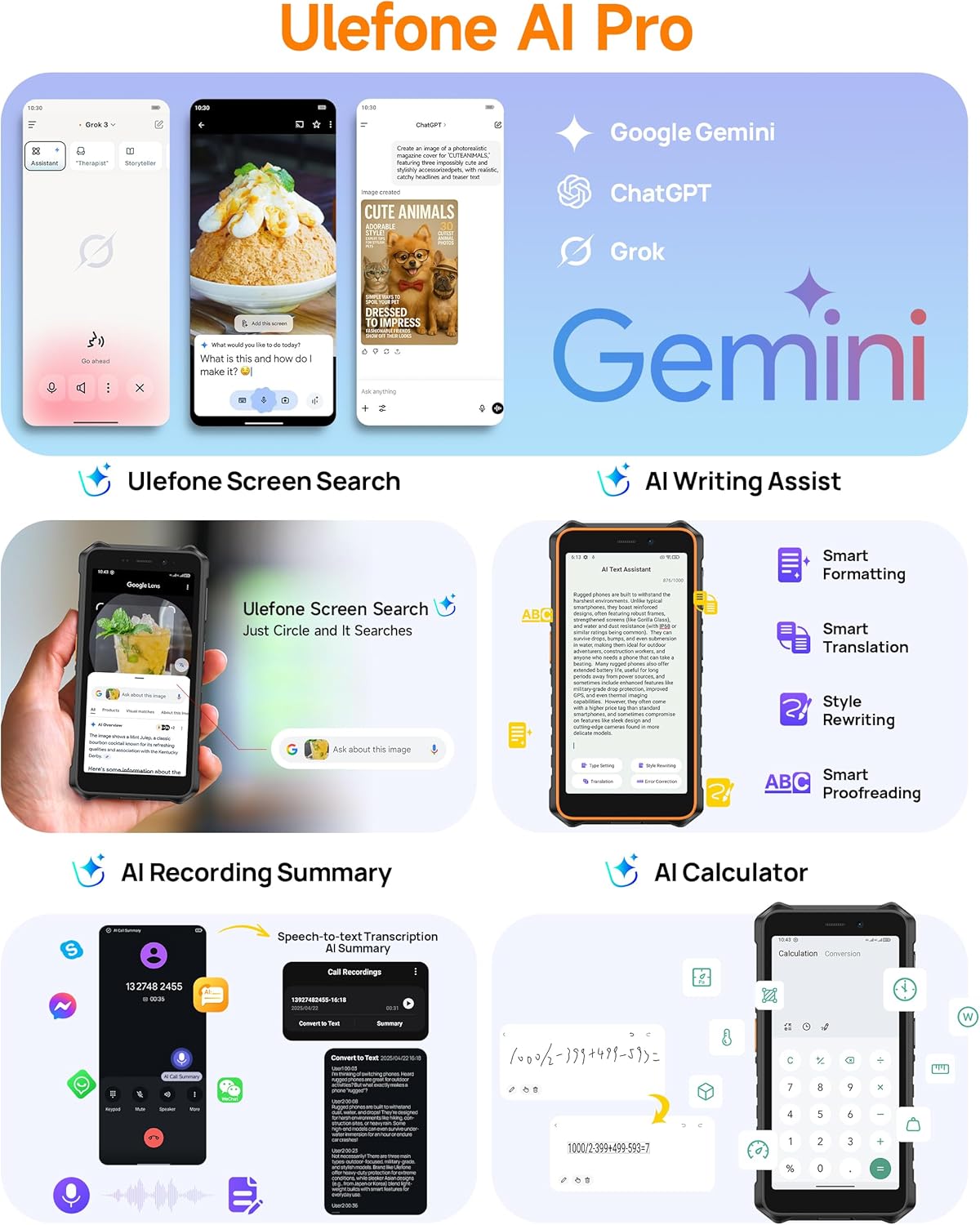
Image: Screenshots illustrating the various AI features available on the Ulefone RugKing 2 Pro, including Google Gemini integration.
4.7. Other Features
- Dual 4G: Supports two 4G SIM cards simultaneously.
- NFC: For contactless payments and data transfer.
- Headset-Free FM Radio: Listen to FM radio without needing a headset as an antenna.
- Custom Key: A programmable button for quick access to functions or apps.
- Outdoor Toolbox: Includes various utility tools for outdoor use.
- GPS: Supports GPS, GLONASS, Beidou, and Galileo for accurate navigation.
- Gloves Mode: Increases touchscreen sensitivity for use with gloves.
- Face Unlock: Securely unlock your device using facial recognition.
5. Durability Features
The Ulefone RugKing 2 Pro is engineered for extreme durability, certified with IP68/IP69K ratings and MIL-STD-810H compliance. This means it is highly resistant to water, dust, and drops.
- Waterproof (IP68/IP69K): Can withstand immersion in water up to 2 meters for 30 minutes and high-pressure, high-temperature water jets.
- Dustproof (IP68/IP69K): Fully protected against dust ingress.
- Drop Resistance (MIL-STD-810H): Designed to survive drops from up to 2 meters onto hard surfaces.
- Corning Gorilla Glass: Provides enhanced scratch and impact resistance for the display.
Video: Ulefone RugKing 2 Pro Rugged Phone, showcasing its resistance to drops and water.

Image: The Ulefone RugKing 2 Pro being dropped onto roots, demonstrating its MIL-STD-810H certified drop resistance.
6. Accessories
Enhance your RugKing 2 Pro experience with a range of optional accessories:
- Armor Case: Provides additional protection and often includes a belt clip or carabiner attachment.
- Desk Charging Dock: A convenient stand for charging your phone.
- Floating Tray: Allows you to safely use your phone and other items while in water.
- Bike Mount: Securely attaches your phone to a bicycle handlebar.
- Car Mount: For hands-free use in vehicles.
Video: Ulefone RugKing 2 Pro Accessory Ecosystem Showcase, demonstrating various accessories.


Images: Various accessories for the Ulefone RugKing 2 Pro, including the Desk Charging Dock, Protective Case, Bike Mount, and Car Mount.
7. Specifications
| Feature | Specification |
|---|---|
| Brand | Ulefone |
| Operating System | Android 15 |
| RAM Memory Installed Size | 8 GB (4GB physical + 4GB virtual) |
| Memory Storage Capacity | 128 GB (Expandable up to 2TB with Micro SD card) |
| Screen Size | 5.45 Inches |
| Display Resolution Maximum | 720 x 1440 Pixels |
| Refresh Rate | 90 Hz |
| Model Name | RugKing 2 Pro |
| Wireless Carrier | Unlocked |
| Cellular Technology | 4G |
| Color | Green (variant shown) |
| SIM Card Slot Count | Dual SIM |
| Connector Type | USB Type C |
| Form Factor | Touch Screen |
| SIM Card Size | Nano |
| Water Resistance Level | Waterproof (IP68/IP69K) |
| Additional Features | Built-In Flashlight, Dual SIM, Rugged Body, Waterproof |
| Battery Capacity | 4500 Milliamp Hours |
| Item Dimensions | 6.26 x 3.15 x 0.62 inches |
| Phone Talk Time | 20 Hours |
| Video Capture Resolution | 1080p |
| Supported Satellite Navigation System | BeiDou, GLONASS, GPS, Galileo |
| Connectivity Technology | Bluetooth, NFC, USB, Wi-Fi |
8. Maintenance
To ensure the longevity and optimal performance of your Ulefone RugKing 2 Pro, follow these maintenance guidelines:
- Cleaning: Regularly wipe the phone with a soft, damp cloth. For stubborn dirt, use a mild soap solution. Ensure all port covers are securely closed before cleaning with liquids.
- Port Covers: Always ensure the USB-C port cover and SIM tray cover are tightly sealed to maintain the device's waterproof and dustproof integrity.
- Avoid Extreme Temperatures: Do not expose the phone to excessively high or low temperatures, as this can affect battery life and internal components.
- Screen Protection: While the phone features Corning Gorilla Glass, using the provided tempered glass screen protector can offer an additional layer of defense against scratches.
- Charging: Use only the original charger and cable or certified accessories to prevent damage to the battery and device.
9. Troubleshooting
If you encounter issues with your Ulefone RugKing 2 Pro, try the following common troubleshooting steps:
- Device Not Responding: Press and hold the Power button for about 10-15 seconds to force a restart.
- Charging Issues: Ensure the charging cable and adapter are securely connected. Try a different outlet or charging accessory. Check the charging port for any debris.
- Network Connectivity Problems: Check if your SIM card is properly inserted. Restart the phone. Go to Settings > Network & internet > Mobile network and ensure mobile data is enabled and the correct network type is selected.
- App Crashes/Freezes: Close the problematic app and reopen it. If the issue persists, clear the app's cache and data (Settings > Apps > [App Name] > Storage > Clear cache/Clear data).
- Slow Performance: Close unnecessary background apps. Clear cache regularly. Consider uninstalling unused apps.
- Water-Lock Mode Stuck: If the touchscreen is unresponsive after being in water, ensure the phone is dry, then try restarting the device.
- Factory Reset: As a last resort, if software issues persist, you may perform a factory reset (Settings > System > Reset options > Erase all data). Warning: This will erase all data on your phone. Back up important information before proceeding.
10. Warranty and Support
The Ulefone RugKing 2 Pro comes with a 12-month manufacturer warranty service in the US. For any questions about the product, technical support, or warranty claims, please refer to the contact information provided in your multi-language user manual or visit the official Ulefone support website.
Ulefone is committed to providing reliable products and customer service. We are always happy to help with any inquiries you may have.


