
1. Overview
The Epson Colorio EP-988A3 is a versatile inkjet multifunction printer designed for both home and office use. It supports printing up to A3 size, making it suitable for a wide range of tasks from everyday A4 documents to larger format educational materials, diagrams, and creative projects. Its compact design allows for flexible placement, and it offers convenient features such as wireless connectivity and an intuitive user interface.
Video: Demonstrating the compact design and A3 printing capabilities of the Epson EP-988A3 printer.

Image: The Epson EP-988A3 printer seamlessly integrated into a home office environment, highlighting its space-saving design despite A3 compatibility.
Key Features:
- A3 Printing Capability: Print documents and photos up to A3 size, expanding your creative and professional possibilities.
- Compact Design: Despite A3 support, the printer maintains a compact footprint for easy placement.
- Multifunctionality: Perform printing, copying, and scanning tasks with a single device.
- Wireless Connectivity: Connect easily via Wireless LAN, Wi-Fi Direct, and Bluetooth LE for printing from various devices.
- Intuitive Operation: Features a 4.3-inch LCD touchscreen and "Easy Mode" for simplified navigation and quick access to frequently used functions.
- Automatic Duplex Printing: Save paper by automatically printing on both sides of the sheet.
- Disc Label Printing: Print directly onto compatible CDs/DVDs/Blu-ray discs.
- Direct Printing: Print photos directly from SD cards or USB memory devices.
2. Setup
2.1 Unpacking and Initial Placement
Carefully remove the printer from its packaging. Ensure all protective tapes and materials are removed from the exterior and interior of the printer. Place the printer on a stable, flat surface with adequate space around it for ventilation and paper handling.
2.2 Power Connection
Connect the power cord to the printer and then to a power outlet. Press the power button to turn on the printer. The initial startup process may take a few minutes as the printer prepares itself.
2.3 Ink Cartridge Installation
Open the ink cartridge cover. Install the genuine Epson ink cartridges into their corresponding slots, ensuring they click into place. Close the cover. The printer will initiate an ink charging process, which may take several minutes.
2.4 Paper Loading
The EP-988A3 features a versatile 3-way paper feeding system:
- Front Two-Stage Tray: For standard paper sizes like A4 (up to 100 sheets) and postcards (up to 60 sheets).
- Rear Feed Slot: For single sheets of specialty paper, including thicker media and larger sizes up to A3.
Load paper into the appropriate tray or slot, adjusting the paper guides to fit the paper size snugly.

Image: Visual guide to the printer's three-way paper feeding system, showing how to load paper into the front trays and the rear feed slot.
2.5 Network Connection
Connect the printer to your network using one of the following methods:
- Wireless LAN (Wi-Fi): Follow the on-screen instructions on the printer's LCD panel to connect to your Wi-Fi network.
- Wi-Fi Direct: Establish a direct wireless connection between your device (smartphone, tablet, computer) and the printer without needing a router.
- Bluetooth LE: For quick and easy connection with smartphones and tablets. Simply bring your device close to the printer and select the model name to complete the connection.
- Wired LAN: Connect an Ethernet cable from your router to the printer's LAN port.
Video: Detailed guide on setting up the Epson EP-988A3 printer, including initial connection and basic functions.

Image: Step-by-step diagram illustrating how to connect the Epson EP-988A3 printer to a smartphone or tablet using Bluetooth LE and Wi-Fi Direct.
3. Operating Instructions
3.1 Using the 4.3-inch LCD Touchscreen
The printer features a large 4.3-inch LCD touchscreen for intuitive operation. Navigate through menus, select functions, and adjust settings directly from the panel.

Image: A finger interacting with the 4.3-inch LCD touchscreen, demonstrating the ease of use for navigating printer functions.
3.2 "Easy Mode" Function
The "Easy Mode" allows you to register up to three frequently used functions on the home screen for quick access. This eliminates the need to search through menus, streamlining your workflow. You can easily customize these shortcuts based on your current needs.

Image: Screenshot of the "Easy Mode" interface, displaying customizable icons for common tasks like copying, scanning to a computer, and printing photos.
3.3 Printing, Copying, and Scanning
The EP-988A3 supports standard print, copy, and scan functions. Select the desired function from the home screen or "Easy Mode" and follow the on-screen prompts. For printing, ensure the correct paper size and type are selected in the printer settings and that paper is loaded in the appropriate tray.
Video: Showcasing the various printing functions and ease of use of the Epson EP-988A3 printer.

Image: A smartphone connected to the printer via the Epson Smart Panel app, demonstrating wireless control over print, copy, and scan operations.

Image: Examples of vibrant photo prints and clear document prints, illustrating the high-quality output of the Colorio EP-988A3.
3.4 Advanced Printing Features
- Automatic Duplex Printing: To print on both sides of the paper, select the duplex printing option in your printer driver settings before sending the print job.
- Disc Label Printing: Load a printable CD/DVD/Blu-ray disc into the disc tray and select the disc label printing option from the printer's menu or your computer's software.
- Direct Printing from SD Card/USB: Insert an SD card or USB memory device into the designated slot. Use the printer's LCD panel to browse and select photos or documents for direct printing.
- Fast Photo Printing: The printer is capable of printing L-size photos in approximately 13 seconds.
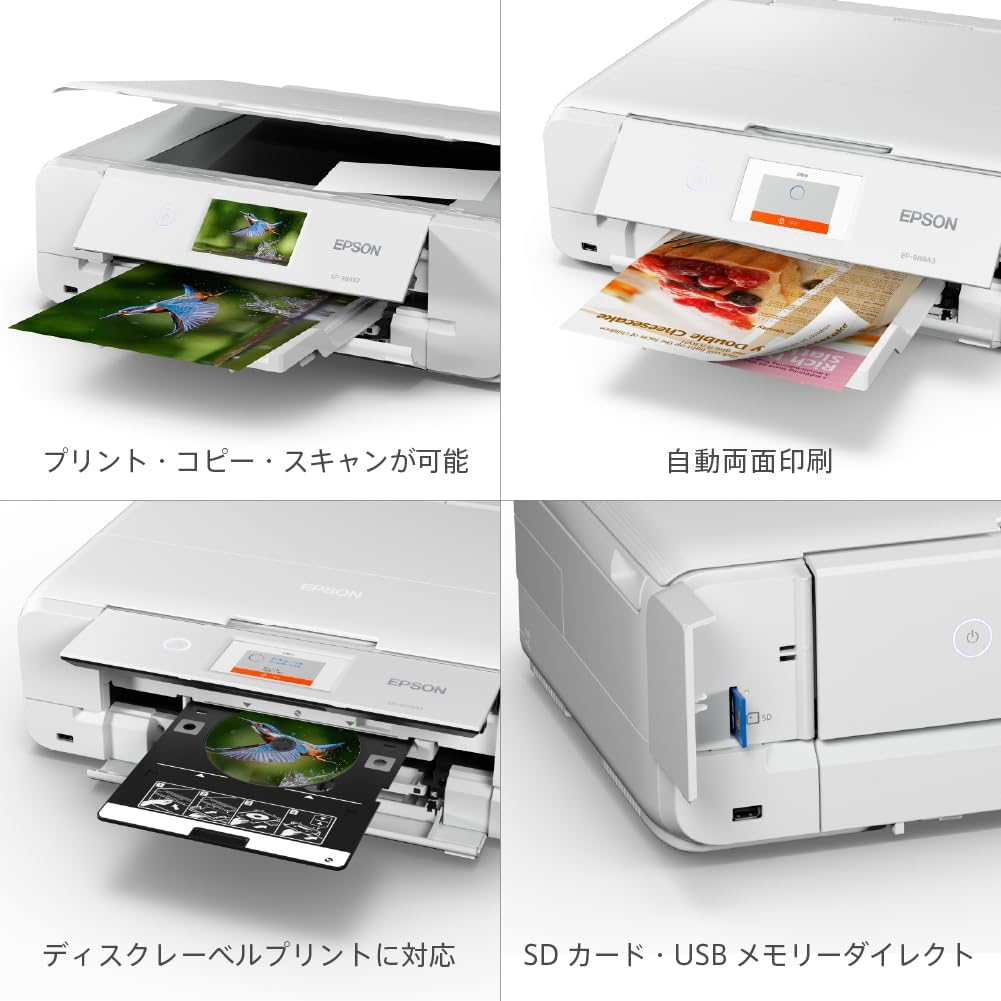
Image: A composite image demonstrating the printer's versatile functions: standard print/copy/scan, automatic double-sided printing, direct disc label printing, and direct printing from SD card/USB.

Image: The Epson EP-988A3 printer in action, demonstrating its speed by printing an L-size photo in approximately 13 seconds.
3.5 A3/B4 Two-Fold Copy Function
This unique function allows you to copy large A3 or B4 originals onto A3 or B4 paper even with an A4-sized scanner. Fold the large original in half, scan each half separately, and the printer will combine them to produce a full-size copy. This is particularly useful for educational materials and large documents.

Image: An illustrative diagram explaining the process of using the A3/B4 two-fold copy function to scan and reproduce large documents.
4. Maintenance
4.1 Ink Cartridge Replacement
When an ink cartridge runs low or is empty, a message will appear on the LCD screen. Replace the empty cartridge with a new, genuine Epson ink cartridge. It is recommended to have spare ink cartridges on hand to avoid interruptions.

Image: The Epson EP-988A3 printer displayed with a package of genuine Epson ink cartridges, emphasizing the recommendation to purchase spare ink.
4.2 Waste Ink Tank / Maintenance Box
The printer uses a maintenance box to collect waste ink from print head cleaning cycles. When the maintenance box is full, a message will appear, and it will need to be replaced. This is a user-replaceable part. Refer to the printer's on-screen instructions or the full electronic manual for detailed replacement steps.
4.3 Cleaning the Printer
Regularly clean the exterior of the printer with a soft, damp cloth. For print quality issues, perform nozzle checks and head cleaning cycles through the printer's maintenance menu. If print quality does not improve, a print head alignment may be necessary.
5. Troubleshooting
5.1 Common Issues and Solutions
- Printer Not Responding: Check power connection, USB/network cable, and ensure the printer is turned on. Restart both the printer and your computer/device.
- Paper Jams: Follow the on-screen instructions to clear any jammed paper. Ensure paper is loaded correctly and not creased or damaged.
- Poor Print Quality: Perform a nozzle check and head cleaning. If issues persist, try print head alignment. Ensure genuine Epson ink cartridges are used.
- "Waste Ink Tank Full" Error: Replace the maintenance box as instructed in Section 4.2.
- Slow Startup/Noisy Operation: The printer performs internal checks and adjustments upon startup or after periods of inactivity, which can cause motor sounds and delays. This is normal operation. Ensure the printer is placed on a stable surface to minimize vibration.
- Connectivity Issues: Verify Wi-Fi settings, ensure correct network password, or try connecting via Wi-Fi Direct or USB.
5.2 Power Button Behavior
Pressing the power button briefly will put the printer into sleep mode. To fully power off the printer, press and hold the power button until the printer completely shuts down. It is generally recommended to leave the printer in sleep mode for quicker readiness and automatic maintenance cycles, unless storing it for an extended period.
6. Specifications
| Feature | Specification |
|---|---|
| Model Name | EP-988A3 |
| Brand | Epson |
| Printer Output | Color |
| Printing Technology | Inkjet |
| Max Print Resolution (Color) | 4800 x 1200 dpi |
| Max Media (Paper) Size | A3 |
| Sheet Size | 420 millimeters |
| Duplex Printing | Yes |
| Max Load Sheets | 150 |
| Scanner Type | Sheetfed |
| Product Dimensions (W x D x H) | 47.9 x 35.6 x 14.8 cm |
| Product Weight | 10.6 Kilograms |
| Color | White |
| Features | Easy Mode |
| ASIN | B0FXLRXRMB |

Image: A detailed view of the Epson EP-988A3 printer, highlighting its compact dimensions of 35.6 cm depth, 47.9 cm width, and 14.8 cm height.
7. Warranty and Support
Epson offers comprehensive support services for the Colorio EP-988A3 printer to ensure long-term satisfaction.
7.1 Support Service Details
- 5-Year Support Service: For customers who wish to use the printer for an extended period, a 5-year support service is available. The service period begins from the product's purchase date. Registration on MyEPSON is required to utilize this service.
- Free Printer Pickup: In case of a repair, the printer can be picked up from your home at no additional cost.
- Unlimited Repairs and Pickups: Within the warranty period, there are no restrictions on the number of repairs or pickups.
- Remote Support for Initial Setup: Remote assistance is available for initial setup, provided a Colorio Smile Plus contract is active.
7.2 Important Notes
- Compensation Items: For details regarding compensation for incidents such as falls, water damage, or fire, please refer to the Colorio Smile Plus service terms of use.
- Repair Requests: Repair requests are exclusively accepted via the MyEPSON website. Phone requests for repairs are not accepted.
- MyEPSON Registration: Ensure your product is registered on MyEPSON to access full support benefits and manage your service contract.
