
Introduction
This manual provides essential instructions for the safe and efficient operation of your Nelko D810 Portable Wireless Thermal Printer. Please read this guide thoroughly before using the device to ensure proper setup, usage, and maintenance.
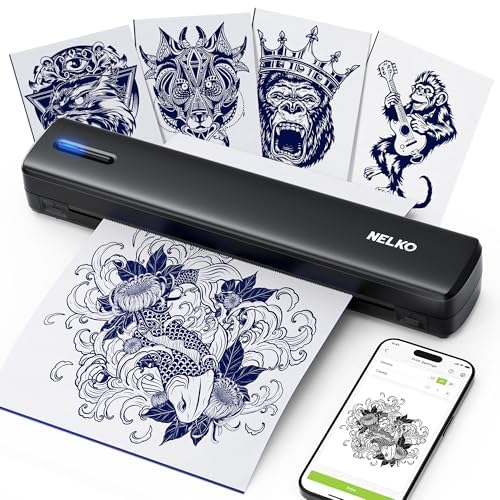
Image 1: Nelko D810 Portable Wireless Thermal Printer. This image displays the compact, black thermal printer, highlighting its sleek design.
1. Setup
1.1 Unboxing and Initial Inspection
Carefully remove all components from the packaging. Verify that all items listed in the packing list are present and undamaged. The package typically includes the printer, a quick start guide, a USB drive, and thermal paper.
1.2 App Download and Bluetooth Connection
- Locate the QR code in the quick start guide or search for the 'Nelko' app on Google Play Store or Apple App Store. Download and install the application on your mobile device.
- Ensure your printer is powered on and Bluetooth is enabled on your mobile device.
- Open the Nelko app and follow the on-screen instructions to connect to your D810 printer via Bluetooth. The app will guide you through the pairing process.
1.3 Paper Loading
- Open the paper entry slot on the printer.
- Insert the thermal paper, ensuring the printable side is correctly oriented according to the printer's indicators.
- Gently push the paper until the printer automatically feeds it into position. Ensure the paper width is compatible with the printer's specifications (8.5 x 11 inches).
Video 1: Unboxing and Setup Guide for Nelko D810 Printer. This video demonstrates the unboxing process, how to locate the quick start guide, and the initial setup steps including paper loading.
2. Operating Instructions
2.1 Printing from the Nelko App
- Once connected via Bluetooth, open the Nelko app.
- You can import local images or documents, create new designs, or use preset templates within the app.
- Adjust print settings such as rotation, crop, and density as needed.
- Confirm the print content and select the desired number of copies.
- Initiate the print process from the app. The printer will use thermal technology to print without ink.
2.2 Using the USB Drive
The included USB drive can be used for saving information or designs. Refer to the app's instructions for specific functionalities related to external storage.
3. Maintenance
3.1 Cleaning the Printer
Regularly clean the exterior of the printer with a soft, dry cloth. Avoid using abrasive cleaners or solvents. For the thermal print head, consult the detailed cleaning instructions in the full user manual (if provided) or contact customer support.
3.2 Paper Handling
Store thermal paper in a cool, dry place away from direct sunlight to maintain its quality. Ensure paper is loaded correctly to prevent jams and ensure clear prints.
3.3 Inkless Operation
The Nelko D810 is a thermal printer and does not require ink cartridges or toner. This eliminates the need for ink replacement and reduces ongoing maintenance.
4. Troubleshooting
4.1 Connectivity Issues
- Printer not found: Ensure the printer is powered on and within Bluetooth range. Restart both the printer and your mobile device. Re-open the Nelko app and attempt to pair again.
- Frequent disconnections: Check for interference from other wireless devices. Ensure the Nelko app is running in the foreground and has necessary permissions. Try re-pairing the device.
4.2 Print Quality Issues
- Unclear or faint prints: Verify that you are using compatible thermal paper. Adjust the print density settings within the Nelko app. Ensure the thermal print head is clean.
- Paper not suitable: The printer is designed for specific thermal paper sizes (8.5 x 11 inches). Using non-standard or incompatible paper may result in poor print quality or feeding issues.
4.3 Paper Feeding Problems
- Paper jams: Ensure paper is inserted straight and not wrinkled. Do not force paper into the feeder. Remove any jammed paper carefully according to the instructions in the full manual.
5. Specifications
- Brand: Nelko
- Model Name: D810
- Connectivity Technology: Bluetooth
- Printing Technology: Thermal
- Printer Output: Monochrome
- Maximum Media Size: 8.5 x 11 inches
- Print Media: Thermal Paper
- Resolution: 300 x 300 dpi
- Special Features: Portable, Lightweight, Inkless, Compatible with Phone/Tablet/PC, Rechargeable, Specialized for Tattoo Stencils
- Color: Black
- UPC: 850076965235
6. Warranty Information
This product comes with a limited warranty. For detailed information regarding warranty terms, coverage, and duration, please refer to the warranty card included in your product packaging or visit the official Nelko website.
7. Customer Support
If you encounter any issues not covered in this manual or require further assistance, please contact Nelko customer support. Refer to your product packaging or the official Nelko website for contact details.

