
1. Introduction
This manual provides essential information for setting up, operating, and maintaining your ASUS NUC 15 Pro Mini Desktop Computer. This compact and powerful AI Mini PC features an Intel Series 2 Core Ultra 7 255H processor, Intel Arc 140T GPU, 32GB DDR5 RAM, and a 1TB PCIe SSD, running on Windows 11 Pro. It is designed for demanding tasks such as AI computing, video editing, 3D rendering, and gaming, offering 8K/Quad 4K HDR display support and advanced connectivity options like Thunderbolt 4 and WiFi 7.
2. Package Contents
Verify that all items are present in your package:
- ASUS NUC 15 Pro Mini PC
- AC Adapter & Power Cord
- VESA Mount
- Wireless Keyboard
- Wireless Mouse
- User Manual (this document)
3. Product Overview
3.1 Key Features
- Processor: Intel Series 2 Core Ultra 7 255H (16 cores, 16 threads, up to 5.1 GHz, 24 MB Intel Smart Cache)
- Graphics: Integrated Intel Arc 140T GPU
- Memory: 32GB DDR5 RAM (upgradeable to 128GB)
- Storage: 1TB PCIe 4.0 SSD (upgradeable to 48TB)
- Operating System: Windows 11 Pro
- Display Support: Up to 8K or Quad 4K HDR via HDMI 2.1 and Thunderbolt 4
- Connectivity: Wi-Fi 7, Bluetooth 5.4, 2.5G Gigabit Ethernet
- Ports: 1x USB 3.2 Gen2 x 2 Type-C, 3x USB 3.2 Gen2 Type-A, 1x USB 2.0 Gen2 Type-A, 2x HDMI 2.1, 2x Thunderbolt 4, 1x 2.5G Gigabit Ethernet
3.2 Processor and AI Capabilities
The Intel Series 2 Core Ultra 7 255H processor, with its 16 cores and 16 threads, provides robust performance for demanding applications. The integrated Intel Arc 140T GPU and built-in AI Acceleration Engine enhance AI computing, video editing, and 3D rendering tasks.

Figure 3.2.1: Overview of the Intel Core Ultra 7 255H processor specifications, highlighting 16 cores, 16 threads, 24 MB cache, 96 TOPS, and 5.1 GHz max turbo frequency.

Figure 3.2.2: Illustration of the Neural Processing Unit (NPU) for on-device AI acceleration, supporting applications like Midjourney, DeepSeek, Photoshop, and Premiere Pro.
3.3 Ports and Connectivity
The ASUS NUC 15 Pro offers a comprehensive array of ports for connecting various peripherals and displays.

Figure 3.3.1: Diagram illustrating the various ports on the ASUS NUC 15 Pro, including USB 3.2 Gen2 x 2 Type-C, USB 3.2 Gen2 Type-A, USB 2.0 Type-A, HDMI 2.1, Thunderbolt 4, and 2.5G Ethernet.
4. Setup Guide
4.1 Initial Connection
- Connect Display: Connect your monitor(s) to the HDMI 2.1 or Thunderbolt 4 ports. The system supports up to four 4K HDR displays or one 8K display.
- Connect Peripherals: Plug in the wireless keyboard and mouse receiver into an available USB port. Connect any other USB devices as needed.
- Connect Power: Connect the AC adapter to the DC-In port on the mini PC, then plug the power cord into an electrical outlet.
- Network Connection: For wired internet, connect an Ethernet cable to the 2.5G Gigabit Ethernet port. For wireless internet, ensure your Wi-Fi network is available.
- Power On: Press the power button located on the front of the device.

Figure 4.1.1: Visual representation of the ASUS NUC 15 Pro connected to multiple displays, demonstrating its support for quad 4K or 8K display configurations via HDMI and Thunderbolt ports.
4.2 Operating System Setup
Upon first boot, the Windows 11 Pro operating system will guide you through the initial setup process, including language selection, network configuration, and user account creation. Follow the on-screen instructions to complete the setup.
5. Operating Instructions
5.1 General Use
Your ASUS NUC 15 Pro is ready for a wide range of applications, from everyday computing to intensive tasks.
- Multitasking: Leverage the powerful Intel Core Ultra 7 processor for seamless multitasking across various applications.
- AI Computing: Utilize the integrated AI capabilities for enhanced performance in AI-driven software.
- High-Resolution Displays: Connect multiple high-resolution monitors for an expansive workspace or immersive entertainment.
5.2 Connectivity
The mini PC offers advanced connectivity options for fast and reliable data transfer and network access.
- Wi-Fi 7: For high-speed wireless internet access.
- Bluetooth 5.4: For connecting wireless peripherals such as headphones, speakers, and game controllers.
- Thunderbolt 4: Provides high-bandwidth connections for external GPUs, high-speed storage, and display output.
- 2.5G Ethernet: For ultra-fast wired network connections.

Figure 5.2.1: Diagram highlighting the advanced connectivity features of the ASUS NUC 15 Pro, including Wi-Fi 7, Bluetooth 5.4, and 2.5G LAN for uninterrupted network performance.
5.3 Usage Scenarios
The ASUS NUC 15 Pro is versatile and suitable for various applications:
- Graphic Design / Video Processing: Utilize the powerful CPU and GPU for demanding creative tasks.
- Gaming: Enjoy a smooth gaming experience with the Intel Arc 140T GPU.
- NAS (Network Attached Storage): Its compact size and connectivity make it suitable for home server applications.
- Home Theater: Connect to your TV for 8K or 4K HDR media playback.

Figure 5.3.1: Examples of how the ASUS NUC 15 Pro can be used, including graphic design, video processing, gaming, network attached storage (NAS), and as a home theater PC.
6. Maintenance and Upgrades
6.1 Memory and Storage Upgrades
The ASUS NUC 15 Pro features a tool-free design for easy upgrades of RAM and SSD.
- RAM: Supports 16GB–64GB DDR5 RAM, upgradeable to 128GB.
- SSD: Supports 512GB–2TB PCIe 4.0 SSDs, upgradeable to 48TB.
- Procedure: Refer to the detailed instructions in the physical user manual for safe access and installation of components.
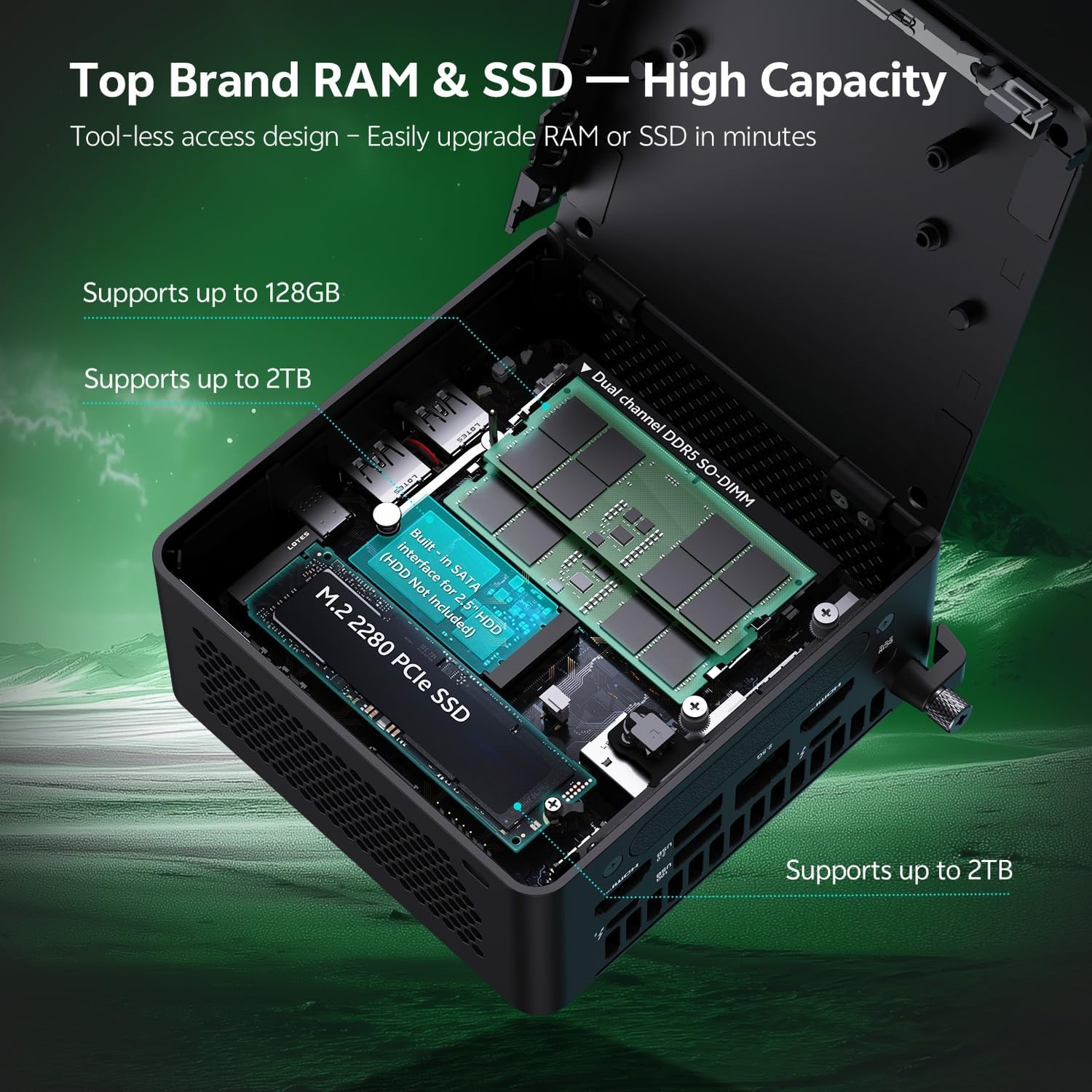
Figure 6.1.1: Internal layout of the ASUS NUC 15 Pro, illustrating the dual-channel DDR5 SO-DIMM slots for RAM and the M.2 2280 PCIe SSD slot, both designed for tool-less access and upgrades.
6.2 Cooling System
The device incorporates a Smart Silent Cooling System with dual heat pipes and a large fan to ensure efficient heat dissipation and stable performance.
- Ensure proper ventilation around the mini PC to prevent overheating.
- Periodically clean dust from the vents using compressed air to maintain optimal cooling efficiency.

Figure 6.2.1: Exploded view diagram of the ASUS NUC 15 Pro's Smart Silent Cooling System, showing dual heat pipes and a large fan designed for efficient thermal management and multi-ventilation.
7. Troubleshooting
If you encounter issues with your ASUS NUC 15 Pro, refer to the following common troubleshooting steps:
- No Power:
- Ensure the AC adapter is securely connected to both the mini PC and a working power outlet.
- Verify the power cord is not damaged.
- No Display:
- Check that the display cable (HDMI or Thunderbolt) is firmly connected to both the mini PC and the monitor.
- Ensure the monitor is powered on and set to the correct input source.
- Try a different display cable or monitor if available.
- No Internet Connection:
- For wired connections, check the Ethernet cable and router status.
- For Wi-Fi, ensure Wi-Fi is enabled in Windows settings and you are connected to the correct network.
- Restart your router/modem and the mini PC.
- Peripherals Not Responding:
- Ensure wireless keyboard/mouse receivers are properly inserted into a USB port.
- Check battery levels for wireless peripherals.
- Try connecting peripherals to different USB ports.
8. Specifications
| Feature | Detail |
|---|---|
| Brand | ASUS |
| Model Name | RNUC15HU7 |
| Operating System | Windows 11 Pro |
| CPU Model | Intel Core Ultra 7 255H |
| CPU Speed | Up to 5.1 GHz |
| Graphics Coprocessor | Intel Arc 140T GPU |
| RAM Memory Installed Size | 32 GB DDR5 (Upgradeable to 128 GB) |
| Memory Storage Capacity | 1 TB PCIe SSD (Upgradeable to 48 TB) |
| Hardware Interface | HDMI, Thunderbolt 4, USB 2.0 Type A, USB 3.2 Gen 2 |
| Connectivity Technology | Bluetooth 5.4, Wi-Fi 7, Ethernet (2.5G) |
| Video Output Interface | HDMI 2.1, Thunderbolt 4 |
| Item Dimensions (L x W x H) | 4.6 x 4.4 x 2.1 inches |
| Weight | 1.36 lbs |
| Color | Black |
| UPC | 197105156340 |
9. Warranty and Support
9.1 Warranty Information
Your ASUS NUC 15 Pro Mini Desktop Computer comes with a 12-month warranty. This warranty covers manufacturing defects and issues arising from normal use. Please retain your proof of purchase for warranty claims.
Note: The manufacturer box is opened by professional engineers for customizing and testing. Factory defects and blemishes are significantly reduced by this in-depth inspection and testing process.
9.2 Technical Support
For technical assistance, troubleshooting beyond this manual, or warranty inquiries, please contact ASUS customer support.
- Visit the official ASUS support website for drivers, FAQs, and contact information.
- Have your product model (RNUC15HU7) and serial number ready when contacting support.


