
1. Introduction and Overview
This manual provides essential instructions for the proper use, setup, operation, and maintenance of your Mares Puck Lite Scuba Diving Computer. Please read this manual thoroughly before using the device to ensure safe and effective operation. Retain this manual for future reference.

Image 1.1: Mares Puck Lite Scuba Diving Computer. This image displays the computer from an angled perspective, highlighting its watch-style design and the clear segment display showing dive data.
2. Key Features
The Mares Puck Lite Scuba Diving Computer is designed to provide essential dive information with ease of use. Key features include:
- Advanced Algorithm: Utilizes the Bühlmann ZH-L16C algorithm, allowing for customizable gradient factors to enhance safety and precision during decompression dives.
- Nitrox Compatibility: Supports Nitrox mixtures from 21% to 50%, offering flexibility for various dive plans.
- User-Friendly Display: Features a crystal-clear segment display with 800 segments and chip-on-glass technology for optimal visibility underwater.
- Intuitive Navigation: Single-button control simplifies access to functions, even when wearing gloves.
- Comprehensive Dive Log: Stores up to 100 dives with detailed profiles and graphs, accessible via Mares and SSI apps.
- Long-Lasting Power: Equipped with a user-replaceable CR2430 battery, providing power for approximately 100 dives.
- Smart Connectivity: Integrated Bluetooth interface for direct connection to smart devices, enabling firmware updates and data syncing.
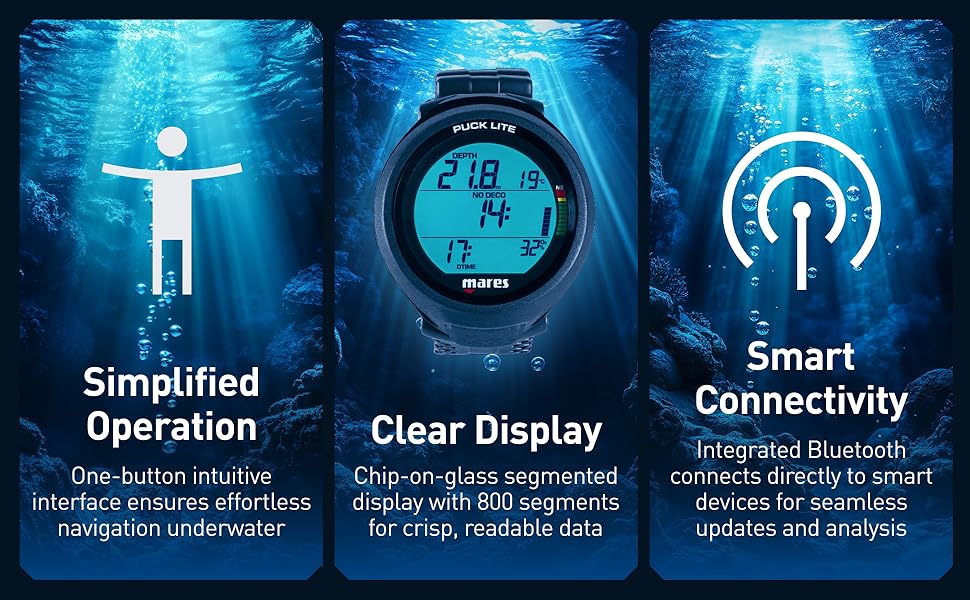
Image 2.1: Feature highlights of the Mares Puck Lite. This image visually represents the simplified operation, clear display, and smart connectivity capabilities of the dive computer.
3. Setup
3.1 Battery Installation
The Mares Puck Lite uses one CR2430 battery. Ensure the battery is correctly installed before first use and replace it when the low battery indicator appears.
- Locate the battery compartment on the back of the computer.
- Using a coin or appropriate tool, carefully unscrew the battery cover counter-clockwise.
- Insert the new CR2430 battery with the positive (+) side facing up.
- Ensure the O-ring seal is clean and properly seated in its groove. Apply a thin layer of silicone grease if necessary.
- Screw the battery cover back on clockwise until it is hand-tight. Do not overtighten.

Image 3.1: Rear view of the Mares Puck Lite. This image shows the back of the dive computer, including the user-replaceable battery compartment.
3.2 Initial Settings
Upon first activation or after battery replacement, you will need to configure basic settings:
- Units: Select between Metric (meters, Celsius) or Imperial (feet, Fahrenheit). Use the single button to cycle through options and confirm.
- Time and Date: Set the current time and date.
- Personal Safety Factor: Adjust the Bühlmann ZH-L16C algorithm's gradient factors according to your experience and dive plan. Refer to advanced diving literature for guidance on gradient factors.
3.3 Smart Device Connectivity
The Puck Lite features an integrated Bluetooth interface for connecting to the Mares and SSI apps on your smartphone or tablet.
- Download the official Mares or SSI app from your device's app store.
- Enable Bluetooth on your smart device.
- Follow the in-app instructions to pair your Mares Puck Lite. This allows for firmware updates and detailed dive log analysis.
4. Operating Instructions
4.1 Single-Button Navigation
The Mares Puck Lite is operated using a single button. Short presses typically cycle through information or options, while a long press confirms a selection or enters a menu.
4.2 Dive Modes
The computer supports Scuba and Freediving modes. Ensure the correct mode is selected before your dive.
- Scuba Mode: Provides real-time depth, dive time, no-decompression limits, ascent rate warnings, and temperature.
- Freediving Mode: Optimized for freediving, displaying current depth, maximum depth, dive time, and surface interval.
4.3 Nitrox Settings
If diving with Nitrox, configure the oxygen percentage (O2%) before each dive. The Puck Lite supports O2% from 21% to 50%.
- Access the Nitrox settings menu (refer to the on-screen prompts or the Mares app for specific navigation).
- Adjust the O2% to match your analyzed gas mixture.
- Confirm the setting.
4.4 Display Information
The clear segment display provides critical information at a glance:

Image 4.1: Mares Puck Lite display. This image provides a clear view of the computer's screen, showing various dive parameters such as depth, no-decompression time, and temperature.
- DEPTH: Current depth.
- NO DECO: No-decompression limit.
- DTIME: Dive time.
- Temperature: Water temperature.
- N2/O2 Bar Graph: Visual representation of nitrogen and oxygen loading.
4.5 Logbook Access
The Puck Lite automatically logs your dives. To review your dive history:
- Enter the logbook menu (typically a long press from the surface screen).
- Use short presses to scroll through previous dives.
- For detailed analysis, sync your computer with the Mares or SSI app via Bluetooth.
5. Maintenance
5.1 Cleaning and Storage
- After each dive, rinse the computer thoroughly with fresh water to remove salt, sand, and chlorine.
- Allow the computer to air dry completely before storage.
- Store the computer in a cool, dry place, away from direct sunlight and extreme temperatures.
5.2 Battery Replacement
Replace the CR2430 battery when the low battery indicator appears on the display. Refer to Section 3.1 for detailed instructions. Always ensure the O-ring is clean and properly sealed to maintain water integrity.
5.3 Firmware Updates
Periodically check for firmware updates through the Mares or SSI apps. Keeping your computer's firmware updated ensures optimal performance and access to the latest features and bug fixes.
6. Troubleshooting
If you encounter issues with your Mares Puck Lite, consider the following:
- Display Not Working: Check the battery. Ensure it is correctly installed and has sufficient charge. Replace if necessary.
- Difficulty Changing Settings (e.g., Metric/Imperial): Ensure you are following the correct button press sequence (short press to cycle, long press to confirm). If issues persist, consult the Mares app or online support resources for detailed menu navigation.
- Inaccurate Readings: Ensure the computer is properly calibrated and that no external factors (e.g., strong magnetic fields) are interfering with its sensors.
- Connectivity Issues: Ensure Bluetooth is enabled on both devices and that the Mares Puck Lite is in pairing mode. Try restarting both devices.
For persistent issues or technical support, please contact Mares customer service or visit the official Mares website.
7. Specifications
| Feature | Specification |
|---|---|
| Model Number | 414172 |
| Product Dimensions | 5.25 x 5.25 x 6.75 inches |
| Item Weight | 1 Pound |
| Battery Type | 1 x CR2430 (user-replaceable) |
| Algorithm | Bühlmann ZH-L16C (customizable gradient factors) |
| Nitrox Compatibility | 21% - 50% O2 |
| Logbook Capacity | 100 dives |
| Connectivity | Bluetooth |
| Display Technology | Segment display with 800 segments, chip-on-glass |
| Material | Glass (display) |
| Manufacturer | Mares |
| UPC | 194151182767 |
8. Warranty and Support
Mares products are manufactured to high-quality standards and are covered by a limited warranty against manufacturing defects. For specific warranty terms and conditions, please refer to the warranty card included with your product or visit the official Mares website.
For further assistance, technical support, or to locate an authorized service center, please visit the Mares official website or contact their customer service department.