
Introduction
This manual provides comprehensive instructions for the installation, operation, and maintenance of your PHEZEN 2+64G Single Din Car Radio Touchscreen. Please read this manual thoroughly before using the product to ensure proper function and safety. Keep this manual for future reference.
Product Overview
Key Features
- 7-Inch Retractable Capacitive Touchscreen: 1024x600 resolution with anti-glare display and colorful LED backlighting.
- Android 13 Operating System: Powered by 2GB RAM + 64GB ROM for smooth performance.
- Bluetooth 5.1: For hands-free calls and audio streaming.
- WiFi (2.4/5GHz): Enables fast internet access and hotspot functionality.
- Wired/Wireless CarPlay & Android Auto: Seamless smartphone integration.
- Mirror Link: Supports both iOS and Android devices.
- FM/RDS Radio: Provides radio reception and traffic information.
- Triple USB Interfaces: Front charging, front/rear data for media playback and charging.
- 60W x 4 High-Power Output: For rich sound experience.
- Steering Wheel Key Learning: Customizable controls.
- Optional Backup Camera Support: For safe parking.
- Optional External USB DAB Box Compatibility: Expands radio options.
- Optional USB Driving Recorder: For journey recording.
What's in the Box
- 1 x Car MP5 Player
- Wiring Harness
- GPS Antenna
- Mounting Brackets

Image: The PHEZEN Single Din Car Radio and its accompanying accessories, including the wiring harness, GPS antenna, and mounting brackets.
Setup
Installation
The unit features a compact 178x53mm installation size and a rugged 188x58mm case with a 160mm depth, designed to fit most dashboards. Ensure your vehicle's dashboard opening is compatible with a single DIN unit. Professional installation is recommended.
- Preparation: Disconnect the vehicle's negative battery terminal before starting installation.
- Mounting: Secure the car radio into the dashboard opening using the provided mounting brackets.
- Wiring: Connect the wiring harness according to your vehicle's wiring diagram. Ensure all connections are secure to prevent electrical issues.
- GPS Antenna: Mount the GPS antenna in a location with a clear view of the sky, typically on the dashboard or under the windshield.
- Backup Camera (Optional): If installing a backup camera, connect it to the designated input on the car radio and route the cable appropriately.
- Power On: Reconnect the vehicle's negative battery terminal and power on the unit to test functionality.

Image: An example of the car radio installed in a vehicle, demonstrating the retractable screen in its extended position.
Operating Instructions
Panel Introduction

Image: Detailed view of the car radio's front panel, highlighting the power button, volume controls, microphone, Type-C charging port, USB play/mobile phone charging port, 3.5mm audio input, reset button, previous/next track/navigation controls, and mute button. It also shows the electric screen one-touch extension and retraction.
Basic Operation
- Power On/Off: Press the power button (labeled 'SET' on the panel) to turn the unit on or off.
- Volume Control: Use the 'VOL+' and 'VOL-' knobs to adjust the audio volume.
- Screen Retraction/Extension: The electric screen can be extended or retracted with a one-touch control.
Bluetooth 5.1
Connect your smartphone via Bluetooth 5.1 for hands-free calling and music streaming. Access the Bluetooth menu on the touchscreen to pair your device.

Image: The Bluetooth 5.2 interface displayed on the car radio screen, illustrating the phone dialer for hands-free calling.
CarPlay, Android Auto & Mirror Link
The unit supports wired and wireless CarPlay and Android Auto for seamless smartphone integration. Mirror Link functionality is also available for both iOS and Android devices.
- CarPlay/Android Auto: Connect your compatible smartphone via USB or wirelessly (if supported by your phone and the unit) to access navigation, music, messages, and calls directly on the car radio screen.
- Mirror Link: Follow the on-screen instructions to mirror your smartphone's display onto the car radio.

Image: A visual representation of CarPlay, Android Auto, and Mirror Link interfaces, showing how calls, messages, navigation, and music are displayed on the car radio screen.
GPS Navigation & WiFi Function
Utilize the built-in GPS for navigation. Connect to WiFi (2.4/5GHz) via a hotspot to access online maps and other internet-dependent applications.
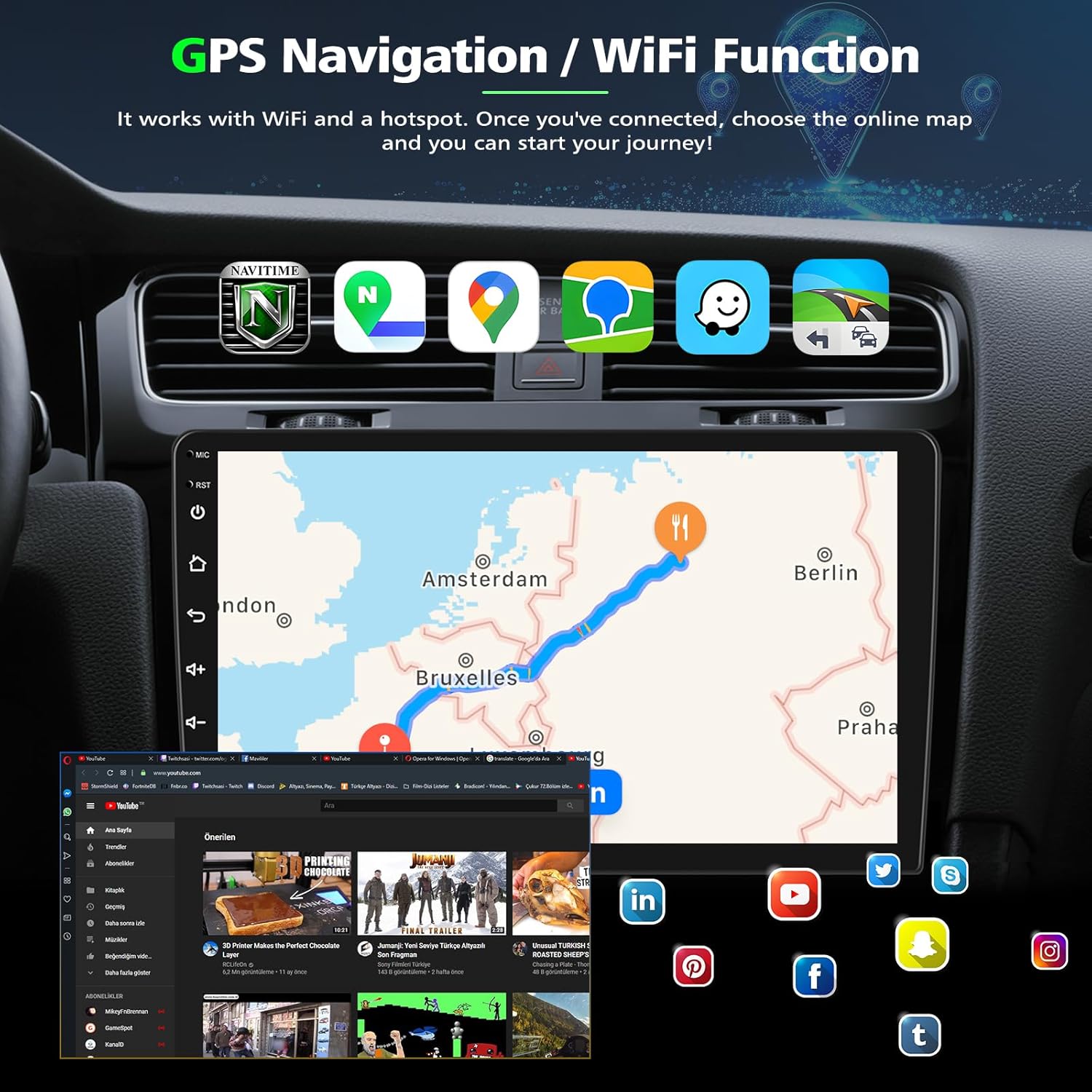
Image: The car radio screen displaying GPS navigation with a route from London to Berlin, alongside various app icons and a web browser interface, demonstrating WiFi functionality.
FM/RDS Radio
Tune into your favorite FM radio stations. The RDS (Radio Data System) feature provides additional information like station name and traffic updates.
Image: The FM/RDS Radio interface on the car radio screen, showing a frequency of 102.30 MHz and various radio controls.
Steering Wheel Control
The unit supports steering wheel key learning, allowing you to program your vehicle's steering wheel buttons to control various functions of the car radio for convenience and safety.

Image: The steering wheel control learning interface on the car radio screen, showing options for brightness, navigation, GPS detection, steering learn, logo settings, and other settings, with a hand pressing a steering wheel button.
Voice Control
Utilize voice commands for hands-free operation, compatible with assistants like Siri and Google Assistant, to manage calls, music, and navigation.
Image: The voice control feature in action, showing prompts like "Hi Siri, Call John" and "Hi Google, Next Song" on the car radio screen.
Split Screen
The split-screen function allows you to run two applications simultaneously, such as navigation and music playback, enhancing multitasking capabilities.
Image: The split-screen feature displaying navigation on one side and a video/music player on the other, demonstrating simultaneous application usage.
Backup Camera (Optional)
If an optional backup camera is installed, the display will automatically switch to the camera view when the vehicle is put into reverse, providing a clear view of the area behind your car for safer parking.
Image: The reverse display from a backup camera shown on the car radio screen, featuring a wide-angle view with reference lines for parking assistance.
Maintenance
- Screen Cleaning: Use a soft, lint-free cloth to gently wipe the touchscreen. For stubborn smudges, slightly dampen the cloth with water or a screen-safe cleaner. Avoid harsh chemicals.
- Software Updates: Periodically check for software updates to ensure optimal performance and access to new features. Follow the on-screen prompts or manufacturer's instructions for updating.
- General Care: Keep the unit free from dust and debris. Avoid exposing it to extreme temperatures or direct sunlight for prolonged periods.
Troubleshooting
| Problem | Possible Cause | Solution |
|---|---|---|
| No Power | Incorrect wiring; Blown fuse; Vehicle battery low. | Check wiring connections; Inspect and replace fuse if necessary; Check vehicle battery. |
| No Sound | Volume too low; Mute activated; Speaker wiring issue. | Increase volume; Deactivate mute; Check speaker connections. |
| Bluetooth Disconnection | Out of range; Interference; Device not paired correctly. | Ensure device is within range; Reduce interference; Re-pair the device. |
| CarPlay/Android Auto Not Connecting | Incorrect USB cable; Phone settings; Software glitch. | Use a high-quality USB cable; Check phone's CarPlay/Android Auto settings; Restart both phone and car radio. |
| Touchscreen Unresponsive | Temporary software issue; Screen calibration needed. | Restart the unit; Perform a factory reset (refer to settings menu); Contact support if issue persists. |
Specifications
| Feature | Detail |
|---|---|
| Brand | PHEZEN |
| Model | B0FXGHX51F |
| Screen Size | 7-inch Retractable Capacitive Touchscreen |
| Screen Resolution | 1024x600 |
| Operating System | Android 13 |
| Memory | 2GB RAM + 64GB ROM |
| Bluetooth Version | 5.1 |
| WiFi | 2.4/5GHz |
| Power Output | 60W x 4 |
| Operating Voltage | 12-14.4V |
| Operating Temperature | -10°C to 60°C |
| Installation Size | 178x53mm |
| Case Dimensions | 188x58mm (depth 160mm) |
| Connectivity Technology | Bluetooth, USB Type A |
| Compatible Devices | Smartphone (Android, iOS) |
| Special Features | Android Auto, Apple CarPlay, GPS Navigation, Hands-Free Calling, Touchscreen |
Warranty and Support
Warranty Information
The manufacturer's warranty for this product is listed as 'NON' in the product specifications. Please refer to your retailer's return policy or contact them directly for any warranty-related inquiries.
Customer Support
For technical assistance, troubleshooting not covered in this manual, or further inquiries, please contact the seller or manufacturer directly through their official support channels. Keep your purchase receipt and product model number (B0FXGHX51F) handy when contacting support.