
YOSUN MJFM3LL
YOSUN Replacement Remote Control for Apple TV 4K/HD (Model MJFM3LL) Instruction Manual
Model: MJFM3LL
Introduction
This manual provides instructions for the YOSUN Replacement Remote Control, designed for use with Apple TV 4K and HD models. This remote offers essential control functions without requiring complex setup. Please read this manual thoroughly before use.
Important Note: This remote control does NOT support Siri or voice control functions. It also does not feature Bluetooth or touchpad functionality. Power, Volume, and Mute buttons are compatible with specific TV brands only (Samsung, LG, Vizio, Hisense, Sony, Amazon Fire TV, Toshiba, Insignia Fire TV).
Device Compatibility
The YOSUN Replacement Remote Control is compatible with the following Apple TV models:
- Apple TV Remote (white) A1156 MA128LL/A
- Apple TV Remote (aluminum) MM4T2AM/A
- Siri Remote (1st Gen) / Apple TV Remote (1st Gen) MQGD2LL/A
- Siri Remote (2nd Gen) / Apple TV Remote (2nd Gen) MJFM3LL/A
- Siri Remote (3rd Gen) / Apple TV Remote (3rd Gen) MNC73AM/A
This remote is designed to work with Apple TV (1st/2nd/3rd Gen), Apple TV HD (4th/5th Gen), and Apple TV 4K (1st/2nd/3rd Gen).
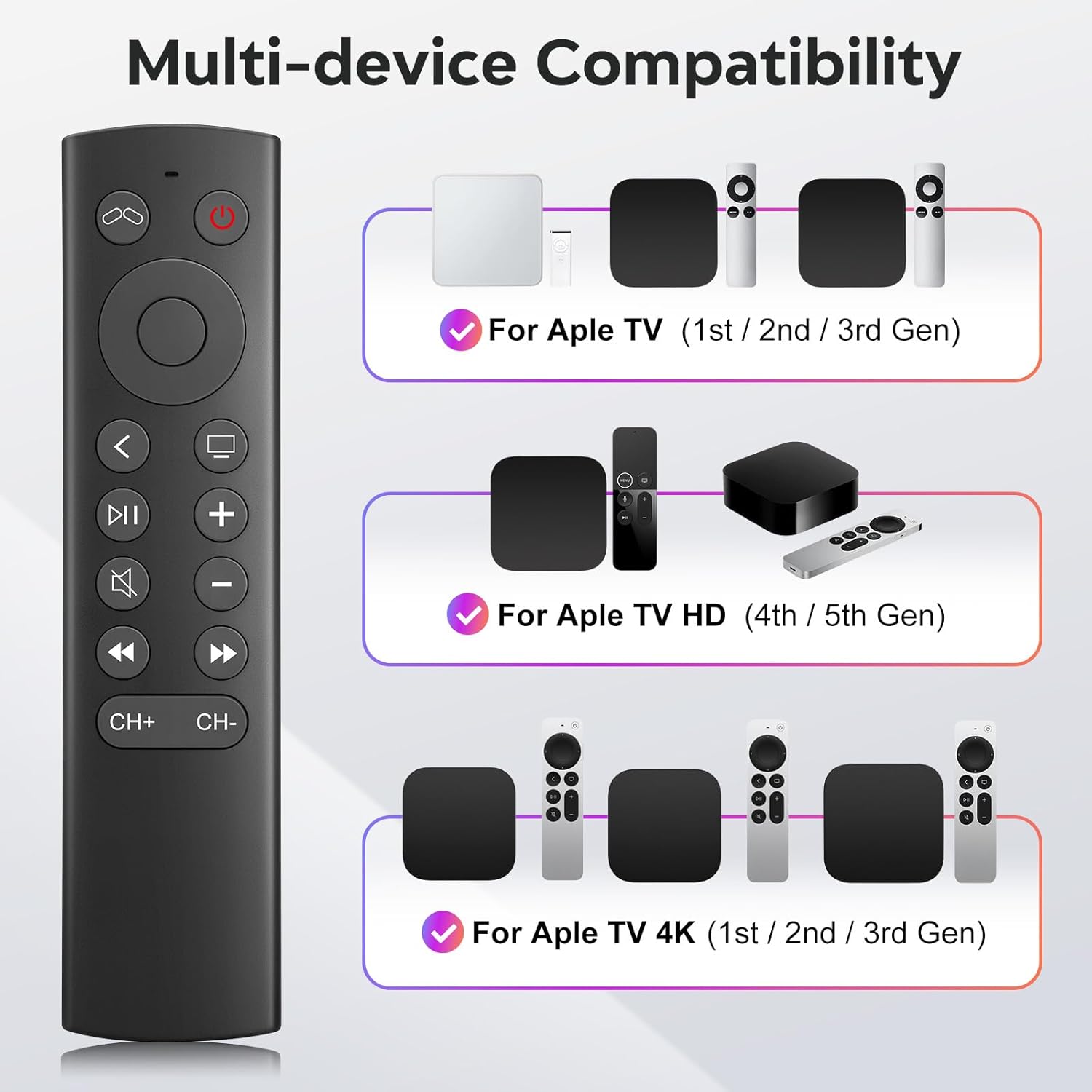
Figure 1: Multi-device compatibility overview for the YOSUN remote.
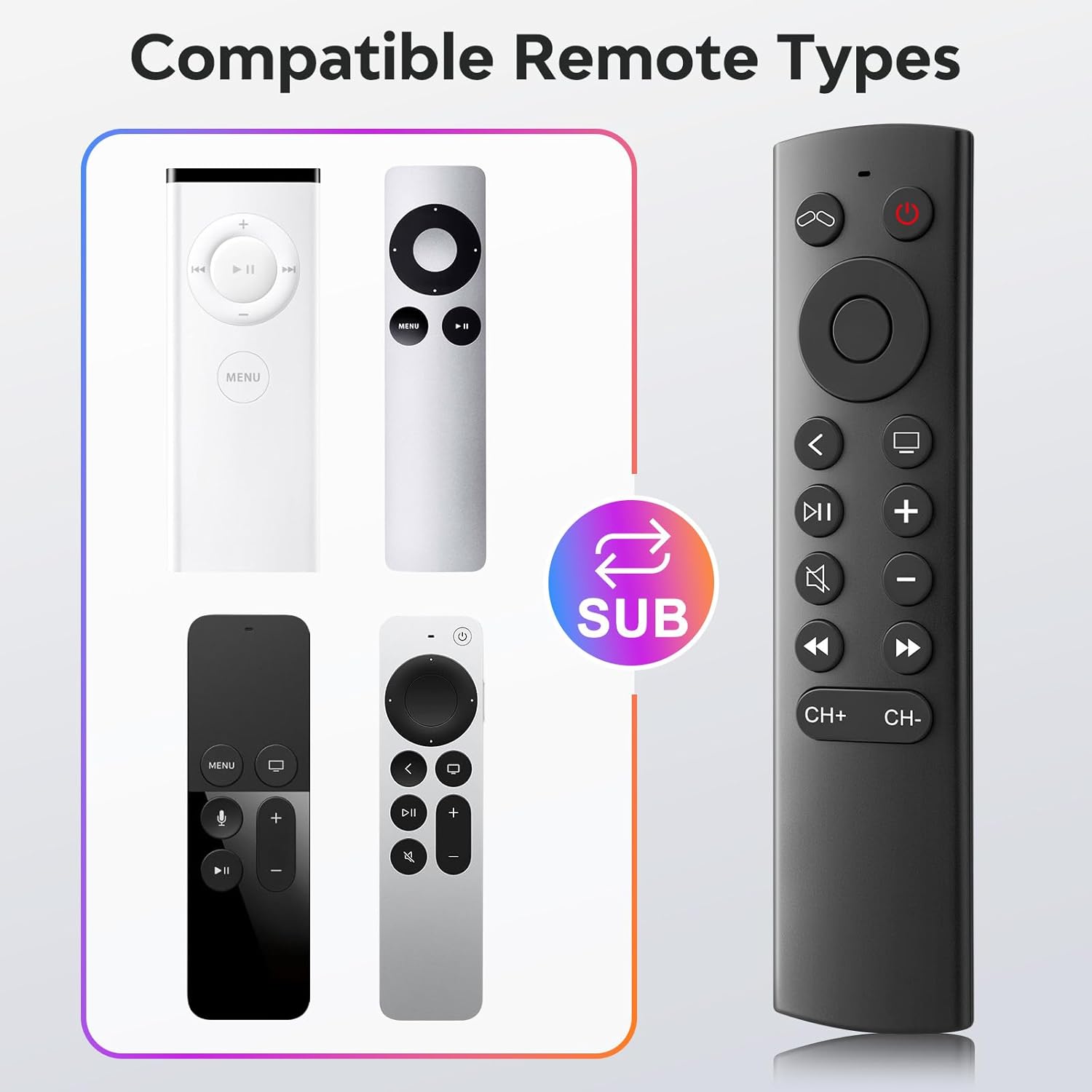
Figure 2: Compatible remote types that the YOSUN remote can replace.
Setup Instructions
- Insert Batteries: Open the battery compartment on the back of the remote control. Insert two (2) AAA batteries, ensuring correct polarity (+/-). (Batteries are not included).
- No Pairing Required: This remote control operates using infrared (IR) technology and does not require any programming or pairing with your Apple TV device. It is ready to use immediately after battery installation.
- Unlock Previous Device (if applicable): If you are replacing an older Apple TV remote (1st, 2nd, or 3rd Gen), you might need to "unlock" the old device using its original remote control first. This ensures the new remote can connect properly.
- Click the TV Power button on the YOSUN remote.
- Wait for the "unlocked" icon (two interlocking circles, one purple, one orange) to appear on your screen.
- Click the TV Power button once more to "unlock" your old device.
- Once unlocked, the YOSUN remote should function as usual.
Note: The "Unlock / Locked" function only supports Apple TV (1st / 2nd / 3rd Gen).
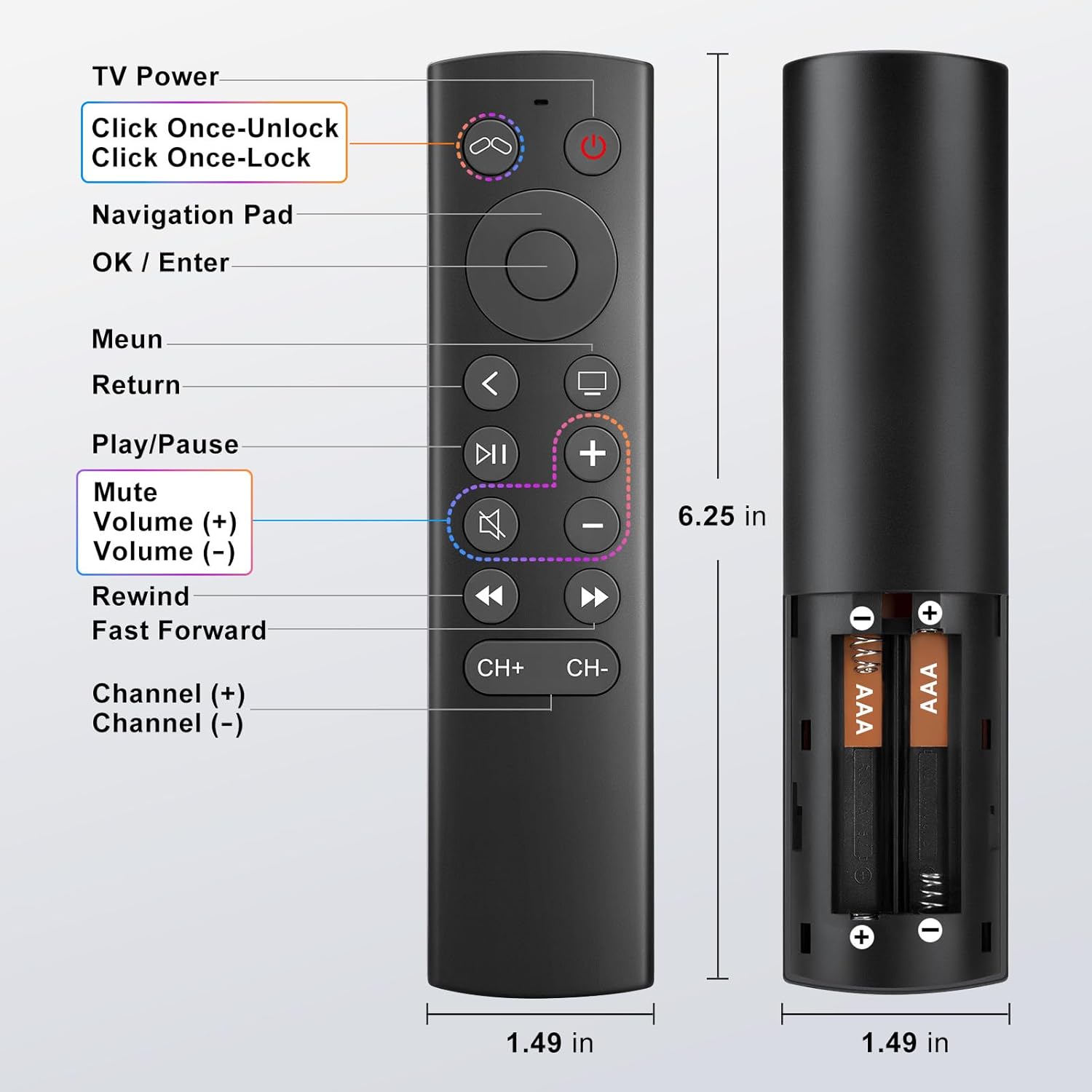
Figure 3: Battery installation diagram.
Operating Instructions
The YOSUN Replacement Remote Control provides intuitive access to your Apple TV functions. Refer to the button layout below for specific controls.
Figure 4: Remote Control Button Layout and Functions.
Key Functions:
- TV Power Button: Controls the power of your television.
- Navigation Pad (Up, Down, Left, Right): Navigates through menus and content.
- OK / Enter Button: Confirms selections.
- Menu Button: Returns to the previous menu or home screen.
- Return Button: Goes back to the previous screen.
- Play/Pause Button: Controls media playback.
- Mute Button: Mutes or unmutes TV audio.
- Volume (+) / Volume (-) Buttons: Adjusts TV volume.
- Rewind / Fast Forward Buttons: Controls media playback speed.
- Channel (+) / Channel (-) Buttons: Changes channels (if supported by your TV setup).
Note on TV Control Buttons: The Power, Volume, and Mute buttons are designed to control your television directly. These buttons are compatible with Samsung, LG, Vizio, Hisense, Sony, Amazon Fire TV, Toshiba, and Insignia Fire TV brands only. For other TV brands, these buttons may not function.

Figure 5: Important functional limitations of the remote.
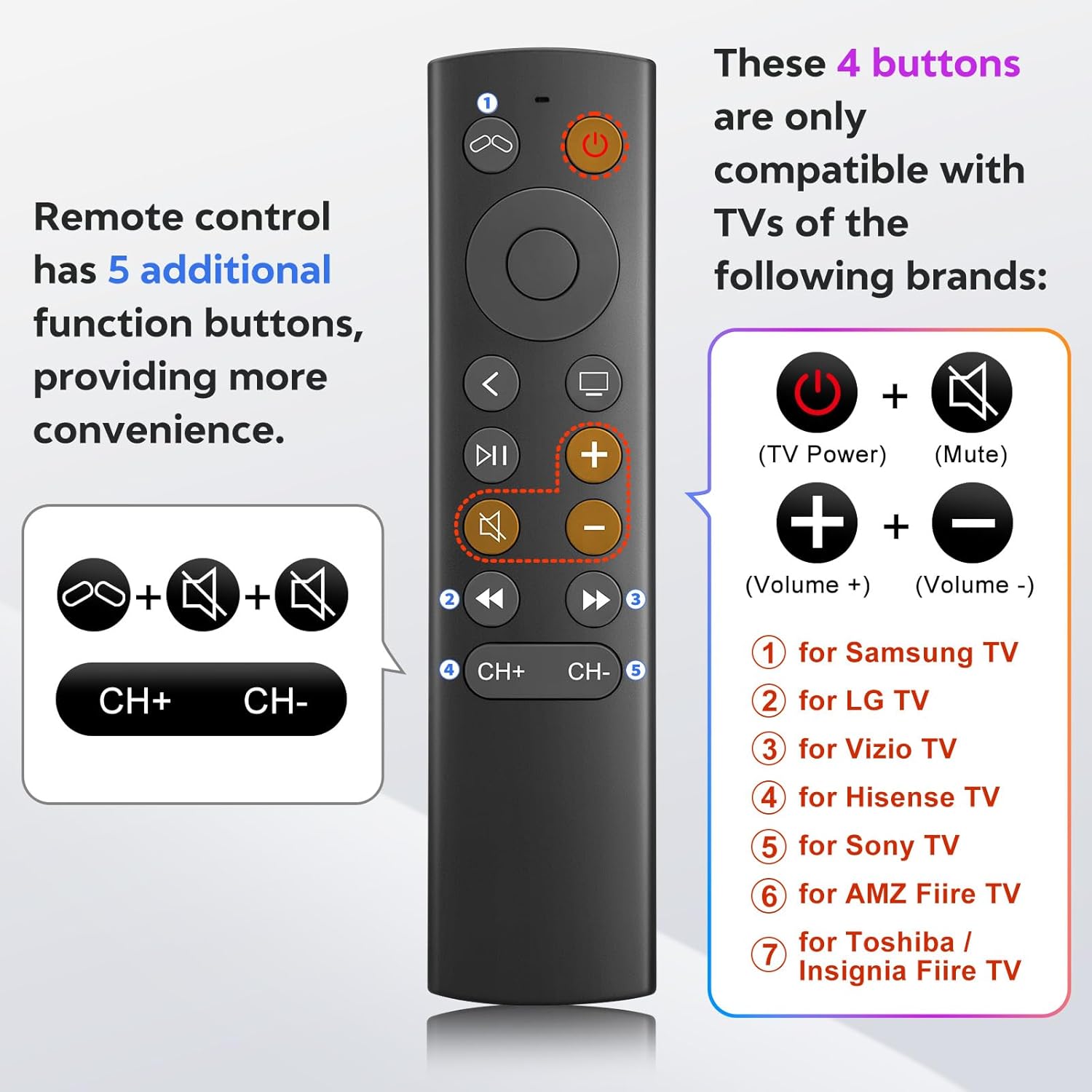
Figure 6: TV control button compatibility.
Maintenance
- Cleaning: Use a soft, dry cloth to clean the remote control. Do not use liquid cleaners or abrasive materials.
- Battery Replacement: Replace batteries when the remote's response becomes sluggish or stops working. Always replace both AAA batteries at the same time.
- Storage: Store the remote in a cool, dry place away from direct sunlight and extreme temperatures.
Troubleshooting
- Problem: Remote is not responding.
- Check Batteries: Ensure batteries are inserted correctly with the correct polarity and are not depleted. Replace with fresh AAA batteries if necessary.
- Line of Sight: Ensure there is a clear line of sight between the remote and your Apple TV. Infrared remotes require direct line of sight.
- "Unlock" Procedure: If you are using an older Apple TV (1st, 2nd, or 3rd Gen), ensure you have performed the "unlock" procedure as described in the Setup Instructions.
- Problem: Power, Volume, or Mute buttons are not working on my TV.
- Compatibility: These buttons are only compatible with specific TV brands: Samsung, LG, Vizio, Hisense, Sony, Amazon Fire TV, Toshiba, and Insignia Fire TV. If your TV is not one of these brands, these functions may not work.
- Problem: No Siri, voice control, Bluetooth, or touchpad functionality.
- Intended Design: This remote is an infrared replacement and is specifically designed without these advanced features to offer a simpler, direct control experience. These are not malfunctions.
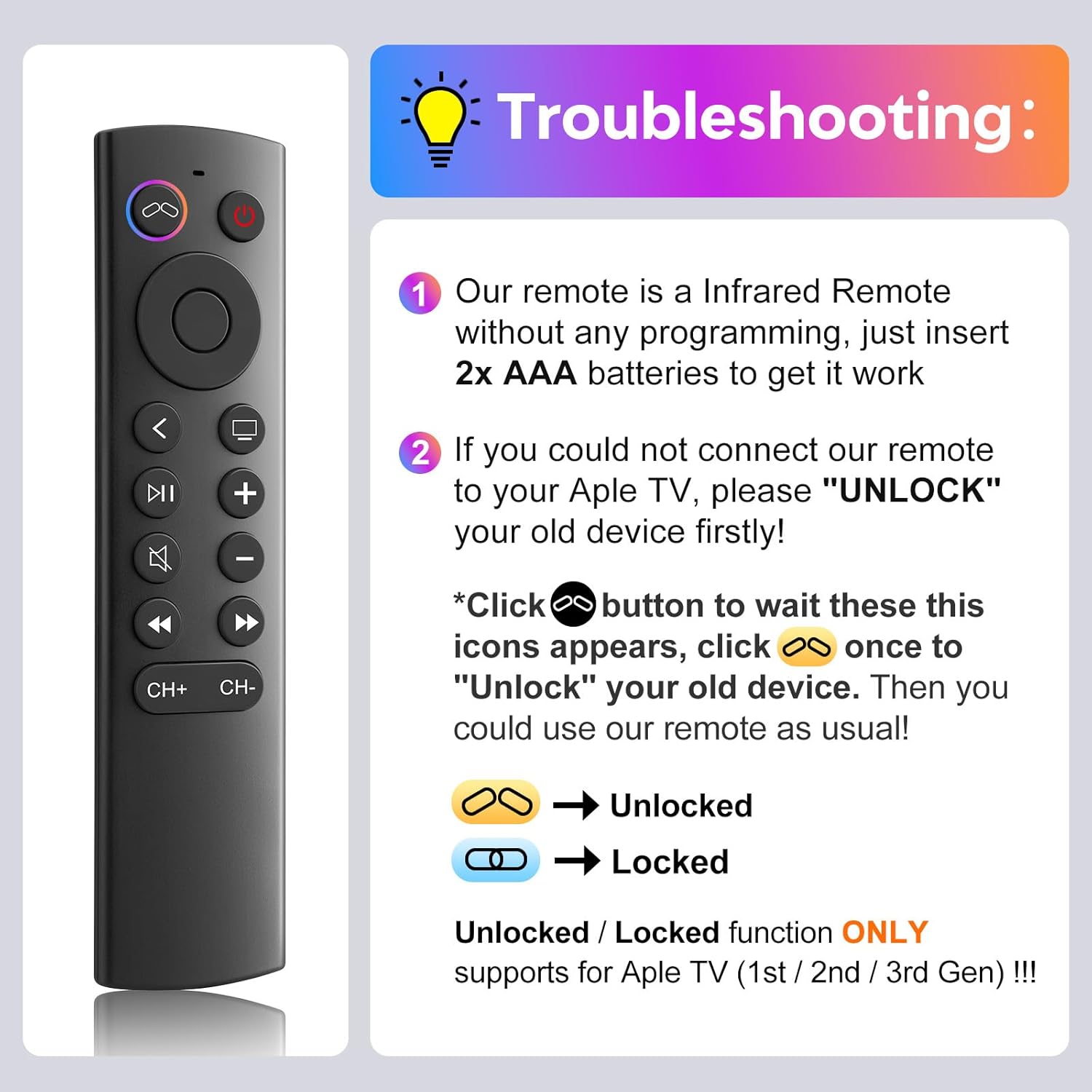
Figure 7: Troubleshooting guide for common issues.
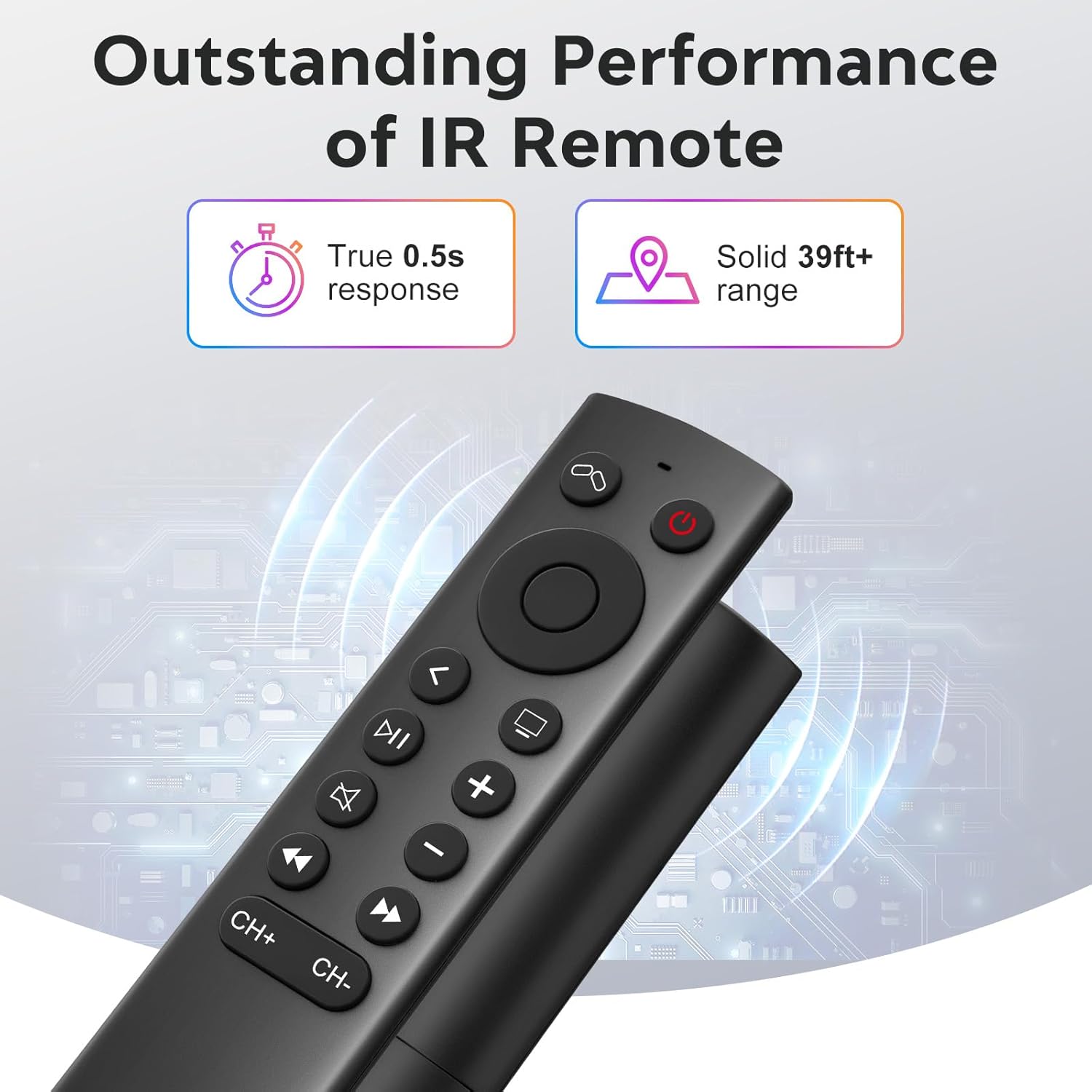
Figure 8: Visual comparison of unlocked vs. locked device states.
Specifications
| Brand | YOSUN |
| Model Number | MJFM3LL |
| Product Dimensions | 6.29 x 1.57 x 0.66 inches |
| Item Weight | 1.44 ounces |
| Color | Black |
| Special Feature | No Programming Required |
| Max Number of Supported Devices | 1 |
| Compatible Devices | Apple TV (various generations) |
| Response Time | True 0.5s response |
| Operating Range | Solid 39ft+ range (approx. 10 meters) |
Figure 9: Performance features of the IR remote.
Warranty and Support
This YOSUN Replacement Remote Control comes with a 1-Year Warranty. For warranty claims or technical support, please contact YOSUN customer service through the retailer where the product was purchased.
Please retain your proof of purchase for warranty purposes.
Product Video Demonstration
Video 1: A brief overview of the YOSUN Replacement Remote Control for Apple TV, highlighting its features and compatibility.
Related documentsMJFM3LL

Ask a question about this manual
Ask about setup, troubleshooting, compatibility, parts, safety, or missing instructions. Manuals+ will review the question and use this page’s manual context to help answer it.