
1. Introduction
Thank you for purchasing the Gueray Portable Bluetooth CD Player. This device combines classic CD playback with modern connectivity options, including Bluetooth, FM radio, USB, and AUX input. This manual provides detailed instructions for setup, operation, maintenance, and troubleshooting to ensure optimal performance and longevity of your player.
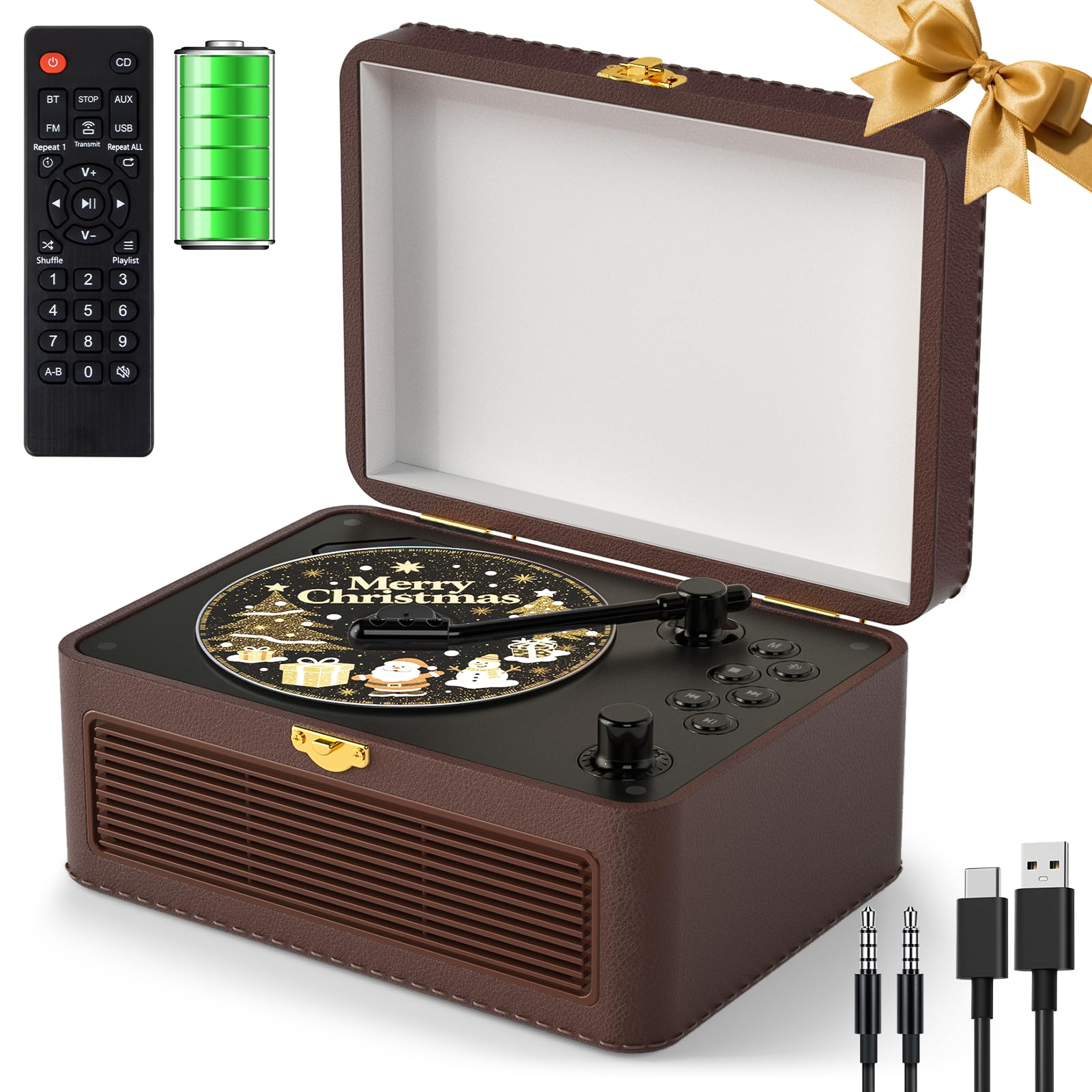
Image 1: The Gueray Portable Bluetooth CD Player, showcasing its retro design and compact form factor.
2. Product Overview
2.1 Package Contents
- 1 x Gueray Portable Bluetooth CD Player
- 1 x Remote Control
- 1 x User Manual
- 1 x Type-C Power Cable
- 1 x 3.5mm AUX Cable

Image 2: The CD player shown with its remote control, user manual, charging cable, and AUX cable, along with its dimensions (21cm/8.3inch width, 14.5cm/5.7inch depth, 10cm/3.9inch height when closed).
2.2 Controls and Ports
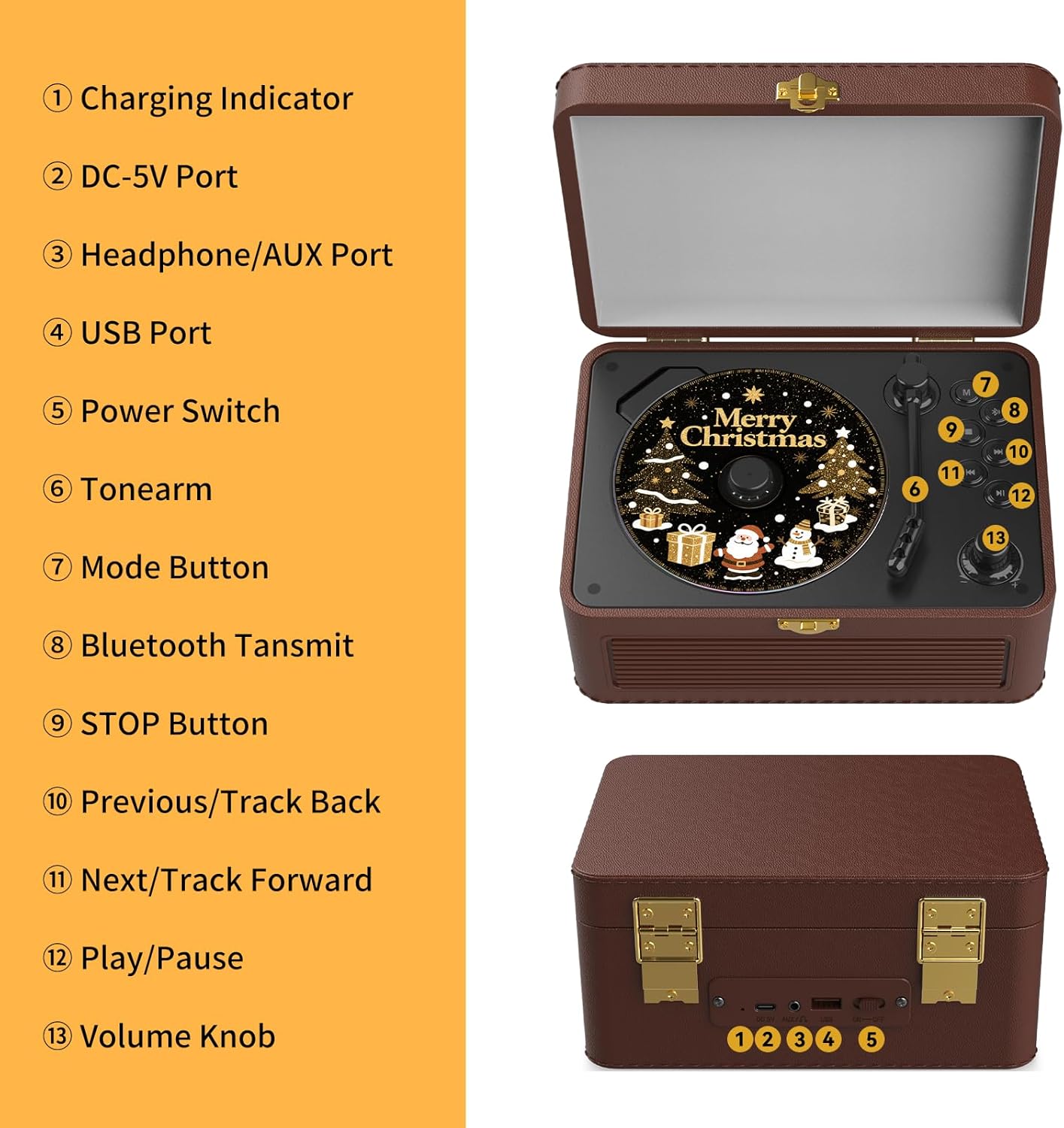
Image 3: Detailed diagram illustrating the controls and ports on the Gueray CD Player.
- Charging Indicator: Lights up during charging.
- DC-5V Port: Power input for charging the device.
- Headphone/AUX Port: 3.5mm jack for headphones or AUX input.
- USB Port: For USB drive playback.
- Power Switch: Turns the device ON/OFF.
- Tonearm: Used to access the CD compartment.
- Mode Button: Switches between CD, Bluetooth, FM, USB, and AUX modes.
- Bluetooth Transmit Button: Initiates Bluetooth transmission pairing.
- STOP Button: Stops playback.
- Previous/Track Back Button: Skips to the previous track or tunes down FM frequency.
- Next/Track Forward Button: Skips to the next track or tunes up FM frequency.
- Play/Pause Button: Starts or pauses playback.
- Volume Knob: Adjusts the audio volume.
2.3 Remote Control

Image 4: The remote control for the Gueray CD Player, showing various function buttons for convenient operation. Note: Batteries are not included.
The included remote control allows for convenient operation of the CD player from a distance of up to 5 meters. It provides access to functions such as power, mode selection, volume control, track navigation, play/pause, stop, and A-B repeat. Insert 2 AAA batteries (not included) into the remote control before use.
3. Setup
3.1 Powering On and Charging
The Gueray CD Player features a built-in 3600mAh rechargeable battery, providing up to 6 hours of playtime at medium volume. To charge the device:
- Connect the provided Type-C power cable to the DC-5V port on the player.
- Connect the other end of the cable to a 5V/2A USB power adapter (not included).
- The charging indicator will illuminate during charging. A full charge takes approximately 5-6 hours.
To power on the device, slide the Power Switch to the ON position. To power off, slide it to the OFF position.

Image 5: The Gueray CD Player highlighting its 3600mAh rechargeable battery, enabling portable use.
3.2 Inserting a CD
- Gently lift the tonearm to open the CD compartment cover.
- Place a CD (CD, CD-R, CD-RW, MP3, WMA formats supported) onto the spindle with the label side facing up.
- Close the CD compartment cover.

Image 6: An internal view of the CD player, showing the high-precision reading laser head and various interface options (DC-5V, AUX, USB, Power Switch).
4. Operating Instructions
4.1 CD Playback
- Insert a CD as described in Section 3.2.
- Ensure the player is powered on.
- Press the Mode button until "CD" mode is selected.
- The CD will begin playing automatically. If not, press the Play/Pause button.
- Use the Previous/Track Back and Next/Track Forward buttons to navigate tracks.
- Adjust volume using the Volume Knob or the remote control.
- Press the STOP button to stop playback.
4.2 Bluetooth Mode (Receiver & Transmitter)
The player supports Bluetooth 5.2 for both receiving and transmitting audio.
4.2.1 Bluetooth Receiver Mode
Use this mode to stream music wirelessly from your smartphone, tablet, or laptop to the CD player's speakers.
- Press the Mode button until "Bluetooth" mode is selected. The player will enter pairing mode, indicated by a flashing Bluetooth icon or light.
- On your external device (smartphone, tablet), enable Bluetooth and search for available devices.
- Select "Gueray CD Player" (or similar name) from the list to pair.
- Once paired, you can play audio from your device, and it will output through the CD player's speakers.

Image 7: The CD player functioning as a Bluetooth receiver, wirelessly playing audio from a smartphone or tablet.
4.2.2 Bluetooth Transmitter Mode
Use this mode to transmit audio from the CD player (e.g., CD playback, FM radio) to external Bluetooth speakers or headphones.
- Ensure your external Bluetooth speaker or headphones are in pairing mode.
- On the CD player, press the Bluetooth Transmit button. The player will search for nearby Bluetooth receiving devices.
- Once connected, the audio from the CD player will be transmitted to your external Bluetooth device.

Image 8: The CD player transmitting audio via Bluetooth to wireless headphones and a Bluetooth speaker.
4.3 FM Radio
The player includes an FM radio tuner with a frequency range of 76MHz to 108MHz.
- Press the Mode button until "FM" mode is selected.
- Use the Previous/Track Back and Next/Track Forward buttons to manually tune to desired frequencies.
- For automatic scanning, press and hold the Play/Pause button. The player will scan and save available stations.
- Use the Previous/Track Back and Next/Track Forward buttons to cycle through saved stations.

Image 9: The CD player operating in FM Radio mode, tuning into stations across the 76MHz to 108MHz frequency range.
4.4 USB Playback
The player supports USB drives formatted in FAT16/FAT32 (NTFS not compatible) for audio playback.
- Insert a USB drive into the USB Port.
- Press the Mode button until "USB" mode is selected.
- The player will automatically detect and begin playing audio files from the USB drive.
- Use the Previous/Track Back and Next/Track Forward buttons to navigate tracks.
4.5 AUX Input
Connect external audio devices (e.g., MP3 players, smartphones) via the 3.5mm AUX jack for wired music playback.
- Connect one end of the 3.5mm AUX cable to the Headphone/AUX Port on the CD player.
- Connect the other end to the audio output of your external device.
- Press the Mode button until "AUX" mode is selected.
- Play audio from your external device. The sound will be output through the CD player's speakers.
5. Maintenance
To ensure the longevity and optimal performance of your Gueray CD Player, follow these maintenance guidelines:
- Cleaning: Use a soft, dry cloth to clean the exterior of the player. Do not use liquid cleaners or abrasive materials. For the CD lens, use a specialized CD lens cleaning kit.
- Storage: Store the player in a cool, dry place away from direct sunlight, extreme temperatures, and high humidity.
- Handling CDs: Always handle CDs by their edges. Avoid touching the playing surface. Store CDs in their cases to prevent scratches and dust accumulation.
- Battery Care: If the player will not be used for an extended period, charge it periodically to maintain battery health.
6. Troubleshooting
If you encounter issues with your CD player, refer to the following common problems and solutions:
| Problem | Possible Cause | Solution |
|---|---|---|
| Player does not power on. | Battery is depleted; Power switch is OFF. | Charge the player using the provided cable and a 5V/2A adapter. Ensure the power switch is in the ON position. |
| CD does not play or skips. | CD is dirty, scratched, or inserted incorrectly; Incorrect mode selected. | Clean the CD with a soft cloth. Ensure the CD is inserted correctly. Select CD mode using the Mode button. |
| No sound from speakers. | Volume is too low; Player is in Bluetooth Transmitter mode; Headphones are connected. | Increase the volume. Ensure the player is not transmitting to external Bluetooth devices if you want sound from its internal speakers. Disconnect headphones. |
| Cannot pair Bluetooth device. | Player not in pairing mode; Device too far; Interference. | Ensure the player is in Bluetooth Receiver pairing mode. Keep devices within 10 meters. Reduce interference from other electronic devices. |
| Remote control not working. | Batteries are dead or inserted incorrectly; Obstruction between remote and player. | Replace batteries (2x AAA). Ensure correct polarity. Remove any obstructions. |
7. Specifications
| Feature | Detail |
|---|---|
| Brand | Gueray |
| Model | B0FXF4TY3K |
| Connectivity Technology | Bluetooth |
| Color | Brown |
| Compatible Devices | Speaker, Headphones, Smartphones, Tablets, USB Drives |
| Supported Audio Formats | CD, CD-R, CD-RW, MP3, WMA, WAV (via USB) |
| Battery Capacity | 3600mAh Rechargeable |
| Playtime | Up to 6 hours (at medium volume) |
| FM Radio Frequency | 76MHz - 108MHz |
| USB Format Support | FAT16/FAT32 (NTFS not compatible) |
| Built-In Media | CD Player |
| Style | Retro |
8. Warranty Information
This Gueray CD Player comes with a 6-month warranty from the date of purchase. This warranty covers manufacturing defects and malfunctions under normal use. It does not cover damage caused by misuse, accidents, unauthorized modifications, or normal wear and tear. Please retain your proof of purchase for warranty claims.
9. Customer Support
For any questions, technical assistance, or warranty claims, please contact Gueray customer support. Refer to the contact information provided with your product packaging or visit the official Gueray website for support options.
