
1. Introduction
This manual provides detailed instructions for the installation, operation, and maintenance of your SIXWIN A8440 Android Car Radio. This unit is specifically designed for Honda Fit models manufactured between 2014 and 2018, offering advanced features such as Wireless CarPlay, Android Auto, GPS Navigation, and a 9-inch Incell Touch Screen. Please read this manual thoroughly before installation and use to ensure proper functionality and safety.
2. Compatibility and Installation (Setup)
Before proceeding with installation, it is crucial to confirm the compatibility of this car radio with your specific Honda Fit model. This unit is compatible with Honda Fit models from 2014 to 2018. Please verify your vehicle's center console design against the images provided below to ensure a match. This car radio is designed for basic and navigation versions of the Honda Fit.

Image: The image displays the SIXWIN Android Car Radio installed in a Honda Fit dashboard. Below, it illustrates two compatible center console models, labeled 'A' and 'B', with checkmarks indicating compatibility. This visual guide helps users confirm if their vehicle's console matches the supported designs.
If your vehicle's center console does not match models A or B, please contact customer support for further assistance and recommendations.
Installation Steps:
- Preparation: Disconnect the vehicle's battery to prevent electrical shorts.
- Remove Original Unit: Carefully remove the existing car radio and trim panels from your Honda Fit dashboard. Refer to your vehicle's service manual for specific instructions on panel removal.
- Connect Wiring: Connect the provided power cable, RCA cable, USB cables, GPS antenna, and rear camera input cable to the corresponding ports on the SIXWIN car radio. Ensure all connections are secure. If your vehicle requires a Canbus box, connect it as instructed.
- Install Rear Camera (Optional): If installing the backup camera, route the camera cable from the rear of the vehicle to the car radio unit and connect it.
- Mount New Unit: Securely mount the SIXWIN A8440 Android Car Radio into the dashboard opening.
- Reconnect Battery: Reconnect the vehicle's battery.
- Test Functionality: Turn on the vehicle and test all functions of the car radio, including audio, touch screen, GPS, Bluetooth, and camera input.
3. Packing List
Please verify that all components listed below are included in your package. If any items are missing or damaged, contact customer support immediately.

Image: This image illustrates the physical dimensions of the 9-inch SIXWIN Android Car Radio. Below the main unit, a grid displays all included accessories: Power Cable (x2), Tool, RCA cable, USB cable (x2), User manual, Canbus box, GPS antenna, Rear Camera Input Cable, Microphone, and Camera.
- Car Radio Unit (SIXWIN A8440)
- Power Cable (x2)
- Installation Tool
- RCA Cable
- USB Cable (x2)
- User Manual
- Canbus Box
- GPS Antenna
- Rear Camera Input Cable
- Microphone
- Backup Camera
4. Operating Instructions
4.1. Wireless CarPlay & Android Auto
Connect your iPhone or Android phone wirelessly to the car radio via Bluetooth. Once connected, you can access various phone functions directly on the car radio's screen.
- Navigation: Get directions using your preferred map application.
- Communication: Make and receive phone calls, send and receive messages.
- Entertainment: Enjoy music and other media from your phone.
- Voice Assistant: Use Siri (for CarPlay) or Google Assistant (for Android Auto) for hands-free control.

Image: This image displays the user interface for Wireless CarPlay and Android Auto on the car radio screen. It shows various applications like navigation, music players, and communication tools, highlighting the seamless integration of smartphone features.
4.2. Bluetooth & FM Radio
The built-in Bluetooth module allows for hands-free calling and wireless audio streaming.
- Hands-Free Calling: Pair your phone to make and receive calls without distractions. The built-in microphone captures your voice, and car speakers output the audio.
- Audio Streaming: Play music and other audio from your paired device wirelessly.
- FM Radio: Tune into FM radio stations. The unit supports FM RDS for displaying station information.
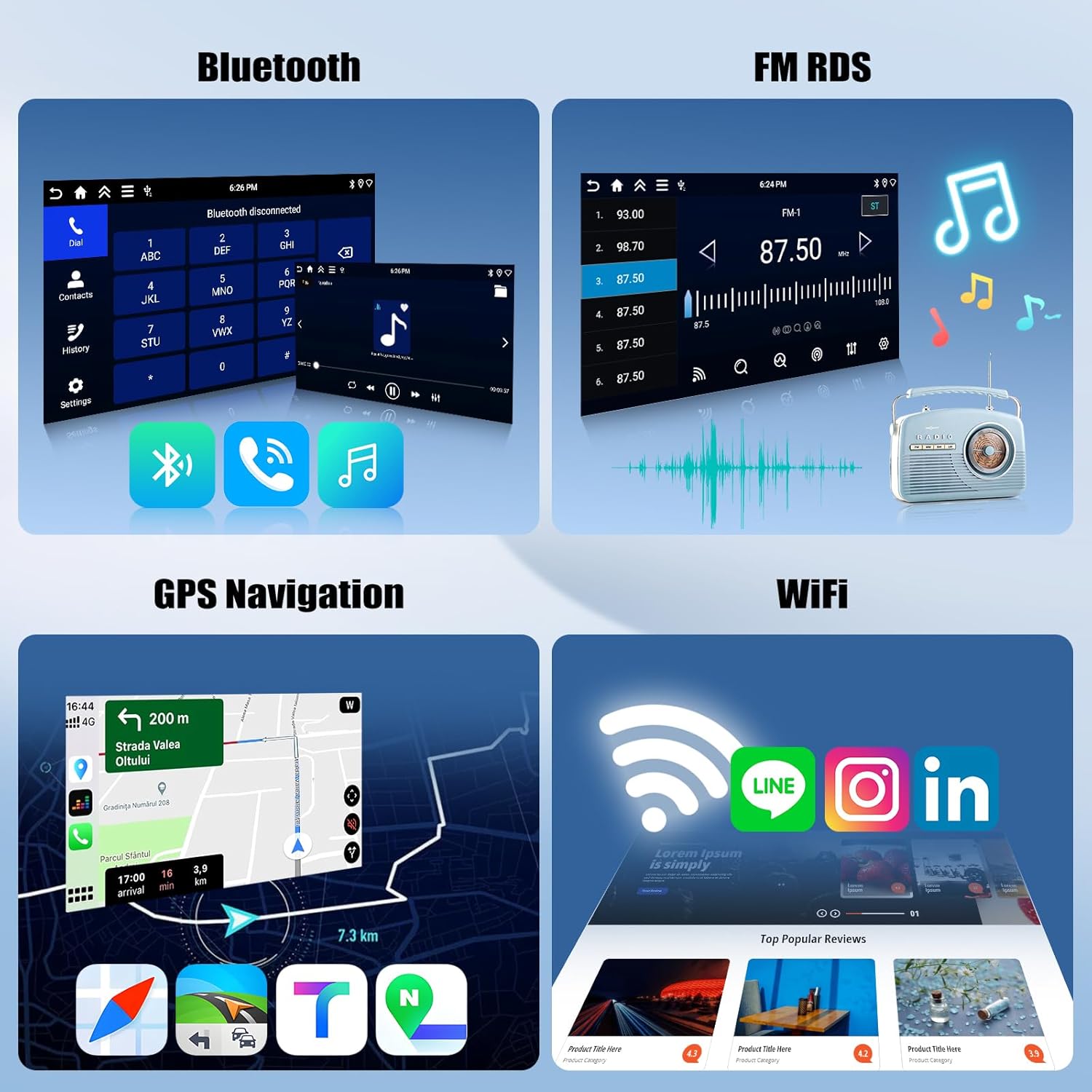
Image: This image shows two distinct interfaces: one for Bluetooth, displaying a dial pad and call history, and another for FM RDS radio, showing frequency selection and station information.
4.3. GPS Navigation & WiFi Connectivity
The car radio features integrated GPS navigation and WiFi connectivity for online services.
- Offline Maps: Comes with a built-in offline map of North America.
- Online Navigation: Connect to WiFi to use online navigation services and access real-time traffic updates.
- App Installation: Connect to WiFi to download and install Android applications from the application store, similar to a smartphone.
4.4. Steering Wheel Control & Backup Camera
Enhance driving safety and convenience with these integrated features.
- Steering Wheel Control: Maintain control of your stereo functions (volume, track changes, call management) directly from your steering wheel, keeping your hands on the wheel for safety.
- Backup Camera: The included backup camera provides a clear view of the area behind your vehicle, assisting with parking and reversing maneuvers. It features a 170° wide angle, HD image quality, IP68 waterproof rating, and night vision capabilities.

Image: This image displays the wide-angle view from the backup camera on the car radio screen, complete with parking guidelines. Below, it illustrates how steering wheel controls can be used to adjust volume, answer calls, and switch songs.
4.5. HD Touch Screen & Mirror Link
Experience a responsive and clear display with screen mirroring capabilities.
- HD Touch Screen: The 9-inch Incell touch screen offers a resolution of 1280*720 for clear visuals and responsive touch interaction.
- Mirror Link: Connect your iOS or Android smartphone to mirror its screen content onto the car radio display, supporting both wired and wireless connections.
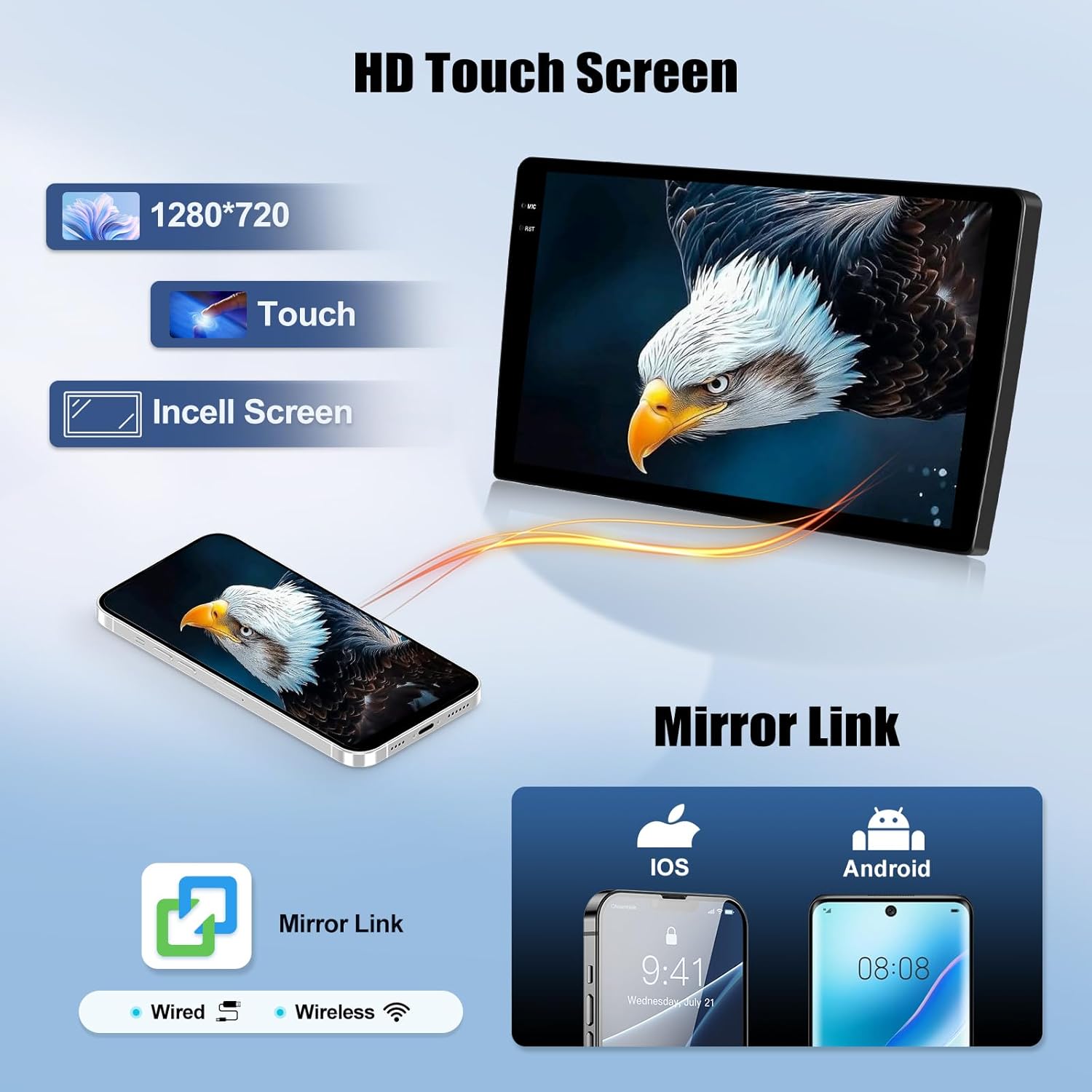
Image: This image emphasizes the HD Touch Screen's features, including 1280*720 resolution, touch functionality, and Incell screen technology. It also illustrates the Mirror Link feature, showing how both iOS and Android phones can mirror their displays to the car radio, supporting both wired and wireless connections.
5. Maintenance
To ensure the longevity and optimal performance of your SIXWIN A8440 Android Car Radio, follow these maintenance guidelines:
- Screen Cleaning: Use a soft, lint-free cloth to gently wipe the touch screen. For stubborn smudges, slightly dampen the cloth with water or a screen-safe cleaner. Avoid harsh chemicals or abrasive materials.
- Software Updates: Periodically check for software updates to ensure you have the latest features and security patches. Connect the unit to a stable WiFi network to perform updates.
- Cable Connections: Regularly inspect all cable connections to ensure they are secure and free from damage. Loose connections can lead to intermittent issues.
- Environmental Conditions: Avoid exposing the unit to extreme temperatures, direct sunlight for prolonged periods, or excessive moisture.
6. Troubleshooting
If you encounter any issues with your car radio, refer to the following troubleshooting tips:
- No Power:
- Check the vehicle's fuse box for blown fuses related to the car radio.
- Ensure all power cables are securely connected to the unit and the vehicle's wiring harness.
- No Sound:
- Verify that the volume is not muted or set to a very low level.
- Check speaker connections.
- Ensure the correct audio source is selected (e.g., FM, Bluetooth, CarPlay).
- Touch Screen Unresponsive:
- Perform a soft reset by pressing and holding the power button until the unit restarts.
- Ensure the screen is clean and free from debris.
- GPS Signal Lost/Inaccurate:
- Ensure the GPS antenna is properly installed and has a clear view of the sky.
- Check GPS settings within the unit to ensure location services are enabled.
- Bluetooth Pairing Issues:
- Ensure Bluetooth is enabled on both the car radio and your mobile device.
- Delete previous pairings on both devices and attempt to pair again.
- Move your mobile device closer to the car radio.
- Backup Camera Not Displaying:
- Check the camera's power and video signal connections.
- Ensure the vehicle is in reverse gear to trigger the camera display.
If these steps do not resolve the issue, please contact SIXWIN customer support for further assistance.
7. Specifications
| Feature | Specification |
|---|---|
| Model Name | A8440 |
| Brand | SIXWIN |
| Operating System | Android |
| Screen Size | 9 Inches |
| Display Size | 9 Inches |
| Display Resolution | 1280*720 (HD Touch Screen) |
| Memory Storage Capacity | 128 GB |
| Special Feature | 4G+128G |
| Connectivity Technology | Wi-Fi, Bluetooth |
| Map Type | Worldwide (Built-in Offline Map of North America) |
| Voice Command | Touchscreen (via CarPlay/Android Auto voice assistants) |
| Item Weight | 3.04 pounds |
| Product Dimensions | 1 x 1 x 1 inches |
8. Warranty and Support
Your SIXWIN A8440 Android Car Radio comes with a 2-year warranty from the date of purchase. This warranty covers manufacturing defects and malfunctions under normal use.
For warranty claims, technical support, or any questions regarding your product, please contact SIXWIN customer service through the retailer where the product was purchased or visit the official SIXWIN website for contact information.
Please retain your proof of purchase for warranty validation.
