
1. Product Overview
The SVITOO 10-inch Android Tablet is designed for versatile use, offering a balance of performance and features for both adults and children. It operates on Android 15 (Go Edition), providing a secure and customizable user experience. Key features include a 10.1-inch HD IPS display, 20GB RAM (3GB + 17GB virtual), 64GB internal storage expandable up to 1TB via microSD, dual cameras (8MP rear, 2MP front), a 6000mAh battery, dual speakers, and support for WiFi 6 and Bluetooth 5.
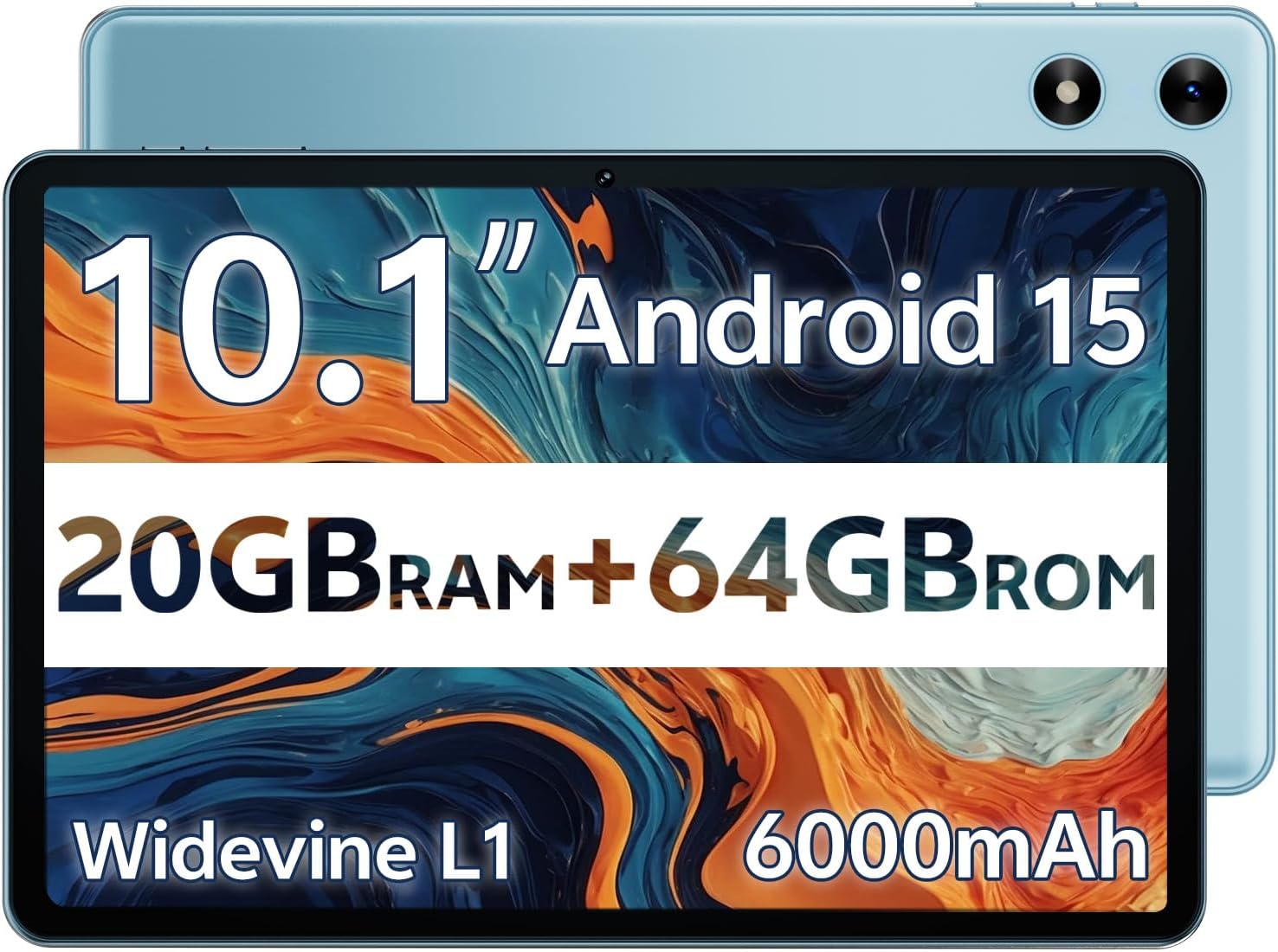
Image 1.1: The SVITOO 10-inch Android Tablet, showcasing its design and included protective case.
2. Initial Setup
2.1. Unboxing and Initial Charge
Upon unboxing, ensure all components are present: the tablet, charging cable, foldable protective cover, and user manual. It is recommended to fully charge the tablet before its first use to optimize battery performance.

Image 2.1: Contents of the product box, including the tablet, charging cable, and protective cover.
2.2. Powering On/Off
- To Power On: Press and hold the power button located on the side of the tablet until the SVITOO logo appears on the screen.
- To Power Off: Press and hold the power button, then select 'Power Off' from the options that appear on the screen.
- To Restart: Press and hold the power button, then select 'Restart' from the options.
2.3. Connecting to Wi-Fi
Navigate to Settings > Network & internet > Wi-Fi. Turn on Wi-Fi, select your desired network, and enter the password if prompted. The tablet supports dual-band Wi-Fi (2.4GHz/5GHz) for stable connections.
2.4. Google Account Setup
During the initial setup, you will be prompted to sign in with your Google account. This is necessary to access the Google Play Store, download apps, and synchronize data. If you do not have a Google account, you can create one during this step.
2.5. MicroSD Card Installation
The tablet supports storage expansion up to 1TB using a microSD card (sold separately). Locate the microSD card slot on the side of the tablet, gently insert the card until it clicks into place. Ensure the tablet is powered off before inserting or removing the card.
2.6. Protective Case and Screen Protector
The tablet comes with a foldable protective cover. This case features a magnetic bracket that automatically wakes the tablet when opened and puts it to sleep when closed. A screen protector is pre-installed for immediate use.
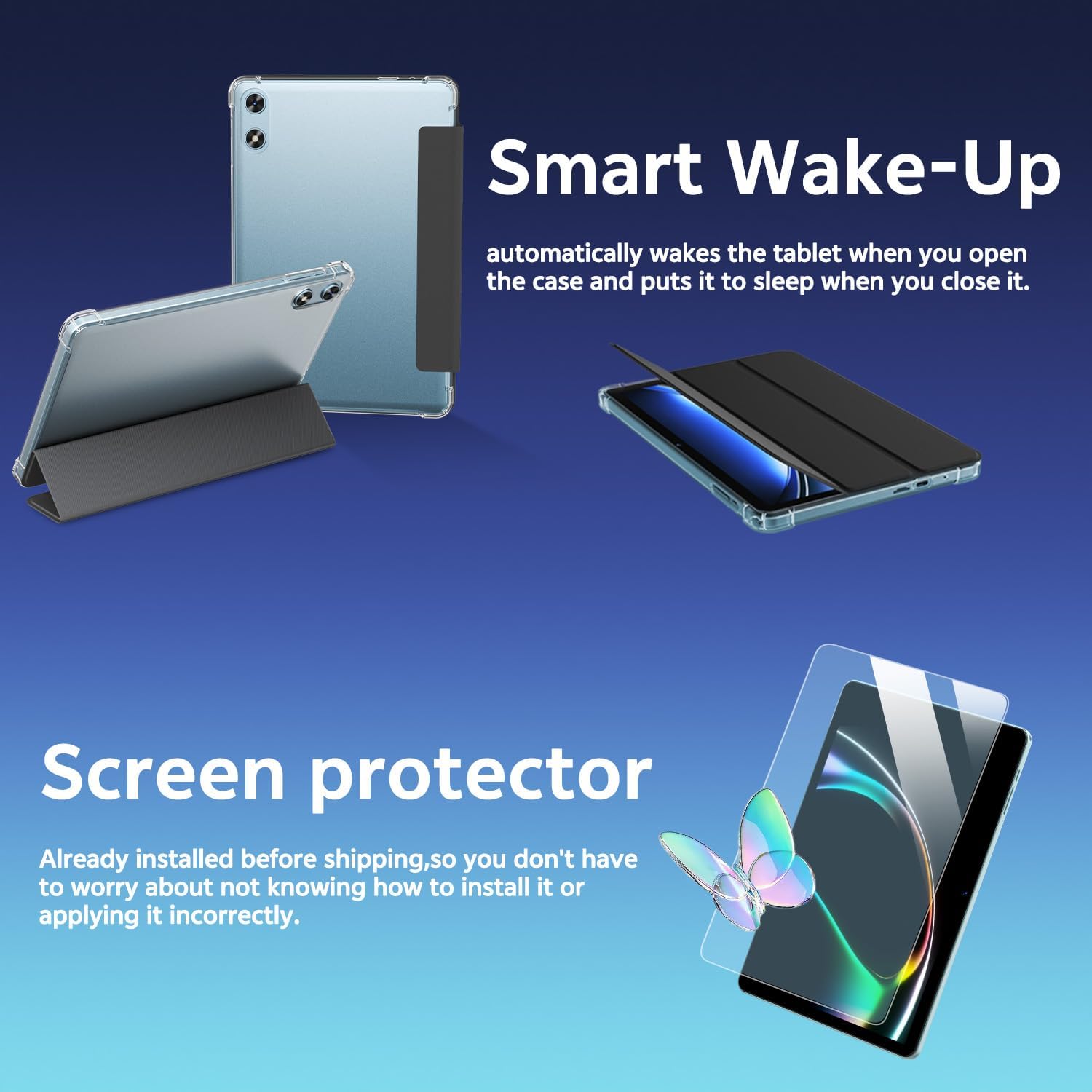
Image 2.2: The tablet with its smart protective case, demonstrating the automatic wake-up function.
3. Operating Instructions
3.1. Basic Navigation
The tablet features a responsive touchscreen for navigation. Swipe left or right to access different home screens, tap icons to open applications, and use gestures for various functions within apps.
3.2. Using the Cameras
The tablet is equipped with an 8MP rear camera and a 2MP front camera. Open the Camera app to take photos or record videos. You can switch between front and rear cameras within the app interface.

Image 3.1: A user capturing an image using the tablet's rear camera.
3.3. Bluetooth Pairing
To connect Bluetooth devices (e.g., headphones, speakers), go to Settings > Connected devices > Connection preferences > Bluetooth. Turn on Bluetooth, and select your device from the list to pair.
3.4. Wireless Screen Casting
You can cast your tablet's screen to a compatible smart TV on the same Wi-Fi network. Access this feature through the quick settings panel or in Settings > Connected devices > Connection preferences > Cast.

Video 3.1: Demonstrates wireless screen casting from the tablet to a smart TV.
3.5. Parental Controls
The tablet supports parental control settings via Google Family Link. This allows you to manage device usage, app access, and ensure a safe digital environment for children. Access these settings through your Google account or the Family Link app.
3.6. Eye-Care Night Mode
Activate Eye-Care Night Mode in Settings > Display to reduce blue light emission, providing a more comfortable reading and viewing experience in low-light conditions.
3.7. Widevine L1 Certification
The tablet is Widevine L1 certified, enabling high-definition (HD) streaming on platforms like Netflix, Disney+, and Hulu, ensuring a premium viewing experience.
3.8. Dual Speakers
Enjoy enhanced audio quality with the tablet's dual speakers, providing a richer and more immersive sound experience for media consumption.
4. Maintenance
4.1. Charging
Charge the tablet using the provided USB-C cable and a compatible power adapter. The USB-C port allows for fast charging. A full charge ensures up to 12 hours of average use.

Image 4.1: The tablet connected to a USB-C charger, indicating its charging status.
4.2. Cleaning the Screen
Use a soft, lint-free cloth, slightly dampened with water or a screen-cleaning solution, to clean the display. Avoid harsh chemicals or abrasive materials.
4.3. Software Updates
Periodically check for system updates in Settings > System > System update to ensure your tablet has the latest features and security patches.
4.4. Storage Management
To manage internal storage and installed apps, go to Settings > Storage. You can clear app caches or uninstall unused applications to free up space. Utilize the microSD card slot for additional storage of media files.
5. Troubleshooting
5.1. Tablet Freezing or Apps Crashing
- Cause: This tablet runs on Android Go Edition, a lightweight system. Running multiple heavy applications simultaneously, especially video monitoring apps, can cause performance issues.
- Solution:
- Close background apps.
- Ensure Google Play Services are updated.
- Verify a stable Wi-Fi connection.
- If freezing persists, restart the tablet.
- Clear app cache (Settings > Apps).
- As a last resort, perform a factory reset (Settings > System > Reset) after backing up data.
5.2. Wi-Fi Connectivity Issues
- Ensure your Wi-Fi router is on and functioning correctly.
- Check if the tablet is within range of the Wi-Fi signal.
- Restart both the tablet and the Wi-Fi router.
- Forget the network and reconnect.
5.3. Battery Draining Quickly
- Reduce screen brightness.
- Close unused applications running in the background.
- Disable Wi-Fi or Bluetooth when not in use.
- Check battery usage in Settings > Battery to identify power-hungry apps.
6. Product Specifications
| Feature | Detail |
|---|---|
| Brand | SVITOO |
| Model Name | SVITOO Tab 10 GMS Certified 1027C |
| Operating System | Android 15 (Go Edition) |
| Screen Size | 10.1 Inches |
| Display Resolution | 1280 x 800 Pixels (HD IPS) |
| RAM Memory | 20 GB (3GB + 17GB Virtual) |
| Storage Capacity | 64 GB (Expandable up to 1TB via microSD) |
| Processor | Penta-Core Allwinner A333 (1.8 GHz) |
| Rear Camera | 8 MP |
| Front Camera | 2 MP |
| Battery Capacity | 6000 mAh (Up to 12 hours average life) |
| Connectivity | Dual-Band Wi-Fi (2.4G+5G), Bluetooth 5 |
| Ports | USB Type-C, 3.5mm Headphone Jack, MicroSD Slot |
| Special Features | Widevine L1 Certified, Dual Speakers, Eye-Care Night Mode, Parental Controls, Wireless Screen Casting |
| Dimensions | 9.7"L x 6.4"W x 0.4"Th |
7. Warranty and Support
7.1. Manufacturer Protection
The SVITOO tablet comes with a 1-Year Limited Manufacturer Protection. This warranty covers manufacturing defects but does not cover damage caused by human error, natural disasters, or other force majeure events.
7.2. How to Contact Support
If you encounter issues or require assistance beyond basic troubleshooting, you can contact SVITOO support through Amazon:
- Through Your Order: Log in to Amazon, go to "Your Orders", find the item, and click "Contact Seller".
- Through the Product Page: On the product page, click the seller's name, then click "Contact Seller".
For issues outside the Amazon return window, please contact SVITOO directly through Amazon messages for product support.


