
SMARTKLIK DV04
SMARTKLIK 4K 56MP DV04 Camcorder User Manual
Model: DV04
1. Introduction
This manual provides essential instructions for the safe and effective operation of your SMARTKLIK 4K 56MP DV04 Camcorder. This device is designed to capture high-resolution 4K Ultra HD videos and 56.0-megapixel photos, featuring an 18X digital zoom and a 3.0-inch 270° rotatable touchscreen. It includes advanced functionalities such as IR night vision, multiple shooting modes, WiFi transfer, and webcam capabilities.
2. What's in the Box
- 4K Digital Camcorder (Black)
- Rechargeable Lithium Battery (1 included, 1 spare)
- Camera Bag
- Remote Control
- Lens Cover
- 64GB Memory Card
- HDMI Cable
- USB Cable (Type-C)
- User Manual

Image 1: Contents of the SMARTKLIK 4K 56MP DV04 Camcorder package, including the camcorder, remote, cables, memory card, lens cap, and camera bag.
3. Setup
3.1. Battery Installation and Charging
- Open the battery compartment cover on the bottom of the camcorder.
- Insert the rechargeable lithium battery, ensuring correct polarity. Close the cover securely.
- To charge, connect the USB cable to the camcorder and a power source. The charging indicator light will illuminate.
3.2. Memory Card Insertion
The camcorder comes with a 64GB memory card pre-inserted. If you need to remove or replace it:
- Locate the SD card slot, usually near the battery compartment.
- Gently push the memory card until it clicks into place. To remove, push again until it ejects.
3.3. Attaching Accessories (Microphone, Light, Handle)
The camcorder features a hot shoe mount for external accessories.
- External Microphone: Slide the microphone onto the hot shoe mount until it locks. Plug the microphone's 3.5mm jack into the designated port on the camcorder.
- Fill Light: Slide the fill light onto the hot shoe mount. Ensure it is securely attached.
- Handheld Bracket: Attach the handheld bracket to the tripod mount screw on the bottom of the camcorder. This provides a more stable grip.
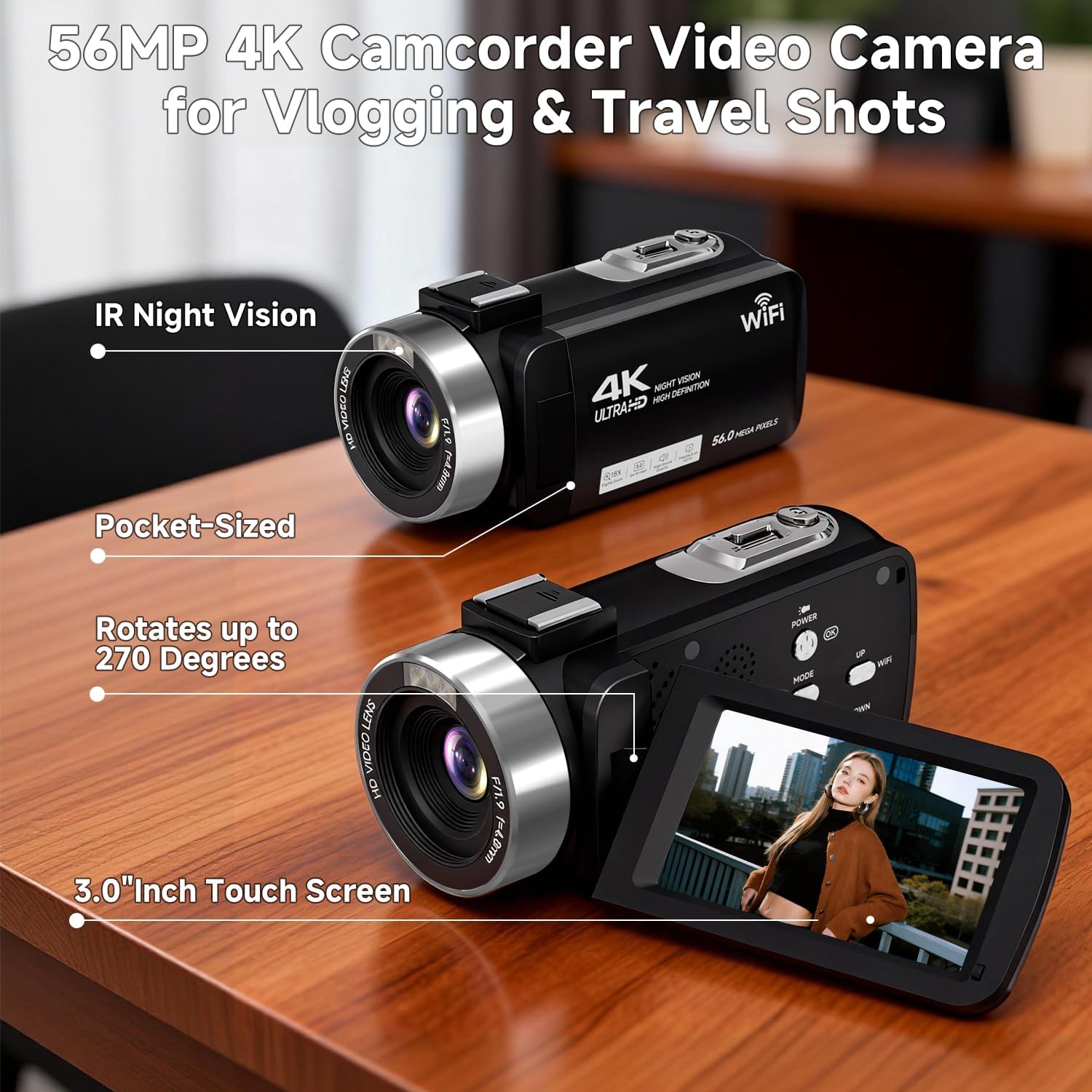
Image 2: The camcorder with the external microphone and fill light attached to the hot shoe mount, demonstrating accessory integration.
Video 1: A seller-provided video demonstrating the unboxing and setup of the camcorder, including battery, SD card, and accessory attachment.
4. Operating the Camcorder
4.1. Power On/Off
To power on the camcorder, open the 3.0-inch rotatable touchscreen. The device will automatically power on. To power off, close the touchscreen or press and hold the power button.
4.2. Basic Recording
- Once powered on, the camcorder will display the live view on the touchscreen.
- Press the Start/Stop button (usually a red button) to begin recording video. Press it again to stop.
- To take a photo, press the Photo Shutter button.
4.3. Zoom Functionality
Use the Zoom In/Out controls (often a rocker switch) to adjust the 18X digital zoom. This allows you to focus on distant subjects.
4.4. Touchscreen Operation
The 3.0-inch touchscreen allows for intuitive navigation through menus and settings. Tap to select options and swipe to browse.
4.5. IR Night Vision
To activate IR Night Vision, press the OK button. This mode captures high-contrast black and white video in total darkness.

Image 3: The camcorder displaying a scene captured using its IR Night Vision feature, showing clear black and white footage in low light.
4.6. Multi-Shooting Modes
Access various shooting modes via the menu:
- Slow Motion: Records video at a higher frame rate for slow-motion playback.
- Loop Recording: Continuously records video, overwriting the oldest footage when the memory card is full.
- Time-Lapse: Captures images at set intervals to create a time-lapse video.
- Continuous Shooting: Takes multiple photos in quick succession.

Image 4: A visual representation of the different shooting modes available on the camcorder, including photo/video, loop recording, continuous shot, slow motion, auto shot, timer shot, and time-lapse.
4.7. Anti-Shake Function
Enable the anti-shake function in the settings menu to reduce image blur caused by hand tremors or accidental movement during recording.
5. Connectivity
5.1. WiFi Transfer
The built-in WiFi allows for wireless transfer of videos and photos to your mobile phone. Download the companion app (e.g., "ITCAM Pro") to your device, connect to the camcorder's WiFi network, and manage your media.

Image 5: The camcorder wirelessly connected to a smartphone, illustrating the WiFi transfer feature for sharing photos and videos.
5.2. Webcam Functionality
Connect the camcorder to your computer via the Type-C USB cable to use it as a webcam for live streaming or video calls.
5.3. TV Playback
Use the HDMI cable to connect the camcorder directly to a TV for viewing your recorded videos and photos on a larger screen.

Image 6: The camcorder connected to a television via HDMI, showing a family watching recorded videos on the big screen.
6. Maintenance
To ensure the longevity and optimal performance of your camcorder, follow these maintenance guidelines:
- Keep the lens clean using a soft, lint-free cloth. Avoid abrasive materials.
- Store the camcorder in its protective bag when not in use to prevent dust and scratches.
- Avoid exposing the device to extreme temperatures, humidity, or direct sunlight for extended periods.
- Regularly back up your footage from the memory card to a computer or external storage.
7. Troubleshooting
If you encounter issues with your camcorder, try the following basic troubleshooting steps:
- Device not powering on: Ensure the battery is correctly inserted and fully charged.
- Memory card error: Reinsert the memory card or try a different compatible card. Ensure the card is not full.
- Poor video quality: Check lighting conditions. Ensure the lens is clean. Verify that the recording resolution is set to 4K.
- WiFi connection issues: Ensure the camcorder's WiFi is enabled and your mobile device is connected to its network. Restart both devices if necessary.
For further assistance, please refer to the contact information in the Warranty and Support section.
8. Specifications
| Brand | SMARTKLIK |
| Model Number | DV04 |
| Video Capture Resolution | 4K |
| Photo Sensor Technology | CMOS |
| Maximum Aperture | F/2.0 |
| Digital Zoom | 18X |
| Screen Size | 3 Inches (270° Rotatable Touchscreen) |
| Connectivity Technology | Wi-Fi |
| Special Features | 4K FHD Video, Night Vision, Remote Control, Touchscreen, Wifi Transfer |
| Item Weight | 1.32 pounds |
9. Warranty and Support
For warranty information or technical support, please contact SMARTKLIK customer service. Our 24-hour support team is available to answer any questions you may have regarding your camcorder.
Please refer to the product packaging or official SMARTKLIK website for the most up-to-date contact details and warranty terms.
Ask a question about this manual
Ask about setup, troubleshooting, compatibility, parts, safety, or missing instructions. Manuals+ will review the question and use this page’s manual context to help answer it.