
Introduction
The Jackery Explorer 240D is a compact and powerful portable power station designed to provide reliable energy for your devices during outdoor activities, travel, and emergencies. Featuring an 80,000mAh (256Wh) LiFePO4 battery, it offers a 200W pure DC output across 4 versatile ports (3 USB-C and 1 USB-A). Its lightweight and portable design, combined with multiple charging options, makes it an essential companion for staying connected wherever you go.
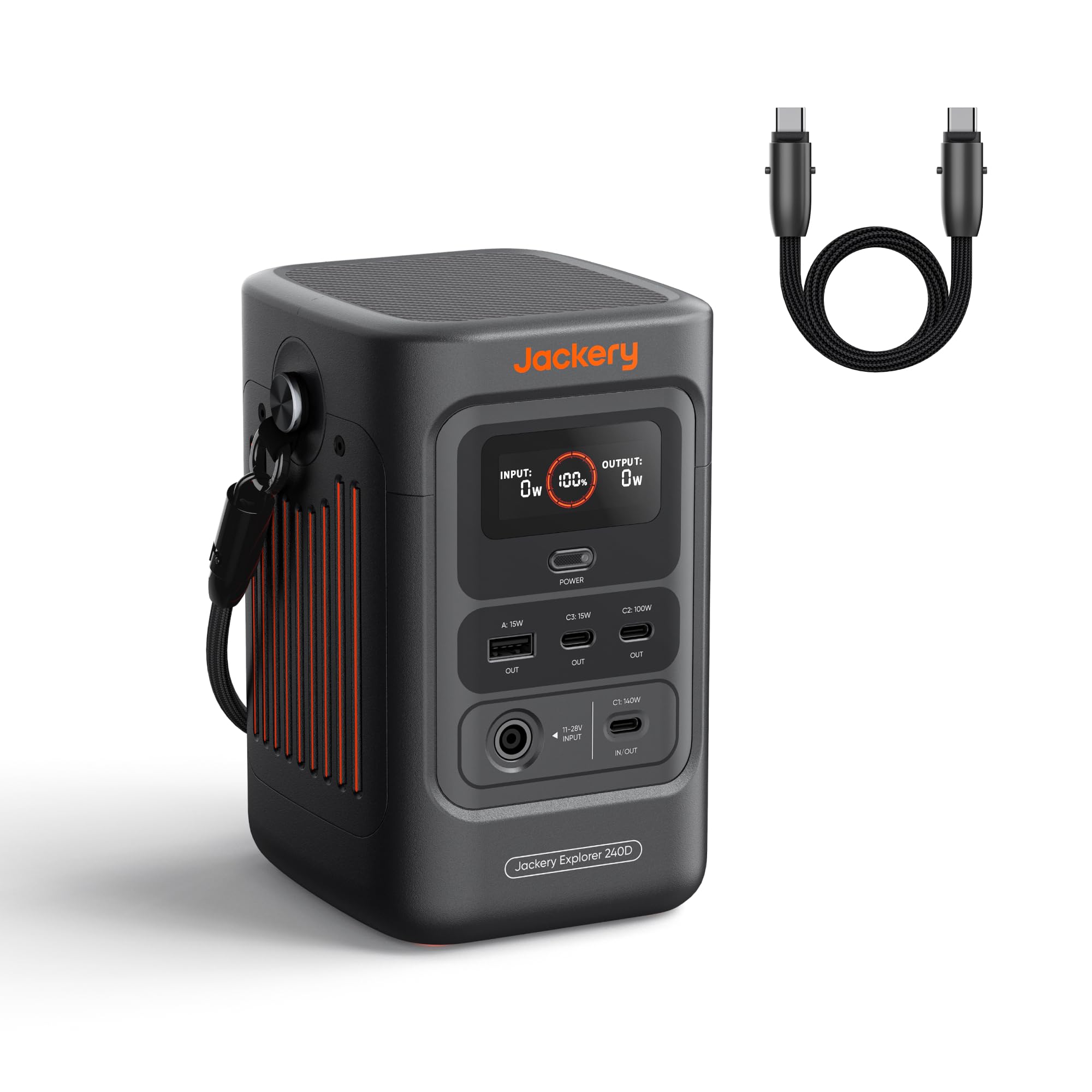
Image: Jackery Explorer 240D Portable Power Station, showcasing its compact design and multiple ports.
Setup
Unboxing and Initial Charge
- Remove the Jackery Explorer 240D from its packaging.
- Locate the included USB-C to USB-C cable.
- For optimal performance, fully charge the power station before first use. Connect the USB-C cable to a compatible power adapter (not included) and plug it into one of the USB-C input/output ports on the Explorer 240D. The display will indicate charging status.
Connecting Devices
The Explorer 240D features various output ports to connect your devices:
- USB-C Ports (3x): For high-speed charging of compatible devices. One port supports up to 140W, another up to 100W, and the third up to 15W.
- USB-A Port (1x): For standard USB device charging (up to 15W).
Simply plug your device's charging cable into the appropriate port on the power station.

Image: Close-up view of the Jackery Explorer 240D's front panel, highlighting the USB-C and USB-A output ports.
Operating Instructions
Powering On/Off
Press the 'Power' button located on the front panel to turn the unit on or off. The display will illuminate, showing battery level, input wattage, and output wattage.
Using Output Ports
Once powered on, simply plug your devices into the desired USB-C or USB-A ports. The power station will automatically begin charging. The display will show the total output wattage.
Charging the Power Station
The Jackery Explorer 240D offers flexible charging options:
- USB-C Charging: Use the included USB-C cable with a compatible power adapter.
- Solar Charging: Connect a compatible solar panel (up to 100W) to the designated input port.
- Car Charging: Use a car charger adapter (not included) to charge from your vehicle's 12V outlet.
- AC-DC Dual Input: Achieve 0% to 80% charge in approximately one hour using both AC and DC inputs simultaneously.
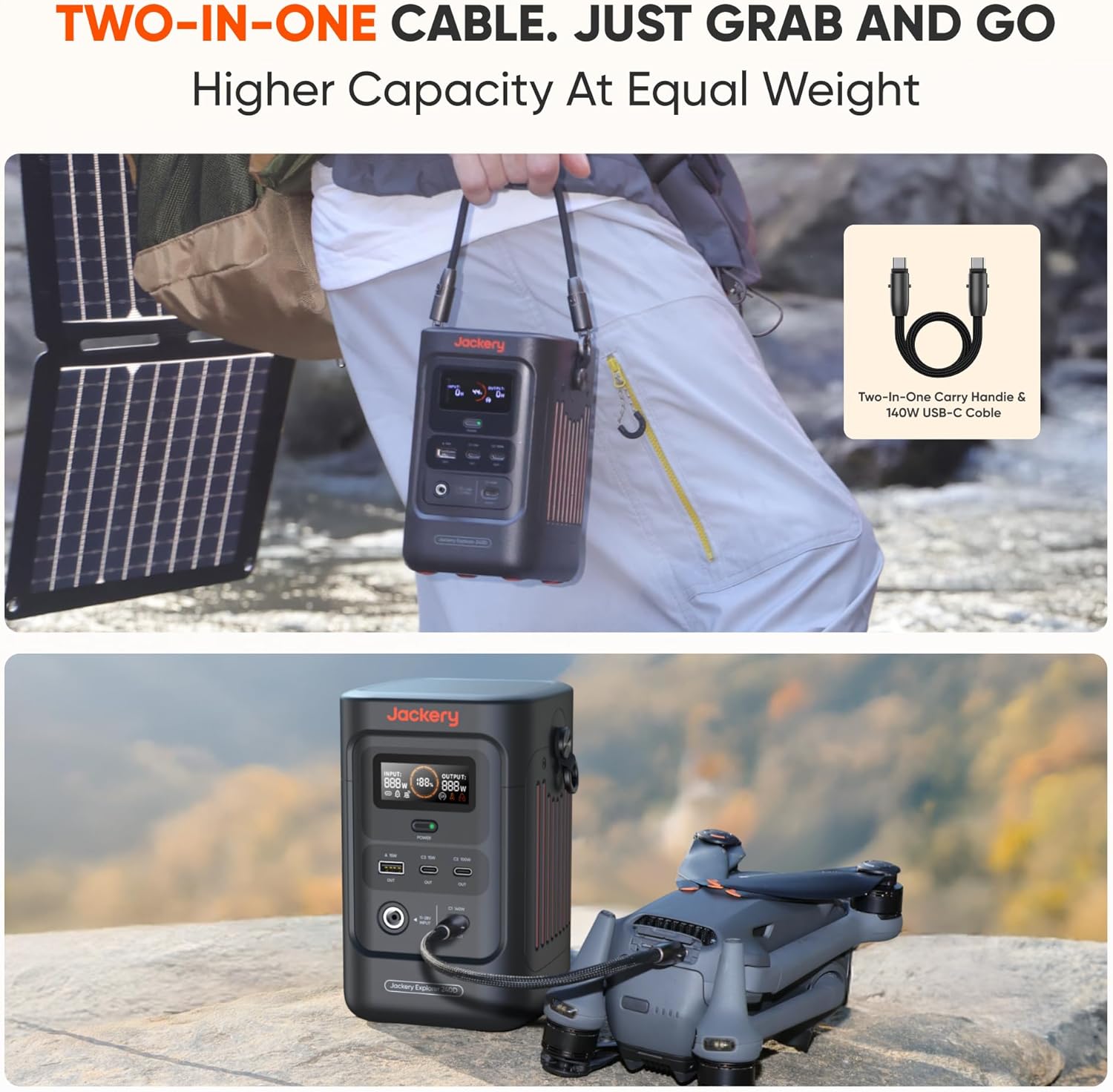
Image: Illustration of the Jackery Explorer 240D being charged via AC, solar panel, and car adapter.
Smart Energy-Saving Mode
The unit features a smart energy-saving mode to efficiently extend power supply duration. This mode is activated by default. To activate the maximum 200W output, press the power button three times.
Video: Overview of Jackery 240D with a Solar Panel
Video: A detailed overview of the Jackery Explorer 240D, demonstrating its features and how to connect it with a solar panel for charging.
Maintenance
Battery Care
The Explorer 240D features an upgraded LiFePO4 lithium battery designed for a 10-year lifespan, maintaining at least 70% of its original energy capacity after 6,000 charge cycles. To prolong battery life, avoid extreme temperatures and store the unit in a cool, dry place when not in use.
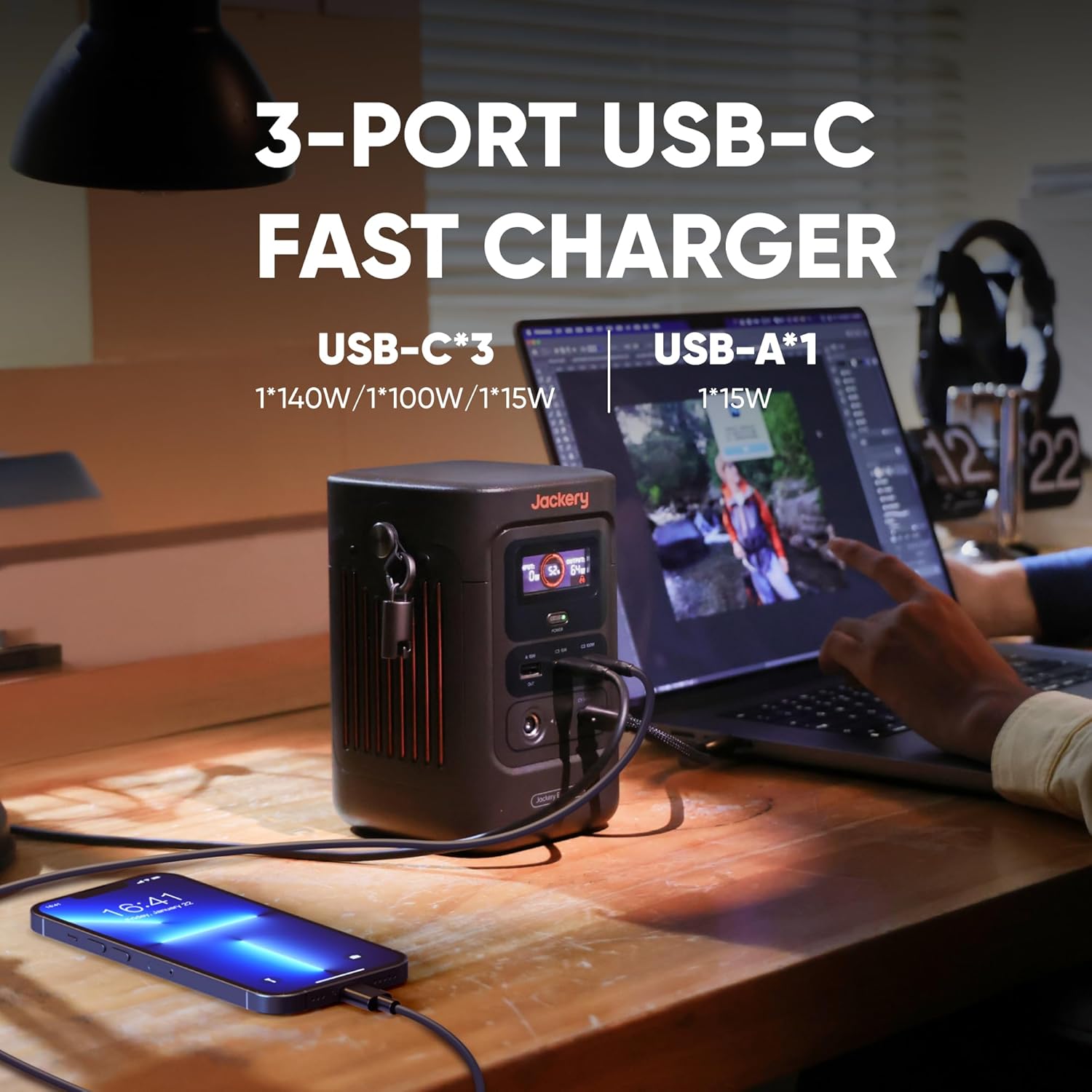
Image: Visual representation of the Jackery Explorer 240D's long-lasting LiFePO4 battery with 10+ years lifespan and 6000 charge cycles.
Operating Environment
The power station is designed to operate seamlessly in temperatures ranging from -4°F to 113°F (-20°C to 45°C). Ensure proper ventilation during use to prevent overheating.
Troubleshooting
Unit Not Powering On
- Ensure the battery has sufficient charge. Recharge if necessary.
- Press and hold the 'Power' button for a few seconds to ensure it's properly activated.
Devices Not Charging
- Verify that the power station is turned on and has adequate battery life.
- Check if the device's charging cable is securely connected to both the power station and the device.
- Ensure the device's power requirements do not exceed the port's maximum output (e.g., 140W for C1, 100W for C2, 15W for C3/A).
- If using the energy-saving mode, ensure the output is sufficient for your device. Triple-press the power button to activate maximum 200W output if needed.
Slow Charging
- Check the input wattage displayed on the screen. Ensure your charging source (wall adapter, solar panel, car charger) is providing sufficient power.
- For solar charging, ensure the solar panel is positioned to receive maximum sunlight.
Specifications
| Feature | Detail |
|---|---|
| Brand | Jackery |
| Model Name | JE-240B |
| Battery Type | LiFePO4 Lithium |
| Capacity | 256Wh (80,000mAh) |
| Output Wattage | 200W (DC Output) |
| USB-C Output | C1: 140W, C2: 100W, C3: 15W |
| USB-A Output | 15W |
| Input Voltage | 11-28V (DC Input) |
| Max Solar Charging | 100W |
| Operating Temperature | -4°F to 113°F (-20°C to 45°C) |
| Lifespan | 10 years (≥70% capacity after 6,000 cycles) |
| Weight | 4.85 lbs |
| Dimensions | Compact design, 70% smaller and 46% lighter than comparable AC portable power stations. |
Warranty
The Jackery Explorer 240D comes with a 5-year warranty. For detailed terms and conditions, please refer to the official Jackery website or the warranty card included in your product packaging.
Support
For further assistance, product registration, or to access additional resources, please visit the official Jackery website. You can also refer to the 'E240D User Manual' included in the box for comprehensive information.
Included in the Box:
- 1x Jackery Explorer 240D Portable Power Station
- 1x USB-C to USB-C Cable (doubles as a carrying strap)
- 1x E240D User Manual


