
1. Introduction
The NearStream AMIX20U is a versatile audio interface and mixer designed for streamers, content creators, gamers, and music producers. It offers a comprehensive set of features for high-quality audio recording and live streaming across various platforms and devices.

Image: The NearStream AMIX20U audio interface in a typical setup, demonstrating its use for dual-person streaming or podcasting with microphones and headphones connected.
2. Package Contents
Please verify that all items listed below are included in your package:
- AMIX20U Audio Interface x 1
- USB Cable (2 meters) x 1
- TRS-TRS Cable (1.5 meters) x 1
- TRRS-TRRS Cable (1.5 meters) x 1

Image: A visual representation of the AMIX20U audio interface and all accompanying cables and documentation included in the product package.
3. Setup Guide
3.1 Power Connection
The AMIX20U audio interface requires an external power source. Connect the provided USB cable to the 5V-1A port on the device and to a suitable USB power adapter (not included) or a powered USB port on your computer.
3.2 Connecting Microphones and Instruments
The AMIX20U features two high-quality XLR/6.35mm combo jacks with ultra-low noise preamps. These inputs are suitable for both microphones and instruments (e.g., guitars, keyboards).
- XLR Microphones: Connect your XLR microphone directly to the combo jacks.
- 6.35mm Instruments/Microphones: Use a 6.35mm (1/4 inch) TRS or TS cable to connect instruments or microphones to the combo jacks.
- 48V Phantom Power: The device supports 48V phantom power for condenser microphones. Ensure phantom power is enabled if your microphone requires it.
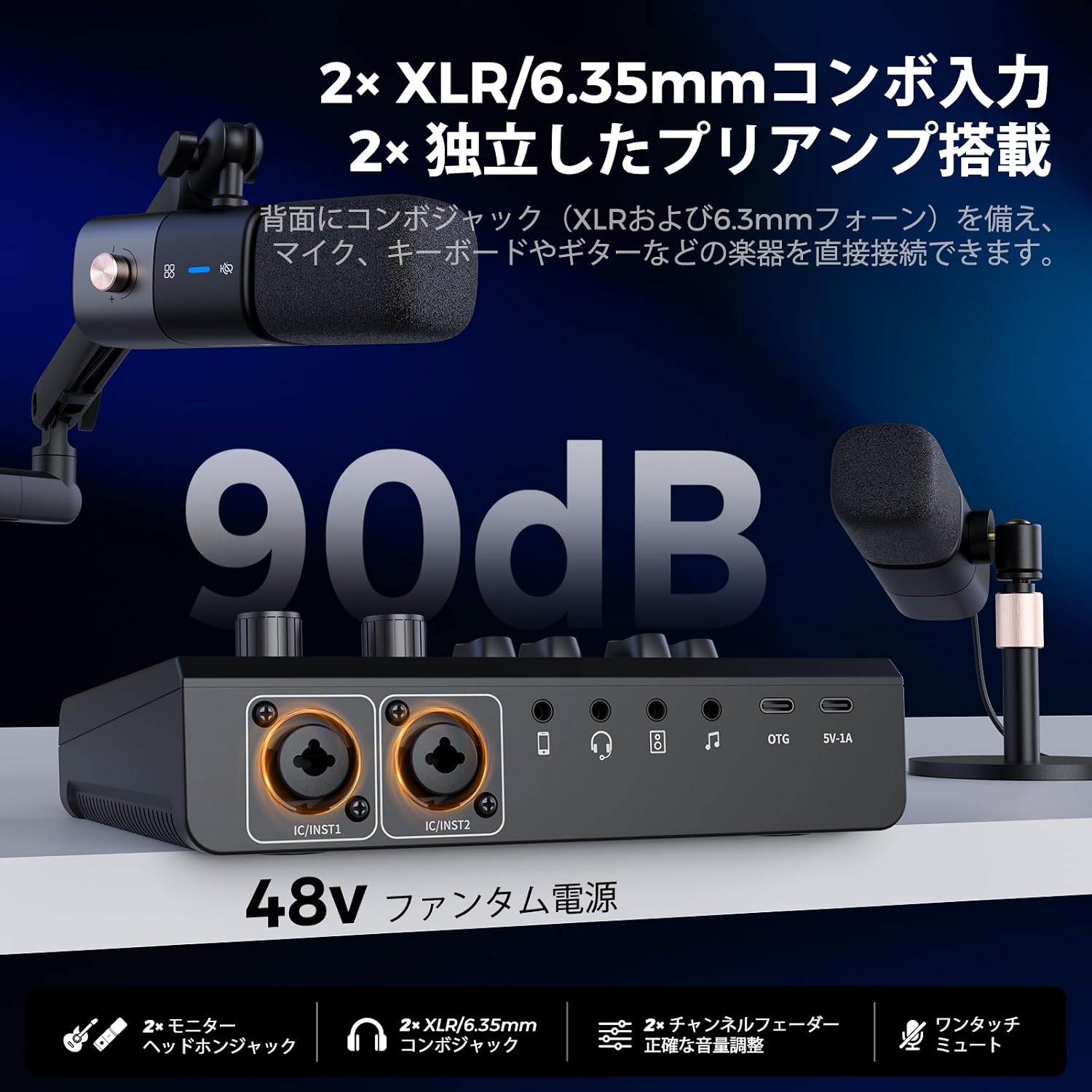
Image: A close-up view of the AMIX20U's dual XLR/6.35mm combo inputs, highlighting the 90dB preamps and 48V phantom power capability for professional audio input.
3.3 Headphone and Speaker Connections
- Headphone Output: Connect your headphones to one of the two headphone outputs for real-time monitoring.
- Speaker Output: Use the 3.5mm audio output to connect to external speakers.
3.4 Connecting to PC/Smartphone/Tablet
The AMIX20U offers broad compatibility with various devices and operating systems.
- USB Connection (PC/Mac): Connect the AMIX20U to your computer (Mac/Windows) using the provided USB cable for direct recording and live streaming. It is compatible with popular recording software.
- OTG Port (Smartphone/Tablet): Use the OTG ports for direct recording or live streaming with smartphones (iOS/Android) and tablets.
- Bluetooth Connection: Pair your smartphone or tablet via Bluetooth 5.3 for wireless accompaniment or background music playback.

Image: The AMIX20U demonstrating its wide compatibility with different operating systems (Windows, Mac, Android, iOS) and popular streaming/recording applications.
4. Operating Instructions
4.1 Channel Control
The AMIX20U features four smooth volume faders and dedicated mute buttons for precise control over each input and output:
- Mic 1 Fader & Mute: Controls volume and mutes the first microphone input.
- Mic 2 Fader & Mute: Controls volume and mutes the second microphone input.
- Line Input Fader & Mute: Controls volume and mutes the line input (e.g., from Bluetooth/AUX).
- Line Output Fader & Mute: Controls volume and mutes the main line output.
A dedicated rotary knob allows intuitive adjustment of the headphone monitoring volume. The ultra-low latency headphone output ensures real-time audio confirmation during streaming or recording.
4.2 Voice Changer Modes
The AMIX20U includes 6 voice changer modes to easily modify your voice:
- Male to Female
- Robot
- Monster
- Baby
- Elder
- Electric Mode
Activate these modes using the dedicated buttons on the interface to add creative effects to your audio.

Image: A detailed view of the AMIX20U's voice changer section, illustrating the different voice modification options available for creative content creation.
4.3 Customizable Sound Pads
The device features 4 customizable sound pads. You can pre-record sound effects up to 15 seconds each and trigger them with a single tap to enhance your live streams or recordings.

Image: A user interacting with the AMIX20U's customizable sound pads, demonstrating how pre-recorded effects like laughter, applause, and footsteps can be triggered during a broadcast.
4.4 RGB Lighting
The RGB button (also the power button) allows you to switch between 9 different light effects. Short press to cycle through effects, creating a dynamic and professional visual for your streaming environment.

Image: The AMIX20U showcasing its vibrant RGB lighting, with an overlay indicating the 9 available light modes that can be controlled via the RGB button.
4.5 Additional Features
- Noise Reduction: Activate the noise reduction feature to minimize background noise and capture clear vocals and instrument sounds.
- Loopback Function: This feature allows you to mix audio from your PC (BGM, game audio) with your own voice into a single audio source, ideal for live streaming, podcasting, and content creation.
- Reverb Adjustment: Adjust the reverb level for vocals and instruments from 0 to 100 for enhanced audio depth.
- Ducker Mode: Automatically lowers background music volume when you speak into the microphone, ensuring your voice is always clear.
- Voice Remover: Easily remove vocals from background music (BGM) for karaoke or remixing purposes.
5. Specifications
| Feature | Description |
|---|---|
| Brand | NearStream |
| Model | AMIX20U |
| Connectivity Technology | AUX, Bluetooth, USB, XLR |
| Product Dimensions (D x W x H) | 16.9 x 7.5 x 6.5 cm |
| Product Weight | 270 Grams |
| Operating System Compatibility | Android, MacOS, Windows, iOS |
| Audio Input | XLR, 6.35mm Combo, AUX, Bluetooth |
| Phantom Power | 48V Supported |
| Voice Changer Modes | 6 types |
| Customizable Sound Pads | 4 pads (up to 15 seconds recording) |
| RGB Lighting Modes | 9 types |
| Special Features | Noise Reduction, Loopback, Reverb, Ducker, Voice Remover |
6. Maintenance
To ensure the longevity and optimal performance of your NearStream AMIX20U audio interface, please follow these maintenance guidelines:
- Cleaning: Use a soft, dry cloth to clean the exterior of the device. Avoid using harsh chemicals, solvents, or abrasive materials, as they may damage the finish.
- Storage: Store the device in a cool, dry place away from direct sunlight, extreme temperatures, and high humidity.
- Handling: Handle the device with care. Avoid dropping it or subjecting it to strong impacts.
- Connections: Always ensure cables are properly connected and disconnected gently to prevent damage to ports.
7. Troubleshooting
If you encounter any issues with your AMIX20U, please refer to the following common troubleshooting steps:
- No Power: Ensure the USB power cable is securely connected to both the device and a working power source. Remember, an external power supply is required.
- No Audio Input:
- Check if microphones or instruments are correctly plugged into the XLR/6.35mm combo jacks.
- Verify that the corresponding channel faders are raised and not muted.
- If using a condenser microphone, ensure 48V phantom power is activated.
- For Bluetooth input, ensure the device is paired and connected, and the volume is up.
- No Audio Output (Headphones/Speakers):
- Check headphone/speaker connections.
- Ensure the headphone monitoring knob is turned up.
- Verify that the main line output fader is raised and not muted.
- Sound Distortion/Noise:
- Reduce input gain levels to prevent clipping.
- Activate the noise reduction feature.
- Ensure all cables are in good condition and properly shielded.
- Voice Changer/Sound Pads Not Working: Ensure the specific feature is activated and configured correctly. For sound pads, verify that audio has been recorded to them.
If the issue persists after following these steps, please contact customer support.
8. Warranty and Support
NearStream provides a 1-year quality warranty from the date of purchase for the AMIX20U audio interface. This warranty covers manufacturing defects and ensures reliable service.
For any questions, concerns, or technical assistance, please do not hesitate to contact our customer service team. We offer 24/7 customer support to assist you.
Please retain your proof of purchase for warranty claims.