
Carlinkit Mini Ultra
Carlinkit Mini Ultra Wireless CarPlay & Android Auto Adapter User Manual
Model: Mini Ultra
Introduction
The Carlinkit Mini Ultra is designed to convert your vehicle's existing wired CarPlay or Android Auto system into a wireless experience. This adapter provides a convenient plug-and-play solution, allowing you to enjoy seamless smartphone integration without the need for cables. It supports both Apple CarPlay (iOS 10+) and Android Auto (Android 11+) for compatible vehicles.
Safety Information
Always prioritize safety while driving. Do not attempt to operate or adjust the adapter or your smartphone while the vehicle is in motion. Ensure the adapter is securely connected to prevent dislodgement. Adhere to all local traffic laws and regulations.
What's in the Box
- Carlinkit Mini Ultra Adapter (Product)
- OTG Adapter (USB-A to USB-C)
- Color Box Packing
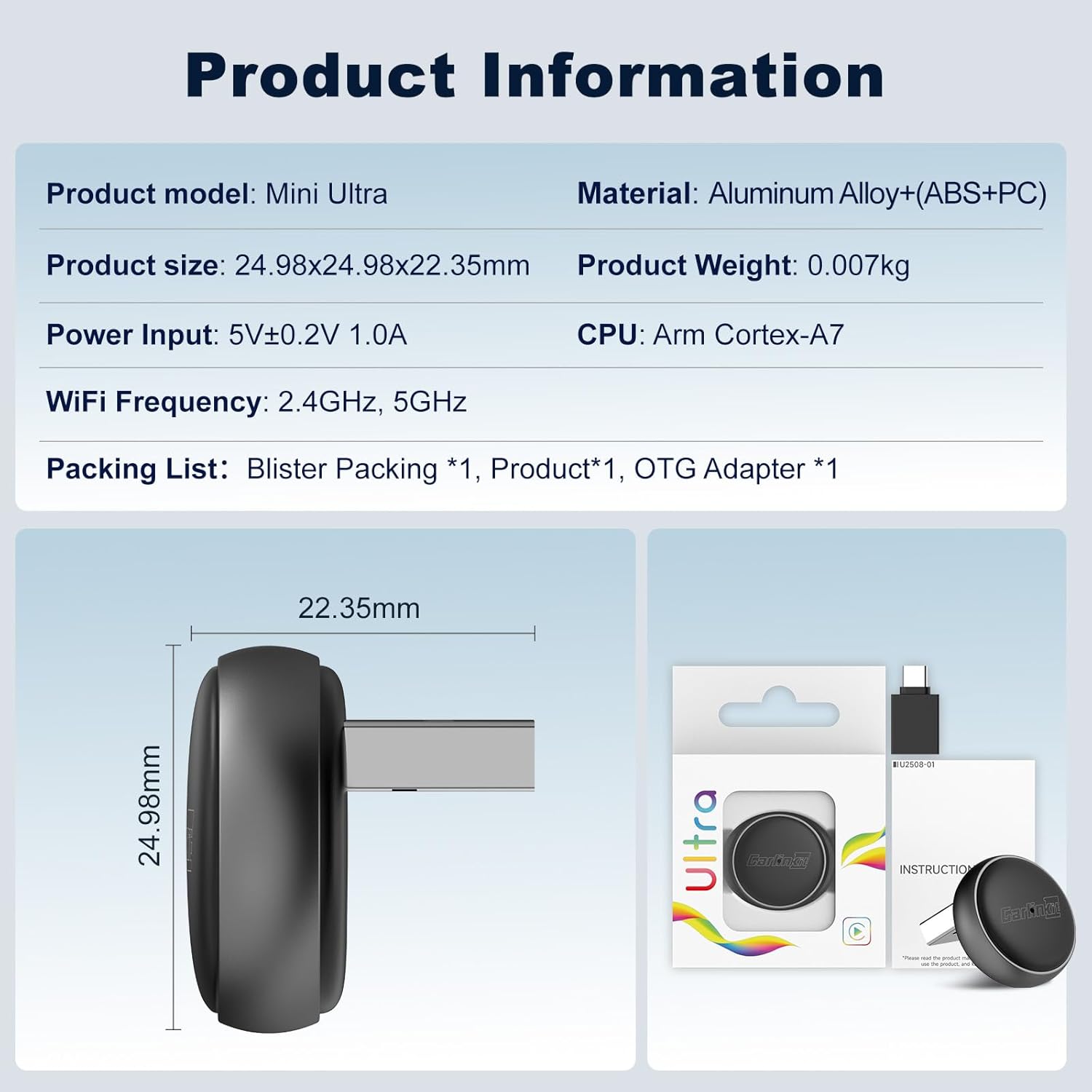
Image: The Carlinkit Mini Ultra adapter, its OTG adapter, and packaging, illustrating the contents of the box.
Compatibility Requirements
Before setup, ensure your vehicle and smartphone meet the following requirements:
- Vehicle: Must have a factory-installed wired CarPlay or wired Android Auto system. The adapter does not convert a non-CarPlay/Android Auto system to one. Not compatible with BMW or Tesla vehicles.
- iPhone: Requires iOS 10 or later for Wireless CarPlay.
- Android Phone: Requires Android 11 or later for Wireless Android Auto.

Image: Visual representation of vehicle and phone compatibility for the Carlinkit Mini Ultra adapter, showing supported wired CarPlay and Android Auto systems.
Setup Instructions
Follow these steps to set up your Carlinkit Mini Ultra adapter:
- Step 1: Insert the Adapter. Plug the Carlinkit Mini Ultra adapter into your car's USB-A port. If your car only has a USB-C port, use the included OTG adapter. The adapter's indicator light will illuminate.
- Step 2: Enable Bluetooth and Wi-Fi on Your Phone. On your iPhone or Android phone, go to your settings and ensure both Bluetooth and Wi-Fi are turned on.
- Step 3: Pair Your Phone. On your car's infotainment screen, a Bluetooth device name (e.g., "Vehiconn_XXXX") will appear. On your phone, search for this Bluetooth device and pair with it. Confirm any pairing requests on both your phone and car screen.
- Step 4: Connect to CarPlay/Android Auto. After successful Bluetooth pairing, your phone will automatically connect to the adapter via Wi-Fi. Tap "Connect" or "Agree" on your car's screen to initiate wireless CarPlay or Android Auto.

Image: A four-step visual guide demonstrating how to connect the Carlinkit Mini Ultra adapter, from plugging it in to establishing a wireless CarPlay/Android Auto connection.
Video: This video demonstrates the Carlinkit Mini Ultra adapter, showing its compact design, easy installation into a car's USB port, and seamless conversion of wired CarPlay/Android Auto to wireless. It highlights features like high-fidelity audio, voice commands for navigation and calls, split-screen multitasking, and automatic connection upon entering the vehicle.
Operating Instructions
Once connected, the Carlinkit Mini Ultra provides a fully integrated wireless experience:
- Automatic Connection: After the initial setup, the adapter will automatically connect to your phone when you start your car, providing a "get in and go" experience.
- Native Control Retention: All original car controls, including steering wheel buttons, touchscreen, and rotary knobs, remain fully functional with wireless CarPlay/Android Auto.
- Voice Control: Utilize your car's original microphone for voice commands (Siri for CarPlay, Google Assistant for Android Auto) for navigation, music playback, calls, and more, ensuring hands-free operation.
- High-Fidelity Audio: Enjoy clear audio quality through your car's sound system for music, podcasts, and calls.
- Split-Screen Multitasking: Many vehicles support split-screen functionality, allowing you to view navigation and control media simultaneously.

Image: This image illustrates how the Carlinkit Mini Ultra adapter allows users to maintain control over their car's infotainment system using existing touch, steering wheel, knob, and voice controls.
Maintenance and Updates
To ensure optimal performance and compatibility, keep your Carlinkit Mini Ultra adapter updated:
- Over-The-Air (OTA) Updates: The adapter supports OTA firmware updates. This allows for performance improvements, bug fixes, and enhanced compatibility with new car models or phone OS versions.
- Updating Firmware:
- Plug the adapter into your car's USB port.
- Turn on Wi-Fi on your mobile phone and connect to the adapter's Wi-Fi signal (the network name will be displayed on your car screen or in the adapter's settings).
- Open a web browser on your phone and enter the URL: 192.168.50.100
- Navigate to the settings interface and click on 'Upgrade' to check for and install available updates.
- Cleaning: Use a soft, dry cloth to clean the adapter. Avoid using liquid cleaners or abrasive materials.

Image: A visual guide detailing the steps to access the adapter's background settings and perform an Over-The-Air (OTA) firmware update.
Troubleshooting
If you encounter issues, try the following solutions:
- No Connection:
- Ensure your car has wired CarPlay/Android Auto.
- Verify Bluetooth and Wi-Fi are enabled on your phone.
- Forget the Bluetooth connection on your phone and car, then re-pair.
- Try a different USB port in your car if available.
- Restart your phone and car's infotainment system.
- Audio Issues (Drops/Distortion):
- Check for firmware updates for the adapter.
- Ensure no other Bluetooth devices are interfering.
- Adjust audio settings on your car's system.
- Slow Performance/Lag:
- Ensure your phone's operating system is up to date.
- Close unnecessary apps on your phone.
- Perform an OTA update on the adapter.
- Adapter Not Powering On:
- Check the USB connection.
- Ensure the car's USB port is active (some ports may only activate with the ignition on).
- Try a different USB port or cable.
Specifications
| Product Model | Mini Ultra |
| Product Size | 24.98mm x 24.98mm x 22.35mm |
| Product Weight | 0.007 kg |
| Power Input | 5V ± 0.2V 1.0A |
| Wi-Fi Frequency | 2.4GHz, 5GHz |
| CPU | Arm Cortex-A7 |
| Material | Aluminum Alloy + (ABS+PC) |
| Connector Type | USB-A/Type-C |
| Operating Temperature | -20°C to 60°C (-4°F to 140°F) |
Image: Detailed product information for the Carlinkit Mini Ultra, including model, dimensions, weight, power input, Wi-Fi frequency, CPU, and materials.
Warranty Information
The Carlinkit Mini Ultra adapter comes with a 1-year warranty from the date of purchase. This warranty covers manufacturing defects and malfunctions under normal use. Please retain your proof of purchase for warranty claims. The warranty does not cover damage caused by misuse, accidents, unauthorized modifications, or improper installation.
Support
For further assistance, technical support, or warranty inquiries, please contact Carlinkit customer service through the official website or your retailer's support channels. You may also refer to the FAQ section on the Carlinkit website for common questions and solutions.
Related documentsMini Ultra


Ask a question about this manual
Ask about setup, troubleshooting, compatibility, parts, safety, or missing instructions. Manuals+ will review the question and use this page’s manual context to help answer it.