
1. Introduction
This manual provides detailed instructions for the installation, operation, and maintenance of your WOWiViD 10.1-inch Car Radio. This unit is designed to enhance your driving experience with advanced features such as wireless CarPlay, Android Auto, GPS navigation, Bluetooth 5.2, and support for a backup camera. Please read this manual thoroughly before use to ensure proper functionality and safety.
2. Compatibility
This car radio is specifically designed for Honda Civic models manufactured between 2006 and 2011. It features a plug-and-play wiring harness for simplified installation.
Important Note:
- This unit does not support premium sound systems such as JBL or BOSE.
- If your car comes with an amplifier or a large original screen, this unit will not fit.

Image 2.1: The WOWiViD 10.1-inch car radio seamlessly integrated into a Honda Civic dashboard, displaying a modern user interface with various application icons. This image illustrates the product's fitment and aesthetic in the vehicle.

Image 2.2: Visual guide demonstrating compatible and incompatible Honda Civic dashboard configurations. The top row shows three compatible factory radio setups, while the bottom row indicates three incompatible setups, including those with large original screens or DVD players.
3. Package Contents
Verify that all items listed below are included in your package:
- WOWiViD 10.1-inch Car Radio Unit
- Power Cable & RCA Cable
- USB Cable & Microphone Cable
- Back-up Camera & Camera Cable
- GPS Antenna & Signal Cable
- Ankle buckle (for installation)
- User Manual

Image 3.1: An illustration of the car radio unit dimensions and a detailed diagram of the wiring harness connections. Below, individual components included in the package are displayed, such as the power cable, RCA cable, USB cables, GPS antenna, reversing input, backup camera, microphone, ankle buckle, and user manual.
4. Setup & Installation
Installation should be performed by a qualified technician if you are unfamiliar with car audio systems. Ensure the vehicle's battery is disconnected before beginning installation.
4.1 General Installation Steps
- Carefully remove the original car radio and dashboard trim.
- Connect the provided plug-and-play wiring harness to the vehicle's factory harness.
- Connect the GPS antenna and route it to a location with a clear view of the sky (e.g., dashboard corner).
- Connect the USB cables and route them to a convenient location (e.g., glove compartment).
- Mount the new WOWiViD car radio unit into the dashboard opening.
- Reconnect the vehicle's battery and test the unit before fully reassembling the dashboard.
4.2 Backup Camera Wiring
The unit supports a rear view camera input. Connect the camera cable as follows:
- Connect the camera's video output to the 'Reversing Input' RCA port on the unit's harness.
- Connect the camera's power wire to the vehicle's reverse light power source.
- Connect the 'Reversing Line' (usually a pink wire) from the unit's harness to the positive pole of the backup lamp (BUL) or a 12V reverse trigger signal.
- Ensure proper grounding for the camera.
4.3 Steering Wheel Control (SWC) Wiring
After correct wiring, the steering wheel buttons can be learned through the unit's settings menu.
- Connect the SWC wires from the unit's harness to the corresponding SWC wires in your vehicle's wiring. Consult your vehicle's wiring diagram if unsure.
- Access the 'Steering Wheel Learning' function in the unit's settings to program the buttons.
5. Operating Instructions
5.1 Power On/Off
Press the power button on the unit or use the vehicle's ignition to turn the unit on or off. The unit will typically power on automatically with the vehicle's ignition.
5.2 Wireless CarPlay & Android Auto
This unit supports both wired and wireless Apple CarPlay and Android Auto. This allows you to access phone functions like navigation, music, calls, and messages directly on the car radio's screen.
For CarPlay Connection:
- Turn on the 'CPLink' app in the car radio.
- Connect CarPlay via Bluetooth or USB cable.
For Android Auto Connection:
- Install the 'Android Auto' app on your phone first.
- Turn on the 'CP Zlink5' app in the car radio.
- Connect Android Auto via WiFi, Bluetooth, or USB cable.

Image 5.1: The top panel shows the wireless CarPlay interface on the car radio screen, mirroring an iPhone's display. The bottom panel illustrates the wireless Android Auto interface, mirroring an Android phone's display, demonstrating seamless smartphone integration.
5.3 WiFi Connection & GPS Navigation
Connect the unit to a WiFi network or your phone's hotspot to access online features and download applications.
- WiFi Connection: Go to Settings > Network > Wi-Fi to connect to an available network.
- GPS Navigation: The unit has a built-in GPS module. You can use pre-installed navigation apps or download others from the app store. Offline maps can be downloaded for navigation without an internet connection.

Image 5.2: The top section displays the car radio screen connected to WiFi, showing various social media and streaming app icons. The bottom section illustrates the GPS navigation interface with both online and offline map capabilities, providing real-time routing.
5.4 Bluetooth 5.2 & FM Radio
- Bluetooth 5.2: Pair your smartphone via Bluetooth for hands-free calling and wireless audio streaming. The unit includes a built-in microphone and supports an external microphone for clear communication.
- FM Radio: Access stable FM radio with unlimited preset stations. The unit supports manual and automatic station search.

Image 5.3: The top panel shows a driver making a hands-free call via Bluetooth. The bottom left panel displays the FM/RDS radio interface tuned to 100.00 MHz. The bottom right panel illustrates the 32-band EQ settings, allowing for detailed audio customization.
5.5 Steering Wheel Control (SWC)
Once configured, the original steering wheel buttons can control various functions of the car radio, such as volume, track skipping, and mode selection.
- To program SWC: Go to Settings > Steering Wheel Control > Steering Learn. Follow the on-screen prompts to assign functions to each button.
5.6 Backup Camera
The unit automatically displays the rear view image when the vehicle is shifted into reverse, enhancing safety during parking and maneuvering.
- The included backup camera features a 170-degree ultra-wide angle and a waterproof design.
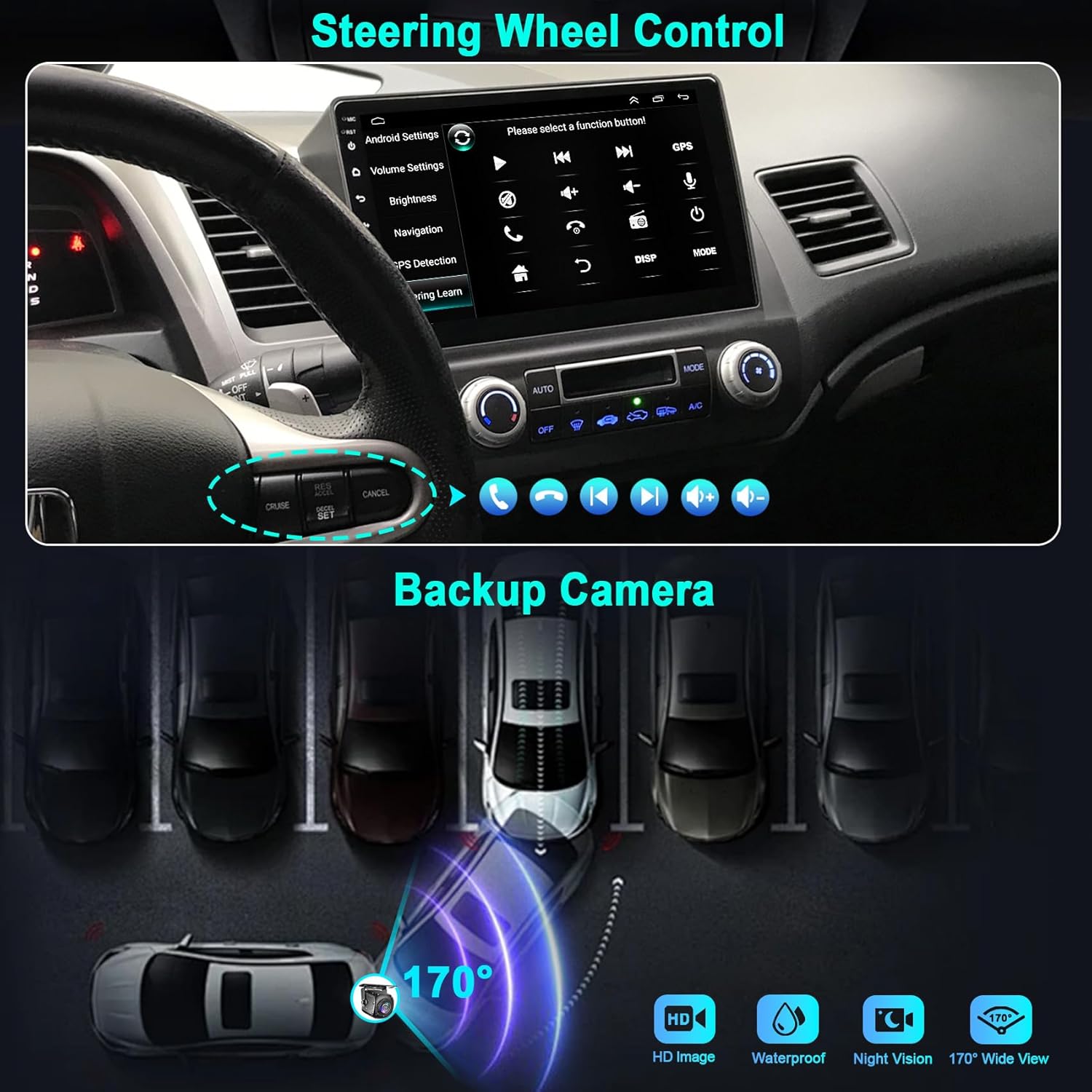
Image 5.4: The top panel shows the 'Steering Learn' interface within the Android Settings, allowing users to configure steering wheel controls. The bottom panel displays the wide-angle view from the backup camera, complete with parking guidelines and icons indicating HD image quality, waterproofing, night vision, and 170-degree view.
5.7 DSP & EQ Settings
The built-in Digital Sound Processor (DSP) and 32-band Equalizer (EQ) allow for precise audio customization to optimize your listening experience.
- Access the EQ settings from the main menu to adjust frequency bands, balance, fader, and other audio parameters.
5.8 User Interface (UI)
The unit offers multiple user interface themes and wallpaper options for personalization.
- Navigate through the settings to select your preferred UI theme and wallpaper.
6. Maintenance
To ensure the longevity and optimal performance of your car radio, follow these maintenance guidelines:
- Cleaning: Use a soft, dry cloth to clean the screen and unit. For stubborn smudges, lightly dampen the cloth with water or a screen-safe cleaner. Avoid abrasive materials or harsh chemicals.
- Temperature: Avoid exposing the unit to extreme temperatures, both hot and cold, for extended periods.
- Software Updates: Periodically check for available software updates to ensure the unit has the latest features and bug fixes. Updates can typically be found through the unit's settings or the manufacturer's website.
- Cable Connections: Ensure all cables are securely connected to prevent intermittent issues.
7. Troubleshooting
If you encounter issues with your car radio, refer to the following common problems and solutions:
| Problem | Possible Cause | Solution |
|---|---|---|
| Unit does not power on. | Incorrect wiring; Blown fuse; Vehicle battery issue. | Check power cable connections. Verify vehicle fuses. Ensure vehicle battery is charged. |
| No sound. | Volume too low; Speaker wires disconnected; Incorrect audio settings. | Increase volume. Check speaker wiring. Adjust audio output settings (e.g., fader/balance). |
| GPS signal lost or inaccurate. | GPS antenna obstructed or disconnected. | Ensure GPS antenna has a clear view of the sky. Check antenna connection. |
| CarPlay/Android Auto not connecting. | Incorrect app launched; Bluetooth/WiFi off; USB cable issue; Phone compatibility. | Ensure correct app (CPLink/Zlink5) is running. Verify phone's Bluetooth/WiFi is on. Try a different USB cable. Check phone's compatibility with CarPlay/Android Auto. |
| Backup camera not displaying. | Camera wiring incorrect; Reverse trigger not detected. | Check camera video and power connections. Ensure reverse trigger wire is correctly connected to the vehicle's reverse light signal. |
| Steering Wheel Controls not working. | SWC wiring incorrect; Buttons not learned. | Verify SWC wiring. Perform the 'Steering Learn' procedure in settings. |
If the problem persists after attempting these solutions, please contact customer support.
8. Specifications
Key technical specifications of the WOWiViD 10.1-inch Car Radio:
- Screen Size: 10.1 Inches
- Operating System: Android (version not specified, but supports Android Auto)
- Processor: 8-Core
- Memory (RAM): 4GB
- Storage (ROM): 128GB
- Display Type: IPS Touchscreen
- Resolution: 1280x720 HD
- Connectivity: Bluetooth 5.2, USB, Wi-Fi (5G compatible)
- Special Features: Wireless CarPlay, Wireless Android Auto, Mirror Link, Built-in DSP, 32-band EQ, FM/RDS Radio, GPS Navigation, Split-Screen Functionality, Voice Control, Support for Backup Camera, Steering Wheel Control (SWC)
- Audio Output Mode: Stereo
- Control Method: App, Push Button, Touch
- Item Weight: 4 Pounds
- Package Dimensions: 18.54 x 11.81 x 7.28 inches
- Batteries: Not included
9. Warranty & Support
For warranty information and technical support, please refer to the documentation included with your product or contact WOWiViD customer service through the retailer where the product was purchased. Keep your purchase receipt as proof of purchase for warranty claims.