
Introduction
This manual provides detailed instructions for the assembly, operation, and maintenance of your SOFTSEA Full Over Twin Bunk Bed. This space-saving metal bunk bed features a full-size upper bunk and a twin-size lower bunk, an integrated desk with USB charging ports, under-bed LED lighting, and storage stairs. Please read all instructions carefully before assembly and use to ensure safe and proper operation.
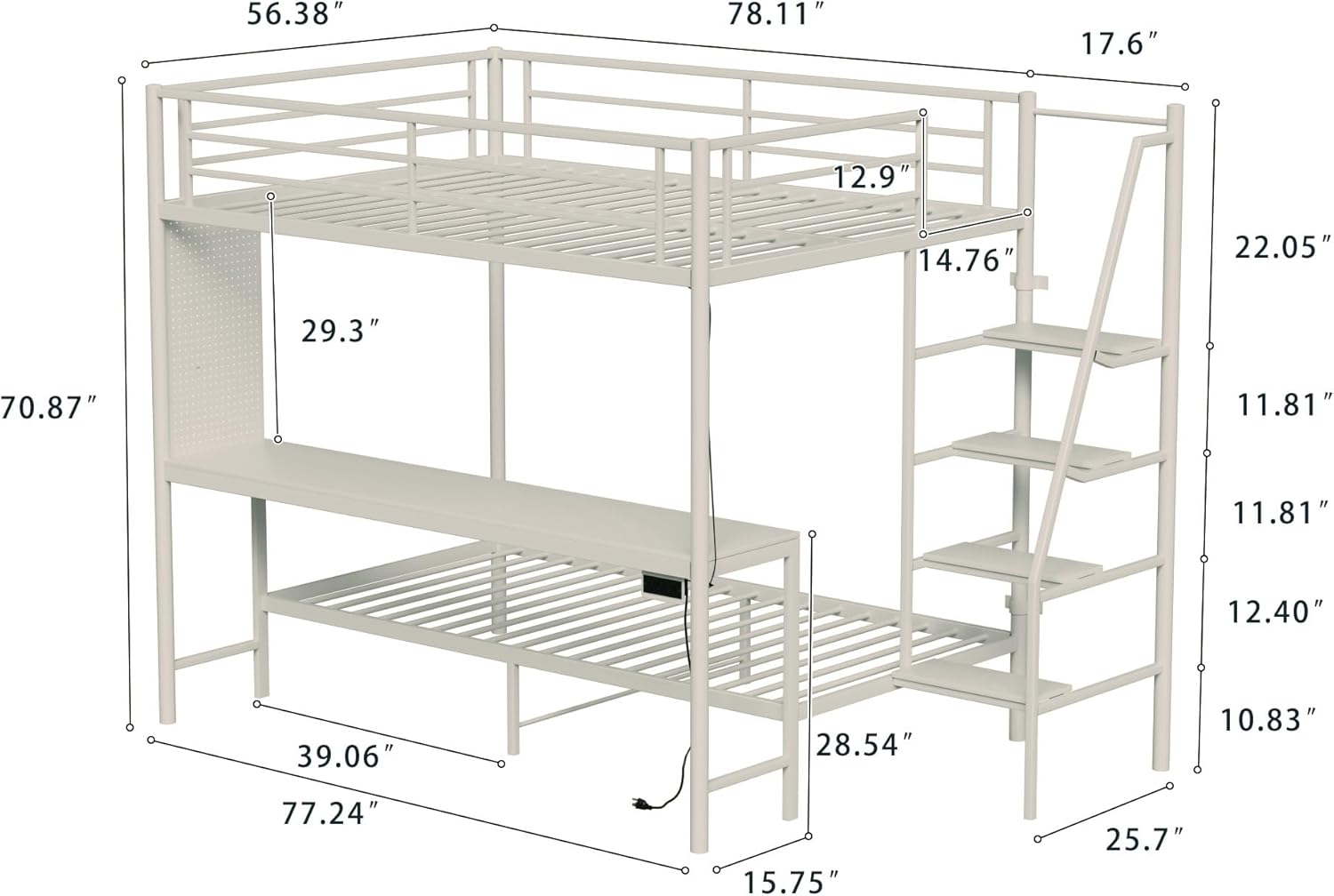
Image: Overall view of the SOFTSEA Full Over Twin Bunk Bed, showcasing its design with the upper full bunk, lower twin bunk, integrated desk, and storage stairs.
Safety Information
- Always follow assembly instructions carefully.
- Ensure all connections are securely tightened before use. Periodically check and re-tighten hardware.
- The top bunk is designed for a full-size mattress and the bottom bunk for a twin-size mattress. Do not use mattresses thicker than 6 inches on either bunk.
- The maximum weight capacity for each bunk is 400 lbs. Do not exceed this limit.
- The top bunk is not suitable for children under 6 years of age.
- Always use the provided ladder/stairs for access to the top bunk. Do not jump on the bed.
- Ensure the bunk bed is placed on a level surface.
- Keep small children away from the assembly area.
- Do not allow horseplay on or under the bed.
- Use caution when operating electrical components (USB ports, LED lights). Do not overload circuits.
Setup and Assembly
The SOFTSEA Full Over Twin Bunk Bed requires full assembly. It is recommended that two people assemble this product. All necessary tools are included in the package. The bed parts will arrive in two separate packages, which may be delivered on different days.
- Unpack all components and verify against the parts list provided in your assembly guide.
- Identify all hardware and separate them for easy access.
- Follow the step-by-step instructions in the included assembly manual to construct the bed frame, desk, and stairs.
- Ensure all bolts, screws, and connectors are tightened securely at each step.
- Once the main structure is complete, install the mattress support slats for both the upper and lower bunks.
- Connect the USB power cable and LED light strips according to the instructions.

Image: Detailed diagram showing the dimensions of the bunk bed, including length, width, height, and individual component measurements. This diagram is crucial for assembly planning and space allocation.
Operating Features
Integrated Desk with USB Ports
The built-in desk provides a dedicated workspace. The integrated USB charging ports allow convenient charging of electronic devices such as phones, tablets, or laptops directly from the desk area. Ensure the power cable is properly connected to a wall outlet.

Image: The integrated desk of the bunk bed, shown with a laptop and other items, highlighting its functionality as a workspace.
Under-Bed LED Lighting
The LED lights located beneath the top bunk provide ambient illumination for the lower bunk and desk area. These lights are controlled via a switch, offering adjustable lighting for reading, studying, or creating a desired atmosphere. Ensure the LED power cable is connected.

Image: The bunk bed with its LED lighting activated, illuminating a gaming setup on the desk, demonstrating the ambient light feature.
Storage Stairs
The bunk bed features integrated stairs that provide safe and easy access to the top bunk. Each step of the stairs also functions as a storage shelf, offering convenient space for books, small decor items, or personal belongings, helping to keep the room organized.

Image: Close-up view of the bunk bed's stairs, showing the integrated storage shelves on each step.
Maintenance
- Cleaning: Wipe down the metal frame and MDF surfaces with a soft, damp cloth. Avoid abrasive cleaners or harsh chemicals that could damage the finish.
- Hardware Check: Periodically inspect all bolts, screws, and connections to ensure they remain tight. Re-tighten any loose hardware to maintain stability and safety.
- Electrical Components: Ensure USB cables and LED light connections are secure and free from damage. Do not attempt to repair damaged electrical components; contact support if issues arise.
- Weight Distribution: Distribute weight evenly on both bunks to prevent stress on the frame.
Troubleshooting
| Problem | Possible Cause | Solution |
|---|---|---|
| Bed feels wobbly or unstable. | Loose hardware. | Check and re-tighten all bolts and screws. Ensure the bed is on a level surface. |
| USB ports are not charging devices. | Power cable disconnected or faulty. Device cable issue. | Ensure the bunk bed's main power cable is securely plugged into a working wall outlet. Try a different USB cable or device. |
| LED lights are not turning on. | Power cable disconnected, switch off, or faulty LED strip. | Verify the main power cable is connected. Check the LED light switch. If issues persist, contact customer support. |
| Difficulty assembling parts. | Incorrect orientation or missing parts. | Refer to the assembly manual for correct part orientation. Verify all parts are present against the parts list. Contact support for missing parts. |
Specifications
- Model: x09
- Brand: SOFTSEA
- Product Dimensions (L x W x H): 95.71" x 56.38" x 70.87"
- Upper Bunk Size: Full
- Lower Bunk Size: Twin
- Recommended Mattress Thickness: 6 inches (for both bunks)
- Weight Limit (Each Bunk): 400 lbs
- Material: Metal + MDF
- Color: White
- Special Features: Integrated Desk, USB Charging Ports, LED Lighting, Storage Stairs
- Assembly Required: Yes (Full Assembly)
- Item Weight: 127.88 lbs
- Manufacturer: SOFTSEA
Warranty
This SOFTSEA bunk bed is covered by a One Year Limited Warranty against manufacturing defects from the date of purchase. This warranty covers defects in materials and workmanship under normal use. It does not cover damage resulting from improper assembly, misuse, abuse, accident, or unauthorized modifications. Please retain your proof of purchase for warranty claims.
Support
For any questions regarding assembly, missing parts, or warranty claims, please contact SOFTSEA customer support. You can find more information and contact details by visiting the official SOFTSEA store on Amazon:
When contacting support, please have your model number (x09) and proof of purchase readily available.