
CORBOBO AULA MINI60 HE PRO (MINI60 HE)
CORBOBO Aula MINI60 HE PRO Wireless Gaming Keyboard Instruction Manual
Model: MINI60 HE
1. Introduction
The CORBOBO Aula MINI60 HE PRO is a high-performance 60% wireless gaming keyboard designed for competitive play and versatile use. It features Hall Effect magnetic switches with rapid trigger technology, an 8000Hz polling rate, and tri-mode connectivity (Bluetooth 5.0, 2.4GHz, and USB-C wired). This compact keyboard offers extensive customization options for lighting and key functions, making it suitable for various gaming and productivity needs.
2. Package Contents
- Aula MINI60 HE PRO Wireless Gaming Keyboard x 1
- USB-C Cable x 1
- Instruction Manual x 1
- Keycap Puller x 1

Image: The Aula MINI60 HE PRO keyboard and its accessories, including the USB-C cable, instruction manual, and keycap puller, laid out on a surface.
3. Setup
3.1. Tri-Mode Connectivity
The keyboard supports three connection modes: Bluetooth 5.0, 2.4GHz wireless, and USB-C wired. Use the switch on the back of the keyboard to select your desired mode.
3.1.1. 2.4GHz Wireless Connection
- Toggle the switch on the keyboard to the 2.4G position.
- Insert the 2.4GHz USB receiver into an available USB port on your device. The keyboard will automatically pair.
3.1.2. Bluetooth 5.0 Connection
- Toggle the switch on the keyboard to the BT position.
- On your device, search for Bluetooth devices and select "AULA MINI60 HE PRO" to pair.
3.1.3. USB-C Wired Connection
- Toggle the switch on the keyboard to the USB-C position.
- Connect the keyboard to your device using the provided USB-C cable.
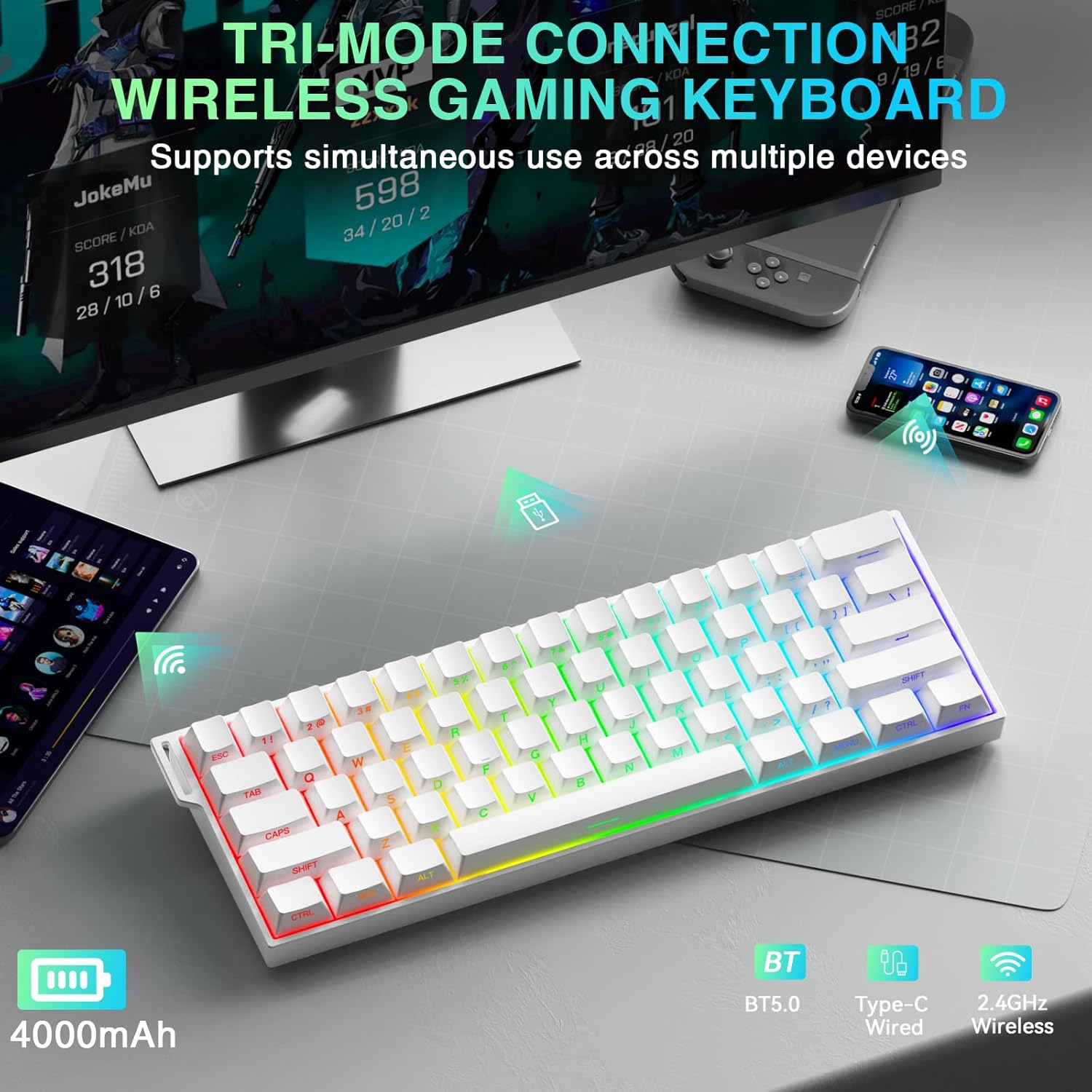
Image: The keyboard highlighting its tri-mode connectivity options and built-in 4000mAh battery.
3.2. Charging
The keyboard features a built-in 4000mAh battery. Connect the USB-C cable to the keyboard and a power source (e.g., computer USB port, wall adapter) to charge. The charging indicator will show the charging status.
4. Operating Instructions
4.1. Basic Key Functions
The Aula MINI60 HE PRO is a 60% layout keyboard, meaning some functions are accessed via the 'Fn' key combined with other keys. Refer to the included Quick Operation Guide for a detailed layout of Fn key combinations.
4.2. RGB Lighting Control
The keyboard features 19 RGB backlight effects and 16.8 million customizable colors. Use the following Fn key combinations to adjust lighting:
- Fn + Space: Turn keyboard lighting ON/OFF.
- Fn + [: Increase lighting speed.
- Fn + ]: Decrease lighting speed.
- Fn + Alt: Switch lighting effect mode.
- Fn + Ctrl: Switch lighting effect color.
- Fn + {/: Increase light brightness.
- Fn + }/?: Decrease light brightness.

Image: Visual representation of the keyboard's 19 RGB backlight effects and key combinations for adjusting them.
4.3. Software Customization
The keyboard supports both a web-based driver and downloadable software (available at soaidriver.com) for advanced customization. This allows you to remap keys, create macros, and fine-tune RGB lighting effects. Note that the driver is accessible in wired USB-C and 2.4GHz wireless modes, but not in Bluetooth mode. The software is compatible with Windows PC only.
4.4. Rapid Trigger and Actuation Adjustment
The Hall Effect magnetic switches enable rapid trigger (RT) technology with up to 0.01mm RT adjustment precision. This allows keys to dynamically reset and actuate based on travel distance, providing faster repeated keystrokes and precise control. Adjust these settings via the dedicated software for optimal gaming performance.

Image: Detailed view of the Hall Effect magnetic switches, highlighting their precision.
4.5. 8000Hz Polling Rate
The keyboard features an 8000Hz polling rate, significantly reducing input lag compared to standard 1000Hz keyboards. This ensures faster signal transmission and greater accuracy and consistency between keypresses and on-screen actions, crucial for competitive gaming.

Image: Diagram explaining the benefits of an 8000Hz polling rate for gaming performance.
5. Maintenance
5.1. Cleaning
To clean your keyboard, first disconnect it from your device. Use a soft, dry cloth to wipe down the keycaps and chassis. For deeper cleaning, use the provided keycap puller to remove keycaps and clean underneath with compressed air or a small brush. Ensure no liquid enters the keyboard.
5.2. Hot-Swappable Switches
The Aula MINI60 HE PRO features full-key hot-swappable switches, allowing you to easily replace them without soldering. Use a switch puller (not included, but a keycap puller is) to carefully remove switches. Ensure replacement switches are compatible magnetic switches (2-pin) to maintain functionality.

Image: The keyboard demonstrating its hot-swappable switch capability with keycaps removed.
5.3. Sound-Dampening System
The keyboard incorporates a gasket-mounted five-layer dampening system to effectively reduce switch noise and provide a cleaner sound signature. This system includes keycaps, switches, a metal mounting plate, sound-dampening foam, a fiber switch pad, PET acoustic film, a PCB circuit board, a switch socket pad, and a molded silicone base.
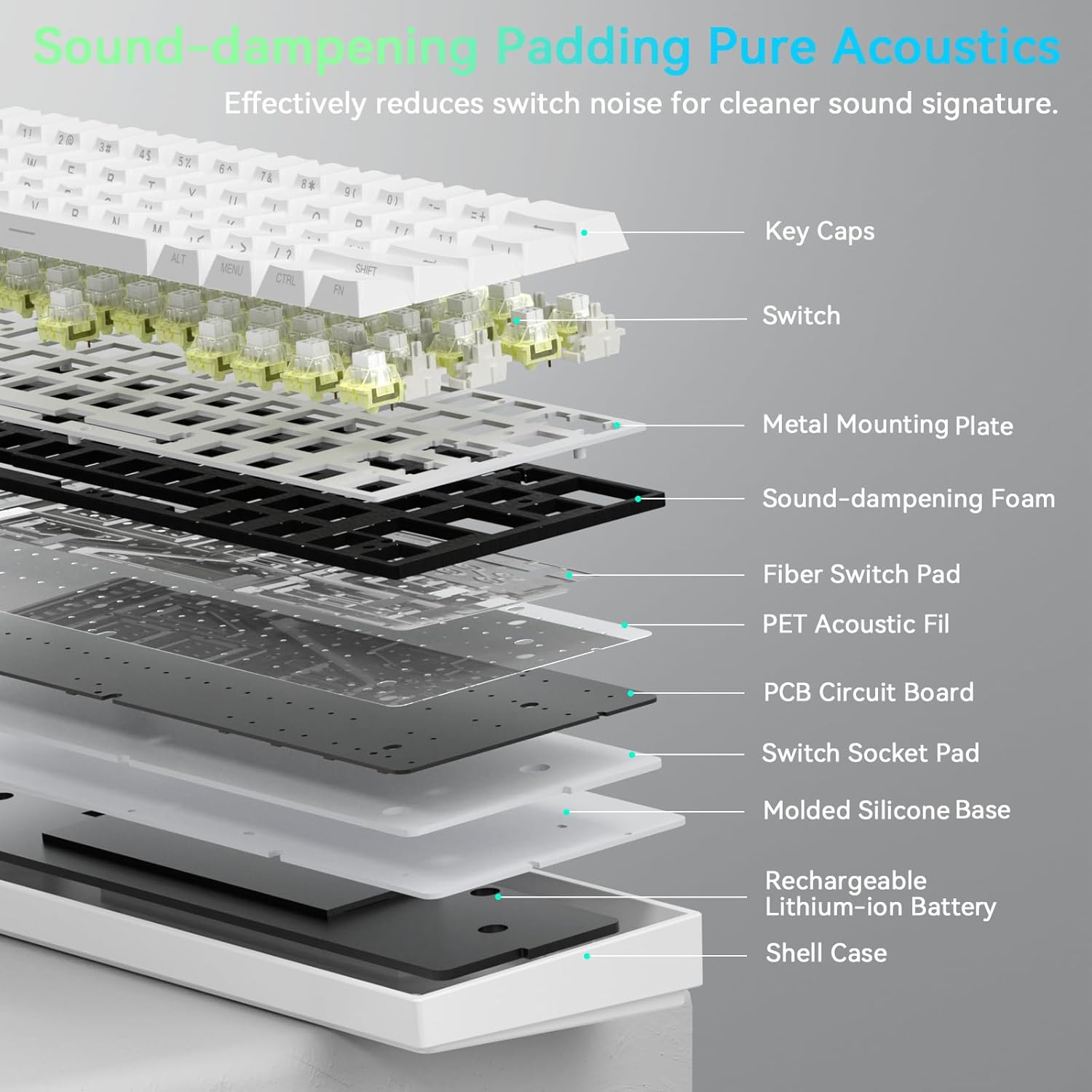
Image: An exploded diagram showing the various layers of the keyboard's sound-dampening system.
6. Troubleshooting
- Keyboard not responding: Ensure the keyboard is charged and properly connected (wired, 2.4GHz receiver, or Bluetooth paired). Try restarting the keyboard or your device.
- 2.4GHz connection issues: Ensure the receiver is securely plugged in and the keyboard is in 2.4G mode. Try re-pairing by pressing and holding Fn + R for 3 seconds.
- Bluetooth connection issues: Ensure the keyboard is in BT mode and your device's Bluetooth is enabled. Try unpairing and re-pairing the device.
- RGB lighting not working: Check Fn key combinations for lighting control. Ensure the keyboard is powered on.
- Software not detecting keyboard: Ensure the keyboard is connected via USB-C or 2.4GHz wireless mode. Bluetooth mode does not support software access.
7. Specifications
| Brand | CORBOBO |
| Model Name | AULA MINI60 HE PRO |
| Model Number | MINI60 HE |
| Connectivity Technology | Bluetooth, USB-C, 2.4GHz Wireless |
| Keyboard Description | Hall Effect Keyboard, Magnetic Switch Rapid Trigger Mechanical Gaming Keyboard |
| Special Features | Hall Effect Keyboard, Hot-Swappable, Magnetic Switch Keyboard, Rapid Trigger Keyboard |
| Polling Rate | 8000Hz |
| Actuation Adjustment | Up to 0.01mm |
| Keyboard Layout | 60% (61 Keys) QWERTY |
| Backlighting | RGB (16.8 million colors, 19 effects) |
| Keycaps | Side-printed PBT |
| Battery Capacity | 4000mAh |
| Material | Plastic |
8. Warranty and Support
This product comes with a 12-month warranty from the manufacturer. For technical support, product inquiries, or warranty claims, please visit the official CORBOBO Store or contact their customer service. You can find more information and support resources on the CORBOBO Store page.
9. Official Product Video
Video: An official product video from CORBOBO Direct showcasing the AULA Mini60 HE Gaming Keyboard with Hall Effect Magnetic Switches, highlighting its features and design.
Ask a question about this manual
Ask about setup, troubleshooting, compatibility, parts, safety, or missing instructions. Manuals+ will review the question and use this page’s manual context to help answer it.