
1. Setup
1.1 Package Contents
- AULA MINI60 HE PRO Keyboard
- USB-C Cable
- Keycap Puller
- User Manual (this document)
1.2 Connectivity Options
The AULA MINI60 HE PRO supports three connection modes: Bluetooth 5.0, 2.4GHz wireless, and USB-C wired. Use the switch on the keyboard to select your preferred mode.

Image: Tri-mode connectivity options for the AULA MINI60 HE PRO keyboard.
USB-C Wired Connection:
- Connect the provided USB-C cable to the keyboard's USB-C port.
- Connect the other end of the cable to an available USB port on your computer.
- Ensure the mode switch on the keyboard is set to 'Wired' or 'USB-C'.
2.4GHz Wireless Connection:
- Insert the 2.4GHz USB dongle into an available USB port on your computer.
- Ensure the mode switch on the keyboard is set to '2.4G'.
- The keyboard should automatically connect. If not, refer to the troubleshooting section.
Bluetooth 5.0 Connection:
- Ensure the mode switch on the keyboard is set to 'BT'.
- On your device (PC, Mac, tablet, smartphone), enable Bluetooth and search for new devices.
- Select 'AULA MINI60 HE PRO' from the list of available devices to pair.
1.3 Charging the Keyboard
The keyboard is equipped with a 4000mAh battery. Connect the USB-C cable to the keyboard and a power source (e.g., computer USB port, USB wall adapter) to charge. The RGB lighting may indicate charging status.
1.4 Web-Based Driver Setup
The AULA MINI60 HE PRO utilizes a web-based driver for customization. This eliminates the need for software downloads and ensures compatibility across various operating systems (Windows, macOS, Linux).
- Open a web browser on your connected device.
- Navigate to the official AULA web driver portal (refer to product packaging or official website for the exact URL).
- The interface allows for key remapping, macro creation, RGB lighting customization, and performance adjustments.
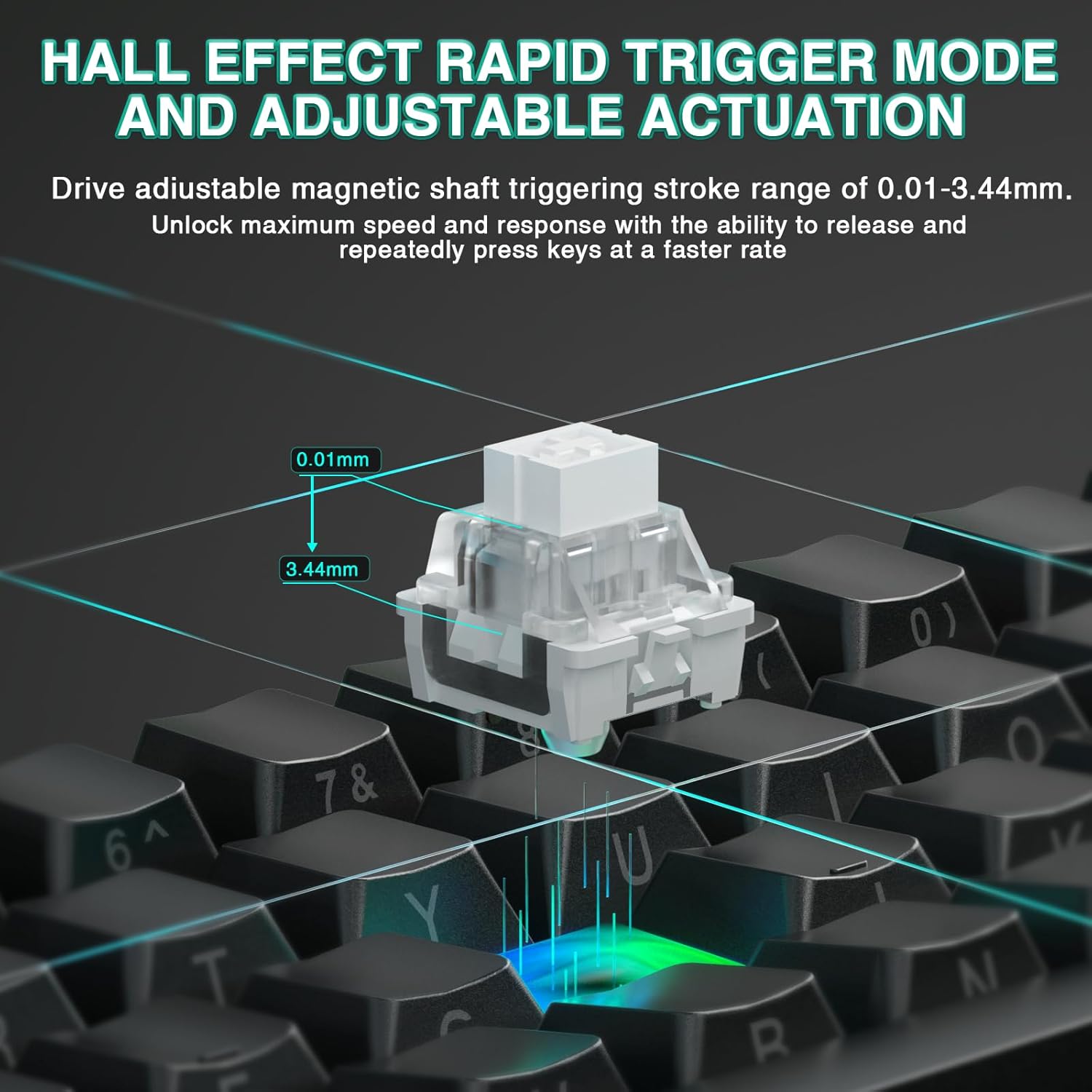
Image: Web-based driver interface for keyboard customization.
2. Operating Instructions
2.1 Key Features
Hall Effect Magnetic Switches:
The keyboard features advanced Hall Effect magnetic switches, providing precise and consistent actuation. These switches offer adjustable actuation points and rapid trigger mode for enhanced responsiveness.
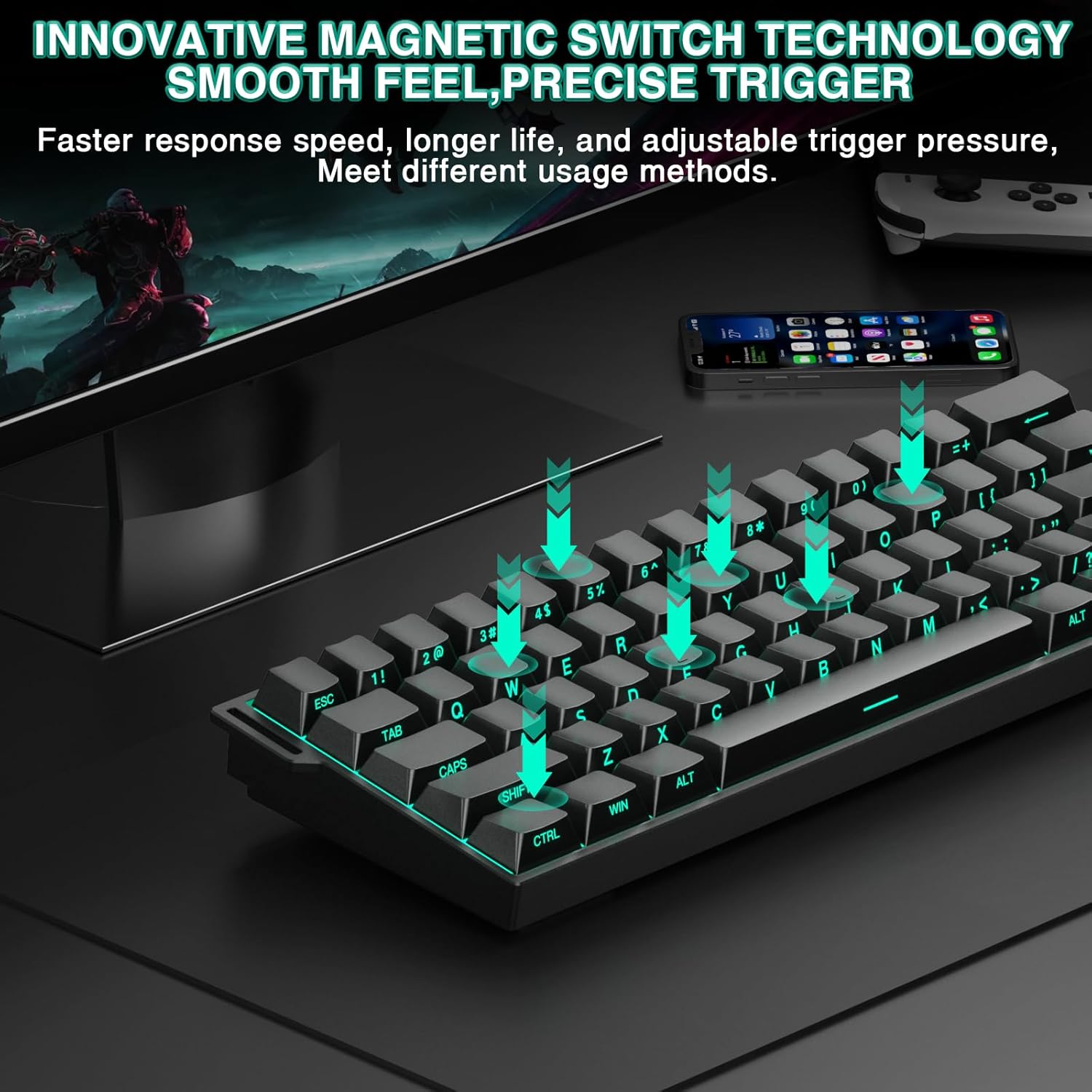
Image: Illustration of magnetic switch technology.
Adjustable Actuation & Rapid Trigger Mode:
Customize the actuation distance of each key from 0.01mm to 3.44mm using the web driver. Rapid Trigger mode allows keys to reactivate instantly upon reset, enabling faster repeated inputs. The ultra-low RT step distance of 0.01mm ensures quick response times.

Image: Hall Effect magnetic switch with adjustable actuation.
8000 Hz Polling Rate:
The keyboard supports an 8000 Hz polling rate, providing ultra-fast response times and minimal input lag for competitive gaming.
60% Compact Design:
The MINI60 HE PRO features a compact 60% layout, optimizing desk space while retaining essential functionality. This design is suitable for various uses, including gaming, work, and travel.

Image: The 60% compact design of the keyboard.
2.2 Dynamic RGB Lighting
The keyboard offers 19 RGB backlight effects and 16.8 million customizable colors. The lower light position design illuminates side-printed PBT keycaps.
RGB Control Shortcuts:
- FN + Space: Turn RGB lighting ON/OFF.
- FN + [: Decrease lighting speed.
- FN + ]: Increase lighting speed.
- FN + Alt (Right): Switch lighting effect mode.
- FN + Ctrl (Right): Switch lighting effect color.
- FN + Up Arrow: Increase light brightness.
- FN + Down Arrow: Decrease light brightness.
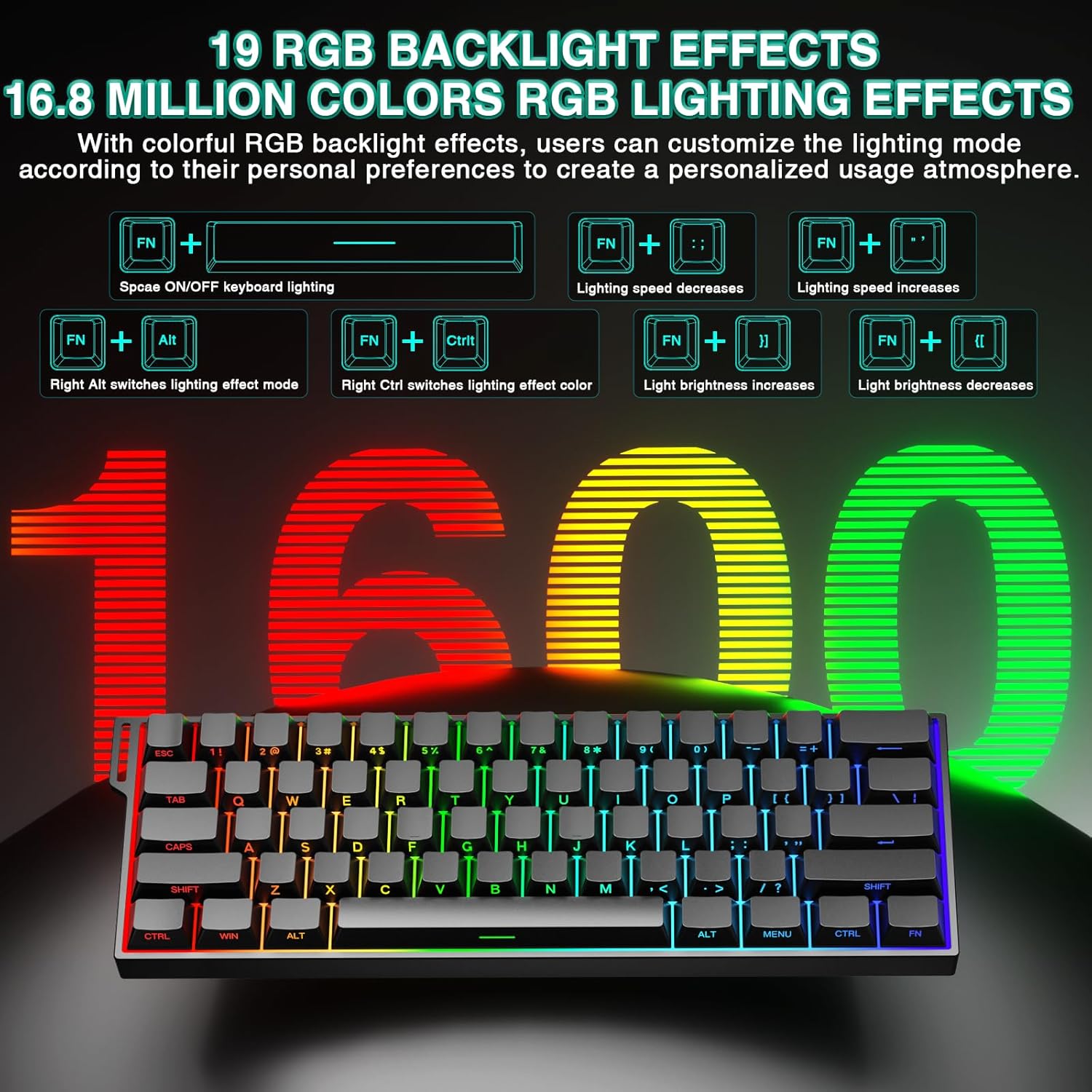
Image: RGB lighting effects and control shortcuts.
2.3 Hot-Swappable Design
The keyboard features full-key hot-swappable sockets, allowing for easy replacement of switches without soldering. This enables customization with most 2-pin magnetic switches on the market.
2.4 Sound-Dampening Padding
Internal sound-dampening foam and other layers are integrated to reduce switch noise and improve the acoustic profile of the keyboard.
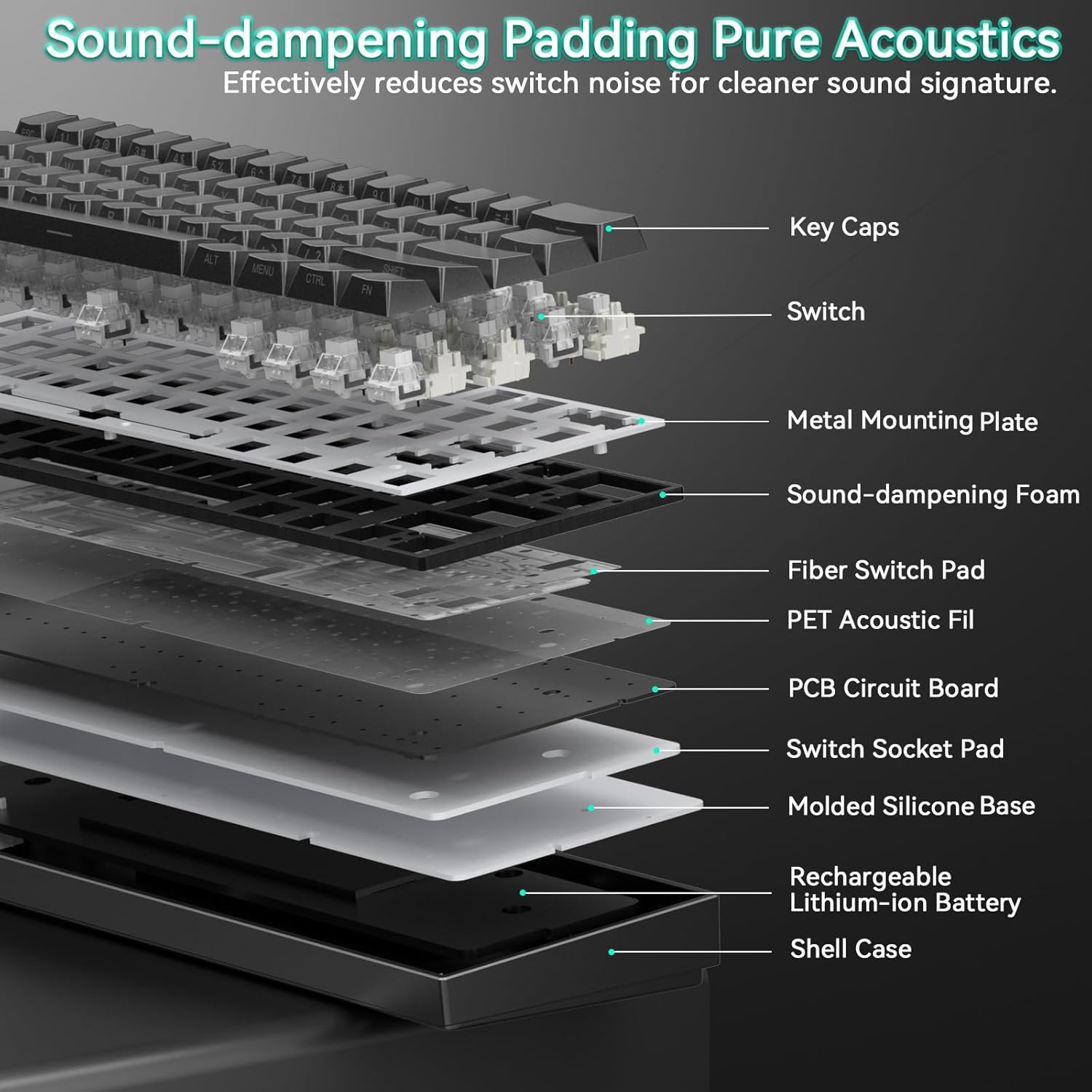
Image: Internal structure showing sound-dampening layers.
2.5 Product Overview Video
Video: An overview of the AULA Mini60 HE Gaming Keyboard, highlighting its Hall Effect Magnetic Switches and various features. This video is provided by CORBOBO Direct.
3. Maintenance
3.1 Cleaning the Keyboard
To maintain optimal performance and appearance, regularly clean your keyboard:
- Disconnect the keyboard from all power sources before cleaning.
- Use a soft, lint-free cloth slightly dampened with water or a mild cleaning solution to wipe the keycaps and chassis. Avoid excessive moisture.
- For dust and debris between keycaps, use compressed air.
- Do not use harsh chemicals, abrasives, or solvents, as these may damage the keyboard's finish or keycap legends.
3.2 Keycap and Switch Replacement
The hot-swappable design allows for easy replacement of keycaps and switches.
- Use the provided keycap puller to gently remove keycaps. Grip the keycap firmly and pull straight up.
- Once the keycap is removed, use a switch puller (not included, but commonly available) to carefully extract the switch from its socket.
- Align the pins of the new switch with the holes in the PCB socket and press down gently until it clicks into place. Ensure the switch is seated correctly to avoid bending pins.
- Place the desired keycap onto the new switch stem and press down firmly.
4. Troubleshooting
4.1 Keyboard Not Responding
- Check Connection: Ensure the keyboard is properly connected via USB-C, 2.4GHz dongle, or Bluetooth. Verify the mode switch is set correctly.
- Battery Level: If using wireless modes, check the battery level. Connect the keyboard via USB-C to charge.
- Restart Device: Try restarting your computer or device.
- Driver/Software: Access the web-based driver to ensure no conflicting settings or profiles are active.
4.2 RGB Lighting Issues
- Brightness/Mode: Use the FN key combinations (FN + Space, FN + Up/Down Arrow, FN + Right Alt, FN + Right Ctrl) to adjust brightness and switch lighting modes/colors.
- Web Driver: Customize lighting effects and settings through the web-based driver.
4.3 Keys Not Registering or Double-Typing
- Switch Check: If a specific key is affected, gently remove the keycap and inspect the switch for any visible damage or debris. Consider replacing the switch if it's faulty.
- Actuation Settings: In the web driver, check the actuation distance settings. Extremely low actuation points might cause unintended triggers.
- Firmware Update: Check the web driver for any available firmware updates for the keyboard.
5. Specifications
| Feature | Detail |
|---|---|
| Model Number | MINI60 HE |
| Brand | CORBOBO |
| Connectivity Technology | 2.4G Wireless, Bluetooth 5.0, USB-C Wired |
| Keyboard Description | Hall Effect Keyboard, Magnetic Switch Rapid Trigger Mechanical Gaming Keyboard Wireless |
| Special Features | Hall Effect Keyboard, Hot-Swappable, Magnetic Switch Keyboard, Rapid Trigger Keyboard, Side-Printed PBT Keycaps, RGB Backlit |
| Compatible Devices | Gaming Console, Laptop, PC, Smartphone, Tablet |
| Keyboard Backlighting Color Support | RGB (16.8 million colors) |
| Material | Plastic |
| Item Weight | 2.38 pounds |
| Package Dimensions | 13.54 x 6.69 x 2.24 inches |
| Batteries | 1 x 9V battery (included) |
| Manufacturer | AULA |
6. Warranty & Support
6.1 Warranty Information
Please refer to the product packaging or the official CORBOBO website for detailed warranty terms and conditions. Typically, products come with a limited manufacturer's warranty covering defects in materials and workmanship.
6.2 Customer Support
For technical assistance, troubleshooting, or warranty claims, please contact CORBOBO customer support through their official website or the retailer where the product was purchased. Keep your proof of purchase handy when contacting support.