
1. Introduction
This manual provides detailed instructions for the installation, operation, and maintenance of your Generico Wireless Smart Button Remote Control Switch. This device is designed to simplify the control of various home appliances such as lights, fans, and doors, offering convenient wireless operation.
2. Product Overview
The Generico Wireless Smart Button system consists of two main components: a host receiver and a remote control unit. The host receiver plugs into an existing wall switch or outlet, enabling wireless control, while the remote control provides convenient operation from a distance.
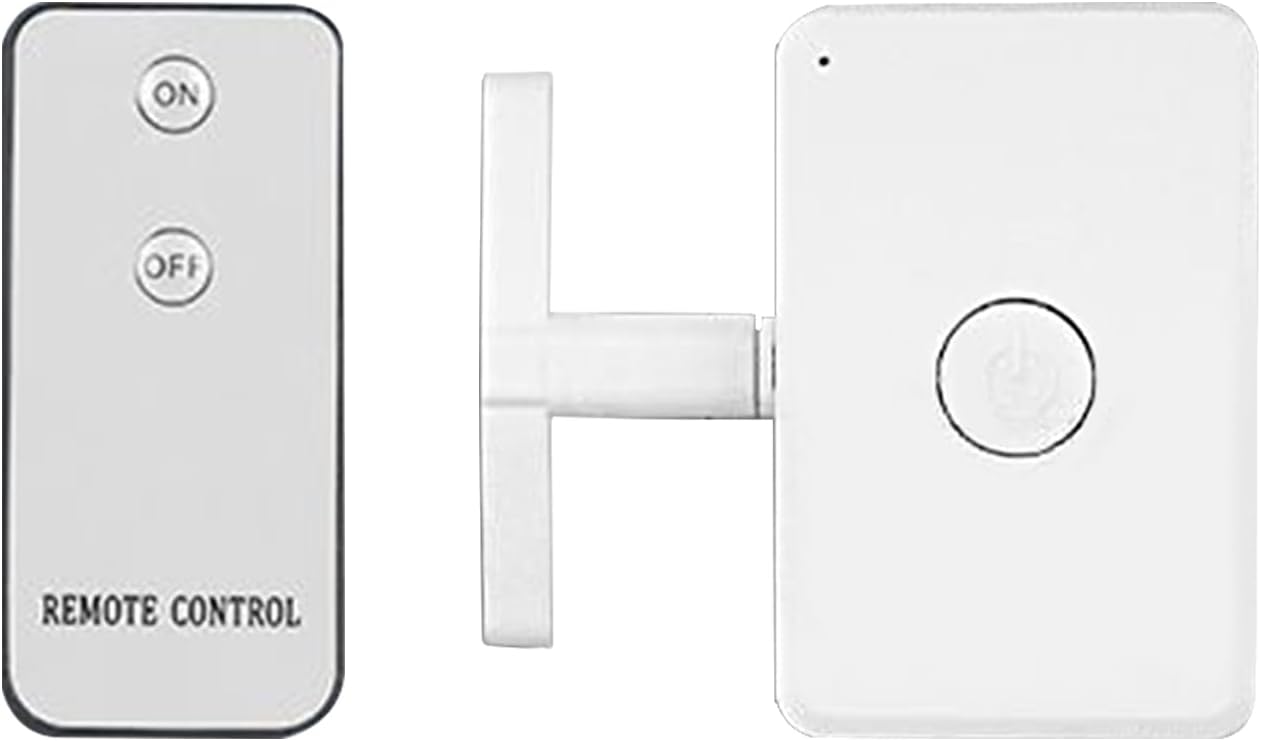
Figure 2.1: The remote control (left) and the host receiver (right).

Figure 2.2: The remote control and host receiver, with the receiver shown connected to a wall switch.
3. Setup
The Generico Wireless Smart Button is designed for easy installation without the need for complex wiring or specialized tools. Simply plug the host receiver into your existing wall switch or outlet.
- Identify Target Switch/Outlet: Choose the wall switch or electrical outlet you wish to control wirelessly.
- Plug in Host Receiver: Insert the host receiver unit directly into the chosen wall switch or outlet. Ensure it is securely connected.
- Pair Remote Control (if necessary): The device typically comes pre-paired. If not, refer to the specific pairing instructions provided with your product packaging.

Figure 3.1: Host receiver connected to a multi-gang light switch.

Figure 3.2: Host receiver connected to a single light switch.

Figure 3.3: The host receiver plugs directly into an existing switch, requiring no additional wiring.
4. Operating Instructions
The remote control allows for simple and convenient operation of connected devices from a distance of up to 10 meters. Its large buttons are designed for ease of use, even in low light conditions.
- Power On: Press the "ON" button on the remote control to activate the connected device (e.g., turn on lights, fans).
- Power Off: Press the "OFF" button on the remote control to deactivate the connected device (e.g., turn off lights, fans).
- Dimming Function (if applicable): If your connected device supports dimming and the remote has corresponding buttons, use them to adjust brightness levels.
- Multiple Device Control: The system is optimized to control multiple devices simultaneously, providing an optimized user experience.

Figure 4.1: Using the remote control to operate a connected device.
This system is particularly useful for situations where existing switch placement is inconvenient, for elderly users with limited mobility, or for controlling lights in dark rooms without needing to get up.

Figure 4.2: Examples of practical applications for the wireless smart button.
5. Maintenance
To ensure the longevity and optimal performance of your Generico Wireless Smart Button, follow these simple maintenance guidelines:
- Cleaning: Wipe the device with a soft, dry cloth. Do not use liquid cleaners or abrasive materials.
- Avoid Moisture: Keep the device away from water and high humidity to prevent damage.
- Battery Replacement (Remote Control): If the remote control's range or responsiveness decreases, replace its battery. Refer to the remote's compartment for battery type and replacement instructions.
- Storage: When not in use for extended periods, store the device in a cool, dry place.
6. Troubleshooting
If you encounter issues with your Generico Wireless Smart Button, consult the following troubleshooting tips:
- Device Not Responding:
- Ensure the host receiver is securely plugged into the wall switch/outlet.
- Check the battery in the remote control and replace if necessary.
- Verify that the remote control is within the 10-meter operating range of the host receiver.
- Ensure there are no significant obstructions (e.g., thick walls, large metal objects) between the remote and the receiver that might interfere with the wireless signal.
- Intermittent Control:
- Move closer to the host receiver.
- Check for potential sources of interference (e.g., other wireless devices, large electronic appliances).
- New Remote/Receiver Not Pairing:
- Refer to the specific pairing instructions included with your product packaging.
7. Specifications
| Brand | Generico |
| Model Number | SQ8BUTBV974VAS26DPH |
| Product Type | Wireless Remote Control Switch / Smart Button |
| Color | Multicolor |
| Components Included | Host receiver × 1, Remote control × 1 |
| Batteries Required | No (for host receiver), Yes (for remote control, type not specified, typically coin cell) |
| Operating Range | Up to 10 meters (approx. 33 feet) |
| Package Dimensions | 22 x 14.2 x 5.5 cm (approx. 8.7 x 5.6 x 2.2 inches) |
| Item Weight | 98 grams (approx. 3.46 ounces) |
8. Warranty & Support
Warranty Information: No specific warranty information is provided with this product. Please refer to your purchase receipt or contact your retailer for details regarding warranty coverage.
Customer Support: For technical assistance, troubleshooting beyond this manual, or inquiries about your product, please contact the retailer from whom you purchased the Generico Wireless Smart Button Remote Control Switch.