
1. Introduction
This manual provides detailed instructions for the VENTION 15-in-1 USB-C Docking Station. It covers product features, setup procedures, operational guidelines, and troubleshooting tips to ensure optimal performance and user experience. Please read this manual thoroughly before using the device.
2. Product Overview
The VENTION 15-in-1 USB-C Docking Station is designed to expand the connectivity of your laptop, transforming a single USB-C port into multiple ports for various peripherals, external displays, and network connections. It features a robust aluminum alloy shell for optimal heat dissipation and a 360° rotatable, detachable base for flexible placement.
2.1. Port Layout
The docking station offers a comprehensive array of ports to meet diverse connectivity needs:
- 2 x 4K@60Hz HDMI Ports
- 1 x 4K@60Hz DisplayPort (DP)
- 1 x 10Gbps USB-C Port (Data)
- 2 x 10Gbps USB-A Ports (USB 3.2 Gen 2)
- 1 x USB 3.0 Port (5Gbps)
- 2 x USB 2.0 Ports (480Mbps)
- 1 x 100W Power Delivery (PD) Port (Input)
- 1 x PC Host Port (USB-C connection to laptop)
- 1 x 3.5mm Audio Port (Microphone/Audio Jack)
- 1 x SD Card Reader
- 1 x TF Card Reader
- 1 x RJ45 Gigabit Ethernet Port

2.2. Design Features
- Optimal Heat Dissipation: Constructed with an aluminum alloy shell to efficiently dissipate heat, ensuring stable performance during extended use.
- Anti-slip Pads: Equipped with anti-slip pads for stability on various surfaces.
- Detachable and Rotatable U-shaped Stand: The docking station features a versatile stand that allows for 360° rotation for optimal viewing angles and can be detached for minimalist use or portability.

3. Setup Guide
Follow these steps to set up your VENTION 15-in-1 USB-C Docking Station:
- Verify Laptop Compatibility: Ensure your laptop's USB-C port supports DisplayPort Alternate Mode (Alt Mode) for video output and Power Delivery for charging. Laptops with Thunderbolt 3/4 ports are also compatible.
- Connect to Power (Optional but Recommended): For optimal performance and laptop charging, connect a 100W Power Delivery (PD) charger (not included) to the PD input port on the docking station.
- Connect to Laptop: Use the included USB-C 4.0 cable to connect the docking station's "PC HOST" port to your laptop's USB-C or Thunderbolt port.
- Connect External Displays: Connect your monitors to the HDMI and/or DisplayPort (DP) outputs on the docking station using appropriate cables (not included). Refer to Section 4.1 for display configuration details.
- Connect Peripherals: Plug in your USB devices (keyboard, mouse, external drives), Ethernet cable, audio devices, and SD/TF cards as needed.


4. Operating Instructions
4.1. Display Configuration (Dual/Triple Monitors)
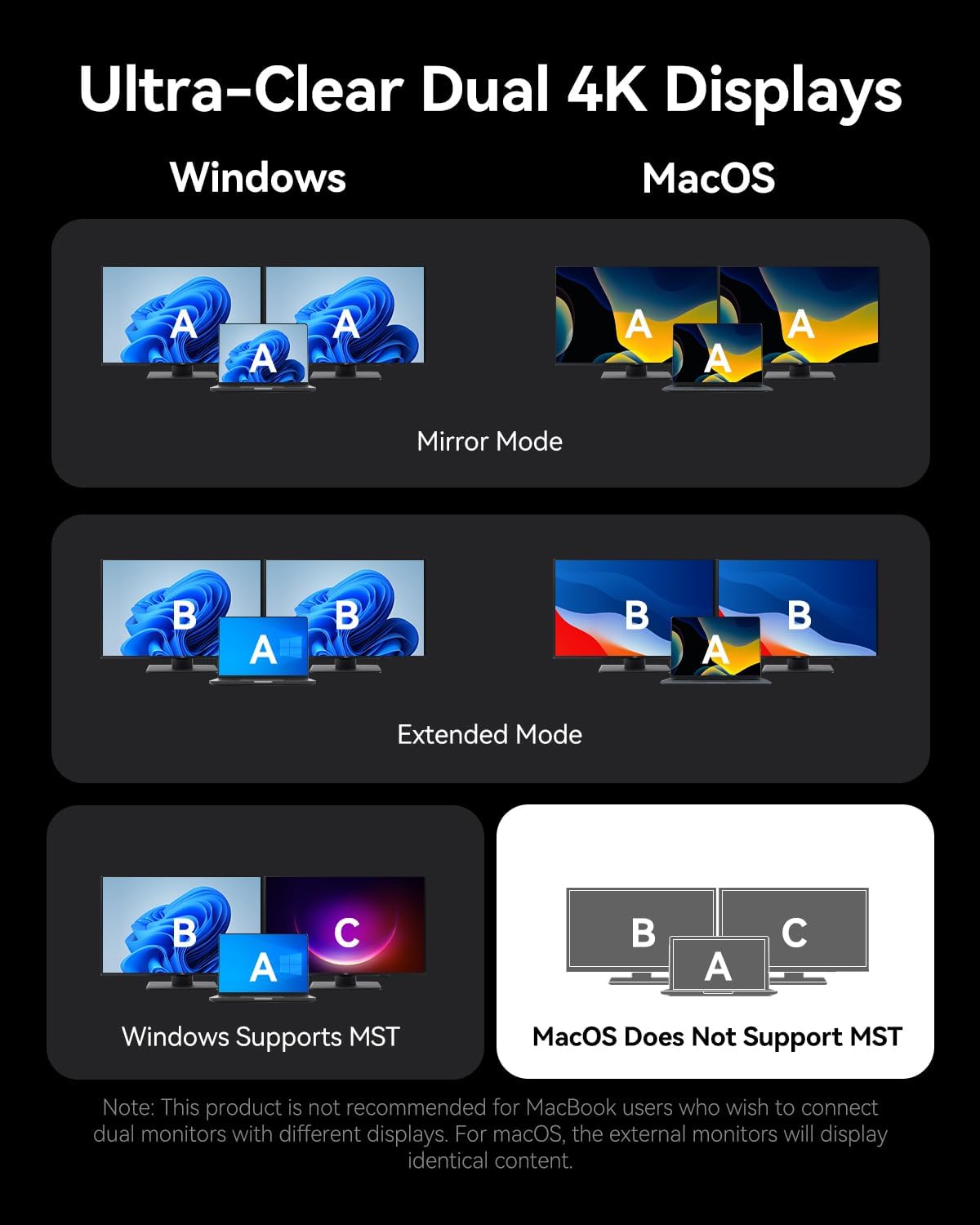
The docking station supports connecting up to three external monitors via its two HDMI ports and one DisplayPort. The display behavior varies depending on your operating system:
For Windows Systems:
- Dual Monitors: Supports up to 4K@30Hz.
- Triple Monitors: Supports up to 1080P@60Hz.
- Windows systems support Multi-Stream Transport (MST) mode, allowing for extended displays where each monitor shows different content (A-B-C or A-B-B).
For macOS Systems:
- Single, Dual, or Triple Monitors: Supports up to 4K@60Hz for each display.
- macOS systems only support Single-Stream Transport (SST) mode. This means all external monitors will mirror the content of your laptop's display (A-A-A) or mirror each other while extending from the laptop (A-B-B). Extended displays with different content on each external monitor are not supported.
Note: For screen mirroring or extending, please use your own HDMI/DP cables. The included USB-C cable is for charging and data transfer, not video output.

4.2. Data Transfer
The docking station provides high-speed data transfer capabilities:
- USB 3.2 Gen 2 Ports (USB-A & USB-C): Offers speeds up to 10Gbps for rapid file transfers with compatible devices.
- USB 3.0 Port: Provides speeds up to 5Gbps.
- USB 2.0 Ports: Suitable for connecting peripherals like keyboards and mice with speeds up to 480Mbps.
- SD/TF Card Slots: Supports simultaneous reading and writing of SD and TF cards, ideal for photographers and content creators.

4.3. Power Delivery (PD) Charging
The dedicated 100W PD input port allows you to charge your laptop while using the docking station. Connect a compatible 100W USB-C power adapter to this port. The docking station will pass through up to 85W to your laptop, reserving power for its own operation.
4.4. Gigabit Ethernet
Connect an Ethernet cable to the RJ45 port for a stable and high-speed wired network connection, supporting speeds of 10Mbps, 100Mbps, and 1000Mbps (1 Gigabit).
4.5. Audio Connectivity
The 3.5mm audio port supports both microphone input and audio output, allowing you to connect headphones, speakers, or a headset for communication and multimedia.
5. Compatibility
The VENTION 15-in-1 USB-C Docking Station is compatible with a wide range of devices that feature a full-featured USB-C port or Thunderbolt 3/4 port. This includes, but is not limited to:
- MacBook Pro (2016-2021)
- MacBook Air (2018-2021)
- MacBook (2015-2021)
- Dell XPS 13/15
- HP Laptops
- Lenovo Laptops
- Surface Book 2 / Surface Go
- iPad Pro / iPad Air (with USB-C)
- Other laptops with full-featured USB-C or Thunderbolt 3/4 ports.
Important: Ensure your laptop's USB-C port supports DisplayPort Alternate Mode for video output and Power Delivery for charging functionality.

6. Troubleshooting
If you encounter issues with your docking station, please refer to the following common solutions:
- No Display Output:
- Ensure your laptop's USB-C port supports DisplayPort Alternate Mode.
- Check all video cables (HDMI/DP) are securely connected and functional.
- Verify your monitor input source is correctly selected.
- Try connecting one monitor at a time to isolate the issue.
- Restart your laptop and reconnect the docking station.
- Laptop Not Charging:
- Ensure a compatible 100W PD power adapter is connected to the docking station's PD input port.
- Verify your laptop's USB-C port supports Power Delivery.
- Check the USB-C cable connecting the docking station to your laptop is securely plugged in.
- USB Devices Not Recognized:
- Ensure the docking station is properly connected to your laptop.
- Try connecting the USB device to a different port on the docking station.
- Connect the USB device directly to your laptop to confirm it is functional.
- Ethernet Connection Issues:
- Check the Ethernet cable connection to both the docking station and your router/modem.
- Verify network settings on your laptop.
- Test the Ethernet cable with another device if possible.
If problems persist, please contact VENTION customer support for further assistance.
7. Specifications
| Feature | Specification |
|---|---|
| Model | B0FX459ZTN |
| Ports | 2x HDMI (4K@60Hz), 1x DP (4K@60Hz), 1x USB-C (10Gbps), 2x USB-A (10Gbps), 1x USB 3.0 (5Gbps), 2x USB 2.0 (480Mbps), 1x PD (100W), 1x PC Host, 1x 3.5mm Audio, 1x SD, 1x TF, 1x RJ45 Gigabit Ethernet |
| Power Delivery | 100W Input, up to 85W Output to Laptop |
| Data Transfer Speed | USB 3.2 Gen 2: 10Gbps, USB 3.0: 5Gbps, USB 2.0: 480Mbps |
| Ethernet Speed | 10/100/1000Mbps |
| Material | Aluminum Alloy |
| Dimensions | 7.91 x 6.81 x 2.44 inches |
| Weight | 1.78 pounds |
| Color | Black |
8. Maintenance
To ensure the longevity and optimal performance of your VENTION 15-in-1 USB-C Docking Station, follow these maintenance guidelines:
- Cleaning: Use a soft, dry, lint-free cloth to clean the exterior of the docking station. Avoid using liquid cleaners, aerosols, or solvents.
- Storage: Store the docking station in a cool, dry place away from direct sunlight and extreme temperatures.
- Handling: Avoid dropping or subjecting the device to strong impacts. Do not attempt to disassemble the docking station, as this will void the warranty.
- Cable Management: Organize cables to prevent tangling and strain on the ports.
9. Warranty and Support
The VENTION 15-in-1 USB-C Docking Station comes with a 12-month warranty from the date of purchase. This warranty covers manufacturing defects and malfunctions under normal use.
The package includes:
- 1 x USB-C Docking Station (15-in-1)
- 1 x 360-Degree Rotatable Base
- 1 x USB-C 4.0 Cable
- 1 x User Manual

For any questions, technical support, or warranty claims, please contact VENTION customer service. Refer to the contact information provided on the product packaging or the official VENTION website.
10. Official Product Video
Watch the official product video for a visual guide on the VENTION 15-in-1 USB-C Docking Station's features and usage:


