
1. Introduction
The ATTACK SHARK R85 HE is a high-performance 75% wired gaming keyboard designed for precision and responsiveness. It features magnetic Hall effect switches with adjustable actuation, an 8000Hz polling rate, and a vibrant RGB lightbox. This manual provides detailed instructions for setting up, operating, and maintaining your keyboard.
2. Setup
2.1 Package Contents
- ATTACK SHARK R85 HE Keyboard
- USB-C Cable
- User Manual (this document)
2.2 Connecting the Keyboard
The R85 HE keyboard connects via a wired USB-C connection.
- Locate the USB-C port on the keyboard, typically on the rear or side.
- Connect one end of the provided USB-C cable to the keyboard.
- Connect the other end of the USB-C cable to an available USB port on your computer (PC or laptop).
- The keyboard will automatically be recognized by your operating system (Windows compatible).
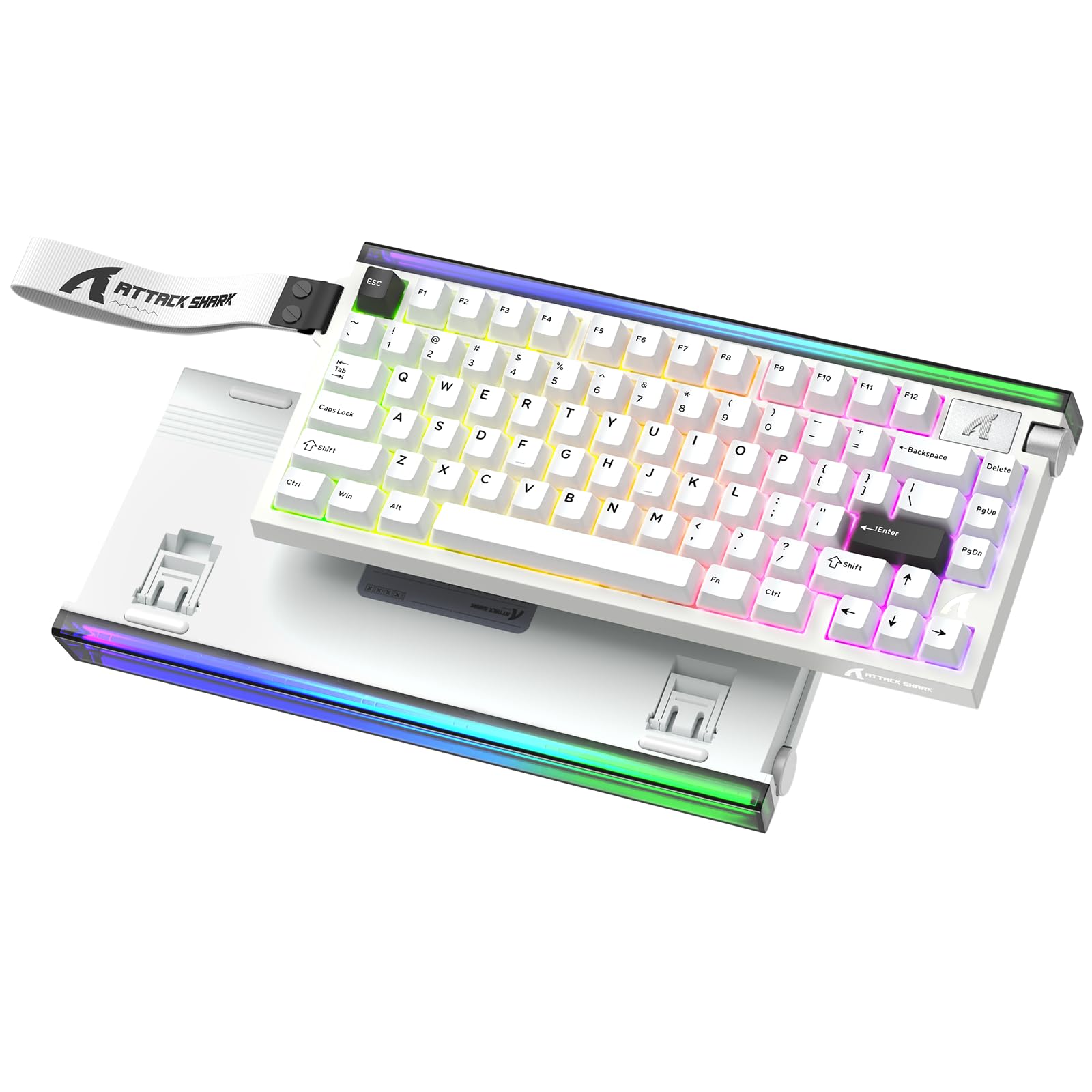
Image: The ATTACK SHARK R85 HE keyboard in white, connected via its USB-C cable.
3. Operating Instructions
3.1 RGB Lightbox and Backlighting
The R85 HE features a top RGB lightbox and per-key RGB backlighting. These can be customized with various colors and five preset effects to enhance your setup or create an immersive atmosphere.

Image: Close-up views of the keyboard showcasing its RGB lightbox and illuminated keycaps with various color effects.
3.2 Magnetic Hall Effect Switches and Adjustable Actuation
Equipped with magnetic Hall effect switches, each key's actuation point can be adjusted from 0.1 mm to 3.3 mm in 0.005 mm increments. This precision ensures consistent and accurate key presses, ideal for advanced typing and competitive gaming.

Image: An exploded view diagram illustrating the components of a magnetic switch and its adjustable actuation range.
3.3 Polling Rate and Latency
With a 256 kHz scan rate and an 8000 Hz polling rate, the R85 HE registers every key press in just 0.08 ms, providing unparalleled responsiveness. This ensures fast and smooth input for critical moments in gaming.

Image: The keyboard displayed with text overlays emphasizing its 8000Hz polling rate and 256KHz scan rate.
3.4 Snap Tap & Rapid Trigger
- Snap Tap: Prioritizes the last input between two keys for ultra-fast direction changes in FPS games.
- Rapid Trigger: Provides instant response and precise control for quick combos and critical stops, acting as an extension of your reflexes.
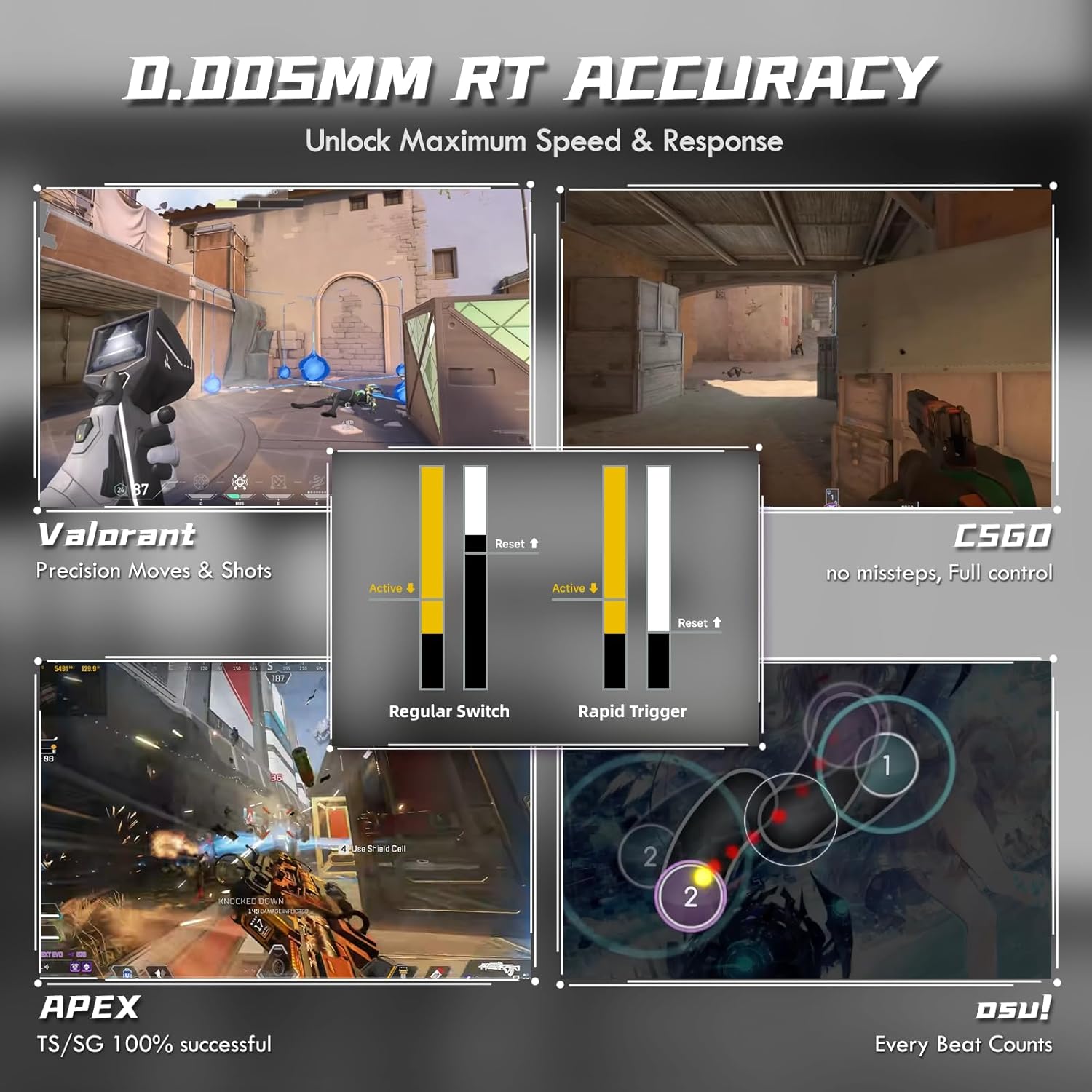
Image: Screenshots from games like Valorant, CSGO, Apex, and Osu! illustrating the benefits of 0.005mm RT accuracy, Rapid Trigger, and Snap Tap for precision and speed.
3.5 Web Control and Volume Knob
Customize RGB lighting, actuation points, and Rapid Trigger settings in real-time using the web driver. The integrated rotary knob provides immediate audio control. All settings are saved in the keyboard's onboard memory.

Image: The ATTACK SHARK R85 HE keyboard shown next to a computer screen displaying its web-based customization software.

Image: A detailed view of the keyboard's multimedia knob and the RGB lighting effects.
4. Maintenance
4.1 Cleaning the Keyboard
To maintain optimal performance and appearance, regularly clean your keyboard.
- Use a soft, lint-free cloth slightly dampened with water or a mild cleaning solution to wipe down the keycaps and chassis.
- Avoid spraying liquids directly onto the keyboard.
- For deeper cleaning, you may carefully remove keycaps (refer to switch type for compatibility) and use compressed air to clear debris from underneath.
4.2 Acoustic Foam Structure
The R85 HE features a reinforced top-mount frame and five layers of sound-absorbing foam (PORON, IXPE, PET, EPDM, Silicone Dampening Pad) for a deep and controlled typing feel. This design minimizes hollow resonances and provides a premium typing experience. Avoid disassembling the keyboard unless you are an experienced technician, as this may damage the internal components and void the warranty.

Image: An exploded diagram illustrating the five-layer sound-absorbing foam structure within the keyboard.
5. Troubleshooting
5.1 Keyboard Not Responding
- Ensure the USB-C cable is securely connected to both the keyboard and your computer.
- Try connecting the keyboard to a different USB port on your computer.
- Test the keyboard on another computer to rule out system-specific issues.
- Restart your computer.
5.2 RGB Lighting Issues
- Check the web driver software to ensure lighting effects are enabled and configured correctly.
- Ensure the keyboard firmware is up to date.
5.3 Actuation Point Calibration
If you experience inconsistent key registration or wish to fine-tune your actuation points, use the web driver's calibration guide.
- Open the web driver or downloaded software.
- In the "Keyboard Setting" panel, find "Travel Calibration" on the right side and click it.
- In the pop-up window, select "Start Calibration."
- Follow the on-screen instructions, then click "Calibration Complete" to finish.

Image: A step-by-step guide within the software interface for calibrating the keyboard's magnetic switches.
6. Specifications
| Feature | Detail |
|---|---|
| Brand | ATTACK SHARK |
| Model | R85 HE |
| Connectivity Technology | USB-C (Wired) |
| Switch Type | Magnetic Hall Effect |
| Actuation Range | 0.1 mm to 3.3 mm (0.005 mm increments) |
| RT Accuracy | 0.005 mm |
| Polling Rate | 8000 Hz |
| Scan Rate | 256 kHz |
| Latency | 0.08 ms |
| Layout | 75% Compact with full function row |
| Backlight | RGB Lightbox & Per-key RGB |
| Special Features | Web Driver, Volume Knob, Snap Tap, Rapid Trigger, 5-layer Acoustic Foam |
| Compatible Devices | Laptop, PC |
| Compatible OS | Windows |
| Material | Plastic |
| Number of Keys | 84 |
| Color | White |
| GTIN/UPC | 752010860883 |
7. Warranty and Support
7.1 Product Warranty
The ATTACK SHARK R85 HE keyboard comes with a 6-month product warranty. Please retain your proof of purchase for warranty claims.
7.2 Customer Support
For further assistance, technical support, or warranty inquiries, please visit the official ATTACK SHARK store or contact their customer service.
Official Brand Store: ATTACK SHARK Store
8. Product Videos
8.1 ATTACK SHARK R85HE Product Overview
Video: A comprehensive overview of the ATTACK SHARK R85 HE keyboard, showcasing its design, RGB lighting, and key features.
8.2 ATTACK SHARK R85HE Typing Sound and RGB
Video: Demonstrates the typing sound and various RGB lighting effects of the ATTACK SHARK R85 HE magnetic switch keyboard.


