
Introduction
Thank you for purchasing the Yixinxin 4K Underwater Digital Camera. This manual provides essential information for the safe and effective operation of your camera. Please read it thoroughly before use and retain it for future reference.
Package Contents
Verify that all items listed below are included in your package:
- 1 x Yixinxin 4K Underwater Digital Camera
- 1 x 32GB Micro SD Memory Card
- 1 x Rechargeable 1250 mAh Battery
- 1 x USB Cable
- 1 x Camera Bag
- 1 x User Manual (this document)
Camera Overview
Familiarize yourself with the camera's components:
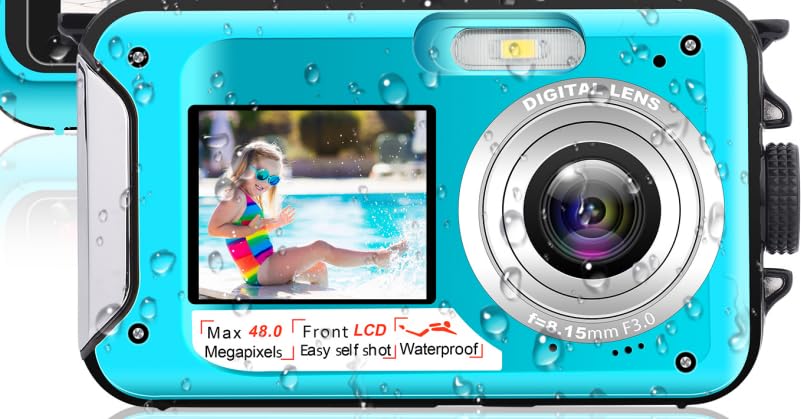
Image 1: Front view of the Yixinxin 4K Underwater Digital Camera. This image displays the camera's yellow casing, the main lens, the front 1.8-inch screen for selfies, and the flash/LED light. The camera has a compact, rectangular design with rounded edges.
Key Components:
- Front Screen (1.8 inches): For convenient selfie composition.
- Rear Screen (2.8 inches): Main display for viewing and menu navigation.
- Lens: High-resolution optical component for capturing images and videos.
- Shutter Button: Activates autofocus and captures photos/starts video recording.
- Power Button: Turns the camera on or off.
- Mode Button: Switches between photo, video, and playback modes.
- Navigation Buttons: For menu navigation and settings adjustment.
- Battery Compartment: Located on the side/bottom, sealed for waterproofing.
- Micro SD Card Slot: For memory card insertion.
- USB Port: For charging and data transfer.
Setup
- Charge the Battery:
Insert the included 1250 mAh battery into the battery compartment. Connect the camera to a USB power source using the provided USB cable. The charging indicator will illuminate. Charge fully before first use (approximately 2-3 hours).
- Insert Micro SD Card:
Open the sealed battery/card compartment. Insert the 32GB Micro SD card (or another compatible card up to 128GB) into the designated slot until it clicks into place. Ensure the card is inserted correctly to avoid damage. Close the compartment securely to maintain waterproofing.
- Power On:
Press and hold the Power button for a few seconds until the screen illuminates.
- Set Date and Time:
Upon first power-on, you may be prompted to set the date and time. Use the navigation buttons to adjust and confirm settings.
Operating Instructions
1. Taking Photos:
- Power On: Press the Power button.
- Select Photo Mode: If not already in photo mode, press the Mode button until the photo icon is displayed on the screen.
- Compose Shot: Frame your subject using the rear 2.8-inch screen.
- Autofocus: Lightly press the Shutter button halfway down. The focus frame on the screen will change from yellow to green when focus is achieved.
- Capture Photo: Press the Shutter button fully down to take the picture.
2. Recording Videos:
- Power On: Press the Power button.
- Select Video Mode: Press the Mode button until the video icon is displayed.
- Start Recording: Press the Shutter button once to begin recording. A red recording indicator will appear.
- Stop Recording: Press the Shutter button again to stop recording. The video will be saved automatically.
3. Using Dual Screens for Selfies:
- Activate Front Screen: In photo or video mode, press the dedicated front screen activation button (refer to camera diagram if available, or typically a specific navigation button). The front 1.8-inch screen will activate.
- Compose Selfie: Use the front screen to frame yourself.
- Capture: Press the Shutter button to take a photo or start/stop video recording.
4. Underwater Use:
This camera is waterproof up to 16 feet (5 meters) for up to 1 hour without an additional housing. Ensure all compartments (battery, SD card, USB port) are securely closed and sealed before submerging the camera. After use in saltwater, rinse the camera with fresh water and dry thoroughly.
Maintenance
- Cleaning: Use a soft, lint-free cloth to clean the camera body and screens. For the lens, use a specialized lens cleaning cloth and solution. Do not use abrasive cleaners.
- Water Exposure: After using the camera in water, especially saltwater, rinse it thoroughly with fresh water. Dry the camera completely before opening any compartments.
- Battery Care: Store the battery in a cool, dry place. If not using the camera for an extended period, remove the battery.
- Storage: Store the camera in a dry, dust-free environment, away from extreme temperatures and direct sunlight.
Troubleshooting
| Problem | Solution |
|---|---|
| Camera does not power on. | Ensure the battery is fully charged and correctly inserted. Try charging the battery for at least 3 hours. |
| Cannot take photos/record videos. | Check if the Micro SD card is inserted correctly and has sufficient free space. Ensure the camera is in the correct mode (photo/video). |
| Images are blurry. | Ensure the lens is clean. Lightly press the Shutter button halfway to allow the autofocus to engage before fully pressing to capture. |
| Camera not recognized by computer. | Ensure the USB cable is securely connected to both the camera and the computer. Try a different USB port or cable. Ensure the camera is powered on. |
| Water leakage after underwater use. | Immediately power off the camera and remove the battery. Ensure all compartment seals were clean and properly closed before submersion. Contact customer support if the issue persists. |
Specifications
| Feature | Detail |
|---|---|
| Model Name | UP020BU01 |
| Max. Photo Resolution | 64.0 MP |
| Video Resolution | 4K / 20 fps, FHD (1920x1080P / 30fps), HD (1280x720P / 30fps) |
| Waterproof Depth | 16 feet (5 meters) for up to 1 hour (without housing) |
| Dual Screens | Front: 1.8 inches, Rear: 2.8 inches |
| Autofocus | Yes |
| Memory Card Support | Micro SD card up to 128 GB (32GB included) |
| Battery Capacity | 1250 mAh Lithium Ion |
| Image Format | JPEG |
| Video Format | AVI |
| Dimensions | 4.13 x 2.5 x 0.97 inches |
| Weight | 0.29 pounds |
| Connectivity | USB |
Warranty and Support
Yixinxin products are designed for reliability and performance. For warranty information and technical support, please refer to the warranty card included in your package or visit the official Yixinxin website. Please retain your proof of purchase for warranty claims.
For further assistance, please contact Yixinxin customer service.