
1. Introduction
Thank you for choosing the KTC H25T7-3 24.5 Inch 240Hz FHD Gaming Monitor. This manual provides essential information for setting up, operating, and maintaining your monitor. Please read it thoroughly before use to ensure optimal performance and safety.
Safety Information
- Do not expose the monitor to rain or moisture to prevent fire or electric shock.
- Do not open the monitor casing. There are no user-serviceable parts inside. Refer all servicing to qualified personnel.
- Place the monitor on a stable, flat surface to prevent it from falling.
- Ensure proper ventilation around the monitor to prevent overheating.
- Use only the power adapter and cables provided by KTC.
2. What's in the Box
Verify that all the following items are present in your package:
- KTC H25T7-3 24.5" FHD 240Hz Monitor (x1)
- Monitor Stand (x1)
- Quick Start Guide (QSG) (x1)
- DisplayPort (DP) Cable (x1)
- Power Adapter (x1)
- Power Cord (x1)
3. Product Overview
The KTC H25T7-3 is a 24.5-inch Full HD (1920x1080) gaming monitor featuring a Fast IPS panel, 240Hz refresh rate, and 1ms MPRT response time for smooth visuals. It supports HDR400 and Adaptive-Sync technology to enhance your viewing and gaming experience.
Key Features
- 24.5" FHD Fast IPS Panel: Delivers crisp 1080p resolution with wide 178° viewing angles.
- 240Hz Refresh Rate & 1ms MPRT: Ensures ultra-smooth motion and minimal ghosting.
- Adaptive-Sync Technology: Synchronizes the monitor's refresh rate with your GPU for tear-free gameplay.
- HDR400 Support: Provides enhanced contrast and color depth for a more immersive visual experience.
- Ergonomic Stand: Offers tilt, pivot, and height adjustments for personalized viewing comfort.
- Eye Care Features: Low blue light and flicker-free technology reduce eye strain during extended use.
- Multiple Connectivity Options: Includes 2x HDMI 2.0, 1x DisplayPort 1.4, and 1x USB 2.0.

Figure 3.1: Overview of KTC H25T7-3 monitor features including Fast IPS, 240Hz, HDR400, and adjustable stand.
4. Setup
4.1 Assembling the Stand
- Carefully remove the monitor and stand components from the packaging.
- Attach the stand base to the stand neck using the provided screws.
- Align the assembled stand with the mounting slot on the back of the monitor and secure it firmly.

Figure 4.1: Front view of the KTC H25T7-3 monitor with its stand assembled.
4.2 VESA Wall Mounting (Optional)
The monitor supports a 100x100mm VESA mount. To wall mount the monitor:
- Remove the stand from the monitor if it is already attached.
- Attach your VESA-compatible wall mount bracket to the four screw holes on the back of the monitor. Ensure the screws are appropriate for the VESA standard and do not overtighten.
- Follow the instructions provided with your VESA mount for secure installation.

Figure 4.2: Rear view of the KTC H25T7-3 monitor, highlighting the input ports and VESA mounting area.
4.3 Connecting Cables
Connect the necessary cables to the corresponding ports on the monitor and your computer/device:
- Power: Connect the power adapter to the monitor's DC input and then plug the power cord into a power outlet.
- DisplayPort (DP): For optimal performance (240Hz, Adaptive-Sync), connect the provided DisplayPort cable from your graphics card to the monitor's DP 1.4 port.
- HDMI: Alternatively, connect an HDMI cable from your device to one of the monitor's HDMI 2.0 ports.
- USB: The USB 2.0 port can be used for firmware upgrades or connecting peripherals.
5. Operating Instructions
5.1 Power On/Off
Press the power button (usually located on the back or bottom of the monitor) to turn the monitor on or off. The power indicator light will illuminate when the monitor is on.
5.2 OSD Menu Navigation
The On-Screen Display (OSD) menu is controlled by a joystick button, typically located on the back of the monitor. Use the joystick to navigate through the menu options and adjust settings.
- Push In: Enter/Confirm selection.
- Up/Down: Navigate through menu options.
- Left/Right: Adjust values or move between sub-menus.
5.3 Adjusting Display Settings
Access the OSD menu to configure various display settings:
- Brightness/Contrast: Adjust the overall luminance and contrast levels.
- Color Settings: Fine-tune color temperature, gamma, and individual RGB values.
- Picture Mode: Select from preset modes (e.g., Standard, Game, Movie, sRGB) or customize your own.
- Refresh Rate: Ensure your graphics card output is set to 240Hz for optimal performance.
- Adaptive-Sync: Enable this feature in the OSD menu and your graphics card control panel to eliminate screen tearing.
- HDR: Activate HDR400 for compatible content to experience enhanced dynamic range.
- Low Blue Light: Adjust the blue light filter to reduce eye strain.

Figure 5.1: Visual representation of the 240Hz refresh rate for smooth motion.
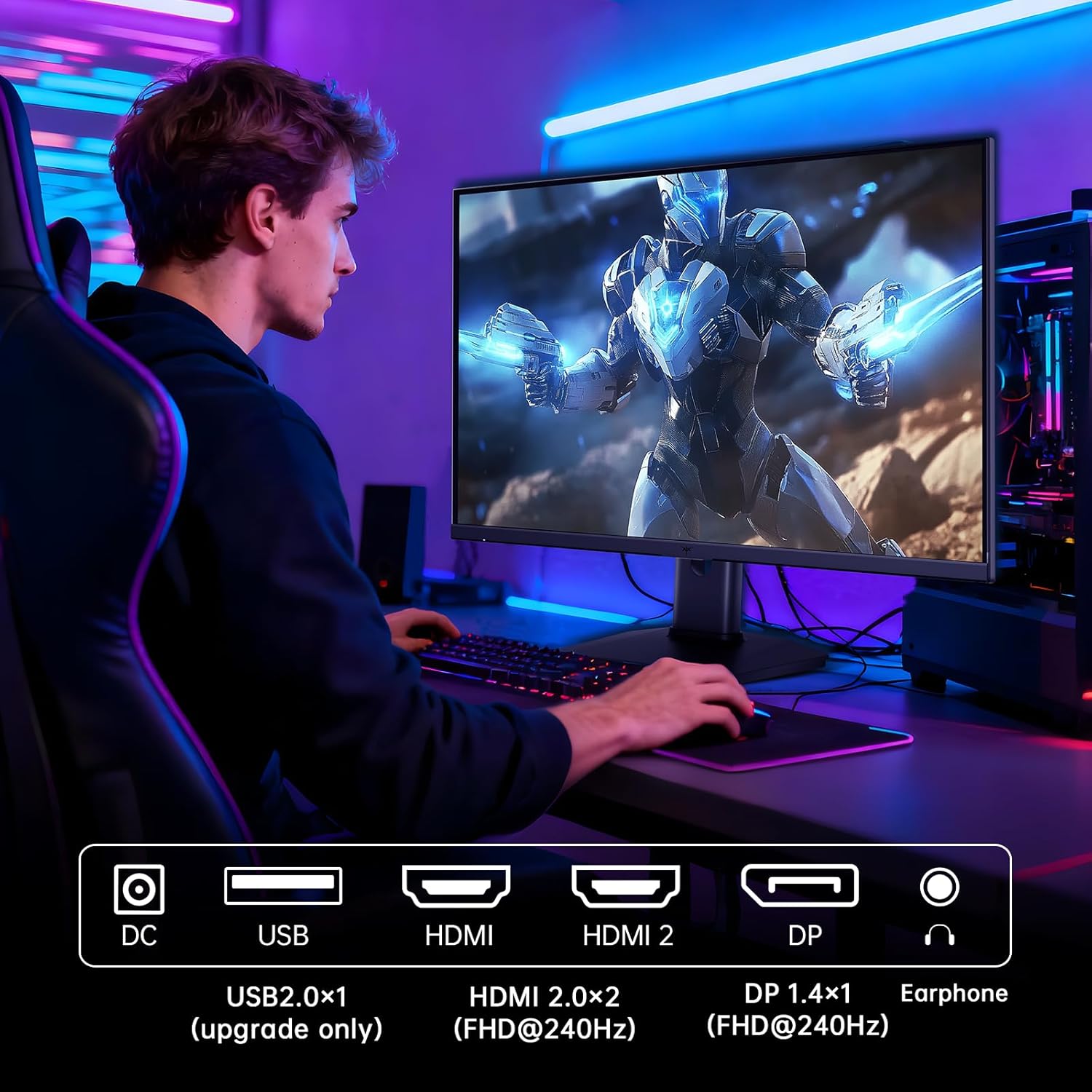
Figure 5.2: Comparison showing the effect of Adaptive-Sync on reducing stuttering and screen tearing.

Figure 5.3: Illustration of HDR400 technology delivering clear details in dark areas compared to HDR10.

Figure 5.4: Diagram illustrating hardware blue light reduction technology to filter harmful blue light bands.
5.4 Ergonomic Adjustments
The monitor stand allows for various adjustments to optimize your viewing position:
- Tilt: Adjust the screen angle forward or backward (-5° to 20°).
- Pivot: Rotate the screen 90° for portrait mode.
- Height Adjustment: Raise or lower the screen by up to 110mm.
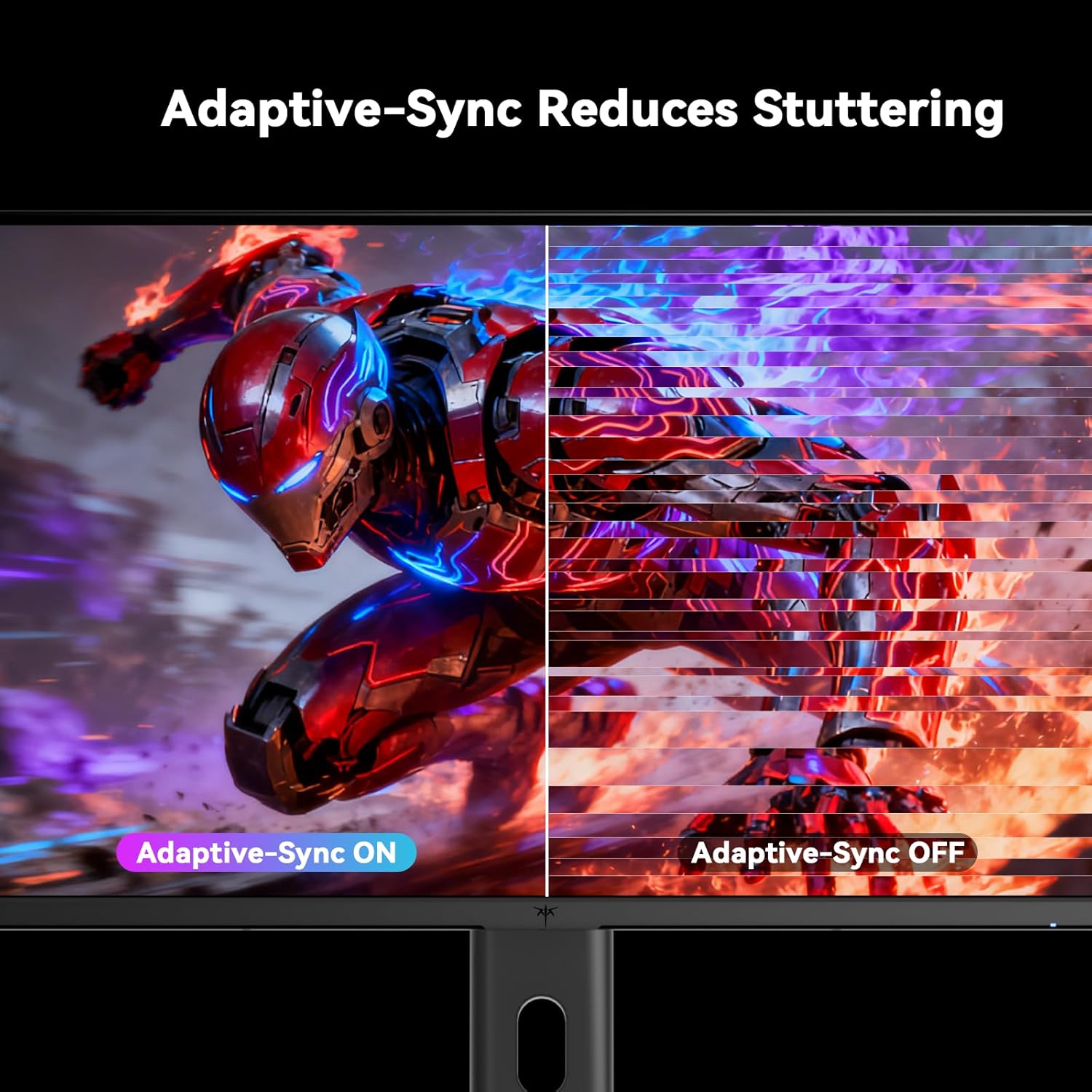
Figure 5.5: Diagram showing the tilt, pivot, and height adjustment capabilities of the monitor stand.
5.5 Official Product Video
Video 5.1: An official product video from KTC-Official showcasing the 24.5 Inch FHD 240Hz Gaming Monitor, demonstrating its features and performance.
6. Maintenance
6.1 Cleaning the Monitor
To clean the monitor screen and casing:
- Always unplug the monitor from the power outlet before cleaning.
- Use a soft, lint-free cloth lightly dampened with water or a non-abrasive screen cleaner.
- Do not spray cleaner directly onto the screen.
- Avoid using benzene, thinner, ammonia-based cleaners, or abrasive materials.
6.2 General Care
- Keep the monitor away from direct sunlight, excessive heat, or cold.
- Avoid placing heavy objects on the monitor or its cables.
- Do not block the ventilation openings on the monitor.
7. Troubleshooting
If you encounter issues with your monitor, refer to the following common problems and solutions:
| Problem | Possible Cause | Solution |
|---|---|---|
| No power | Power cable not connected; Power outlet not working | Ensure power cable is securely connected. Test the power outlet with another device. |
| No signal | Video cable not connected; Incorrect input source selected; Computer/device not powered on | Check video cable connections. Select the correct input source via the OSD menu. Ensure your computer/device is on. |
| Flickering screen | Incorrect refresh rate; Cable issue; Adaptive-Sync not enabled | Set refresh rate to 240Hz. Try a different video cable. Enable Adaptive-Sync in OSD and GPU settings. |
| Image distortion/poor quality | Incorrect resolution; Graphics driver issue; Monitor settings | Set resolution to 1920x1080. Update graphics drivers. Adjust OSD settings (brightness, contrast, color). |
7.1 Factory Reset
If problems persist, you may perform a factory reset through the OSD menu. This will revert all monitor settings to their default values.
8. Specifications
Detailed technical specifications for the KTC H25T7-3 monitor:
| Feature | Specification |
|---|---|
| Model Number | H25T7-3 |
| Screen Size | 24.5 Inches |
| Panel Type | Fast IPS |
| Resolution | FHD 1080p (1920 x 1080 Pixels) |
| Aspect Ratio | 16:9 |
| Refresh Rate | 240Hz |
| Response Time | 1ms (MPRT) |
| Adaptive Sync | Yes |
| HDR Support | HDR400 |
| Color Gamut | 114% sRGB |
| Contrast Ratio | 1000:1 |
| Display Colors | 16.7 Million |
| Brightness | 350 cd/m² |
| Viewing Angle | 178° (H/V) |
| Connectivity | 2x HDMI 2.0, 1x DisplayPort 1.4, 1x USB 2.0 |
| VESA Mount Compatibility | 100x100mm |
| Ergonomic Adjustments | Tilt, Pivot, Height |
| Product Dimensions (with stand) | 7.6 x 21.97 x 18.23 inches |
| Item Weight (with stand) | 11.58 pounds |
| Voltage | 12 Volts (DC) |
9. Warranty and Support
9.1 Warranty Information
KTC monitors are designed and manufactured to the highest quality standards. For specific warranty terms and conditions, please refer to the warranty card included with your product or visit the official KTC website. Keep your purchase receipt as proof of purchase for warranty claims.
9.2 Customer Support
If you have any questions, require technical assistance, or experience issues not covered in this manual, please contact KTC customer support. Contact details can typically be found on the official KTC website or in the Quick Start Guide.


