
1. Introduction
This manual provides detailed instructions for the setup, operation, and maintenance of your ESR Shift Series Magnetic Detachable Keyboard Case. Please read this manual thoroughly before use to ensure proper functionality and to maximize your product experience.
1.1 Compatibility
This keyboard case is designed for specific iPad models:
- iPad 11" (A16) 2025 (Models: A3354, A3355, A3356)
- iPad 10th Gen 2022 (Models: A2696, A2757, A2777, A3162)
To verify your iPad model number, navigate to Settings > General > About > Model Number. Ensure your iPad model matches one of the listed compatible models.

Image 1.1: Compatibility chart for ESR Shift Series Keyboard Case, detailing supported iPad models and instructions for verifying your device's model number.
2. Package Contents
Please check the package for the following items:
- ESR Shift Series Magnetic Detachable Keyboard Case
- USB-C Charging Cable
- User Manual (this document)
3. Setup
3.1 Charging the Keyboard
Before initial use, fully charge the keyboard. Connect the provided USB-C charging cable to the keyboard's charging port and to a power source. The charging indicator light will show the charging status.
3.2 Pairing the Keyboard with Your iPad
- Ensure the keyboard is charged.
- Slide the power switch on the side of the keyboard to the 'ON' position.
- Press and hold the Fn + B keys simultaneously for 3 seconds. The Bluetooth indicator light will flash blue, indicating the keyboard is in pairing mode.
- On your iPad, go to Settings > Bluetooth and turn Bluetooth on.
- Select "ESR Keyboard" from the list of available devices.
- Once connected, the Bluetooth indicator light will turn off, and your iPad will show the keyboard as connected.
The keyboard will automatically reconnect to the last paired device within 5 seconds of powering on, if Bluetooth is enabled on your iPad.
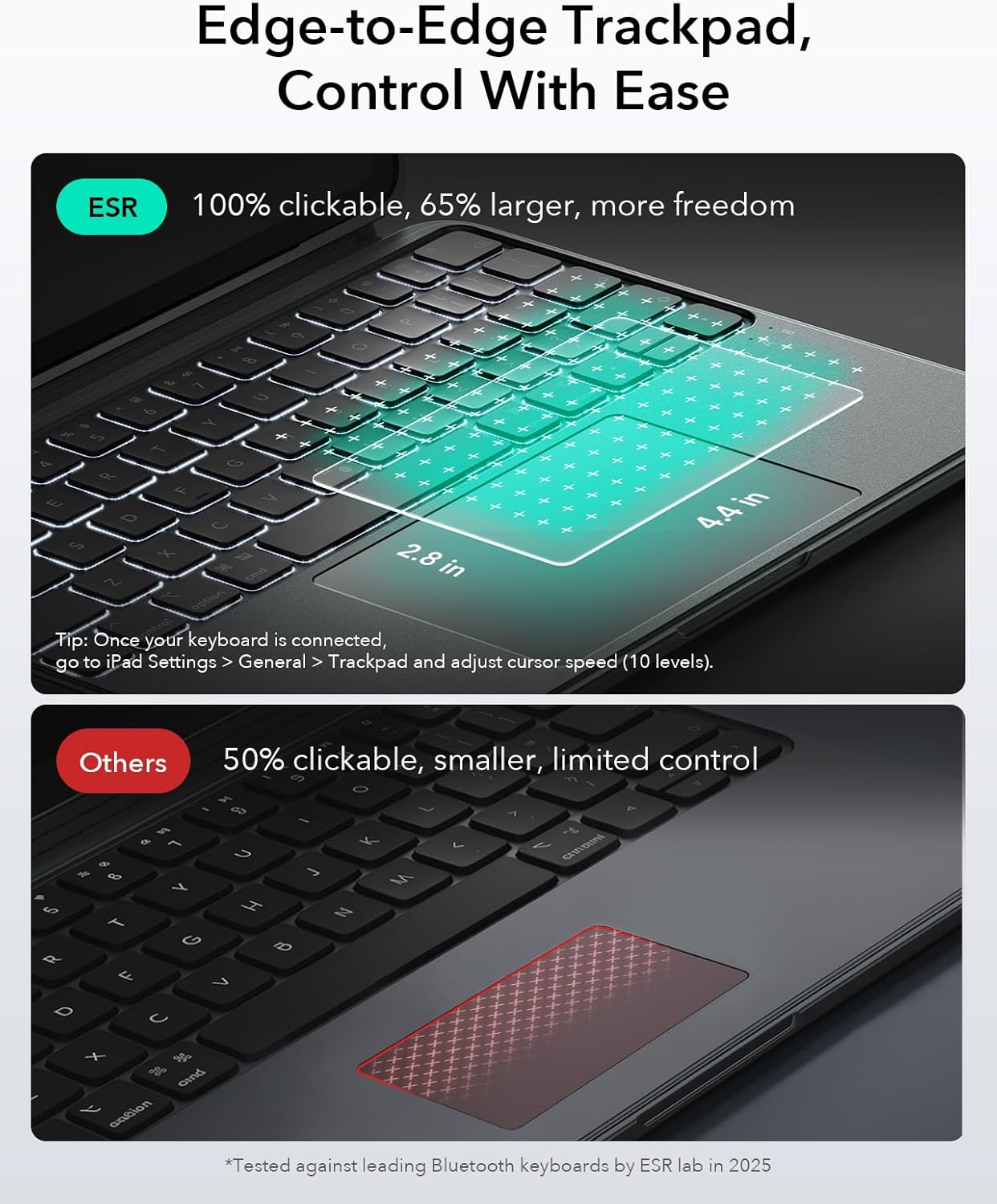
Image 3.1: Visual guide for powering on, Bluetooth pairing, and auto-reconnect functionality of the keyboard.
4. Operating Instructions
4.1 Attaching and Detaching the Keyboard
The keyboard features a magnetic detachable design. To attach, align the keyboard with the magnetic connectors on the case. It will snap securely into place. To detach, gently pull the keyboard away from the case.
Video 4.1: This video demonstrates the magnetic detachable design of the keyboard, showcasing how to easily attach and remove it from the iPad case for flexible use in various scenarios like typing, viewing, drawing, and gaming.
4.2 Using the Keyboard
The keyboard provides a tactile typing experience. It includes backlit keys for use in low-light conditions. Refer to your iPad's operating system for specific keyboard shortcuts and functions.
4.3 Using the Trackpad
The integrated trackpad supports full iOS gesture controls for enhanced navigation. It offers a 112 × 70 mm surface for precise control. To adjust trackpad sensitivity, go to iPad Settings > General > Trackpad and adjust the cursor speed.

Image 4.2: The large, clickable trackpad area, designed for precise control and full iOS gesture support.
4.4 Adjusting Viewing Angles
The case offers multiple viewing angles to suit various activities:
- Landscape Mode (20°–75°): Ideal for typing, watching videos, or general viewing. The adjustable stand allows you to find your preferred angle.
- Portrait Mode (70°): Suitable for browsing or reading documents.
- Low-Angle Mode (20°): Provides a stable surface for writing or drawing with a stylus.

Image 4.3: Different viewing angles supported by the case for work, play, and creative tasks.
4.5 Using the Pencil Holder
The case includes a dedicated stylus holder to keep your Apple Pencil secure and prevent it from being scratched or falling off. It features both a magnetic holder and an elastic pouch for easy access and secure carry.

Image 4.4: Dual smart pencil storage options for secure and convenient stylus access.
5. Maintenance
To ensure the longevity and optimal performance of your keyboard case, follow these maintenance guidelines:
- Cleaning: Use a soft, damp cloth to wipe the exterior of the case and keyboard. Avoid harsh chemicals or abrasive cleaners.
- Storage: When not in use for extended periods, store the keyboard case in a cool, dry place. Ensure the keyboard is powered off to conserve battery life.
- Protection: The case features reinforced Air Guard corners to protect your iPad from scratches, drops, and dust. While durable, avoid exposing the case to extreme impacts or sharp objects.

Image 5.1: The case's Air Guard corners provide all-around protection for your iPad.
6. Troubleshooting
- Keyboard not connecting via Bluetooth:
- Ensure the keyboard is charged and powered on. Verify Bluetooth is enabled on your iPad. Try re-pairing the keyboard by following the steps in Section 3.2. Restart both your iPad and the keyboard.
- Keys not responding:
- Check if the keyboard is properly connected to your iPad. Ensure the keyboard has sufficient battery. If specific keys are not working, try cleaning around the keys. If the issue persists, contact customer support.
- Trackpad not responding or inaccurate:
- Ensure the keyboard is securely attached and connected. Check iPad settings for trackpad sensitivity (Settings > General > Trackpad). Clean the trackpad surface. If the issue continues, try restarting your iPad.
- Backlight not working:
- Check the keyboard's battery level. The backlight may automatically turn off to conserve power when the battery is low. Ensure the backlight function is enabled (refer to keyboard specific function keys if available).
7. Specifications
| Feature | Detail |
|---|---|
| Model Name | 6B026 |
| Compatible Devices | iPad 11" (A16) 2025, iPad 10th Gen 2022 |
| Connectivity Technology | Bluetooth |
| Keyboard Description | Magnetic, Detachable, Backlit |
| Special Features | Detachable, Ergonomic, Portrait/Landscape Modes, Large Click-Anywhere Trackpad, Pencil Holder |
| Color | Grey |
| Material | Plastic |
| Item Weight | 1.74 pounds |
| Package Dimensions | 11.77 x 8.54 x 1.1 inches |
| Batteries | 1 Nonstandard Battery (included) |
| Power Source | Wired (for charging) |
8. Warranty and Support
For warranty information and customer support, please refer to the warranty card included with your product or visit the official ESR website. If you encounter any issues not covered in this manual, please contact ESR customer service for assistance.


