
Introduction
Thank you for choosing the Mingdaln G136 Smartwatch. This manual provides essential information and instructions to help you set up, operate, and maintain your device. Please read this manual thoroughly before using the smartwatch to ensure proper function and to avoid damage.
Safety Information
- Do not attempt to disassemble or modify the smartwatch. This may void the warranty and cause damage.
- Keep the device away from extreme temperatures, direct sunlight, and moisture.
- Use only the provided charging cable. Using unauthorized chargers may damage the device or pose a safety risk.
- Avoid exposing the smartwatch to strong impacts or drops.
- Consult a medical professional before using the heart rate monitor if you have a pacemaker or other internal electronic medical device.
Package Contents
Please check the package for the following items:
- Mingdaln G136 Smartwatch
- Charging Cable
- User Manual (this document)
Setup
1. Charging the Smartwatch
Before first use, fully charge your Mingdaln G136 Smartwatch. Connect the provided charging cable to the charging port on the back of the smartwatch and plug the other end into a USB power adapter (not included) or a computer's USB port. The watch display will indicate charging status.
Note: The charger uses a magnetic connection. Ensure it is securely attached to prevent accidental disconnection during charging.
2. SIM Card Insertion
The Mingdaln G136 Smartwatch supports 4G Vo-LTE calling via a Nano-SIM card. Follow these steps to insert the SIM card:
- Locate the SIM card slot on the side of the smartwatch.
- Carefully open the SIM card tray.
- Insert a Nano-SIM card into the tray, ensuring the gold contacts face downwards and the notched corner aligns correctly.
- Gently push the SIM card tray back into the slot until it clicks into place.
- Power on the smartwatch. The device will automatically detect the SIM card.

This image illustrates the process of inserting a Nano-SIM card into the smartwatch. It shows the SIM card tray and the correct orientation for insertion, highlighting that only Nano-SIM cards are compatible for 4G Vo-LTE calling.
Important: Ensure the SIM card is correctly sized (Nano-SIM). Incorrectly sized SIM cards or improper insertion can damage the SIM slot.
Operating Instructions
1. Basic Navigation
The Mingdaln G136 features a 1.92-inch TFT touchscreen with HD resolution (240*282 px) for intuitive interaction. Swipe left, right, up, or down to navigate through menus and applications. Tap to select items.

This image provides a detailed view of the smartwatch's 1.92-inch TFT HD touchscreen, emphasizing its resolution of 240x282 pixels for clear visuals.
2. Making and Receiving Calls
With a properly inserted and activated SIM card, you can make and receive calls directly from your smartwatch.
- To Make a Call: Access the "Dial" application or select a contact from your "Contacts" list. Enter the number or select the contact and tap the call icon.
- To Receive a Call: When a call comes in, the smartwatch will display the caller ID. Tap the green answer icon to accept or the red hang-up icon to decline.
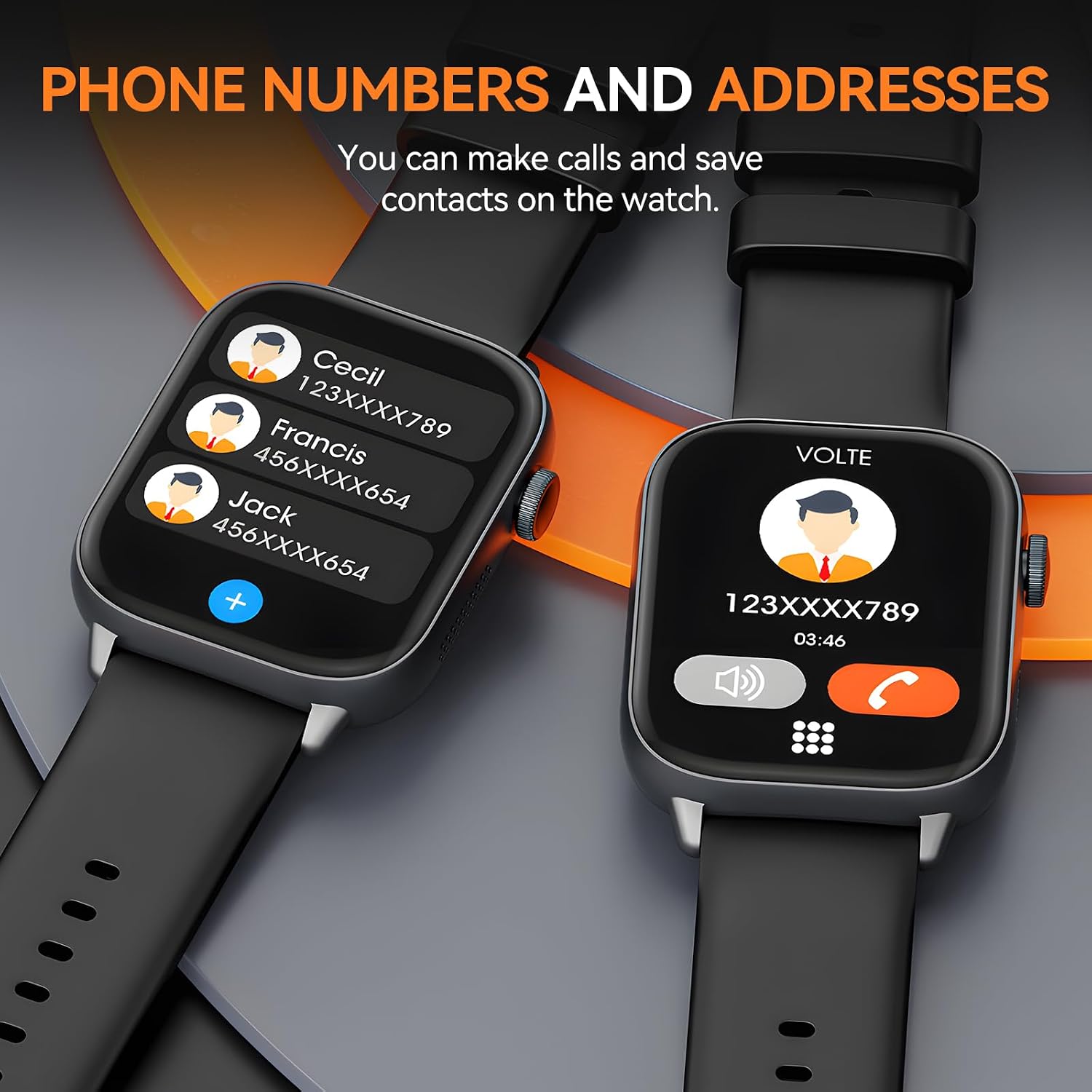
This image displays the smartwatch's call interface, showing an incoming call from "Jack" and a separate screen with a list of contacts, illustrating how users can manage phone numbers and addresses on the device.
3. SMS Notifications
The smartwatch can receive SMS notifications. When a new message arrives, it will be displayed on the screen. You can view recent SMS notifications quickly through the dedicated SMS application.
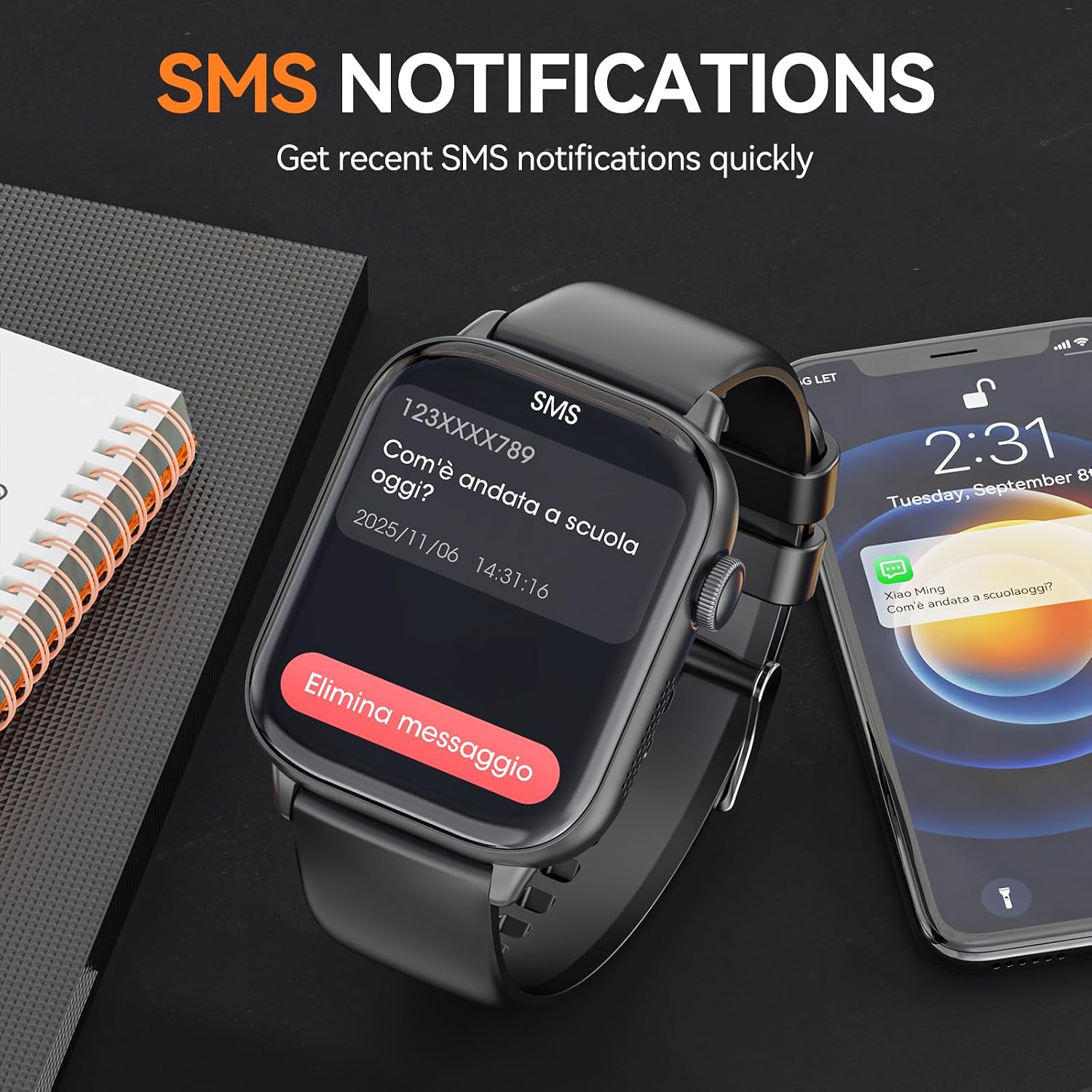
This image shows the smartwatch displaying an SMS notification, demonstrating its ability to quickly receive and show messages. A smartphone in the background also shows a similar message, indicating notification mirroring.
4. Key Features and Applications
The Mingdaln G136 Smartwatch comes with a variety of built-in applications and features:
- Heart Rate Monitor: Monitor your heart rate throughout the day. (Note: This is not a medical device and should not be used for medical diagnosis.)
- Multisport Mode: Track various activities like running, cycling, and hiking.
- Step Measure: Count your daily steps and track your activity levels.
- Contacts: Store and manage your phone numbers.
- SMS: View received text messages.
- Calculator: Perform basic arithmetic calculations.
- Games: Enjoy simple games on your wrist.
- Timer: Use for countdowns or stopwatch functions.
- Clock: Displays time and date.
- Wakes up: Alarm function.

This image presents the main menu of the smartwatch, showcasing a variety of application icons such as Heart Rate, Contacts, SMS, Multisport Mode, Calculator, Games, Timer, Dial, and Clock, illustrating the device's diverse functionalities.

This image shows a user engaged in physical activity, with the smartwatch displaying its "Different Modes of Movement" feature. The screen illustrates options for running, cycling, and hiking, alongside real-time data for heart rate and daily steps, demonstrating its capability for monitoring daily activities.
5. Changing Watch Faces
Personalize your smartwatch by changing the watch face. The device offers various themes and clock faces to suit your style. Typically, you can long-press the home screen or navigate through the settings menu to access watch face options.

This image showcases several smartwatches, each featuring a unique "New Faces Every Day!" design. It highlights the variety of customizable clock faces and themes available to users, allowing for daily personalization.
Maintenance
- Cleaning: Wipe the smartwatch and strap regularly with a soft, dry cloth. For stubborn dirt, use a slightly damp cloth and then dry thoroughly. Avoid using harsh chemicals or abrasive materials.
- Battery Care: To prolong battery life, avoid fully discharging the battery frequently. Charge the device when the battery level is low. Store the smartwatch in a cool, dry place if not used for extended periods.
- Water Resistance: While the smartwatch may have some water resistance, it is generally not recommended for swimming or showering. Avoid prolonged exposure to water.
Troubleshooting
| Problem | Possible Cause | Solution |
|---|---|---|
| Smartwatch does not power on. | Low battery. | Charge the smartwatch for at least 30 minutes. |
| Cannot make/receive calls. | SIM card not inserted correctly or not activated. No network signal. | Ensure SIM card is properly inserted and activated. Check for network coverage. Restart the smartwatch. |
| Charging issues. | Charging cable not connected properly. Faulty cable or adapter. | Ensure the magnetic charger is securely attached. Try a different USB port or power adapter. |
| Screen unresponsive. | Software glitch. | Restart the smartwatch by holding down the power button. |
Specifications
- Brand: Mingdaln
- Model Number: G136
- Screen: 1.92 Inches TFT Touchscreen
- Screen Resolution: 240*282 px
- Connectivity Technology: USB (for charging)
- Battery Type: Lithium-polymer
- Rechargeable Battery: Yes
- Included Components: Charging Cable
Warranty and Support
For warranty information and customer support, please refer to the documentation provided with your purchase or contact Mingdaln customer service through the retailer where you purchased the product. Keep your proof of purchase for warranty claims.