
1. Introduction
This manual provides detailed instructions for the installation, operation, and maintenance of your SENTKENG Y05009 Indoor Camera. Please read this manual thoroughly before using the product to ensure proper function and safety. The SENTKENG Y05009 is a 1080P WiFi camera designed for indoor monitoring, featuring pan/tilt capabilities, two-way audio, IR night vision, and motion detection.
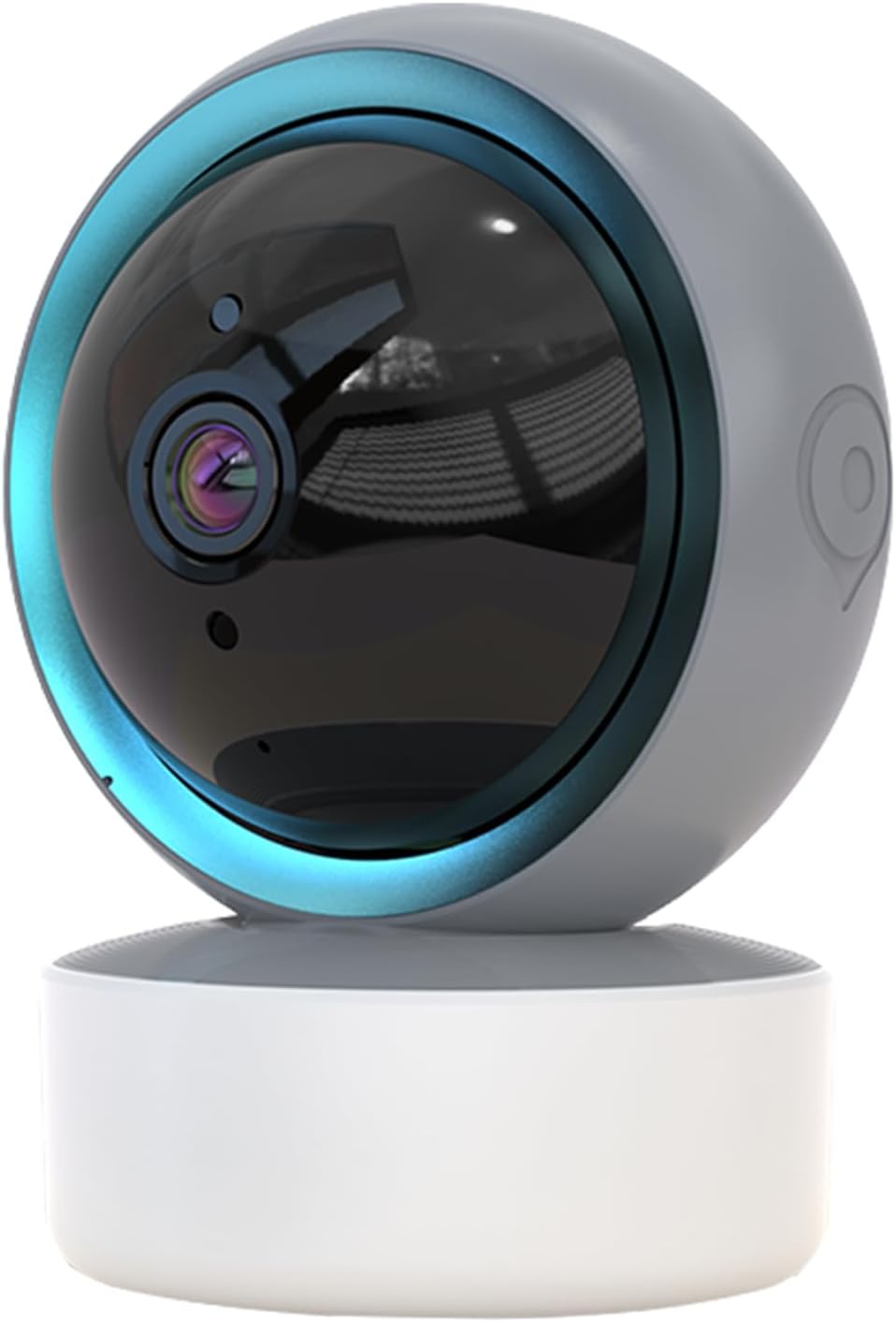
Image 1.1: SENTKENG Y05009 Indoor Camera. This image displays the compact, spherical design of the camera with its lens and base.
2. Package Contents
Please verify that all items are present in the package:
- SENTKENG Y05009 Indoor Camera
- USB Power Cable
- Power Adapter (not explicitly listed but implied for a plug-in device)
- Mounting Bracket and Screws
- Instruction Manual

Image 2.1: Package Contents. This image shows the camera, USB cable, mounting accessories, and the user manual included in the box.
3. Product Overview
The SENTKENG Y05009 camera features a compact design with essential components for effective indoor monitoring.
3.1 Camera Components
- Lens: Captures 1080P video.
- Infrared LEDs: Provide night vision capabilities.
- Microphone: For audio input and two-way talk.
- Speaker: For audio output and two-way talk.
- MicroSD Card Slot: Supports local storage up to 128GB (card not included).
- Reset Button: Used for factory reset or pairing mode.
- Power Port: USB port for connecting the power cable.
Image 3.1: Camera Component Details. This image highlights the speaker, microSD card slot, reset button, and power port on the camera.
4. Setup
Follow these steps to set up your SENTKENG Y05009 Indoor Camera.
4.1 Powering On
- Connect the USB power cable to the camera's power port.
- Plug the other end of the USB cable into the provided power adapter.
- Plug the power adapter into a standard electrical outlet. The camera will power on and initiate its startup sequence.
4.2 App Installation and Account Creation
- Download the InstaVision app from your smartphone's app store (iOS or Android).
- Open the InstaVision app and create a new account or log in if you already have one.

Image 4.1: InstaVision App Interface. This image shows the 'Welcome to InstaVision' screen on a smartphone, illustrating the initial app setup.
4.3 Connecting to Wi-Fi
The camera supports 2.4GHz Wi-Fi networks only.
- In the InstaVision app, tap 'Add Device' or the '+' icon.
- Select your camera model or 'Smart Camera'.
- Follow the on-screen instructions to connect the camera to your 2.4GHz Wi-Fi network. This typically involves scanning a QR code generated by the app with the camera's lens or listening for an audio prompt.
- Once connected, the camera's indicator light will change, and you will receive a confirmation in the app.
4.4 Placement and Mounting
The camera can be placed on a flat surface or mounted to a ceiling.
- Tabletop Mount: Place the camera on a stable, flat surface such as a table or shelf.
- Ceiling Installation: Use the provided mounting bracket and screws to secure the camera to the ceiling. Ensure the camera is oriented correctly for optimal viewing.
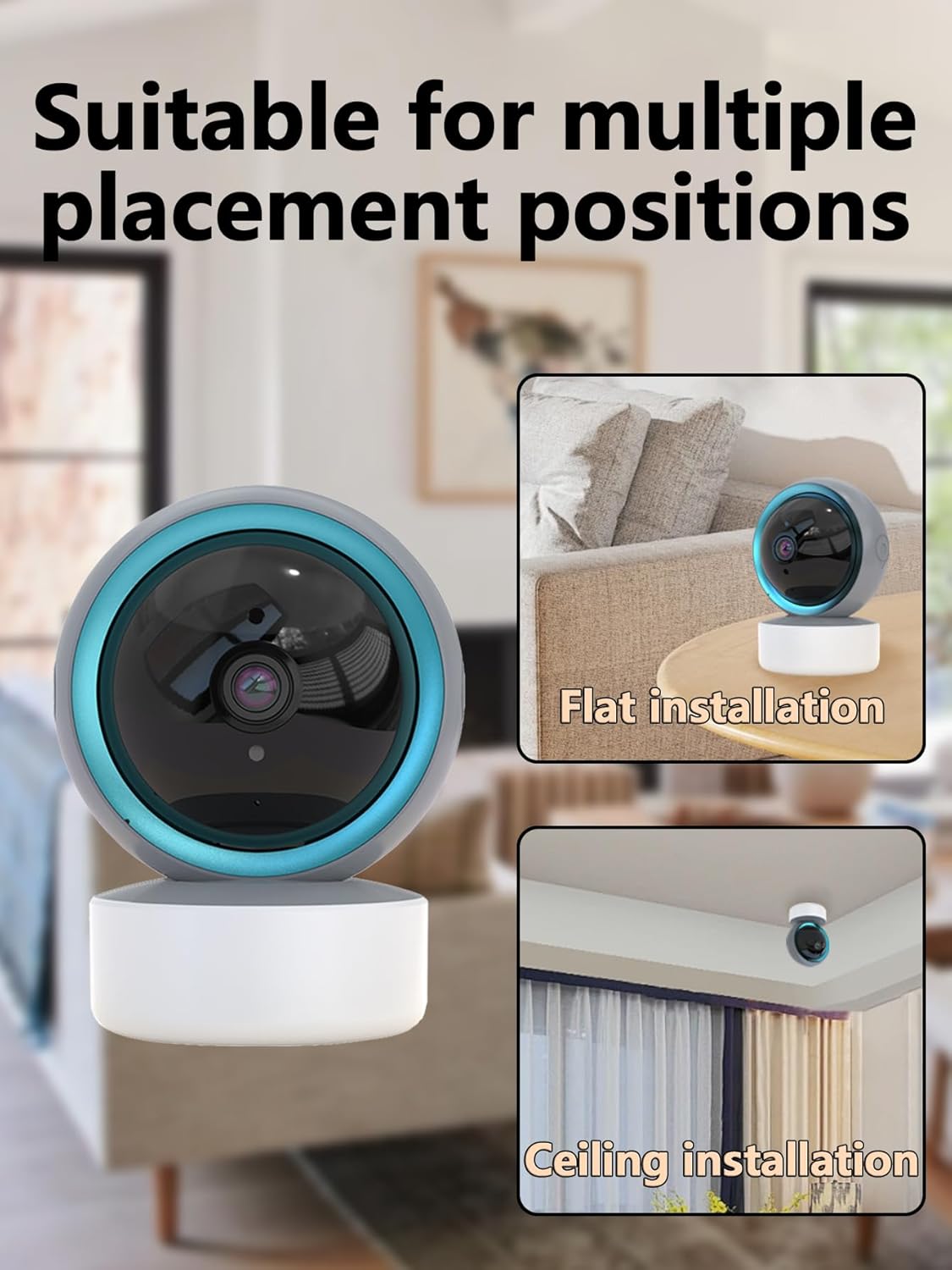
Image 4.2: Multiple Placement Positions. This image illustrates the camera placed on a flat surface and mounted on a ceiling.
5. Operating Instructions
Learn how to use the various features of your SENTKENG Y05009 camera.
5.1 Live View and Pan/Tilt Control
- Open the InstaVision app and select your camera from the device list.
- You will see the live video feed.
- Use the directional controls within the app to remotely rotate the camera lens: 355° horizontally and 90° vertically.

Image 5.1: Multi-Angle Rotation. This image demonstrates the camera's ability to rotate 355 degrees horizontally and 90 degrees vertically.
5.2 Two-Way Audio
The camera features a built-in microphone and speaker for real-time communication.
- While in live view, tap the microphone icon in the app.
- Speak into your phone to transmit audio through the camera's speaker.
- The camera's microphone will capture audio from its surroundings, which you can hear through your phone.
5.3 Motion Detection and Alerts
The camera can detect motion and send instant notifications to your phone.
- Enable motion detection in the InstaVision app settings for your camera.
- Adjust sensitivity levels as needed.
- When motion is detected, you will receive a push notification on your smartphone.
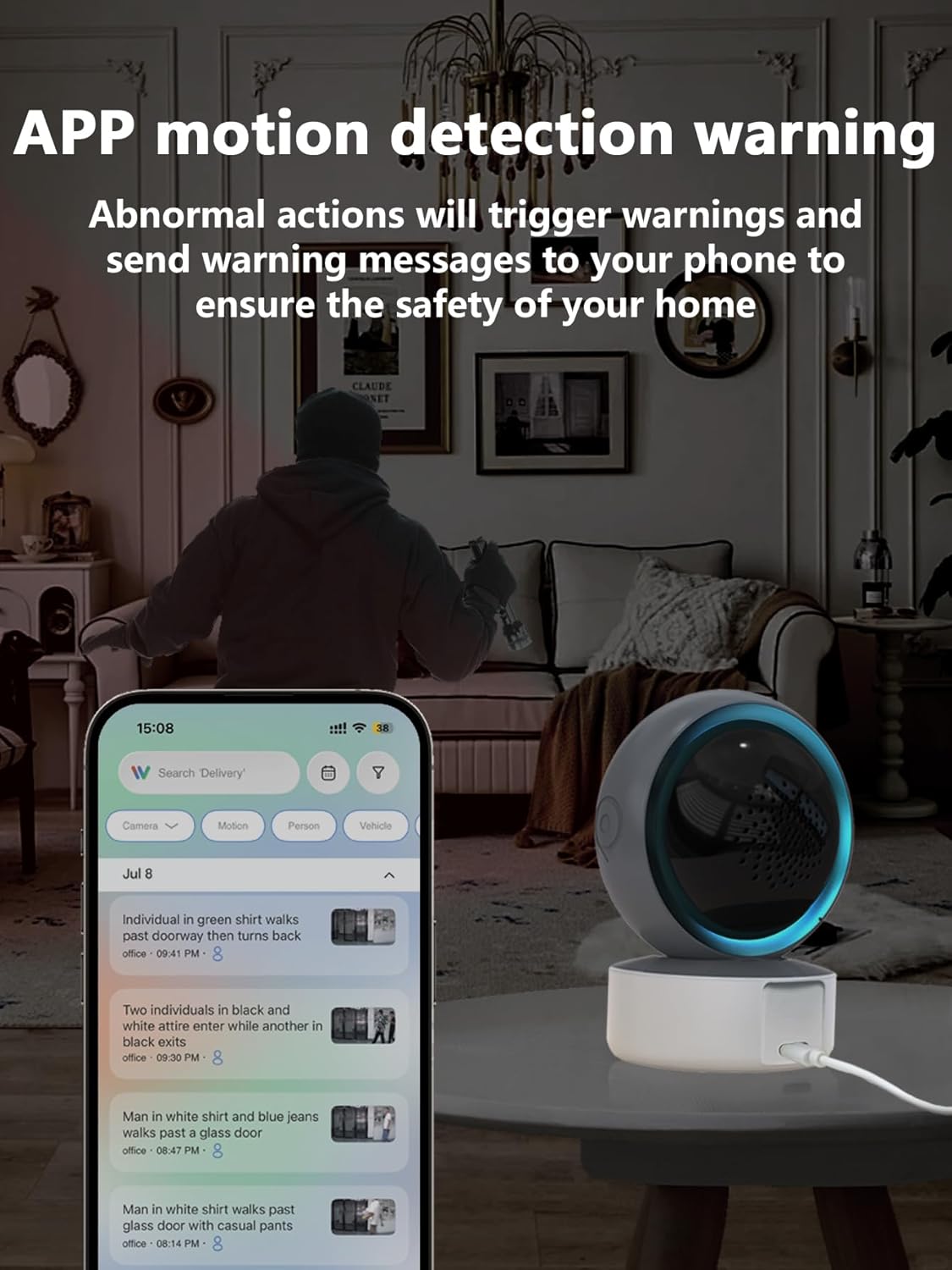
Image 5.2: APP Motion Detection Warning. This image shows a smartphone displaying motion detection alerts from the InstaVision app, with the camera monitoring a room.
5.4 IR Night Vision
The camera automatically switches to infrared night vision in low-light conditions.
- Infrared LEDs provide clear black-and-white images up to 8 meters in complete darkness.
- No manual activation is required; the camera adjusts automatically.

Image 5.3: Clear IR Night Vision. This image depicts the camera providing a clear view in a dark room, with a smartphone displaying the night vision feed.
5.5 Video Storage
The camera offers two storage options for recorded footage:
- MicroSD Card: Insert a microSD card (up to 128GB, not included) into the camera's slot for local storage. Recordings will be saved directly to the card.
- Cloud Service: An optional cloud storage subscription is available through the InstaVision app for remote and secure storage of your video recordings.

Image 5.4: Video Playback & Storage Function. This image shows the camera, a microSD card, and a smartphone displaying cloud storage icons, illustrating the dual storage options.
5.6 AI Detection (Subscription)
Advanced AI-powered detection features are available with a paid InstaVision app subscription. These features may include:
- Person detection
- Pet detection
- Specific human action recognition
5.7 Multi-User Viewing
The InstaVision app allows multiple users to view the camera feed simultaneously.
- In the app, navigate to the camera settings and find the 'Share Device' option.
- Invite other users by entering their InstaVision account details.
- Shared users will receive an invitation and can then access the camera feed.

Image 5.5: Simultaneous Online Viewing by Multiple Users. This image shows several individuals viewing the camera feed on their smartphones, indicating the family share function.
6. Maintenance
Regular maintenance helps ensure the longevity and optimal performance of your camera.
- Cleaning: Gently wipe the camera lens and body with a soft, dry cloth. Avoid using harsh chemicals or abrasive materials.
- Software Updates: Periodically check the InstaVision app for firmware updates for your camera. Keeping the firmware updated ensures you have the latest features and security enhancements.
- Power Cycle: If the camera experiences issues, try unplugging it from the power source for 10 seconds and then plugging it back in.
7. Troubleshooting
If you encounter problems with your SENTKENG Y05009 camera, refer to the following common issues and solutions.
- Camera is offline:
- Ensure the camera is properly powered on and the power adapter is securely plugged in.
- Check your Wi-Fi network connection. Ensure the camera is within range of your 2.4GHz Wi-Fi router.
- Restart the camera by unplugging and replugging it.
- If the issue persists, try resetting the camera and re-pairing it with the app.
- Cannot connect to Wi-Fi:
- Verify that your Wi-Fi network is 2.4GHz. The camera does not support 5GHz networks.
- Ensure you are entering the correct Wi-Fi password.
- Move the camera closer to your Wi-Fi router during the setup process.
- Reset the camera and attempt the connection process again.
- Motion detection alerts are not received:
- Check the motion detection settings in the InstaVision app to ensure it is enabled and sensitivity is adjusted appropriately.
- Verify that your smartphone's notification settings allow alerts from the InstaVision app.
- Ensure the camera has a stable internet connection.
- Poor video quality:
- Ensure the camera lens is clean and free from dust or smudges.
- Check your Wi-Fi signal strength. A weak signal can affect streaming quality.
- Ensure adequate lighting for optimal daytime video.
8. Specifications
| Feature | Specification |
|---|---|
| Model Name | Y05009 |
| Indoor/Outdoor Usage | Indoor |
| Video Capture Resolution | 1080p |
| Connectivity Technology | Wireless (2.4GHz Wi-Fi) |
| Power Source | Corded Electric |
| Pan/Tilt Range | Horizontal 355°, Vertical 90° |
| Night Vision Range | 8 Meters |
| Storage Options | MicroSD Card (up to 128GB), Cloud Storage (subscription) |
| Two-Way Audio | Yes |
| Motion Detection | Yes |
| AI Features | Optional (subscription required) |
| Compatible Devices | Smartphone (iOS, Android) |
| Product Dimensions | 3.58 x 2.97 x 4.69 inches |
| Item Weight | 9 ounces |
9. Support Information
For further assistance or technical support, please refer to the contact information provided with your product packaging or visit the official SENTKENG website.