
1. Introduction
The SENTKENG Y03008 InstaVision 1080P WiFi Camera is an indoor security camera designed for monitoring your home, baby, or pets. It offers 1080P Full HD video, pan and tilt functionality for wide coverage, two-way audio communication, infrared night vision, and intelligent motion detection. This manual provides essential information for setting up, operating, and maintaining your camera.
2. Safety Information
- Ensure the camera is used indoors only.
- Use only the provided power adapter and cable.
- Keep the device away from water, moisture, and extreme temperatures.
- Do not attempt to disassemble or repair the camera yourself. Contact support if issues arise.
- Keep out of reach of children and pets.
3. Package Contents
Please check the package for the following items:
- SENTKENG Y03008 InstaVision 1080P WiFi Camera
- Instruction Manual
- Type-C Charging Cable
- Wall Bracket
- Screw Package

Image: The camera, Type-C charging cable, wall bracket, screw package, and instruction manual are included in the box.
4. Product Overview
Familiarize yourself with the main components of your camera:
- Camera Lens: Captures 1080P Full HD video.
- Speaker: For two-way audio communication.
- Storage Card Slot: Insert a microSD card (up to 128GB, not included) for local storage.
- Reset Key: Used to reset the camera to factory settings.
- Type-C Charging Port: Connect the power cable here.
Image: A detailed view of the camera highlighting the camera lens, speaker, storage card slot, reset key, and Type-C charging port.
5. Setup Guide
5.1 Powering On and App Installation
- Power On: Connect the camera to a power outlet using the provided Type-C charging cable and power adapter. The camera will power on automatically.
- Download the InstaVision App: Search for 'InstaVision' in your smartphone's app store (iOS or Android) and download the application.
- Register/Log In: Open the InstaVision app and follow the on-screen instructions to register a new account or log in if you already have one.

Image: The camera next to a smartphone displaying the InstaVision app's welcome screen, illustrating the easy connection process.
5.2 Connecting to Wi-Fi
- Add Device: In the InstaVision app, tap the '+' icon or 'Add Device' to begin the pairing process.
- Select Camera Type: Choose the appropriate camera model from the list.
- Follow In-App Instructions: The app will guide you through connecting the camera to your 2.4GHz Wi-Fi network. Ensure your phone is connected to the same 2.4GHz Wi-Fi network during setup.
- Confirmation: Once connected, the camera's indicator light will change, and the app will confirm successful pairing.
5.3 Installation Options
The SENTKENG Y03008 camera offers flexible installation:
- Tabletop Mount (Freestanding): Place the camera on any flat surface such as a table, shelf, or desk. Ensure it has a clear view of the area you wish to monitor.
- Ceiling Mounting: Use the included wall bracket and screws to mount the camera to the ceiling. After mounting, you may need to adjust the image orientation in the InstaVision app settings.

Image: Examples of camera placement, showing both flat surface installation and ceiling mounting options.
6. Operating Instructions
6.1 Live View and Playback
Once connected, open the InstaVision app to access the live video feed from your camera. You can view real-time footage and review recorded events from anywhere, anytime.
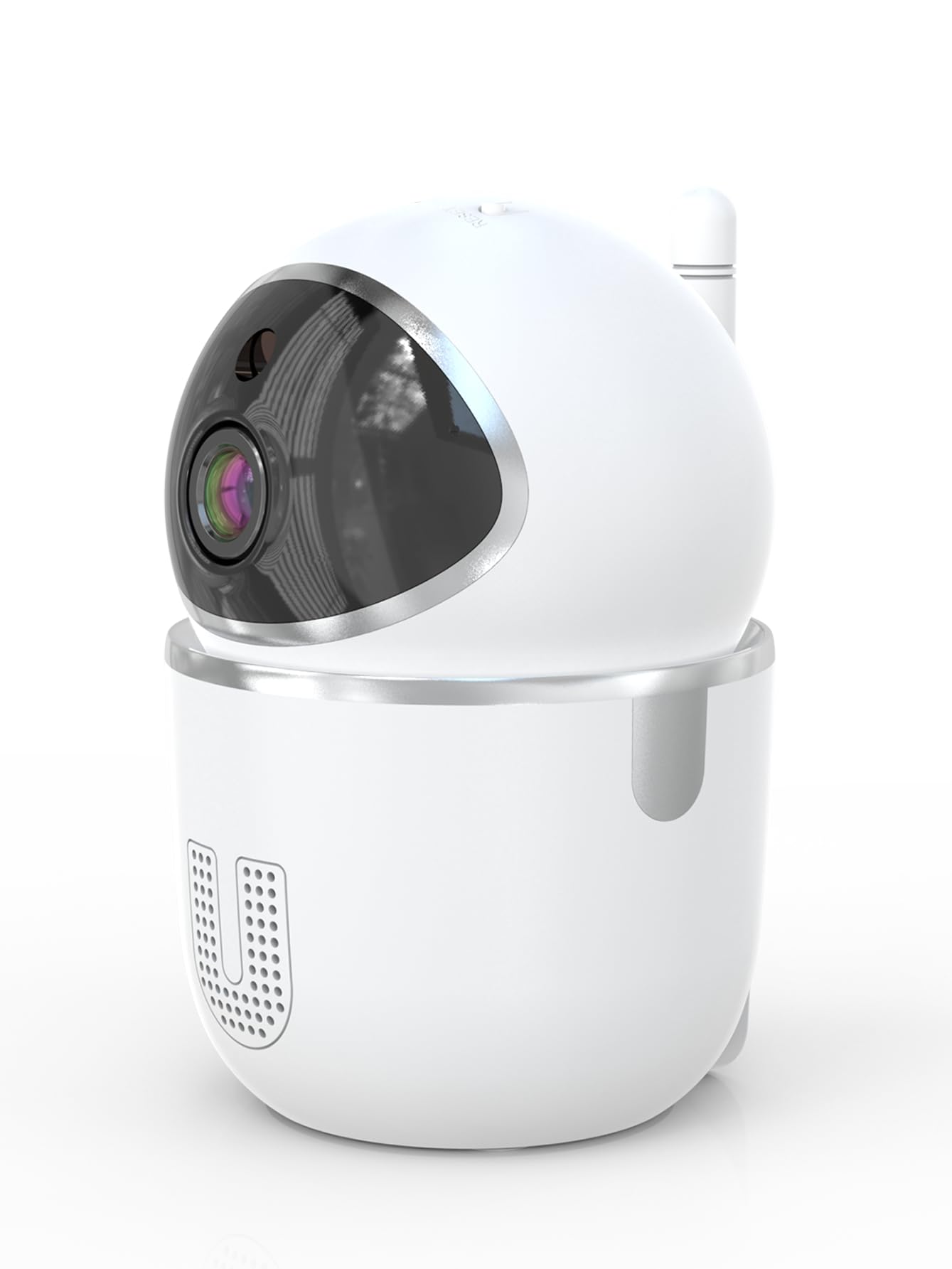
Image: A smartphone displaying the live video feed from the camera, showing a living room scene.
6.2 Pan and Tilt Control
Remotely control the camera's viewing angle through the InstaVision app. The camera supports 355° horizontal rotation and 90° vertical tilt, allowing you to cover a wide area with minimal blind spots.

Image: The camera illustrating its pan (355°) and tilt (90°) capabilities, showing the range of motion.
6.3 Two-Way Audio
The built-in microphone and speaker enable real-time two-way communication. Tap the microphone icon in the app to speak through the camera, and listen to audio from the camera's surroundings.
6.4 Night Vision
The camera is equipped with powerful infrared LEDs, providing clear black-and-white video footage in low-light conditions or complete darkness, ensuring 24/7 monitoring.
6.5 Motion Detection and Alerts
The camera detects motion and sends instant notifications to your smartphone. You can customize motion detection sensitivity and alert schedules within the InstaVision app.

Image: A smartphone screen showing a list of motion detection events and alerts, indicating human presence.
6.6 Storage Options
- MicroSD Card Storage: Insert a microSD card (up to 128GB, not included) into the camera's card slot for local recording. The camera will automatically overwrite the oldest footage when the card is full.
- Cloud Storage: An optional cloud service is available via a paid InstaVision app subscription. This provides secure off-site storage for your recordings.

Image: The camera with visual cues indicating support for both local microSD card storage (up to 128GB) and optional cloud storage.
6.7 AI Detection (Subscription)
With a paid InstaVision app subscription, you can access advanced AI-powered features such as recognizing people, pets, and specific human actions. This allows for more precise alerts and faster searching of recorded events.

Image: A smartphone screen demonstrating the contextual AI search feature, allowing users to quickly find specific events like package deliveries or pet movements.
6.8 Multi-User Viewing
Share access to your camera's live feed with family members or trusted individuals through the InstaVision app, allowing multiple users to view the camera simultaneously.

Image: The camera surrounded by multiple smartphones, illustrating the multi-user viewing capability for real-time online monitoring.
7. Maintenance
- Cleaning: Use a soft, dry cloth to clean the camera lens and body. Do not use liquid cleaners or aerosols.
- Firmware Updates: Regularly check the InstaVision app for available firmware updates. Keeping your camera's firmware updated ensures optimal performance and security.
- MicroSD Card Management: If using a microSD card, periodically check its status in the app. Format the card if necessary to maintain recording quality.
8. Troubleshooting
8.1 Camera Not Connecting to Wi-Fi
- Ensure your Wi-Fi network is 2.4GHz. The camera does not support 5GHz Wi-Fi.
- Check that your Wi-Fi password is entered correctly.
- Move the camera closer to your Wi-Fi router.
- Restart your router and the camera.
- Perform a factory reset on the camera using the reset key and try connecting again.
8.2 No Video Feed
- Verify the camera is powered on and connected to Wi-Fi.
- Check your internet connection.
- Restart the InstaVision app.
8.3 Motion Detection Not Working
- Ensure motion detection is enabled in the InstaVision app settings.
- Adjust the motion detection sensitivity.
- Check the detection zone settings to ensure the desired area is covered.
8.4 Two-Way Audio Issues
- Ensure your phone's microphone is enabled for the InstaVision app.
- Check the volume settings on your phone and within the app.
- Ensure there are no obstructions blocking the camera's speaker or microphone.
9. Specifications
| Model Name | Y03008 InstaVision |
| Indoor/Outdoor Usage | Indoor |
| Video Capture Resolution | 1080p Full HD |
| Pan/Tilt Range | 355° Horizontal, 90° Vertical |
| Connectivity Technology | Wireless (2.4GHz Wi-Fi) |
| Power Source | Corded Electric |
| Night Vision Range | 8 Meters |
| Storage Options | MicroSD card (up to 128GB, not included), Cloud Storage (optional subscription) |
| Special Features | 2-Way Audio, PTZ Technology, Motion Detection, AI Detection (subscription) |
| Product Dimensions | 3.18 x 2.63 x 4.02 inches |
| Item Weight | 8.5 ounces |
10. Warranty and Support
10.1 Warranty Information
For detailed warranty information, please refer to the documentation included with your purchase or visit the official SENTKENG website. Keep your proof of purchase for warranty claims.
10.2 Customer Support
If you encounter any issues or have questions regarding your SENTKENG Y03008 InstaVision Camera, please contact SENTKENG customer support through the InstaVision app or the official SENTKENG website. Our support team is available to assist you.
