
1. Introduction
This manual provides detailed instructions for the installation, operation, and maintenance of your Bemkia Wireless CarPlay and Android Auto Adapter. This device enables wireless connectivity for Apple CarPlay and Android Auto in vehicles equipped with factory-wired CarPlay, enhancing your in-car experience with seamless smartphone integration.
2. Setup Instructions
Follow these steps to set up your Bemkia Wireless CarPlay & Android Auto Adapter:
- Step 1: Connect the Adapter to Your Car.
Plug the wireless adapter into your car's USB port. The adapter includes both USB-A and USB-C cables for broad compatibility. Ensure the LED indicator on the adapter illuminates, typically blue, indicating power. - Step 2: Enable Bluetooth and Wi-Fi on Your Phone.
On your smartphone (iPhone iOS 12+ or Android 11+), navigate to your Bluetooth settings. Ensure both Bluetooth and Wi-Fi are turned on. You may need to temporarily disconnect from other Wi-Fi networks or turn off your mobile hotspot to facilitate pairing. - Step 3: Pair Your Phone with the Adapter.
On your car's infotainment screen, a guide will appear displaying the Bluetooth name (e.g., "SmartBox-XXXX") and firmware version. Find this Bluetooth name on your phone's Bluetooth device list and select it to pair. Accept any pairing requests on your phone and car screen. - Step 4: Connect to CarPlay/Android Auto.
Once paired, your phone will automatically connect to either Apple CarPlay or Android Auto, depending on your device. The car's screen will display the familiar CarPlay or Android Auto interface.
Visual Guide: Adapter and Cables
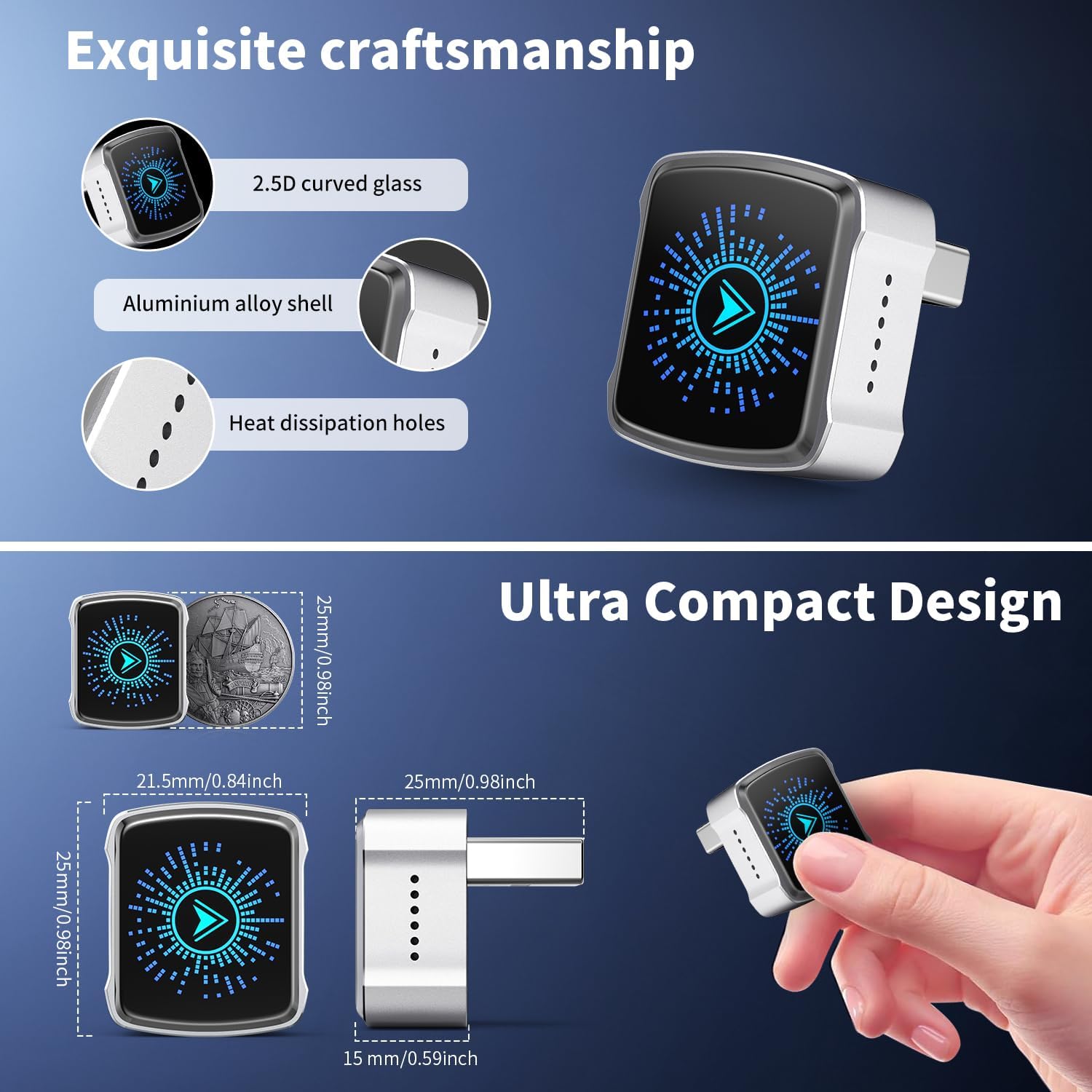
Image: The compact Bemkia Wireless CarPlay Adapter shown with its two interchangeable USB-A and USB-C cables, ready for connection to a vehicle's USB port.
Visual Guide: Setup Steps on Car Screen
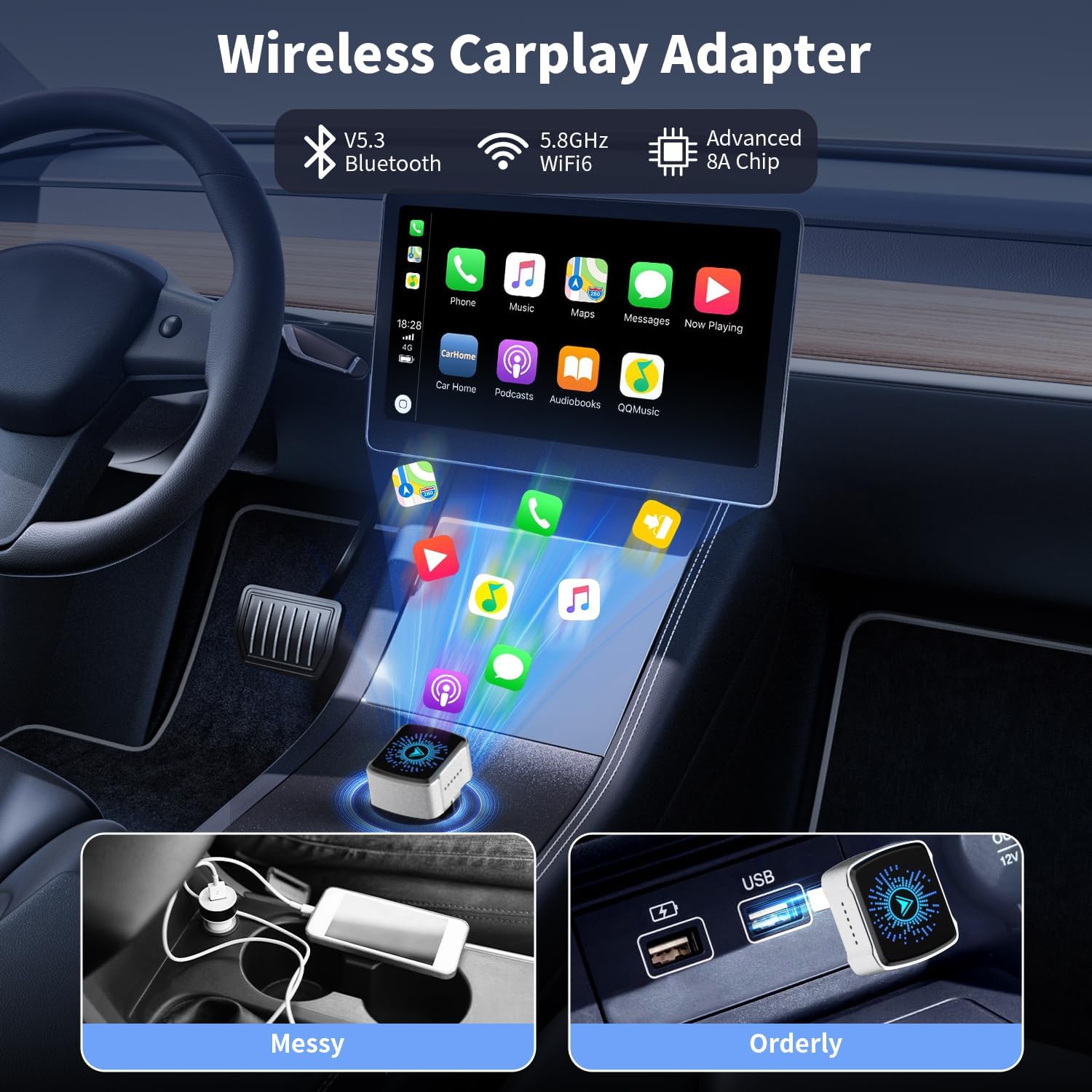
Image: A visual representation of the three-step setup process: plugging in the adapter, connecting Bluetooth and Wi-Fi, and accepting the CarPlay connection on the car's display.
Setup Demonstration Video:
No official seller video URLs were provided in the product data for embedding. Please refer to the written instructions and images above for setup guidance.
3. Operating Instructions
Once connected, the Bemkia Wireless CarPlay & Android Auto Adapter provides a seamless wireless experience:
- Automatic Connection: After the initial pairing, the adapter will automatically connect to your smartphone each time you start your vehicle, provided Bluetooth and Wi-Fi are enabled on your phone.
- Retain Original Controls: The adapter is designed to work with your car's existing controls, including touchscreen, steering wheel buttons, and rotary knobs, for a familiar and intuitive user experience.
- Voice Control: Utilize your phone's voice assistant (Siri for CarPlay, Google Assistant for Android Auto) for hands-free navigation, calls, and music control.
- Broad Compatibility: Compatible with 98% of factory-wired CarPlay vehicles manufactured in 2016 or later. Supports iPhone devices running iOS 12+ and Android devices running Android 11+.
Visual Guide: Retaining Original Car Controls
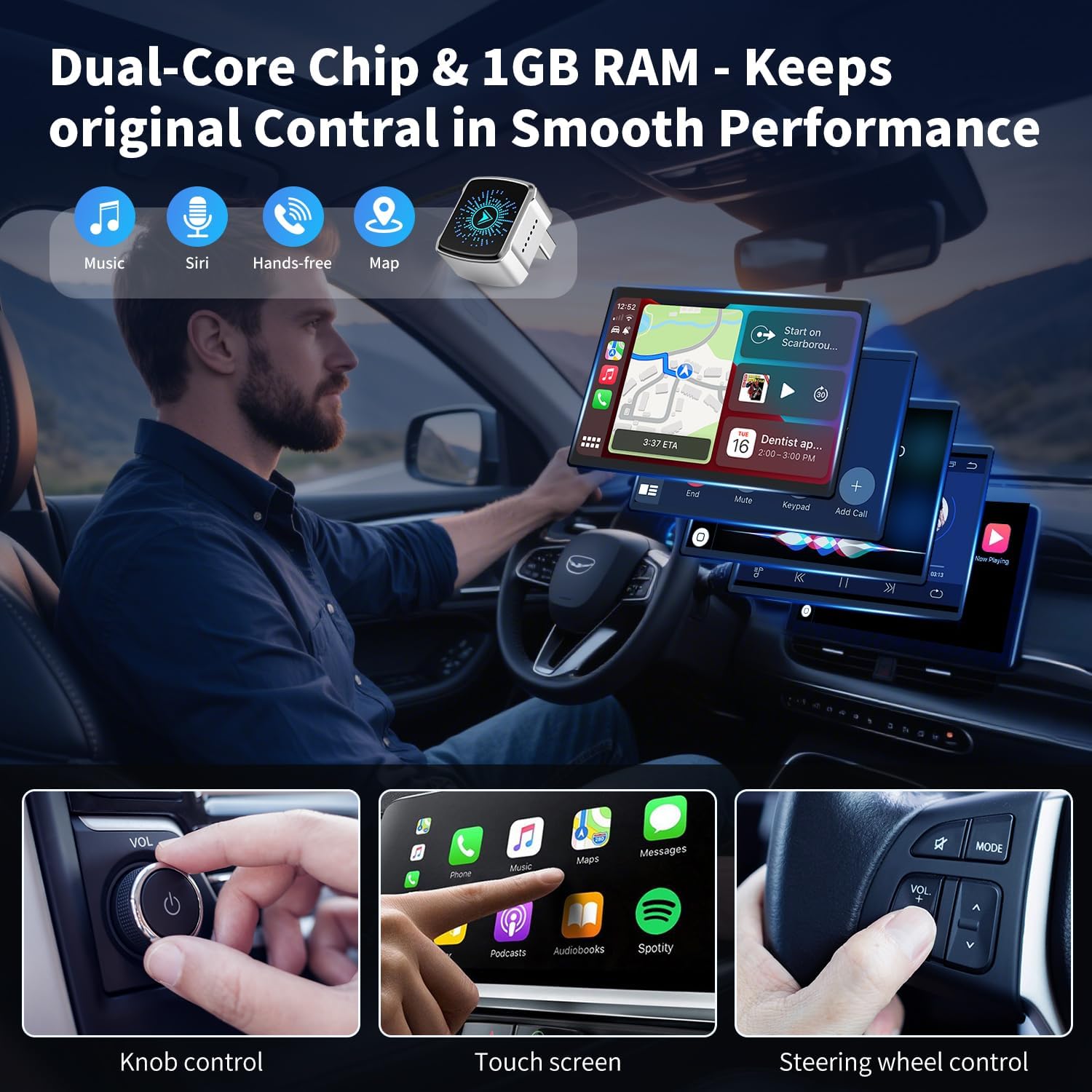
Image: A driver using the car's original knob control, touchscreen, and steering wheel controls to operate the CarPlay interface, highlighting the adapter's integration.
Car Model Compatibility:
For a detailed list of compatible car models, please visit the official Apple CarPlay compatibility page: https://www.apple.com/ios/carplay/available-models/
4. Maintenance
To ensure the longevity and optimal performance of your Bemkia Wireless CarPlay & Android Auto Adapter, consider the following maintenance tips:
- Cleaning: Gently wipe the adapter with a soft, dry cloth. Avoid using harsh chemicals or abrasive materials.
- Storage: When not in use for extended periods, store the adapter in a cool, dry place away from direct sunlight and extreme temperatures.
- Firmware Updates: Periodically check for firmware updates. Updates can improve performance, add new features, and resolve potential issues. Instructions for firmware updates are typically provided on the manufacturer's website or through a dedicated application.
5. Troubleshooting
If you encounter issues with your adapter, refer to the following troubleshooting guide:
| Problem | Possible Cause | Solution |
|---|---|---|
| Adapter not powering on (LED off) | No power from USB port; faulty cable. | Ensure the car's USB port is active. Try a different USB port or cable. |
| Cannot connect to Bluetooth/Wi-Fi | Bluetooth/Wi-Fi off on phone; interference; incorrect pairing. | Ensure phone's Bluetooth and Wi-Fi are on. Forget previous Bluetooth connections. Restart phone and car's infotainment system. Re-attempt pairing. |
| CarPlay/Android Auto not launching | Incompatible car model; software glitch. | Verify car compatibility (check Apple's website). Ensure your phone's OS is up to date. Restart the adapter by unplugging and re-plugging it. |
| Lag or unstable connection | Interference; outdated firmware; weak signal. | Ensure no other devices are interfering with Bluetooth/Wi-Fi. Check for and install any available firmware updates for the adapter. |
| Audio issues (no sound, distorted) | Volume settings; connection issue. | Check volume levels on both phone and car stereo. Disconnect and reconnect the adapter. |
6. Specifications
| Brand | Bemkia |
| Model Number | B0FWXCKTP2 |
| Connectivity Technology | USB, Bluetooth 5.3, Wi-Fi 5.8GHz |
| Material | Aluminum Alloy, 2.5D Curved Glass |
| Color | Silver |
| Special Features | Automobile Connector, Lightweight Design, Travel, Dual-Core Chip, 1GB RAM |
| Included Components | Wireless Adapter, USB-A Cable, USB-C Cable, User Manual |
| Dimensions | 2.5 x 2.15 x 1.5 cm (approx. 0.98 x 0.84 x 0.59 inches) |
| Weight | 60 g |
| Compatibility | Cars with wired CarPlay (2016+), iPhone (iOS 12+), Android (Android 11+) |
7. Warranty and Support
The Bemkia Wireless CarPlay & Android Auto Adapter comes with lifetime technical support. For any inquiries, troubleshooting assistance, or warranty claims, please contact Bemkia customer service through the retailer where the product was purchased or visit the official Bemkia website for support resources.
Please retain your proof of purchase for warranty purposes.