
Introduction
Welcome to the world of high-performance gaming with your new Acer Predator Helios Neo 16S AI Gaming Laptop. This manual provides essential information for setting up, operating, maintaining, and troubleshooting your device. Designed for gamers and creators, this laptop combines cutting-edge technology with robust features to deliver an immersive experience.

Figure 1: Acer Predator Helios Neo 16S AI Gaming Laptop. This image shows the laptop from a top-down perspective, highlighting its sleek design and the vibrant display.
Setup
1. Unboxing and Initial Inspection
Carefully remove all components from the packaging. Ensure the following items are present:
- Acer Predator Helios Neo 16S AI Gaming Laptop
- Charger
Inspect the laptop and accessories for any signs of damage. If any items are missing or damaged, contact your retailer or Acer support immediately.
2. Connecting the Power Adapter
Connect the power adapter to the laptop's power input port, typically located at the rear or side. Plug the other end into a grounded electrical outlet. It is recommended to fully charge the laptop before its first use.
3. Initial Power-On
Open the laptop lid and press the power button. The laptop will guide you through the initial Windows 11 Home setup process. Follow the on-screen instructions to configure your operating system, network connection, and user accounts.
Features
Display
The Acer Predator Helios Neo 16S features a 16-inch 240Hz 2.5K (2560 x 1600) OLED display. It boasts 100% DCI-P3 color gamut and 500 nits peak brightness, offering vibrant colors and deep blacks. The 16:10 aspect ratio provides more vertical screen space, ideal for both gaming and productivity.

Figure 2: Detailed view of the laptop's display specifications, emphasizing its high resolution, refresh rate, and color accuracy for an enhanced visual experience.
Processor and AI Capabilities
Powered by the Intel Core Ultra 9 275HX processor, this laptop features 24 cores, 24 threads, and a turbo frequency of up to 5.4 GHz. It includes an Intel AI Boost NPU, capable of processing up to 13 trillion operations per second (TOPS), accelerating AI-based workloads and supporting Copilot in Windows 11.

Figure 3: Visual representation of the Intel Core Ultra 9 275HX processor, detailing its core count, cache, and clock speed, alongside AI readiness indicators.
Graphics
Equipped with the NVIDIA GeForce RTX 5060 graphics card with 8GB GDDR7 VRAM, the laptop delivers up to 35% faster performance and 20% lower power consumption compared to previous generations. It supports AI-enhanced DLSS 4 with Multi Frame Generation for smoother 1440p gaming and efficient content creation.

Figure 4: Graphics performance comparison and features of the NVIDIA GeForce RTX 5060, highlighting its capabilities for gaming and creative tasks.
Memory and Storage
The laptop comes with 16GB of DDR5 RAM and a 1TB PCIe SSD, providing fast loading times and ample space for games, applications, and files.
Cooling System
To maintain optimal performance during intense gaming sessions, the Predator Helios Neo 16S features an advanced cooling system with 5th Gen AeroBlade 3D cooling, liquid metal grease, and precision-engineered airflow.
Keyboard and Audio
Experience responsive input with the 4-Zone RGB Backlit Keyboard. Audio is enhanced with DTS X Ultra Audio for an immersive sound experience.
Connectivity and Ports
Stay connected with Wi-Fi 6E and Bluetooth 5.4. The laptop offers a comprehensive selection of ports:
- 3x USB-A 3.2
- 1x USB-C 3.2
- 1x Thunderbolt 4
- 1x MicroSD Card Reader
- 1x Audio Jack
- 1x HDMI 2.1
- 1x Ethernet
- 1x Power Input

Figure 5: An overview of the laptop's key features including cooling, AI capabilities, graphics, webcam, keyboard, and connectivity options.
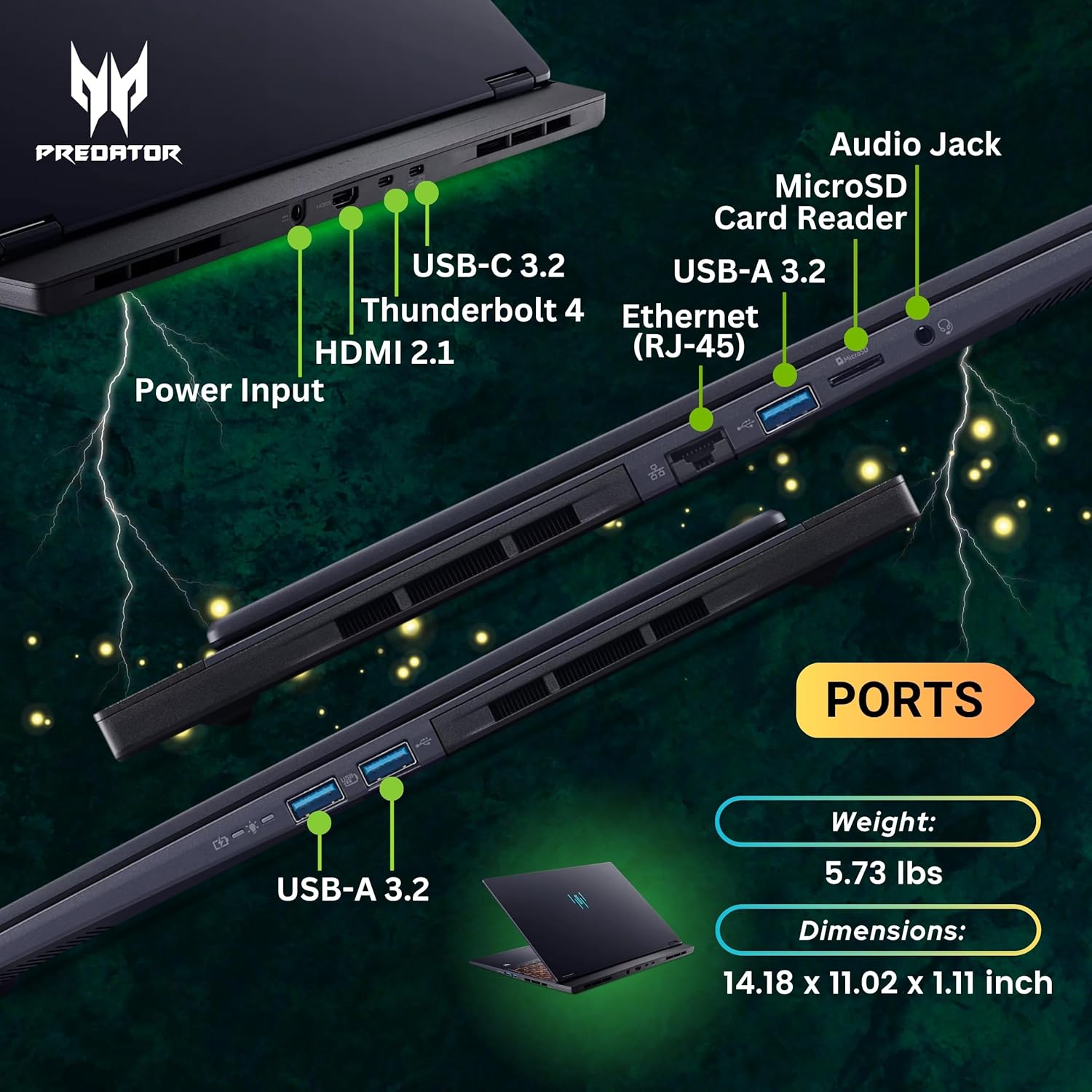
Figure 6: Detailed illustration of the laptop's various ports and their locations, along with its physical dimensions and weight.
Operating Instructions
1. Powering On/Off
To power on, press the power button located on the keyboard deck. To power off, click the Start menu, then Power, and select 'Shut down'.
2. Using the Keyboard and Touchpad
The 4-Zone RGB Backlit Keyboard can be customized for lighting effects. The touchpad supports multi-touch gestures for navigation. Refer to Windows 11 settings for touchpad customization.
3. Connecting External Devices
Utilize the available USB-A, USB-C, and Thunderbolt 4 ports to connect external storage, displays, or other peripherals. The HDMI 2.1 port supports external monitors for extended display setups.
4. Managing Performance with PredatorSense
The PredatorSense software allows you to monitor system performance, customize RGB lighting, and switch between different performance modes (e.g., Quiet, Balanced, Performance, Turbo) to optimize for your current task. Access PredatorSense via the dedicated Predator key on the keyboard.
Maintenance
1. Cleaning the Laptop
Regularly clean the screen with a soft, lint-free cloth and a screen-safe cleaning solution. Use compressed air to clear dust from the cooling vents to ensure optimal airflow and prevent overheating.
2. Battery Care
To prolong battery life, avoid fully discharging the battery frequently. Store the laptop in a cool, dry place when not in use for extended periods.
3. Software Updates
Keep your Windows operating system, drivers, and PredatorSense software updated to ensure stability, security, and optimal performance.
Troubleshooting
Common Issues and Solutions
- Laptop not powering on: Ensure the power adapter is securely connected and the battery has sufficient charge.
- Overheating/Loud Fans: Clean cooling vents. Use PredatorSense to adjust fan speed or switch to a balanced performance mode. Ensure the laptop is on a hard, flat surface to allow proper airflow.
- Display Issues: Check external display connections if applicable. Update graphics drivers.
- Performance Lag: Close unnecessary applications. Adjust performance settings in PredatorSense. Ensure sufficient free storage space.
For more complex issues, refer to the Acer support website or contact customer service.
Specifications
| Component | Specification |
|---|---|
| Model Name | Helios Neo 16S |
| Processor | Intel Core Ultra 9 275HX (24 Cores, up to 5.4 GHz) |
| Graphics | NVIDIA GeForce RTX 5060 (8GB GDDR7 VRAM) |
| RAM | 16GB DDR5 |
| Storage | 1TB PCIe SSD |
| Display | 16" 2.5K (2560 x 1600) OLED, 240Hz, 500 nits, 100% DCI-P3 |
| Operating System | Windows 11 Home |
| Wireless Connectivity | Wi-Fi 6E, Bluetooth 5.4 |
| Ports | 3x USB-A 3.2, 1x USB-C 3.2, 1x Thunderbolt 4, 1x MicroSD, 1x Audio Jack, 1x HDMI 2.1, 1x Ethernet, 1x Power Input |
| Webcam | 1080P FHD Camera |
| Audio | DTS X Ultra Audio |
| Dimensions (LxWxH) | 14.07 x 10.85 x 0.79 inches |
| Weight | 5.07 pounds |
What's in the Box
Your Acer Predator Helios Neo 16S AI Gaming Laptop package includes:
- Acer Predator Helios Neo 16S AI Gaming Laptop
- Charger
Warranty and Support
Your Acer Predator Helios Neo 16S AI Gaming Laptop comes with a standard manufacturer's warranty. For detailed information regarding warranty terms and conditions, please refer to the warranty card included in your product packaging or visit the official Acer support website. Extended protection plans are available for purchase:
- 2-Year Protection Plan
- 4-Year Protection Plan
- Complete Protect (monthly billing option)
For technical assistance, driver downloads, or service requests, please visit the Acer support website or contact their customer service.


