
1. Introduction
The ZTE U60 Pro MU5250 is a portable 5G Wi-Fi 7 router designed to provide high-speed internet connectivity on the go. It features an ultra-high-speed 5G-A network, the flagship Snapdragon X75 chip platform, and advanced Wi-Fi 7 technology. This device is equipped with a 10,000 mAh high-capacity battery, offering extended usage and the ability to function as a power bank for other electronic devices. Its 3.5-inch HD touchscreen allows for easy network management and traffic monitoring. The U60 Pro supports up to 64 simultaneous device connections and offers convenient NFC one-touch connectivity, intelligent AI scenes, and AI voice management for a fast, stable, and efficient internet experience.

Image 1.1: Front view of the ZTE U60 Pro MU5250, showing its 3.5-inch display with network information.
2. Setup
2.1 Package Contents
Before starting, ensure all components are present:
- ZTE U60 Pro MU5250 5G Pocket Wi-Fi 7 Router
- AC Adapter
- User Manual (this document)
2.2 SIM Card Installation
To enable 5G connectivity, a compatible SIM card must be installed.
- Locate the SIM card slot on the side of the device.
- Using the provided SIM ejector tool (if applicable) or a small pin, gently press into the small hole next to the SIM tray to eject it.
- Place your 5G-enabled Nano-SIM card into the tray, ensuring proper orientation.
- Carefully reinsert the SIM tray into the device until it clicks into place.
2.3 Powering On/Off
To power on the device, press and hold the power button located on the side until the screen illuminates. To power off, press and hold the power button until the power-off options appear on the screen, then select 'Power Off'.
2.4 Initial Wi-Fi Connection
After powering on, the device will automatically search for a 5G network. You can connect to the Wi-Fi network using one of the following methods:
- Manual Connection: On your device (phone, laptop, etc.), search for available Wi-Fi networks. Select the network name (SSID) displayed on the U60 Pro's screen and enter the password (also displayed on the screen).
- NFC One-Touch Connection: For Android phones with NFC enabled, tap your phone against the NFC area on the U60 Pro. Your phone will automatically connect to the Wi-Fi network without requiring a password.

Image 2.1: Illustrates the NFC one-touch connection process for quick Wi-Fi access.
3. Operating Instructions
3.1 Touch Screen Interface
The 3.5-inch HD touchscreen provides a minimalist user interface for managing the device. You can view network status, data usage, signal strength, battery level, and adjust basic settings directly from the screen. Swipe and tap gestures are used for navigation.
3.2 Connecting Multiple Devices
The ZTE U60 Pro supports simultaneous connections for up to 64 devices, allowing multiple users to share the 5G network. Connect devices using the standard Wi-Fi connection method as described in Section 2.4.
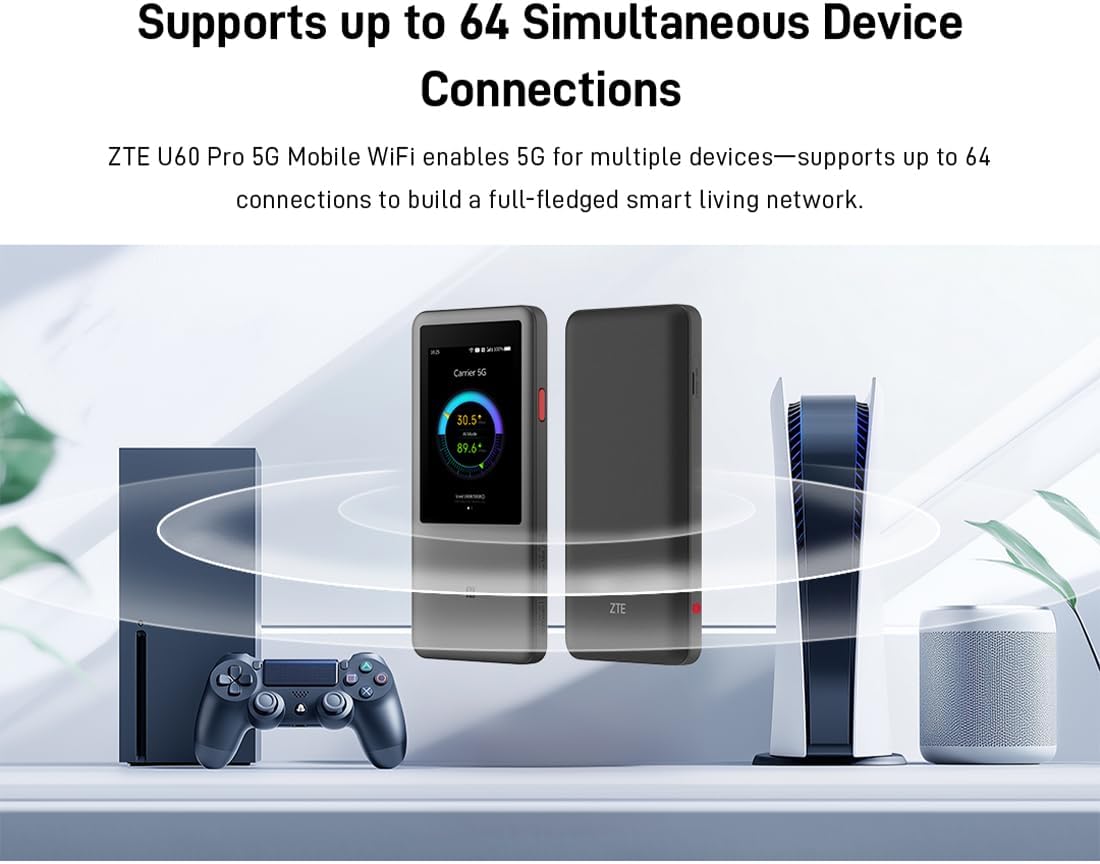
Image 3.1: The ZTE U60 Pro providing 5G Wi-Fi connectivity to various electronic devices.
3.3 AI Smart Scene Modes
The device features intelligent AI Scene technology with dynamic bandwidth allocation. It adjusts bandwidth and priority for applications based on user usage patterns to ensure smooth operation. Available modes include:
- Anchor Mode: Optimized for live streaming.
- Conference Mode: Prioritizes video conferencing applications.
- Video Mode: Enhances video playback and streaming.
- Speed Mode: Maximizes overall network speed.
- Game Mode: Reduces latency for online gaming.
3.4 AI Voice Management (via ZTE Smart Life APP)
The ZTE Smart Life APP enables effortless device management, including AI voice control. This feature allows for intelligent management of the router through voice commands. Download the ZTE Smart Life APP from your device's app store.

Image 3.2: The ZTE Smart Life APP interface demonstrating AI voice management capabilities.
3.5 Power Bank Functionality
The U60 Pro can also serve as a power bank. With its 10,000 mAh battery and 18W reverse fast charging, you can charge other electronic devices by connecting them to the router's appropriate port (e.g., USB-C).
4. Maintenance
4.1 Battery Care
The device is equipped with a 10,000 mAh battery. To maximize battery life:
- Avoid extreme temperatures.
- Use the provided 27W fast charger for optimal charging.
- For long-term storage, charge the battery to approximately 50% and store in a cool, dry place.
4.2 General Device Care
To ensure the longevity and optimal performance of your ZTE U60 Pro:
- Keep the device clean and free from dust. Use a soft, dry cloth for cleaning.
- Avoid exposing the device to water or excessive humidity.
- Do not drop or subject the device to strong impacts.
- Ensure proper ventilation when in use to prevent overheating.
5. Troubleshooting
If you encounter issues with your ZTE U60 Pro, refer to the following common solutions:
5.1 No Network Connection
- Check SIM Card: Ensure the SIM card is correctly inserted and activated with a 5G data plan.
- Signal Strength: Verify the signal strength indicator on the device's screen. Move to an area with better 5G coverage if the signal is weak.
- Restart Device: Power off and then power on the U60 Pro.
- Network Settings: Check network settings via the touchscreen or ZTE Smart Life APP to ensure APN settings are correct (usually automatic).
5.2 Wi-Fi Connectivity Issues
- Incorrect Password: Double-check the Wi-Fi password displayed on the U60 Pro's screen.
- Device Limit: Ensure you have not exceeded the maximum of 64 connected devices.
- Restart Connected Device: Restart the device attempting to connect to the Wi-Fi.
- Router Restart: Restart the ZTE U60 Pro.
5.3 Slow Internet Speed
- Signal Strength: A weak 5G signal will result in slower speeds.
- Data Cap: Check if your data plan has a fair usage policy or if you have exceeded a data cap, which might throttle speeds.
- AI Scene Mode: Ensure the appropriate AI Scene mode (e.g., Speed Mode) is selected for your activity.
- Interference: Move the device away from other electronic devices that might cause interference.
6. Specifications
The following table details the technical specifications of the ZTE U60 Pro MU5250:

Image 6.1: The Snapdragon X75 Flagship Chip-set Platform, central to the router's performance.
| Feature | Detail |
|---|---|
| Brand | ZTE |
| Model Name | MU5250 |
| Item Model Number | MU5250 |
| Manufacturer | ZTE |
| Special Feature | 5G Connection, Wi-Fi 7, AI Scenes, Voice Control, Power Bank |
| Connectivity Technology | 5G, Wi-Fi |
| Wi-Fi Generation | Wi-Fi 7 |
| Wireless Communication Standard | 802.11a, 802.11ac, 802.11b, 802.11g, 802.11n |
| Frequency Band Class | Dual Band |
| Frequency | 5 GHz |
| Data Transfer Rate | 4.29 Gigabits per second (Download) |
| Maximum Upstream Data Transfer Rate | 3600 Megabits per second (Wi-Fi 7 Peak Throughput) |
| Number of Antennas | 9 (Omnidirectional 5G Array) |
| Coverage | Wide and complete (360° full-band coverage) |
| Control Method | Touch |
| Operating System | ZyNOS |
| Security Protocol | WPA3 |
| Router Firewall Security Level | Basic |
| Battery(ies) | 1 AAA - included (Note: Product description mentions 10,000 mAh, likely internal) |
| Item Weight | 435 Grams |
| Included Components | AC Adapter |
| Compatible Devices | Game Console, various Wi-Fi enabled devices |
| Recommended Uses for Product | Streaming, Gaming, Outdoor/Travel, Small Office |
| Internet Connectivity | Yes |
| Modem Compatible | No (Functions as a standalone 5G router) |
| Smart Home Compatibility | Not Smart Home Compatible |
| Spare Parts Availability | Information unavailable |
| Software Updates Guaranteed Until | Information not available |

Image 6.2: Highlighting the 5G ultra-high-speed network of the ZTE U60 Pro MU5250.

Image 6.3: Illustration of the 9 omnidirectional 5G antennas providing 360° full-band coverage.
7. Support and Warranty
7.1 Customer Support
For further assistance, technical support, or inquiries not covered in this manual, please refer to the official ZTE support channels or contact your retailer.
7.2 Warranty Information
Warranty terms and conditions may vary by region and retailer. Please refer to the warranty card included with your product or consult your point of purchase for detailed warranty information.


