
Introduction
Thank you for choosing the UPERFECT 16-inch 2K 144Hz Portable Gaming Monitor. This manual provides essential information for setting up, operating, maintaining, and troubleshooting your new monitor. Please read it thoroughly to ensure optimal performance and longevity of your device.
Setup
Package Contents
- UPERFECT 16-inch Portable Gaming Monitor
- Protective Case (may vary by model)
- Cables (USB-C, Mini HDMI - specific types and quantities may vary)
- Power Adapter (if included)
Physical Setup
- Positioning the Monitor: Place the monitor on a stable, flat surface. The integrated kickstand allows for adjustable viewing angles.
- VESA Mounting: For a more permanent setup, the monitor supports VESA mounting. Attach a compatible VESA mount (not included) to the designated mounting points on the back of the monitor. Ensure the mount can support the monitor's weight.
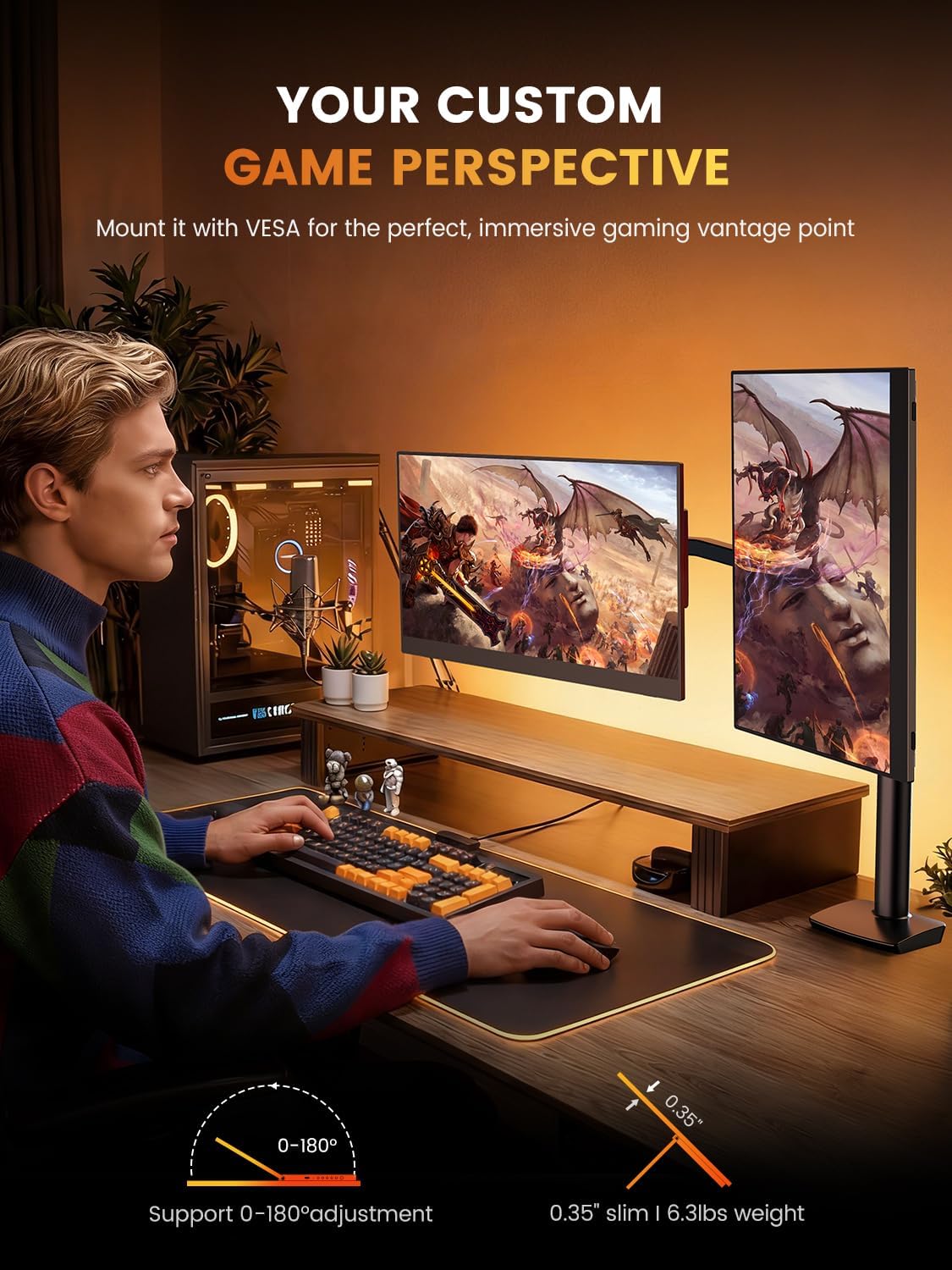
Image: The monitor can be mounted using a VESA arm for flexible positioning, as shown with a user at a desk with a gaming PC.
Connecting to Devices
The monitor offers versatile connectivity for various devices including laptops, smartphones, gaming consoles, and cameras.
- USB-C Connection: For devices with a full-featured USB-C port (supporting DisplayPort Alternate Mode and power delivery), a single USB-C cable can provide both video signal and power to the monitor. Connect one end of the USB-C cable to your device and the other to the monitor's USB-C port.
- Mini HDMI Connection: For devices with an HDMI output, use a Mini HDMI to HDMI cable. Connect the Mini HDMI end to the monitor and the HDMI end to your device. An additional USB-C to USB-A cable or power adapter (5V) may be required to power the monitor if your device does not supply sufficient power via HDMI.
- Audio Output: The monitor features built-in speakers. For external audio, connect headphones or external speakers to the 3.5mm audio jack.
Operating Instructions
Powering On/Off
Press the power button located on the side or back of the monitor to turn it on or off. The monitor will automatically detect the input signal.
Display Settings
Use the OSD (On-Screen Display) menu buttons to adjust various display settings. Common adjustments include:
- Brightness/Contrast: Adjust the image brightness and contrast levels. The monitor supports up to 400 nits brightness and a 1500:1 contrast ratio.
- Color Settings: Fine-tune color temperature, hue, and saturation. The monitor offers 100% DCI-P3 color gamut for accurate color reproduction.
- Input Source: Manually select between USB-C and Mini HDMI input sources if auto-detection fails.
- Audio: Adjust the volume of the built-in speakers or connected headphones.
- Special Features: Enable or disable features like Blue Light Filter and Flicker-Free technology for eye care.
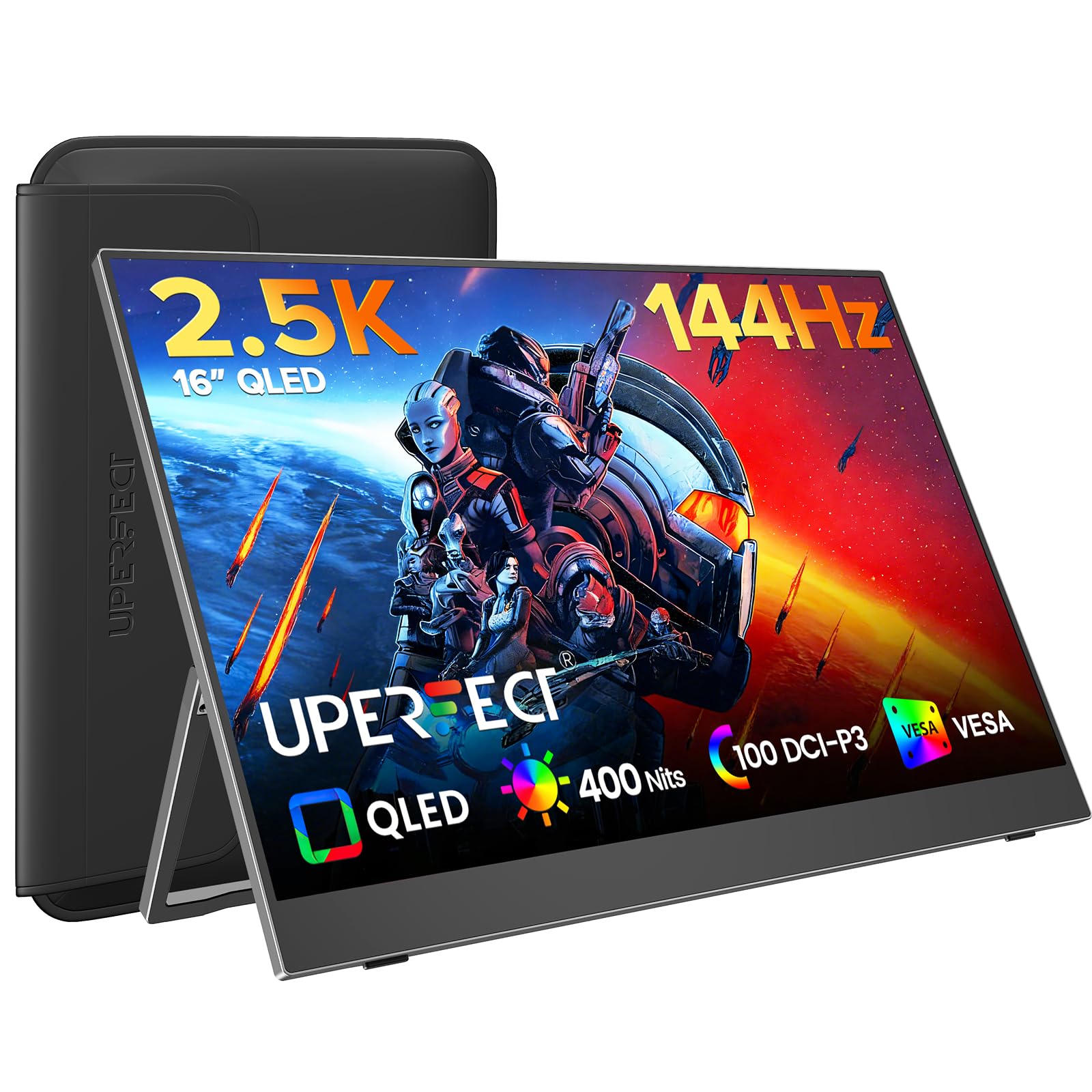
Image: The monitor features a 0.1ms response time and 144Hz refresh rate for smooth motion in gaming.

Image: Enjoy a smooth gaming experience and stunning 2.5K visual effects with the 144Hz refresh rate.

Image: QLED technology provides true color reproduction with 100% DCI-P3, 400 Nits brightness, and 2000:1 contrast.

Image: The monitor achieves 100% DCI-P3 color space, a cinema standard, for a stunning visual experience.
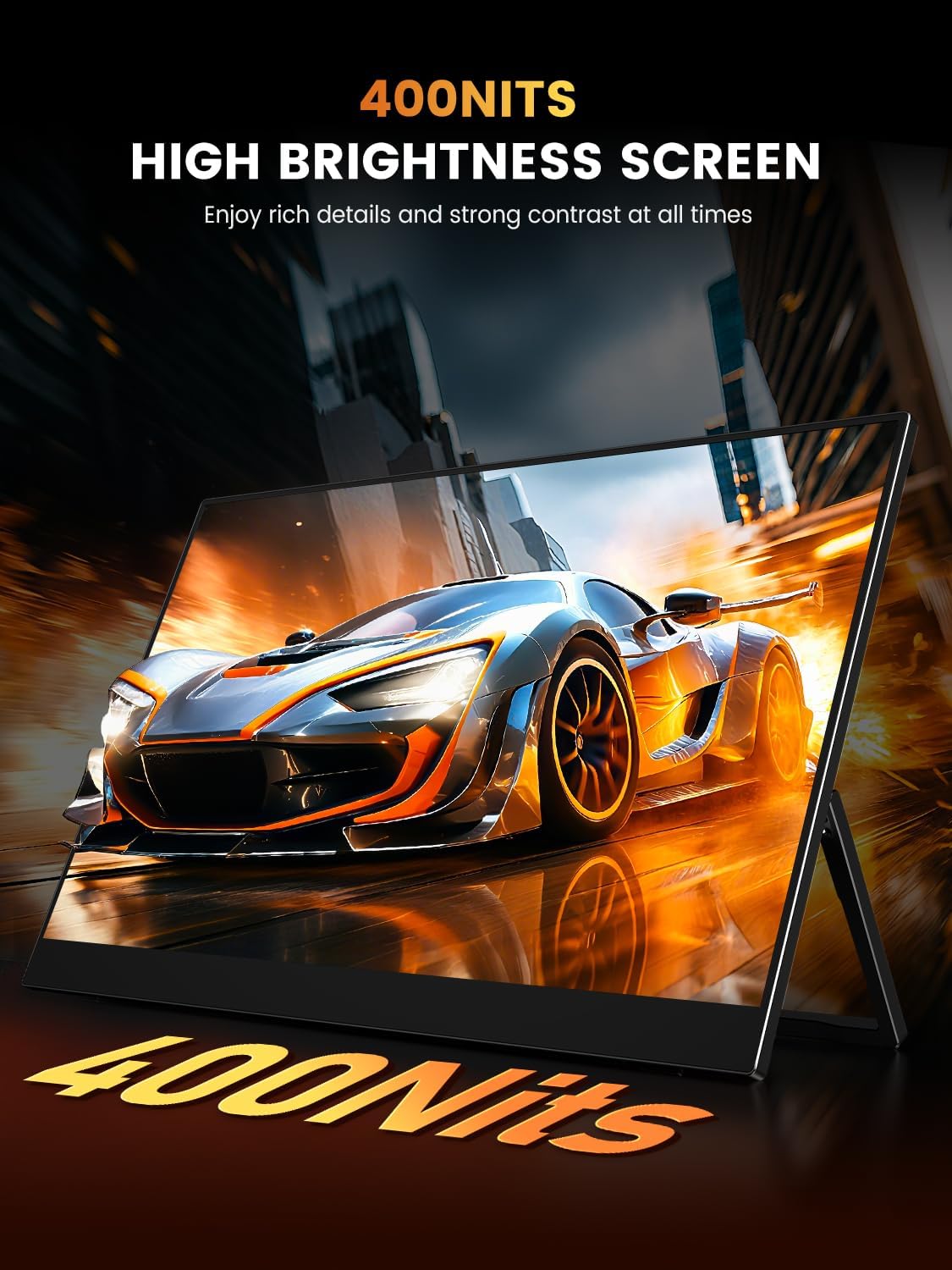
Image: The 400 Nits high brightness screen ensures rich details and strong contrast in various lighting conditions.
Maintenance
Cleaning the Monitor
- Always power off and unplug the monitor before cleaning.
- Use a soft, lint-free cloth slightly dampened with water or a non-abrasive screen cleaner.
- Do not spray cleaner directly onto the screen.
- Avoid using alcohol, ammonia, or abrasive cleaners, as these can damage the matte screen surface.
Protective Case Care
If your monitor came with a protective case, ensure it is used during transport to prevent scratches and damage. The case is designed to be waterproof, anti-scratch, durable, and breathable.
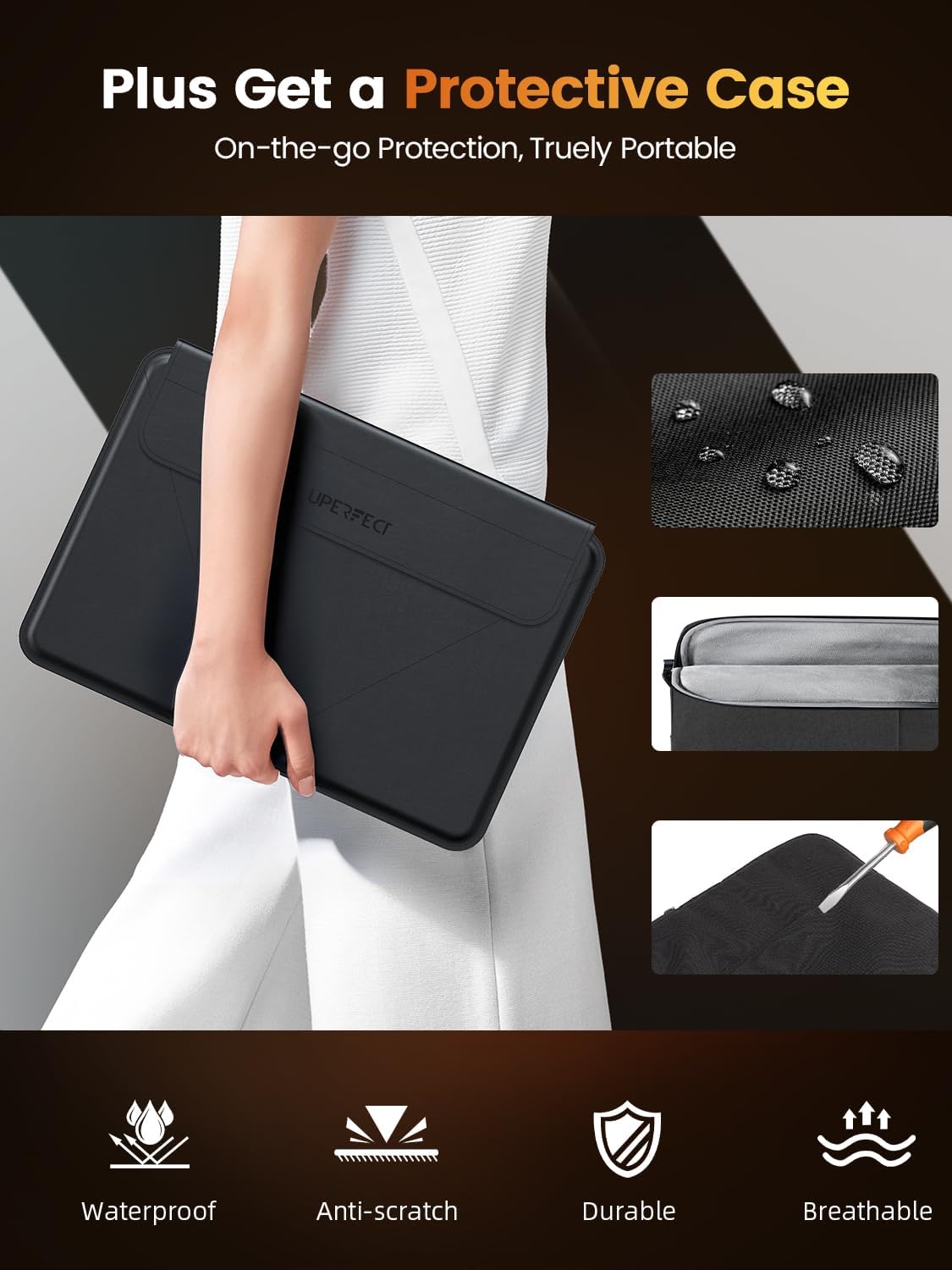
Image: The included protective case offers on-the-go protection, featuring waterproof, anti-scratch, durable, and breathable properties.
Troubleshooting
If you encounter issues with your monitor, please refer to the following common solutions:
- No Signal:
- Ensure all cables (USB-C, Mini HDMI) are securely connected to both the monitor and your device.
- Verify that your device's display output is enabled and configured correctly (e.g., extended display, duplicate display).
- Try selecting the input source manually via the OSD menu.
- No Power:
- Confirm the power adapter (if used) is properly connected to a working power outlet and the monitor.
- If using a single USB-C cable, ensure your device's USB-C port supports power delivery to external displays.
- Try a different power source or cable.
- Flickering Screen:
- Check the cable connections for looseness.
- Adjust the refresh rate settings on your connected device.
- Ensure the monitor's power supply is stable.
- Image Quality Issues (Blurry, Distorted):
- Ensure your device's display resolution is set to the monitor's native resolution (2560x1600).
- Adjust brightness, contrast, and color settings through the OSD menu.
Specifications
| Feature | Specification |
|---|---|
| Brand | UPERFECT |
| Model | 16 |
| Screen Size | 16 Inches |
| Display Resolution | 2560 x 1600 Pixels (2K) |
| Refresh Rate | 144 Hz |
| Response Time | 0.1 Milliseconds |
| Display Technology | QLED |
| Brightness | 400 Nits |
| Contrast Ratio | 1500:1 |
| Viewing Angle | 178 Degrees |
| Color Gamut | 100% DCI-P3 |
| Aspect Ratio | 16:10 |
| Hardware Interface | 3.5mm Audio, USB 3.0 Type C, Mini HDMI |
| Special Features | Blue Light Filter, Built-In Speakers, Eye Care, Flicker-Free, Lightweight |
| Compatible Devices | Camera, Desktop, Gaming Console, Laptop, Smartphone |
| Voltage | 5 Volts |
| Product Dimensions | 0.58 x 35.56 x 24.13 cm |
| Item Weight | 680.39 g |
Warranty and Support
For warranty information or technical support, please refer to the documentation included with your purchase or visit the official UPERFECT website. If you have further questions or require assistance, please contact UPERFECT customer service.


