
1. Product Overview
The TECKNET TK-KB041 is a versatile, slim wireless keyboard designed for multi-device compatibility and comfortable typing. It offers both 2.4GHz USB-A and Bluetooth connectivity, allowing seamless switching between up to three devices. Its low-profile scissor-switch keys provide a quiet and fluid typing experience, while the integrated numeric keypad enhances productivity. The keyboard features a rechargeable battery with long standby time and power-saving auto-sleep functionality.

Figure 1: TECKNET TK-KB041 Slim Wireless Keyboard.
2. What's in the Box
- Wireless Keyboard (Model TK-KB041) x 1
- USB-C Charging Cable x 1
- User Manual x 1
- USB-A Receiver (stored in the keyboard's back slot) x 1
3. Setup Instructions
3.1 Powering On the Keyboard
- Locate the ON/OFF switch on the side of the keyboard.
- Slide the switch to the "ON" position.

Figure 2: The keyboard's ultra-slim profile, highlighting its compact design.
3.2 Connecting via 2.4GHz USB-A Receiver
- Locate the USB-A receiver stored in the magnetic slot on the back of the keyboard.
- Plug the USB-A receiver into an available USB port on your computer or device.
- The keyboard should automatically connect.

Figure 3: Location of the USB-A receiver slot on the back of the keyboard.
3.3 Connecting via Bluetooth
- Ensure the keyboard is powered on.
- Press and hold the Fn key and one of the Bluetooth channel keys (Fn+1, Fn+2, or Fn+3) for 3 seconds. The corresponding Bluetooth indicator light (B1, B2, or B3) on the keyboard will start blinking, indicating it's in pairing mode.
- On your device (computer, tablet, smartphone), go to Bluetooth settings.
- Search for available devices and select "TK-KB041" (or similar name) from the list.
- Follow any on-screen prompts to complete the pairing process. The indicator light on the keyboard will stop blinking and remain solid for a few seconds, then turn off, indicating a successful connection.
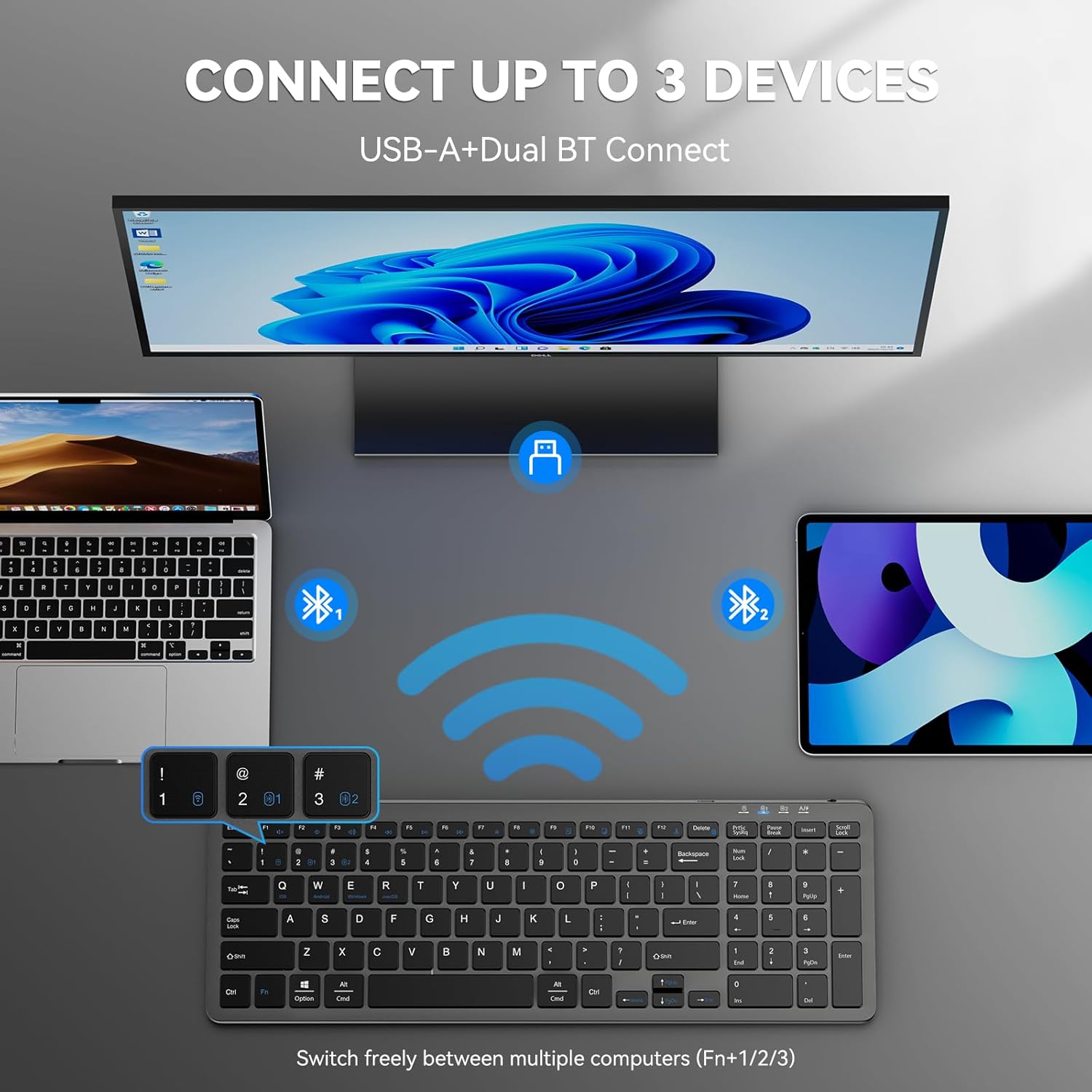
Figure 4: The keyboard connected to multiple devices via Bluetooth and USB-A.
4. Operating Instructions
4.1 Switching Between Connected Devices
The keyboard supports connecting to up to three devices via Bluetooth and one via 2.4GHz USB-A. To switch between devices:
- For Bluetooth devices: Press Fn + 1, Fn + 2, or Fn + 3 to switch to the corresponding Bluetooth-paired device.
- For 2.4GHz USB-A device: Press Fn + 4 to switch to the device connected via the USB-A receiver.
4.2 Operating System Switching
The keyboard is compatible with Windows, macOS, iOS, and Android. To optimize key functions for your operating system:
- For Windows: Press Fn + W
- For macOS: Press Fn + E
- For iOS: Press Fn + Q
- For Android: Press Fn + R

Figure 5: Keyboard layout highlighting function keys and OS switch keys.
4.3 Multimedia Function Keys (F1-F12)
The F1-F12 keys have secondary multimedia functions. To use these functions, press the Fn key simultaneously with the desired F-key.
- F1: Home
- F2: Search
- F3: Select All
- F4: Copy
- F5: Paste
- F6: Cut
- F7: Previous Track
- F8: Play/Pause
- F9: Next Track
- F10: Mute
- F11: Volume Down
- F12: Volume Up

Figure 6: Illustration of the multimedia function keys (F1-F12).
4.4 Indicator Lights
The keyboard features several indicator lights:
- B1/B2/B3: Bluetooth connection indicators. Blink during pairing, solid when connected, then turn off.
- Caps Lock: Illuminates when Caps Lock is active.
- Num Lock: Illuminates when Num Lock is active.
- Charging State: A red light indicates charging. A green light indicates fully charged.
- Low Battery: The charging state indicator will blink blue when the battery is low, signaling that a recharge is needed.
5. Maintenance
5.1 Charging the Keyboard
The keyboard has a built-in 280mAh rechargeable battery. To charge:
- Connect the provided USB-C charging cable to the USB-C port on the keyboard.
- Connect the other end of the cable to a USB power source (e.g., computer USB port, USB wall adapter).
- The charging indicator light will illuminate red during charging and turn green when fully charged.
- A full charge takes approximately 2 hours and provides up to 200 hours of use or 90 days of standby time. The keyboard can be used while charging.

Figure 7: USB-C charging port on the keyboard.
5.2 Cleaning
- Turn off the keyboard before cleaning.
- Use a soft, damp cloth to wipe the surface of the keyboard.
- Avoid using harsh chemicals or abrasive materials.
- For cleaning between keys, use compressed air or a soft brush.
5.3 Power-Saving Mode
The keyboard automatically enters sleep mode after 10 minutes of inactivity to conserve power. Press any key to wake it up.
6. Troubleshooting
6.1 Keyboard Not Connecting
- Ensure the keyboard is powered on.
- Check the battery level; recharge if necessary.
- For 2.4GHz connection: Ensure the USB-A receiver is securely plugged into your device. Try a different USB port.
- For Bluetooth connection:
- Ensure Bluetooth is enabled on your device.
- Put the keyboard into pairing mode (Fn + 1/2/3 for 3 seconds).
- Remove any previous "TK-KB041" pairings from your device's Bluetooth list and try pairing again.
- Ensure the keyboard is within the 33ft (10m) operating range.
6.2 Keys Not Responding
- Check the connection (USB-A or Bluetooth) as described above.
- Ensure the keyboard battery is charged.
- Restart your device and try reconnecting.
6.3 Incorrect Key Output
- Ensure the correct operating system mode is selected (Fn + Q/W/E/R).
- Check your device's language and keyboard layout settings.
7. Product Specifications
| Feature | Detail |
|---|---|
| Model Number | TK-KB041 |
| Connectivity Technology | 2.4GHz USB-A, Bluetooth |
| Compatible Devices | PC, Laptop, Mac, MacBook, Tablet, Smartphone, iPhone, iPad (Windows, macOS, iOS, Android) |
| Battery Capacity | 280mAh (Rechargeable) |
| Charging Time | Approx. 2 hours |
| Operating Time | Up to 200 hours |
| Standby Time | Up to 90 days |
| Operating Range | Up to 33 feet (10 meters) |
| Keyboard Type | Low-profile Scissor Switch |
| Product Dimensions | 14.42 x 5 x 0.46 inches (36.63 x 12.7 x 1.17 cm) |
| Item Weight | 14.1 ounces (400 grams) |
| Material | Plastic |
| Color | Black |
8. Warranty and Support
TECKNET provides 36-Month Support for registered products. If you encounter any problems in using the product, please reach out to the TECKNET professional customer service team for assistance.
For further support and warranty registration, please visit the official TECKNET website or contact their customer service directly.

Figure 8: TECKNET's commitment to technology and customer support.
9. Video Guide
Video 1: Official product video demonstrating the features and usage of the Tecknet Slim Rechargeable Bluetooth Wireless Keyboard.


