
Introduction
This manual provides detailed instructions for the setup, operation, and maintenance of your Yigars Robot Vacuum and Mop Y680. Please read this manual thoroughly before using the device to ensure optimal performance and safety.
Package Contents
Verify that all items listed below are included in your package:
- Robot Vacuum (x1)
- Base Station with Auto-Empty Function (x1)
- Filters (x2)
- Mop Pad (x2, one pre-installed)
- Side Brush (x4)
- Water Tank (x1)
- Dust Bag (x5, one pre-installed)
- Cleaning Tool (pre-installed)
- User Manual (x1)

Figure 1: Included components of the Yigars Robot Vacuum and Mop Y680.
Setup
- Unpack and Place the Base Station: Remove all packaging materials. Place the auto-empty base station against a wall in an open area with good Wi-Fi signal. Ensure there are no obstacles within 1.5 meters (5 feet) in front and 0.5 meters (1.6 feet) on either side of the base station.

Figure 2: Proper placement of the auto-empty base station for optimal operation.
- Install Side Brushes: Attach the side brushes to the designated slots on the underside of the robot vacuum until they click into place.
- Install Mop Pad and Water Tank: If using the mopping function, fill the water tank with clean water and attach the mop pad to the mop bracket. Slide the assembled water tank and mop bracket into the rear of the robot until it clicks.
- Initial Charge: Place the robot vacuum onto the charging contacts of the base station. Ensure the robot is properly aligned. Allow the robot to fully charge before its first use (approximately 4-5 hours).
- Connect to Mobile App: Download the companion mobile app (e.g., Tuya Smart or Smart Life) from your app store. Follow the in-app instructions to connect your Yigars Y680 to your home's 2.4GHz Wi-Fi network. (Note: 5GHz networks are not supported).

Figure 3: Step-by-step guide for connecting the robot vacuum to the mobile application.
- Initial Mapping: For the first cleaning cycle, allow the robot to complete a full scan of your home to create an accurate map. This map will be used for efficient navigation and personalized cleaning settings.

Figure 4: The robot vacuum utilizing LiDAR for precise navigation and mapping.
Operating Instructions
Cleaning Modes
- Auto Clean: The robot intelligently cleans your entire home based on the mapped layout.
- Zone Clean: Select specific areas on the app map for targeted cleaning.
- Spot Clean: Direct the robot to clean a small, concentrated area.
Suction and Mopping Settings
The Y680 offers customizable cleaning power:
- Suction Levels: Choose from four adjustable suction levels (up to 8000 Pa) via the mobile app to suit different floor types and debris.
- Water Flow Settings: Select from three water flow settings for mopping, allowing adjustment for varying floor materials and dirt levels.
- Carpet Boost: The robot automatically detects carpets using ultrasonic sensors and increases suction power for deeper cleaning.

Figure 5: Illustration of the robot vacuum's adjustable suction power.
Navigation and Mapping
The Y680 utilizes advanced navigation for thorough coverage:
- LiDAR Navigation: 360-degree laser LDS technology accurately maps your home and plans efficient cleaning routes.
- Multi-Map Storage: The robot can store up to five distinct maps, ideal for multi-level homes.
- Obstacle Clearance: Capable of clearing obstacles up to 20mm and climbing 15° inclines, allowing it to navigate thresholds and carpets.
- No-Go Zones: Use the app to define areas the robot should avoid, such as pet bowls or delicate furniture.

Figure 6: The robot vacuum using LiDAR for precise navigation and mapping.
App and Voice Control
- Personalized Cleaning: The mobile app allows you to select specific zones, set no-go areas, schedule cleaning times, and customize water flow and suction levels for each room.
- Voice Commands: Compatible with Amazon Alexa and Google Assistant for convenient voice-activated operation.
- OTA Updates: The robot supports Over-The-Air (OTA) updates for continuous firmware and software improvements.
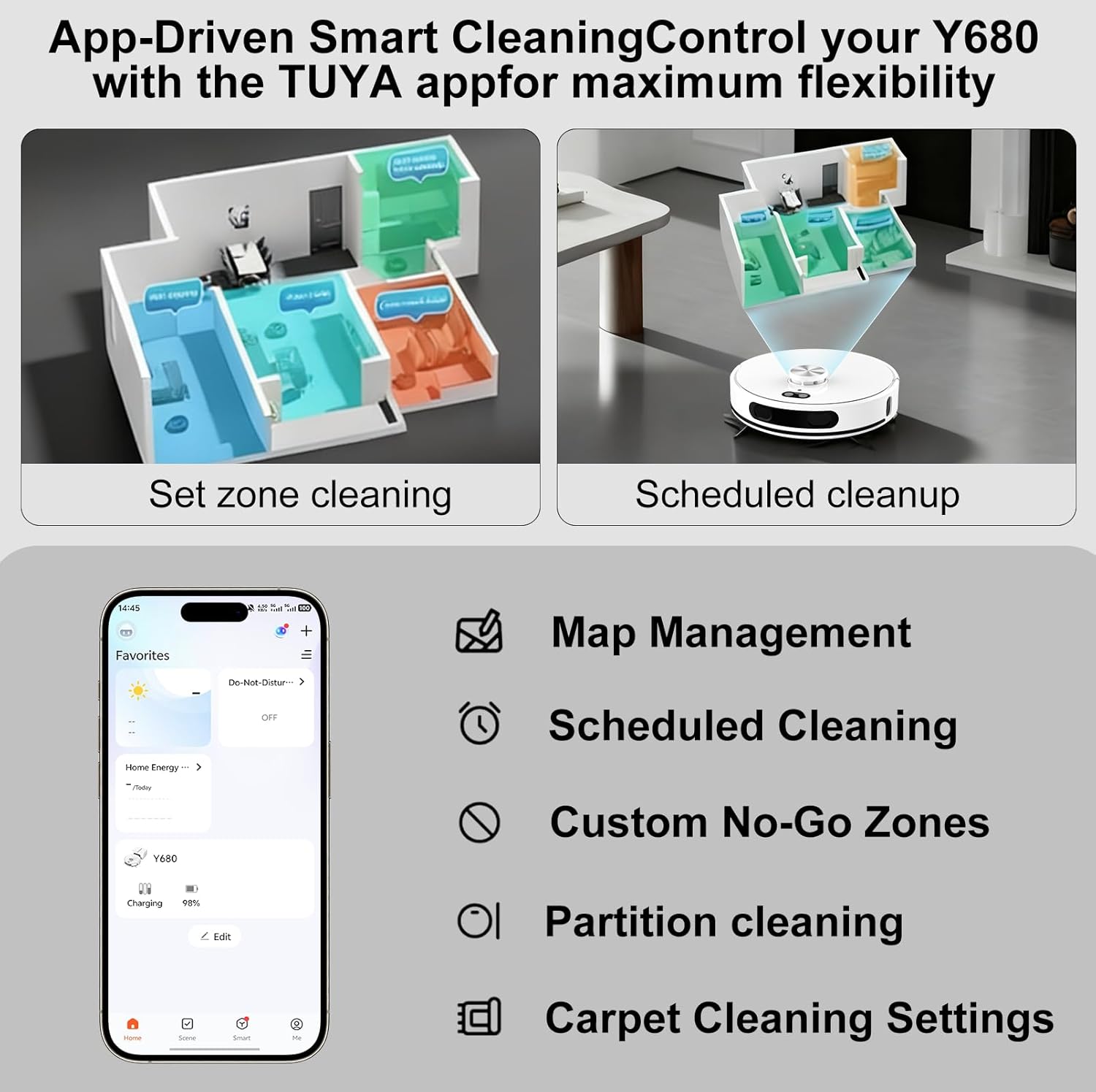
Figure 7: Mobile app interface for personalized cleaning settings and map management.
Battery Life and Smart Recharging
- Extended Runtime: A powerful 5200mAh battery provides up to 220 minutes of cleaning time, covering up to 3229 square feet (300 square meters) on a single charge.
- Smart Recharge and Resume: When the battery is low, the robot automatically returns to its charging dock. Once sufficiently recharged, it resumes cleaning from where it left off.
Maintenance
Self-Emptying Dustbin
The Y680 features an auto-empty base station that empties the robot's dustbin into a large-capacity dust bag. This provides up to 60 days of hands-free cleaning.
- Dust Bag Replacement: Replace the dust bag in the base station approximately every 60 days, or when full. This ensures hygienic disposal of collected debris.

Figure 8: The robot vacuum returning to its self-emptying base station.
Cleaning Components
- Filters: Regularly check and clean the filters to maintain optimal suction performance. Replace filters as needed (extra filters are provided).
- Mop Pads: Remove and clean the mop pads after each mopping session. They can be hand-washed or machine-washed.
- Side Brushes and Main Brush: Periodically inspect and clean the side brushes and main brush to remove tangled hair or debris. Use the provided cleaning tool for easy maintenance.
- Sensors: Wipe the robot's sensors with a soft, dry cloth to ensure accurate navigation.
Troubleshooting
If you encounter any issues with your Yigars Y680, please refer to the following common solutions:
- Robot not charging: Ensure the base station is plugged in and the robot is properly aligned with the charging contacts. Clean the charging contacts on both the robot and the base station.
- Robot getting stuck: Clear any loose cables, small objects, or thick rugs that might obstruct the robot's path. Ensure no-go zones are correctly set in the app.
- Poor cleaning performance: Check and empty the dustbin/dust bag. Clean or replace filters, main brush, and side brushes. Ensure the water tank is filled for mopping.
- App connectivity issues: Verify your Wi-Fi network is 2.4GHz. Restart your router and the robot. Ensure the robot is within Wi-Fi range.
- Unusual noises: Inspect the main brush and side brushes for tangled hair or debris. Check if any foreign objects are lodged in the wheels.
For further assistance, please contact customer support.
Specifications
| Brand | Yigars |
| Model Name | Y680 |
| Suction Power | Up to 8000 Pa |
| Battery Capacity | 5200mAh |
| Runtime | Up to 220 minutes |
| Dust Bag Capacity | 2.5 Liters (up to 60 days) |
| Navigation Type | LiDAR (Laser Distance Sensing) |
| Obstacle Clearance | 20mm |
| Incline Climbing | 15° |
| Connectivity | 2.4GHz Wi-Fi (5GHz not supported) |
| Voice Control | Amazon Alexa, Google Assistant |
| Product Dimensions | 13.5"L x 13.5"W x 3.8"H |
| Item Weight | 8.5 pounds |
| Filter Type | HEPA |
| Surface Recommendation | Hardwood, Carpet, Tile, Laminate |
Warranty and Support
Your Yigars Robot Vacuum and Mop Y680 comes with a Two-Year Warranty from the date of purchase. This warranty covers manufacturing defects and ensures reliable operation.
We offer 24/7 after-sales customer service and lifetime technical support. Should you encounter any issues or require assistance, please do not hesitate to contact our support team.
For support, please refer to the contact information provided in the included User Manual or visit the official Yigars website.


