
1. Introduction
This manual provides detailed instructions for the installation, operation, and maintenance of your Vorally 9-inch Android 15 Car Stereo Radio. This unit is designed to enhance your driving experience with advanced features such as GPS navigation, wireless CarPlay and Android Auto, Bluetooth connectivity, FM/RDS radio, and support for an AHD backup camera.
Please read this manual thoroughly before using the product to ensure proper operation and to prevent damage.
2. Safety Information
- Professional Installation Recommended: Due to the complexity of car electrical systems, professional installation is highly recommended to avoid damage to the unit or vehicle.
- Power Supply: Ensure the unit is connected to a 12V DC power supply with a negative ground. Incorrect voltage can cause damage.
- Wiring: Do not short-circuit any wires. Insulate all connections properly.
- Driving Safety: Do not operate the unit in a way that distracts you from driving. Always prioritize road safety.
- Temperature: Avoid exposing the unit to extreme temperatures or direct sunlight for prolonged periods.
- Moisture: Keep the unit away from water and excessive moisture.
3. Package Contents
Verify that all items listed below are included in your package:
- Vorally 9-Inch Car Stereo Unit
- Power Cable Harness
- RCA Input/Output Cables
- 2 x USB Cables
- GPS Antenna
- AHD Backup Camera
- External Microphone
- Instruction Manual (this document)
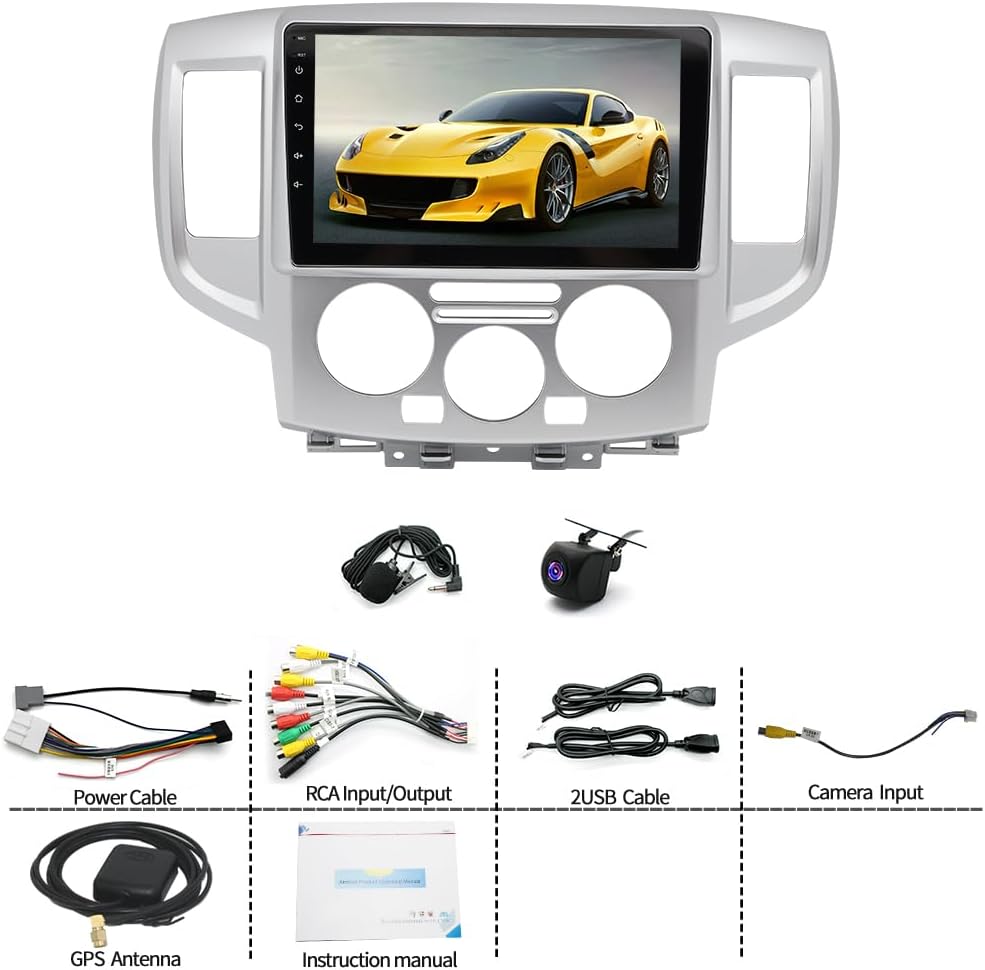
Image 3.1: All components included in the Vorally car stereo package. This includes the main head unit, power cables, RCA cables, USB cables, GPS antenna, AHD backup camera, and external microphone.
4. Setup and Installation
This section outlines the general steps for installing the car stereo. Specific vehicle wiring may vary. Consult a professional if unsure.
4.1 Wiring Connections
- Power Connection: Connect the main power harness to the vehicle's wiring. Ensure correct connections for constant 12V (yellow), accessory 12V (red), and ground (black).
- Speaker Connections: Connect the speaker wires (typically color-coded) to your vehicle's speaker system. Ensure correct polarity.
- GPS Antenna: Mount the GPS antenna in a location with a clear view of the sky, typically on the dashboard or under the windshield, and connect it to the unit.
- USB Cables: Connect the provided USB cables to the unit. These can be routed to a convenient location for connecting USB devices.
- AHD Camera: Connect the AHD backup camera to the dedicated camera input on the unit. Ensure the camera's power is connected to the vehicle's reverse light circuit for automatic activation.
- External Microphone: Connect the external microphone to the unit's microphone input for improved call quality. Position the microphone near the driver for optimal performance.
- Steering Wheel Control (SWC): Connect the SWC wires from the unit to your vehicle's SWC interface, if applicable. Configuration may be required in the unit's settings.
- RCA Cables: Connect RCA input/output cables for external amplifiers, subwoofers, or auxiliary video inputs/outputs as needed.

Image 4.1: Rear view of the Vorally car stereo unit, showing various ports and wiring harnesses for power, speakers, USB, GPS antenna, and camera inputs.
4.2 Mounting the Unit
- Carefully insert the unit into the vehicle's dashboard opening, ensuring all wires are clear and not pinched.
- Secure the unit using the provided mounting brackets or screws, ensuring it is firmly in place.
- Reassemble the dashboard trim panels.

Image 4.2: Front view of the Vorally 9-inch car stereo unit, showcasing its display and integration into a vehicle-specific dashboard frame.
5. Operating Instructions
5.1 Power On/Off and Basic Controls
- Power On: The unit will power on automatically when the vehicle's ignition is turned on.
- Power Off: The unit will power off automatically when the vehicle's ignition is turned off.
- Volume Control: Adjust volume using the on-screen controls or steering wheel controls (if configured).
- Touchscreen Interface: Navigate the Android 15 operating system by tapping, swiping, and pinching on the 9-inch IPS touchscreen.
5.2 Android 15 Operating System
The unit runs on Android 15, providing access to a wide range of applications and features.
- Home Screen: Customize widgets and app shortcuts.
- App Drawer: Access all installed applications.
- Settings: Configure system settings, network connections, display, sound, and more.
- Google Play Store: Download and install additional applications (requires WiFi connection).
5.3 Wireless CarPlay and Android Auto
Connect your smartphone wirelessly for seamless integration of navigation, music, calls, and messages.
- Ensure Bluetooth and Wi-Fi are enabled on your smartphone and the car stereo.
- On the car stereo, open the "CarPlay" or "Android Auto" application.
- Follow the on-screen prompts to pair your phone via Bluetooth. Once paired, the system will establish a Wi-Fi connection for CarPlay/Android Auto.
- For Mirror Link, iOS supports wireless connection, while Android supports both wireless and wired connections.
5.4 GPS Navigation
The unit features a built-in GPS module and external antenna for accurate navigation.
- Offline Maps: Pre-installed maps allow navigation without an internet connection.
- Online Maps: Connect to Wi-Fi to use online navigation applications like Google Maps, Waze, etc., for real-time traffic updates.
- Voice Guidance: Follow turn-by-turn voice directions.
5.5 Bluetooth Connectivity
Pair your phone for hands-free calling and audio streaming.
- Go to the Bluetooth settings on the car stereo.
- Enable Bluetooth and search for available devices on your phone.
- Select the car stereo's Bluetooth name (e.g., "Vorally Car Stereo") from your phone's list and pair.
- Once connected, you can make/receive calls and play music through the car speakers.
5.6 FM/RDS Radio
Access local radio stations with clear reception.
- Open the "Radio" application.
- Use the scan function to automatically find and save available stations.
- RDS (Radio Data System) provides additional information like station name and song title (if broadcasted).
5.7 AHD Backup Camera
The unit automatically displays the rear view when the vehicle is in reverse gear.
- Ensure the camera is properly installed and connected.
- When shifting into reverse, the display will automatically switch to the camera view, assisting with parking and maneuvering.
5.8 Steering Wheel Control (SWC)
If connected, configure your steering wheel buttons to control the stereo functions.
- Navigate to the "Steering Wheel Control" settings in the unit's menu.
- Follow the on-screen instructions to map your vehicle's steering wheel buttons to specific functions (e.g., volume up/down, track skip, mode).
5.9 Wi-Fi Connectivity
Connect to a Wi-Fi hotspot for internet access, app downloads, and online services.
- Go to "Settings" > "Network & Internet" > "Wi-Fi".
- Turn on Wi-Fi and select your desired network.
- Enter the password if prompted and connect.
6. Maintenance
- Cleaning the Screen: Use a soft, lint-free cloth to gently wipe the touchscreen. Do not use abrasive cleaners or solvents.
- Software Updates: Periodically check for software updates through the system settings or the manufacturer's website to ensure optimal performance and access to new features.
- General Care: Avoid placing heavy objects on the unit or exposing it to excessive force.
7. Troubleshooting
| Problem | Possible Cause | Solution |
|---|---|---|
| Unit does not power on. | Incorrect wiring; Blown fuse; Vehicle ignition off. | Check power connections (constant 12V, accessory 12V, ground). Inspect vehicle fuses. Ensure ignition is on. |
| No sound from speakers. | Speaker wires disconnected; Volume too low; Mute activated. | Verify speaker wire connections. Increase volume. Check if mute function is active. |
| GPS signal is weak or unavailable. | GPS antenna improperly installed or obstructed. | Ensure GPS antenna has a clear view of the sky. Check antenna connection. |
| CarPlay/Android Auto not connecting. | Bluetooth/Wi-Fi off; Phone not paired; App issues. | Ensure Bluetooth and Wi-Fi are enabled on both devices. Re-pair the phone. Restart both devices. |
| Backup camera not displaying. | Camera not powered; Video cable disconnected; Reverse trigger wire not connected. | Check camera power supply. Verify video cable connection. Ensure reverse trigger wire is connected to the vehicle's reverse light. |
8. Specifications
| Product Name | Car Navigation System |
| Model Number | VIKA-CHANZH-784A |
| Brand | Vorally |
| Screen Size | 9 inches |
| Operating System | Android 15 |
| RAM | 4GB |
| ROM | 64GB |
| Processor | 4-Core |
| CarPlay/Android Auto | Supported (Wireless) |
| GPS Navigation | Supported (Online/Offline) |
| Wi-Fi | Supported |
| Bluetooth | Supported |
| FM/RDS Radio | Supported |
| AHD Camera Input | Supported |
| External Microphone | Supported |
| Steering Wheel Control (SWC) | Supported |
| Compatibility | Nissan NV200 (2013-2019) |
| Item Weight | 4.41 pounds (approx. 1.99 kg) |
9. Warranty and Support
Vorally products are designed for reliability and performance. For warranty information, technical support, or service inquiries, please refer to the contact information provided with your purchase or visit the official Vorally website.
Please retain your proof of purchase for warranty claims.