
1. Introduction
This manual provides essential information for the safe and effective operation of your Yixinxin 4K 64MP Underwater Camera. Please read it thoroughly before using the device and retain it for future reference. This camera is designed for capturing high-resolution photos and 4K videos in various environments, including underwater up to 10 meters (33 feet).
2. Package Contents
Verify that all items listed below are included in your package:
- 1 x Yixinxin 4K 64MP Underwater Camera (Main Unit)
- 1 x 32GB Micro SD/TF Card
- 1 x 1500 mAh High-Voltage Battery
- 1 x USB Type-C Cable
- 1 x Protective Case
- 1 x Neck Lanyard
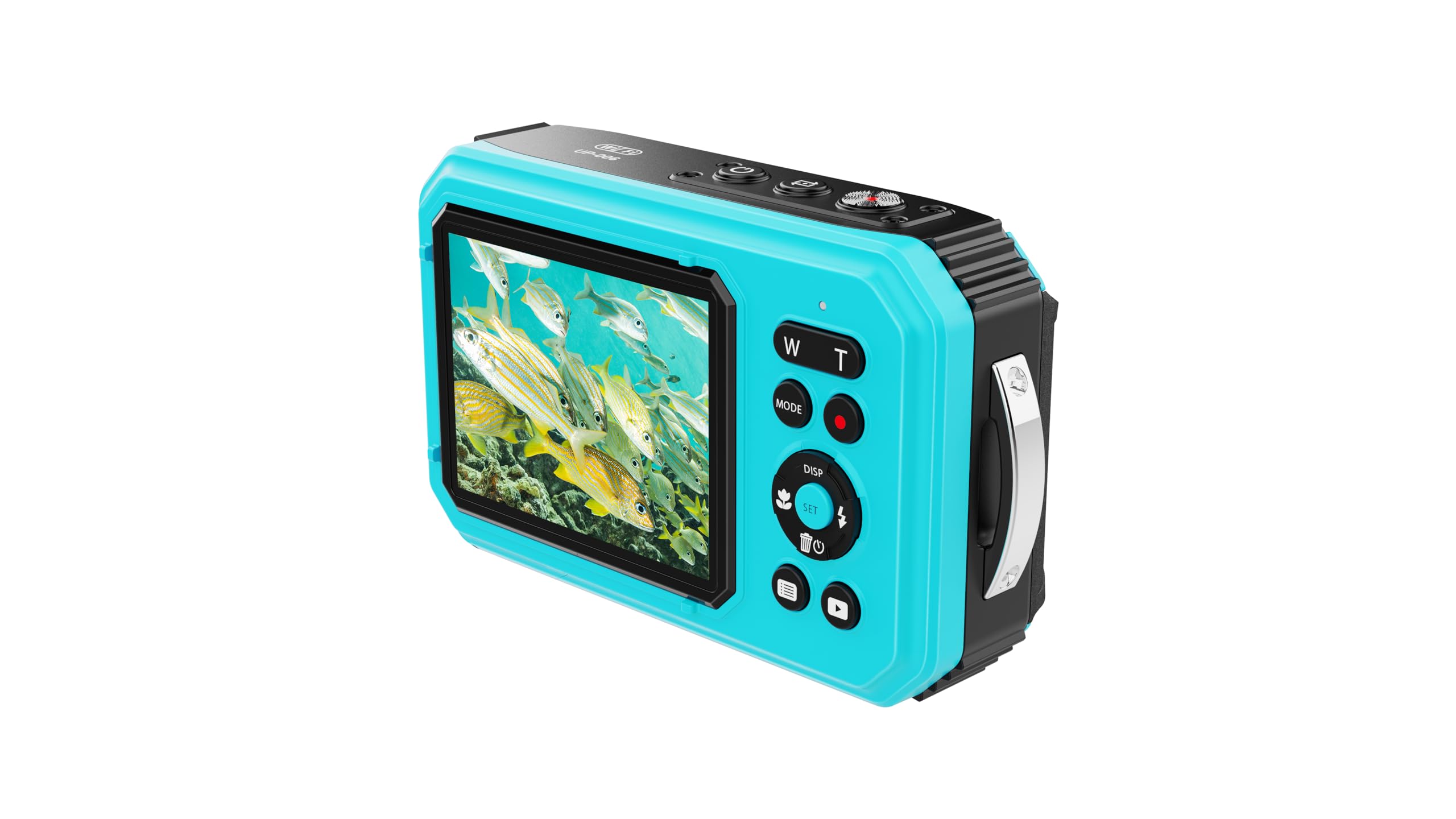
Image 1: Yixinxin 4K 64MP Underwater Camera with included accessories. This image shows the camera body, a USB cable, a lanyard, and a small memory card.
3. Setup
3.1 Battery Installation and Charging
- Open the battery compartment cover, typically located on the side or bottom of the camera. Ensure the compartment is dry before opening.
- Insert the 1500 mAh battery according to the polarity indicators (+/-).
- Close the battery compartment cover securely until it clicks into place. Ensure the seal is tight to maintain waterproofing.
- Connect the camera to a power source using the provided USB Type-C cable. The charging indicator light will illuminate.
- Charge the battery fully before first use. A full charge provides approximately 90 minutes of 4K video recording.
3.2 Memory Card Installation
- Locate the Micro SD card slot, usually near the battery compartment.
- Insert the included 32GB Micro SD card (or another compatible card up to 256GB, Class 10 or higher recommended) into the slot until it clicks.
- To remove, gently push the card in until it springs out.
3.3 Initial Power On/Off
- To power on, press and hold the Power button for a few seconds.
- To power off, press and hold the Power button again until the screen turns off.
4. Operating Instructions
4.1 Basic Controls
- Power Button: Turns the camera on/off.
- Shutter Button: Half-press to focus, full-press to capture a photo or start/stop video recording.
- Mode Button: Switches between photo, video, and playback modes.
- Navigation Buttons: Used to navigate menus and adjust settings.
4.2 Photo Mode
- Select Photo Mode using the Mode button.
- The camera supports resolutions up to 64MP. Adjust resolution in the settings menu.
- Autofocus: Half-press the Shutter button to activate autofocus. The camera can focus on subjects as close as 10 cm (3.97 inches) for macro shots.
- Digital Zoom: Use the zoom buttons (if available) to apply up to 16x digital zoom. Note that digital zoom may reduce image quality.
- Features: Electronic Image Stabilization (EIS), Face Recognition, and Continuous Shooting are available. Enable these in the settings as needed.
- Images are saved in JPG format.
4.3 Video Mode
- Select Video Mode using the Mode button.
- Supported resolutions include UHD 4K, QHD 2.7K (30 FPS), FHD (30 FPS), and HD (30 FPS). Select your desired resolution in the settings.
- Press the Shutter button to start recording. Press again to stop.
- Electronic Image Stabilization (EIS) helps reduce camera shake during video recording.
- Videos are saved in AVI format.
4.4 Dual Screen Usage
- The camera features a 2.8-inch rear display and a 1.4-inch front display.
- Use the dedicated screen switch button (refer to camera diagram in quick start guide) to toggle between the front and rear screens. The front screen is ideal for selfies.
4.5 Underwater and Outdoor Use
- The camera is waterproof up to 10 meters (33 feet) without the need for an additional waterproof housing. Ensure all compartment covers are securely closed before submerging.
- Its design allows it to float on water, making it easier to retrieve if dropped in water.
- The camera is also dustproof, suitable for various outdoor conditions.
4.6 Webcam Functionality
- Connect the camera to your computer using the USB Type-C cable.
- Select 'Webcam Mode' on the camera's screen when prompted.
- The camera can then be used as a webcam for video calls or streaming.
4.7 System Language
- The camera supports multiple languages, including English (default), French, German, Spanish, Dutch, Italian, Portuguese, Czech, Hungarian, Turkish, Polish, Russian, Simplified Chinese, and Japanese.
- To change the language, navigate to the 'System Settings' menu and select 'Language'.
5. Maintenance
- Cleaning: After underwater use, rinse the camera with fresh water and dry thoroughly with a soft cloth. Do not use chemical cleaners.
- Lens Care: Use a lens cleaning cloth to gently wipe the lens. Avoid touching the lens with fingers.
- Battery Care: Store the battery in a cool, dry place. If not used for extended periods, charge the battery periodically to maintain its lifespan.
- Waterproofing Seals: Regularly inspect the rubber seals around the battery and memory card compartments for any dirt, sand, or damage. Clean them gently if necessary to ensure continued waterproofing.
- Storage: Store the camera in a dry, cool place away from direct sunlight and extreme temperatures.
6. Troubleshooting
- Camera does not power on:
- Ensure the battery is fully charged.
- Check if the battery is inserted correctly.
- Poor image/video quality (blurry, unclear):
- Ensure the lens is clean and free from smudges or water droplets.
- Half-press the shutter button to allow the camera to autofocus before fully pressing.
- Check lighting conditions.
- Memory card error:
- Ensure the memory card is inserted correctly.
- Try formatting the memory card via the camera's settings (this will erase all data).
- Test with a different compatible memory card.
- Water leakage after underwater use:
- Immediately power off the camera and remove the battery.
- Inspect all compartment seals for damage or improper closure before each use.
- Contact customer support if leakage persists or damage is evident.
- Battery not charging:
- Verify the USB Type-C cable is securely connected to both the camera and the power source.
- Try a different USB port or power adapter.
- Ensure the charging port on the camera is clean.
7. Specifications
| Model Name | YXXUP019BU02 |
| Brand | Yixinxin |
| Waterproof Depth | Up to 10m (33ft) without housing |
| Image Sensor Technology | CMOS |
| Max Image Resolution | 64MP |
| Image Format | JPG |
| Video Resolution | UHD 4K, QHD 2.7K (30 FPS), FHD (30 FPS), HD (30 FPS) |
| Video Format | AVI |
| Digital Zoom | 16x |
| Optical Zoom | 1x |
| Autofocus | Supported (min. 10cm macro distance) |
| Display Screens | Front 2.8-inch, Rear 1.4-inch IPS HD |
| Memory Card Support | Micro SD up to 256GB (Class 10 or higher) |
| Included Memory Card | 32GB Micro SD |
| Battery | 1500 mAh High-Voltage (approx. 90 mins 4K video) |
| USB Interface | Type-C, USB 2.0 |
| Image Stabilization | Electronic (EIS) |
| Max Aperture | 2.8f |
| Max Focal Length | 56 Millimeters |
| Weight | 380 grams (approx.) |
8. Warranty and Support
For warranty information, please refer to the documentation provided at the time of purchase or contact your retailer. Specific warranty terms and conditions may vary by region and seller.
For technical support or further assistance, please visit the official Yixinxin website or contact their customer service department. Keep your purchase receipt and product model number (YXXUP019BU02) readily available when seeking support.
No official product videos from the seller were provided in the product data. Please check the manufacturer's official website for any available video tutorials or demonstrations.


