
1. Introduction
This manual provides comprehensive instructions for the installation, operation, and maintenance of your GLEDOPTO ESP32 WLED Digital LED Controller. This advanced controller is designed to manage addressable LED strips, offering dynamic lighting effects, sound reactivity, and smart home integration. Please read this manual carefully before use to ensure proper functionality and safety.

Image 1.1: GLEDOPTO ESP32 WLED Digital LED Controller overview.
2. Safety Information
- Ensure the input voltage (DC 5-12-24V) matches your power supply and LED strip requirements. Incorrect voltage can damage the device and LED strips.
- Do not exceed the total output current of 15A or 10A per channel. Overloading can cause overheating and damage.
- Install the controller in a dry environment, suitable for indoor use only. Avoid exposure to moisture or extreme temperatures.
- Disconnect power before making any connections or performing maintenance.
- Keep out of reach of children.
3. Package Contents
Verify that all items are present in your package:
- 1 x GLEDOPTO ESP32 WLED Digital LED Controller (Model: GL-C-016WL-D)
- 1 x 3cm Trigger (likely a small wire or component for specific functions)
- 1 x User Manual
4. Product Overview
The GLEDOPTO ESP32 WLED Digital LED Controller is a versatile device for controlling addressable LED strips. Key features include:
- ESP32 Chip: High-performance processing and stable Wi-Fi connectivity.
- WLED Integration: Direct control via the WLED application, no gateway required.
- Dynamic Lighting: Over 100 built-in dynamic modes and customizable effects.
- Built-in Microphone: Enables sound-reactive lighting effects.
- USB-C UART Interface: For easy firmware updates.
- Wide Compatibility: Supports various addressable LED strip types (e.g., WS2811, WS2812, SK6812, TM1814, WS2813, WS2815).
- Smart Home Ready: Compatible with Amazon Alexa.

Image 4.1: Supported Addressable LED Strip Types.
5. Setup & Installation
5.1 Wiring the LED Strip
Follow these steps to connect your addressable LED strip to the controller:
- Identify the data (DAT), ground (GND), and power (V+) wires of your LED strip.
- Locate the quick-connect terminals on the GLEDOPTO controller.
- Open the connector upwards: Gently lift the lever on the terminal block to open the wire entry point.
- Insert the wire: Carefully insert the stripped end (10mm stripping length recommended) of the LED strip wire into the corresponding terminal (V+, GND, Data). Ensure a secure connection.
- Press down: Push the lever back down to secure the wire in place.
- Repeat for all necessary connections (V+, GND, Data).
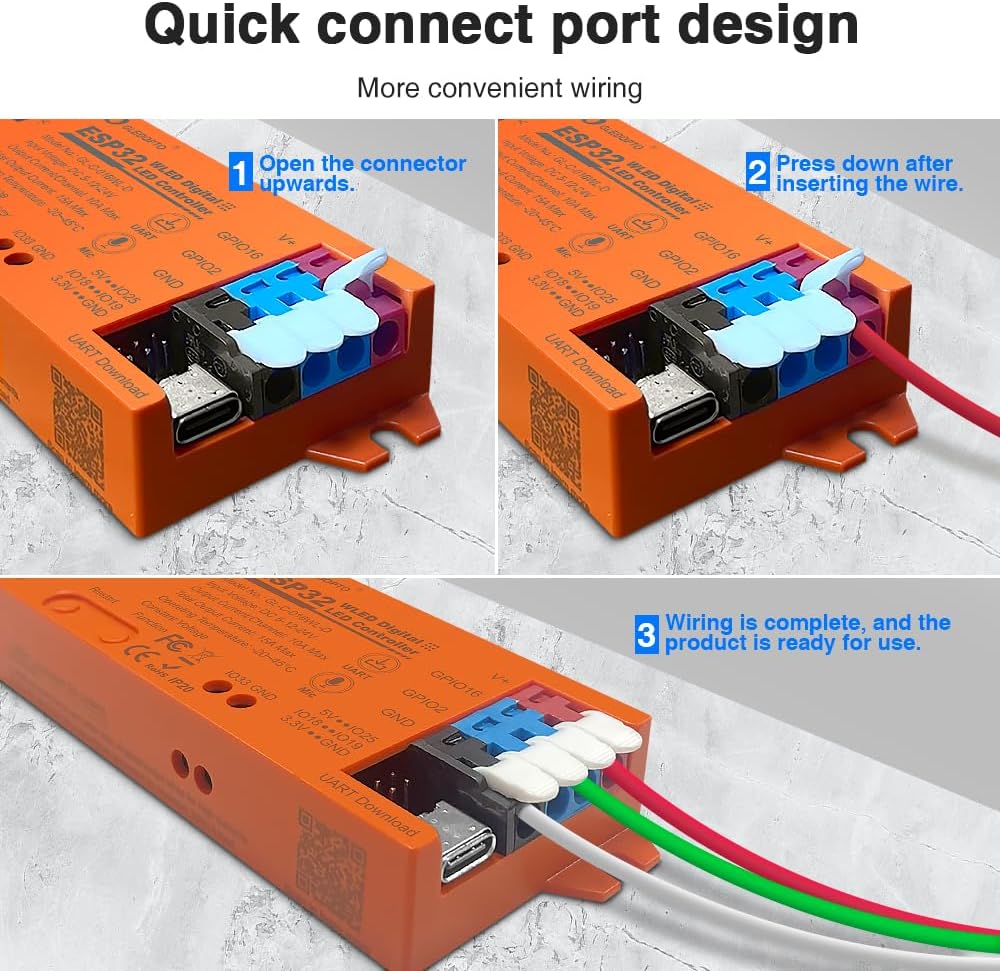
Image 5.1: Quick Connect Port Wiring Guide.
5.2 Power Connection
Connect a DC 5-12-24V power supply to the controller's input terminals. Ensure the polarity is correct (V+ to V+, GND to GND). The controller supports a total output current of up to 15A, with a maximum of 10A per channel. Select a power supply appropriate for your LED strip's total power consumption.
6. Operating Instructions
6.1 WLED Application Control
The GLEDOPTO controller integrates seamlessly with the WLED application, allowing for intuitive control via Wi-Fi. No additional gateway is required.
- Download WLED App: Search for "WLED" in your smartphone's app store and install it.
- Connect to Controller's Wi-Fi: Power on the controller. On your smartphone, go to Wi-Fi settings and connect to the Wi-Fi network broadcast by the controller (usually named "WLED-AP" followed by some numbers).
- Configure Network: Open the WLED app. It should detect the controller. Follow the in-app instructions to connect the controller to your home Wi-Fi network.
- Control Lighting: Once connected to your home network, you can use the WLED app to select from over 100 dynamic modes, customize colors, brightness, and create personalized lighting effects.

Image 6.1: WLED App Control Interface.
6.2 Microphone Function
The built-in sensitive microphone allows the LED lights to react to ambient sounds, especially music. This creates dynamic lighting effects that synchronize with audio, enhancing your environment.
- To activate sound-reactive modes, select the appropriate effect within the WLED application.
- Ensure the microphone is not obstructed for optimal performance.

Image 6.2: Microphone Function in action.
6.3 Firmware Updates (UART)
The controller features a USB-C UART interface for convenient firmware updates, ensuring your device always has the latest features and improvements.
- Connect the controller to your computer using a USB-C cable.
- Access the UART download function (refer to WLED documentation for specific software and procedures).
- Download the latest firmware (e.g., WLED_x.xx.x_ESP32.bin) and flash it to the controller.

Image 6.3: USB-C Interface for Firmware Updates.

Image 6.4: UART Download via Type-C Port.
6.4 Smart Home Integration
The controller is highly compatible with Amazon Alexa, allowing you to control your lighting with voice commands. Refer to the WLED documentation and Alexa app for setup instructions.
7. Specifications
| Feature | Specification |
|---|---|
| Model No. | GL-C-016WL-D |
| Input Voltage | DC 5-12-24V |
| Output Current/Channel | 10A Max |
| Total Output Current | 15A Max |
| Operating Temperature | -20 ~ 45 °C |
| Communication Protocol | WiFi |
| Suggested Wire Type | 0.34-4mm² (22-12AWG) |
| Material | Fireproof PC |
| Stripping Length | 10mm |
| Net Weight (N.W.) | 49.3g |
| Gross Weight (G.W.) | 57.3g |
| Dimensions | 108x45x18mm |
| Control Method | Application (WLED App), Amazon Alexa |
| Supported LED Strips | WS2811, WS2812, WS2813, SK6812, TM1814, WS2815, etc. |

Image 7.1: GLEDOPTO Controller Product Parameters.
8. Troubleshooting
If you encounter issues with your GLEDOPTO ESP32 WLED Digital LED Controller, refer to the following common problems and solutions:
- LEDs not lighting up:
- Check power supply connection and ensure correct voltage (DC 5-12-24V) and polarity.
- Verify LED strip wiring (Data, V+, GND) is correct and secure.
- Ensure the LED strip type selected in the WLED app matches your physical strip.
- Confirm the power supply provides sufficient current for your LED strip length.
- Cannot connect to Wi-Fi:
- Ensure the controller is powered on and within range of your Wi-Fi router.
- Try restarting the controller.
- If connecting to the controller's access point (AP mode), ensure your phone is disconnected from other Wi-Fi networks.
- Verify correct Wi-Fi credentials if connecting to your home network.
- Lights are flickering or behaving erratically:
- Check for loose wiring connections.
- Ensure the power supply is stable and adequate for the number of LEDs.
- Consider adding a capacitor across the power lines near the LED strip if flickering persists, especially with long strips.
- Verify the data line is not too long or experiencing interference.
- Microphone function not responding:
- Ensure a sound-reactive mode is selected in the WLED app.
- Check that the microphone port on the controller is not obstructed.
- Increase the volume of the audio source.
9. Maintenance
- Cleaning: Use a soft, dry cloth to clean the controller. Do not use liquid cleaners or solvents.
- Environment: Keep the controller in a clean, dry, and well-ventilated area. Avoid dusty or humid environments.
- Firmware: Regularly check for and install firmware updates via the USB-C UART interface to ensure optimal performance and access to new features.
10. Warranty and Support
GLEDOPTO products are designed for reliability and performance. For warranty information, technical support, or service inquiries, please contact your retailer or visit the official GLEDOPTO website. Please have your model number (GL-C-016WL-D) and purchase information ready when contacting support.


