1. Introduction
The COUGAR CFV235 is an innovative PC case featuring a Central Floating Ventilation (CFV) structure. This design separates the power supply unit compartment from the main chamber, utilizing the space between them as a highly effective ventilation channel to enhance cooling performance. The CFV235 combines a full panoramic view, a compact footprint, and structurally reinforced cooling capabilities to achieve superior airflow beyond traditional case designs.
This manual provides essential information for the proper installation, operation, and maintenance of your COUGAR CFV235 PC case. Please read it thoroughly before beginning assembly.
2. Key Features
- Central Floating Ventilation (CFV) Structure: Innovative design for enhanced cooling efficiency.
- Full Panoramic View: Clear tempered glass panels for showcasing internal components.
- High Airflow Design: Optimized for superior air circulation.
- Wide Compatibility: Supports Mini ITX, Micro ATX, ATX, and CEB motherboards.
- Ample Storage Options: Multiple drive bays for 3.5" HDDs and 2.5" SSDs.
- Generous Component Clearance: Accommodates long GPUs, tall CPU coolers, and standard PSUs.
- Durable Construction: Built with robust materials for longevity.

Figure 2.1: Front-side view of the COUGAR CFV235 PC case, highlighting its panoramic glass panels and illuminated interior.

Figure 2.2: The COUGAR CFV235 PC case showcasing its design in both black and white variants, with internal components and customizable RGB lighting.
3. Setup Guide
3.1 Unpacking the Case
- Carefully remove the PC case from its packaging.
- Inspect the case for any signs of damage during transit. Contact your retailer immediately if any damage is found.
- Remove all protective films and internal packaging materials.
3.2 Component Installation
Before installing components, ensure you have all necessary tools, including a Phillips head screwdriver.
- Motherboard Installation:

Figure 3.1: Interior of the CFV235 case, showing pre-installed motherboard standoffs.
- Install the I/O shield into the rear opening of the case.
- Align your Mini ITX, Micro ATX, ATX, or CEB motherboard with the pre-installed standoffs.
- Secure the motherboard using the provided screws.
- Power Supply Unit (PSU) Installation:
- The CFV235 features a dedicated PSU compartment. Install your ATX PSU (up to 200mm length) into this compartment.
- Secure the PSU with screws from the rear of the case.
- Storage Drive Installation:

Figure 3.2: Rear interior of the CFV235, illustrating cable management options and locations for 2.5" and 3.5" drive bays.
- Install 3.5" HDDs into the designated drive bays (up to 2 drives).
- Install 2.5" SSDs into the dedicated SSD mounts (up to 4 drives, 2 of which are shared with 3.5" bays).
- Ensure all drives are securely fastened.
- Graphics Card (GPU) Installation:

Figure 3.3: Diagram indicating the maximum GPU length of 430mm supported by the CFV235 case.
- The case supports GPUs up to 430mm in length.
- Insert your GPU into the appropriate PCIe slot on the motherboard and secure it with the retention clip and screw.
- CPU Cooler Installation:
- The case supports CPU coolers up to 175mm in height.
- Install your CPU cooler according to its manufacturer's instructions.
- Cable Management:
- Utilize the cable routing cutouts and tie-down points behind the motherboard tray to manage cables neatly.
- Proper cable management improves airflow and aesthetics.
4. Operating Instructions
4.1 Front I/O Panel

Figure 4.1: The front I/O panel of the CFV235, featuring USB ports, audio jacks, and the power button.
The front I/O panel provides convenient access to essential ports and controls:
- Power Button: Press to power on/off your system.
- Reset Button: Press to restart your system.
- USB Ports: Connect USB devices.
- Audio Jacks: Connect headphones and microphones.
4.2 Airflow and Cooling
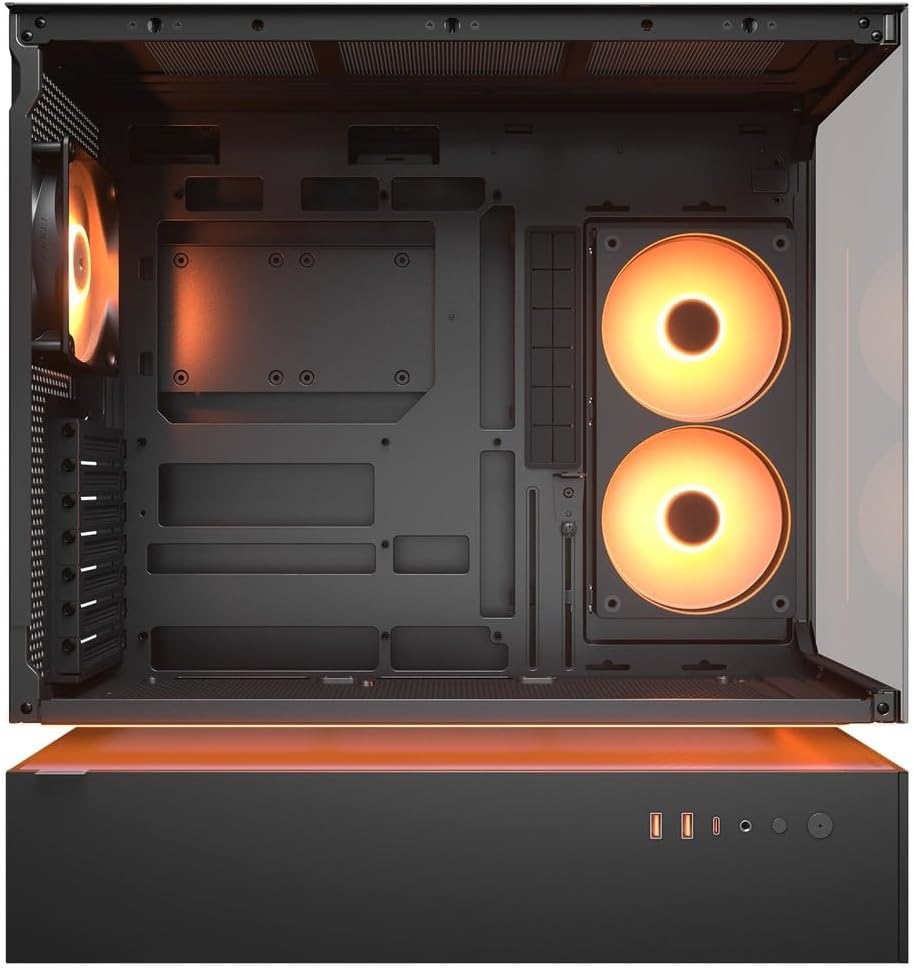
Figure 4.2: Internal view of the CFV235 with fans installed, demonstrating the potential for high airflow.
The CFV235 is designed for optimal airflow. Ensure all fans are correctly installed and oriented to facilitate efficient cooling. The Central Floating Ventilation structure promotes direct airflow to critical components.
5. Maintenance
5.1 Dust Filter Cleaning

Figure 5.1: Removable magnetic dust filter for easy cleaning.
Regular cleaning of dust filters is crucial for maintaining optimal airflow and preventing dust buildup inside your PC. The CFV235 features easily removable dust filters:
- Gently remove the magnetic dust filters located on the top and bottom of the case.
- Clean the filters using compressed air or by rinsing them with water. Ensure they are completely dry before reattaching.
- Reattach the filters to their respective positions.
5.2 General Cleaning
- Use a soft, damp cloth to wipe down the exterior surfaces of the case.
- Avoid using harsh chemicals or abrasive materials that could damage the finish or tempered glass.
- For internal cleaning, use compressed air to remove dust from components and fan blades.
6. Troubleshooting
This section addresses common issues you might encounter. For more complex problems, please refer to the support section.
6.1 System Not Powering On
- Check if the power cable is securely connected to both the PSU and the wall outlet.
- Ensure the PSU switch is in the "ON" position.
- Verify that the front panel power button cable is correctly connected to the motherboard.
- Confirm that all internal power connections (24-pin ATX, CPU, GPU) are firmly seated.
6.2 Overheating Issues
- Ensure all case fans and CPU/GPU coolers are functioning correctly.
- Clean any dust buildup from fans and dust filters (refer to Section 5.1).
- Verify that fans are oriented for optimal airflow (intake and exhaust).
- Check for proper cable management to avoid obstructing airflow.
6.3 USB/Audio Ports Not Working
- Ensure the front panel USB and audio cables are correctly connected to the motherboard headers.
- Check your operating system's device manager for any driver issues.
7. Specifications
| Feature | Specification |
|---|---|
| Brand | COUGAR |
| Model Name | CFV235 |
| Product Dimensions (W x H x D) | 235 x 493 x 460 mm |
| Product Weight | 9.5 kg |
| Supported Motherboards | Mini ITX / Micro ATX / ATX / CEB |
| Drive Bays | 5.25" x0 / 3.5" x2 / 2.5" SSD x2+2 (2 shared with 3.5" bays) |
| Max GPU Length | 430 mm |
| Max CPU Cooler Height | 175 mm |
| Max PSU Length | 200 mm |
| Color | Black |
| Features | Central Floating Ventilation, Panoramic Glass, High Airflow, Built-in Fans |
8. Warranty and Support
Your COUGAR CFV235 PC case comes with a 1-year warranty from the date of purchase. This warranty covers manufacturing defects and material flaws under normal use.
For technical support, warranty claims, or further assistance, please visit the official COUGAR website or contact your local retailer. Please have your product model number (CFV235) and proof of purchase ready when contacting support.
Official COUGAR Website: cougargaming.com


