
1. Product Overview
The Zomolither Double Din Car Stereo is an advanced in-car entertainment system featuring a 7-inch touch screen. It integrates wireless Apple CarPlay and Android Auto for seamless smartphone connectivity, along with Bluetooth for hands-free calling and audio streaming. This unit supports various media inputs, FM radio, video output, and includes a backup camera for enhanced safety.
Key features include a 1024x600 HD IPS touch screen, Type-C/USB fast charging, USB/AUX/TF input, steering wheel control compatibility, and a dedicated backup camera input. The system is designed to provide a comprehensive and user-friendly experience for navigation, communication, and entertainment while driving.
2. Package Contents
Before installation, verify that all components are present in the package:
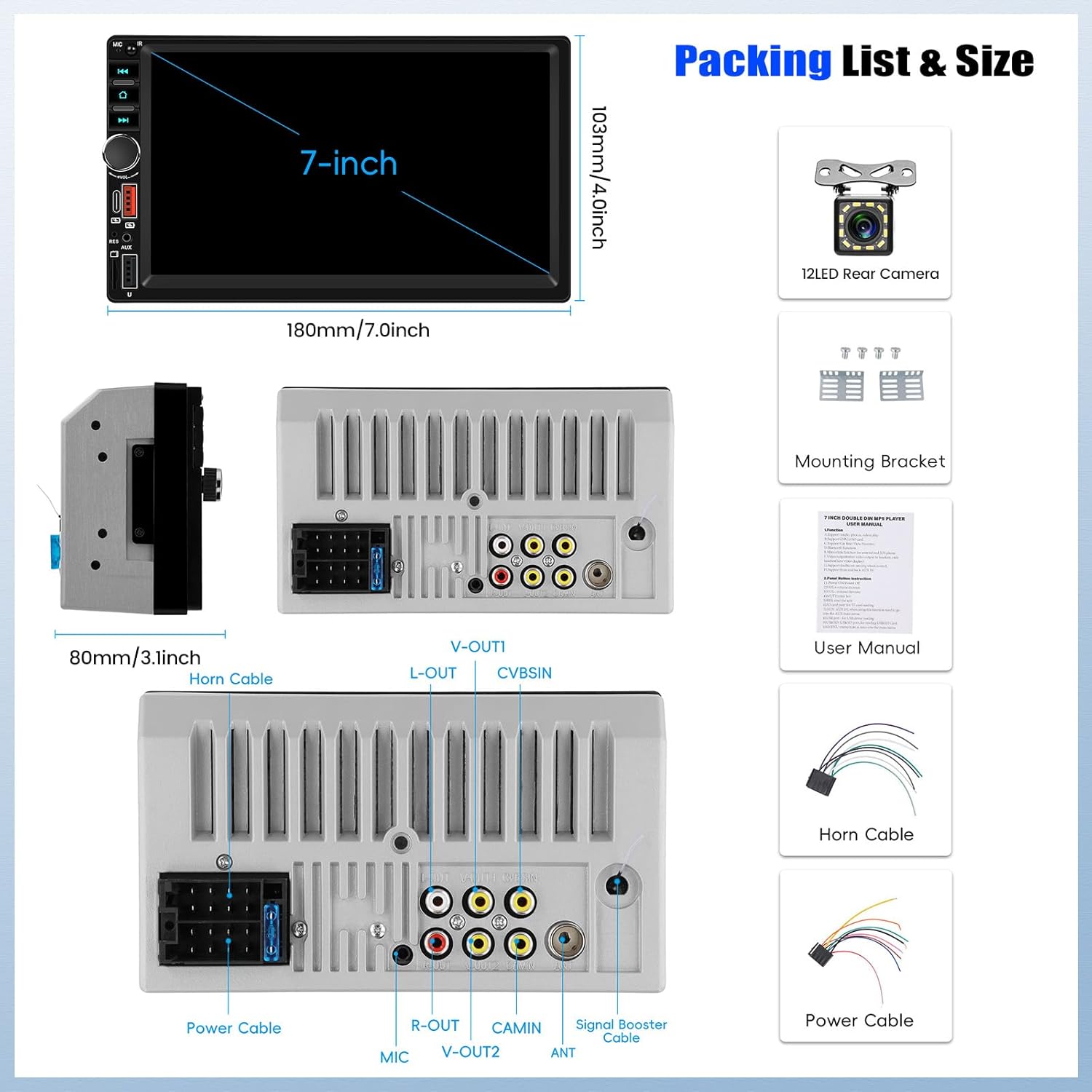
Image: Package contents and dimensions of the Zomolither Double Din Car Stereo.
- Zomolither Double Din Car Stereo Unit (7-inch screen)
- 12LED Rear Camera
- Mounting Brackets
- User Manual (this document)
- Horn Cable
- Power Cable
- Additional wiring harnesses (RCA, USB, AUX, etc.)
3. Setup and Installation
Professional installation is recommended for this car stereo system. Ensure the vehicle's battery is disconnected before beginning installation to prevent electrical damage.
3.1 Wiring Diagram
Refer to the wiring diagram provided on the unit's chassis and in the included quick start guide for specific connections. Key connections include:
- Power Cable: Connect to the vehicle's constant power, accessory power, and ground.
- Horn Cable: Connect to the vehicle's speaker wiring.
- Rear Camera Input (CAMIN): Connect the included backup camera.
- SWC (Steering Wheel Control): Connect to the vehicle's steering wheel control wires (may require an adapter for some vehicles).
- Video Output (V-OUT1, V-OUT2): For connecting external monitors (e.g., headrest screens).
- Audio Output (L-OUT, R-OUT): For connecting external amplifiers.
- USB/AUX/TF Inputs: For external media devices.
Image: Rear panel connections of the Zomolither Double Din Car Stereo.
3.2 Mounting
Use the provided mounting brackets to secure the stereo unit into the vehicle's double din opening. Ensure the unit is firmly seated and all cables are routed correctly to avoid pinching or damage.
4. Operating Instructions
4.1 Wireless Apple CarPlay and Android Auto
This unit supports wireless Apple CarPlay and Android Auto, allowing integration of your smartphone's features directly onto the stereo display.
- Ensure your phone's Wi-Fi and Bluetooth are enabled.
- On the car stereo, navigate to the CarPlay or Android Auto application.
- Pair your phone with the car stereo via Bluetooth. Follow the on-screen prompts on both devices.
- Once paired, the system will automatically connect for wireless CarPlay or Android Auto, displaying compatible apps like navigation, music, and messages.

Image: Wireless Apple CarPlay, Android Auto, and Mirror Link functionality.
4.2 Mirror Link Function
Mirror Link allows you to display your smartphone's screen directly on the car stereo. This function works for both Android and iOS devices via wireless or USB connection.
- Navigate to the "Mirror Link" or "PhoneLink" application on the stereo.
- Follow the specific instructions displayed on the screen for your phone's operating system (iOS or Android) to establish a connection via Wi-Fi or USB.
4.3 Bluetooth and Hands-Free Calling
Connect your phone via Bluetooth for hands-free calls and wireless audio streaming.
- Enable Bluetooth on your smartphone.
- On the car stereo, go to the Bluetooth menu.
- Search for available devices on your phone and select "Zomolither Car Stereo" (or similar name).
- Confirm the pairing code on both devices.
- Once connected, you can make/receive calls and stream music through the stereo.

Image: Bluetooth hands-free calling and voice control features.
4.4 FM Radio Receiver
Access local radio stations with the built-in FM tuner.
- Select the "Radio" or "FM" icon from the main menu.
- Use the scan function to automatically find and save available stations.
- Manually tune to frequencies or select from preset stations.
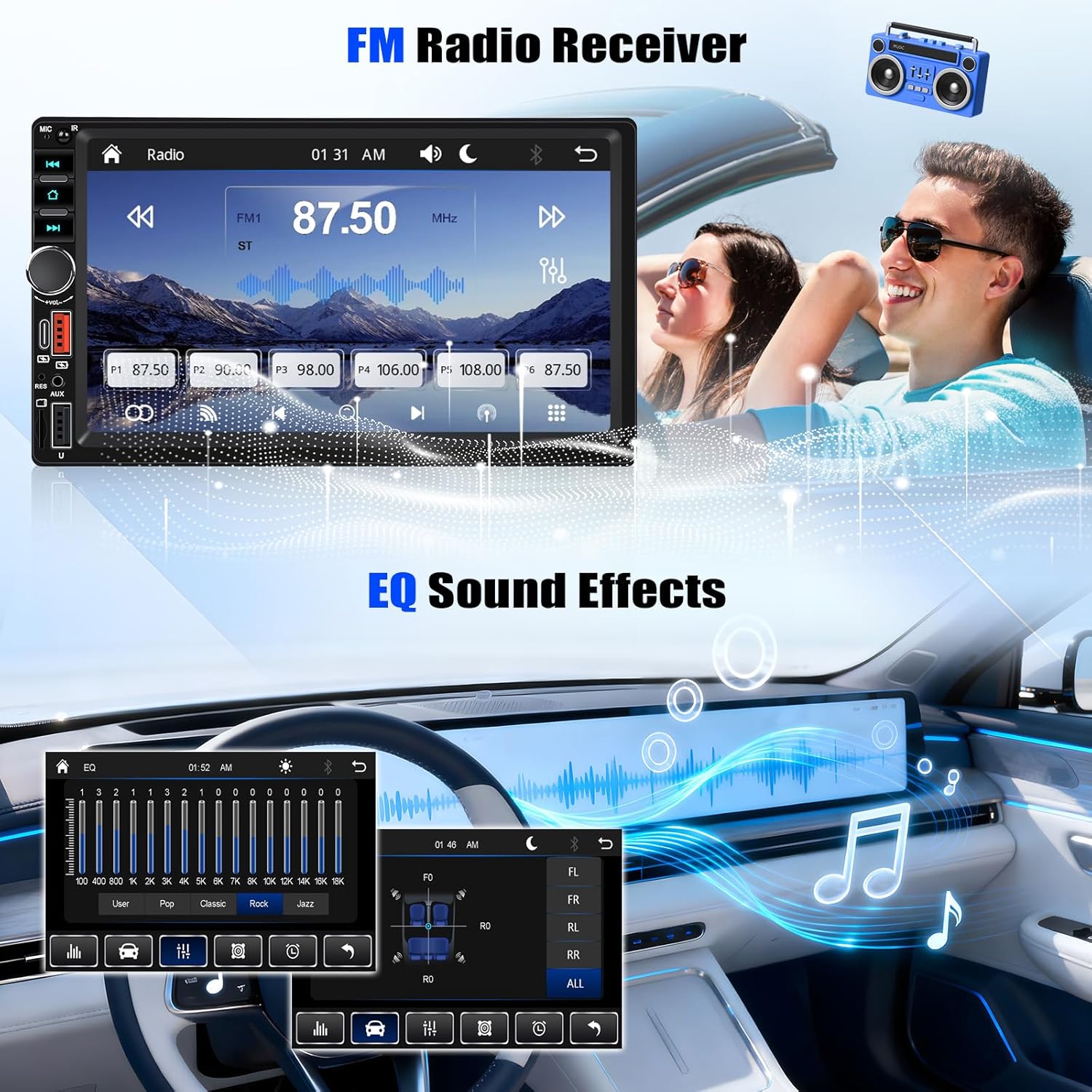
Image: FM Radio Receiver and EQ Sound Effects interface.
4.5 EQ Audio Settings
Customize your audio experience using the Equalizer (EQ) settings.
- Access the "EQ" or "Sound Settings" menu.
- Choose from preset sound modes (e.g., Pop, Rock, Jazz) or adjust individual frequency bands to create a custom sound profile.
4.6 HD IPS Touch Screen and Video Output
The 7-inch 1024x600 HD IPS touch screen provides a clear and responsive interface. The unit also supports video output to external monitors.
- Touch Screen: Navigate menus and control functions by touching the screen. The IPS technology ensures wide viewing angles.
- Video Output: Connect external displays (e.g., headrest monitors) to the V-OUT ports to share video content with passengers.

Image: 1024x600 HD IPS Touch Screen and various input options.
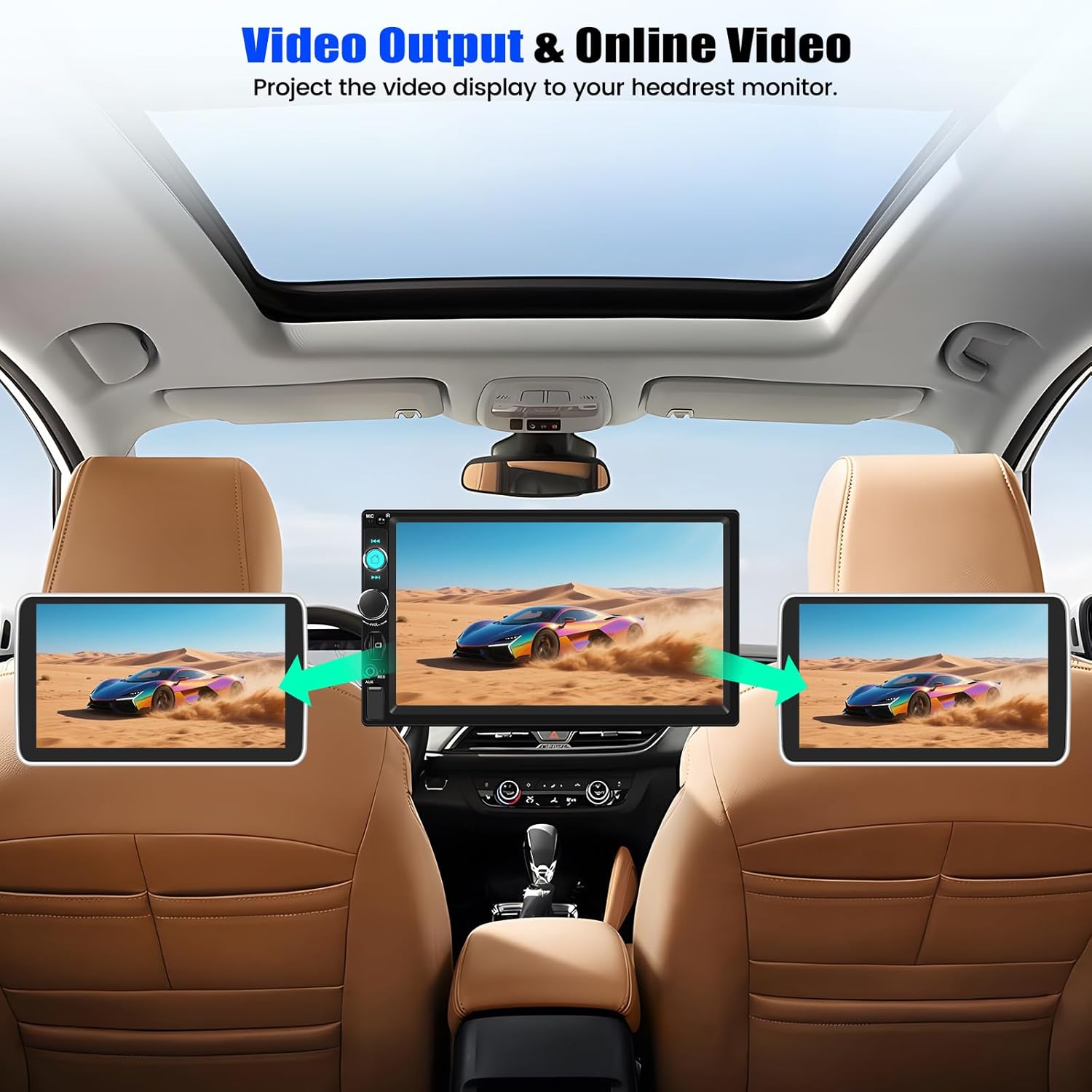
Image: Video Output function projecting content to headrest monitors.
4.7 USB/AUX/TF Input and Fast Charging
The stereo provides multiple options for media playback and device charging.
- USB Ports: Connect USB drives for audio/video playback or use the Type-C/USB ports for fast charging compatible devices.
- AUX Input: Connect external audio devices using a 3.5mm AUX cable.
- TF Card Slot: Insert a TF (MicroSD) card for media playback.
4.8 Backup Camera Function
The included backup camera automatically displays a clear rear view when the vehicle is in reverse gear.
- Ensure the backup camera is correctly installed and connected to the CAMIN input.
- When the vehicle is shifted into reverse, the stereo screen will automatically switch to the camera view.
- The camera features night vision and a wide viewing angle for improved visibility.

Image: Steering Wheel Control and Backup Camera display.
4.9 Steering Wheel Control (SWC)
Control basic stereo functions directly from your vehicle's steering wheel buttons.
- After installation, access the SWC settings menu on the stereo.
- Follow the on-screen instructions to program the steering wheel buttons to control functions like volume, track skipping, and call answering.
5. Maintenance
To ensure the longevity and optimal performance of your Zomolither car stereo, follow these maintenance guidelines:
- Cleaning the Screen: Use a soft, lint-free cloth to gently wipe the touch screen. For stubborn smudges, slightly dampen the cloth with water or a screen-safe cleaner. Avoid harsh chemicals or abrasive materials.
- General Cleaning: Keep the unit free from dust and debris. Use a soft brush or compressed air to clean around buttons and ports.
- Avoid Liquids: Do not spill liquids on the unit. If liquid enters the unit, disconnect power immediately and consult a professional.
- Temperature: Avoid exposing the unit to extreme temperatures, both hot and cold, for extended periods.
6. Troubleshooting
If you encounter issues with your car stereo, refer to the following common troubleshooting steps:
- No Power:
- Check all power connections (constant, accessory, ground) for secure contact.
- Verify the vehicle's fuses related to the stereo are intact.
- No Sound:
- Ensure the volume is not muted or set to minimum.
- Check speaker wire connections.
- Verify the correct audio source is selected.
- Bluetooth Connection Issues:
- Ensure Bluetooth is enabled on both the stereo and your phone.
- Delete previous pairings on both devices and attempt to re-pair.
- Restart both the stereo and your phone.
- CarPlay/Android Auto Not Connecting:
- Confirm Wi-Fi and Bluetooth are active on your phone.
- Ensure your phone's operating system is up to date.
- Try connecting via USB if wireless connection fails.
- Backup Camera Not Displaying:
- Check the camera's power and video signal connections.
- Ensure the reverse trigger wire is correctly connected to the vehicle's reverse light circuit.
- Touch Screen Unresponsive:
- Perform a soft reset of the unit (refer to the quick start guide for reset button location, usually a small pinhole).
- Ensure the screen is clean and free of obstructions.
If these steps do not resolve the issue, contact customer support or a qualified technician.
7. Specifications
| Feature | Specification |
|---|---|
| Screen Material | IPS |
| System | 8268K |
| Voltage | 12 V |
| Maximum Power Output | 4*45W |
| CarPlay/Android Auto | Support (Wireless) |
| Radio Band | FM |
| Radio Frequency | 87.5-108MHz |
| Screen Resolution | 1024x600 |
| Factory Settings Key | 8288 |
| Supported Audio Formats | MP3/AAC/OGG/FLAC/APE |
| Supported Video Formats | AVI/3GP/MP4/MOV/MPG/MKV/VOB/RMVB/RM |
| Languages | English, Chinese, Japanese, Portuguese, Russian, German, Spanish, Turkish, Italian, French, Polish, Hebrew, Slovenian |
| Item Weight | 830 g |
| Package Dimensions | 18 x 10.3 x 8 cm |
| Connector Type | USB Type-C |
| Connectivity Technology | Bluetooth |
| Special Features | Android Auto, Apple CarPlay, Built-in Bluetooth, Hands-Free Calling, Digital Display Screen, Rear View Camera Input, Phone Screen Mirroring, Support Steering Wheel Control, Touchscreen |
8. Warranty and Support
For warranty information and customer support, please refer to the documentation included with your purchase or contact the retailer where the product was acquired. Keep your proof of purchase for warranty claims.
For technical assistance or further inquiries, please visit the Zomolither official website or contact their customer service department directly.