
Introduction
Welcome to the user manual for your Jectse Portable Thermal Printer MP-8018T. This guide provides detailed instructions on how to set up, operate, and maintain your new thermal printer. Please read this manual thoroughly to ensure proper use and to maximize the performance and longevity of your device.
Product Overview
The Jectse MP-8018T is a compact and lightweight thermal printer designed for convenience and portability. It utilizes direct thermal technology, eliminating the need for ink cartridges, and supports wireless connectivity for printing from iOS devices and laptops.

Image: The Jectse Portable Thermal Printer MP-8018T actively printing a complex design on thermal paper.
Key Features
- Compact and Portable Design: Small size and lightweight construction allow for easy transport and use anywhere, ideal for travel and on-the-go printing.
- Inkless Printing Technology: Utilizes direct thermal printing, eliminating the need for ink cartridges and supporting thermal printing paper and template paper (not ordinary copy paper).
- Powerful Application Functions: Features an intuitive mobile application for easy uploading, editing, and customizing designs with preset templates and a rich material library.
- Clear Printing: Advanced thermal printing technology ensures high-quality output for various styles including traditional, fonts, totems, sketches, and dot printing.
- Versatile Creativity: Supports printing of photos, patterns, and designs, suitable for personalized gifts, party accessories, and artistic expression.
- Long-Lasting Battery Life: Equipped with a 2000mAh high-performance battery for extended continuous operation on a single charge.
What's in the Box
Please check your product packaging for a complete list of contents. Typically, the package includes the Jectse Portable Thermal Printer MP-8018T, a USB charging cable, and a starter roll or box of thermal printing paper.
Setup
1. Charging the Printer
Before initial use, fully charge the printer's 2000mAh battery. Connect the provided USB charging cable to the printer's charging port and to a suitable USB power source (e.g., computer, wall adapter).

Image: The printer's wireless connection capability and 2000mAh battery capacity are highlighted.

Image: A detailed view of the printer's control panel, indicating the Power On Key, Charging Port, and Open Order Key.
2. Powering On
To turn on the printer, long press the Power On Key for approximately 3 seconds until the indicator light illuminates.
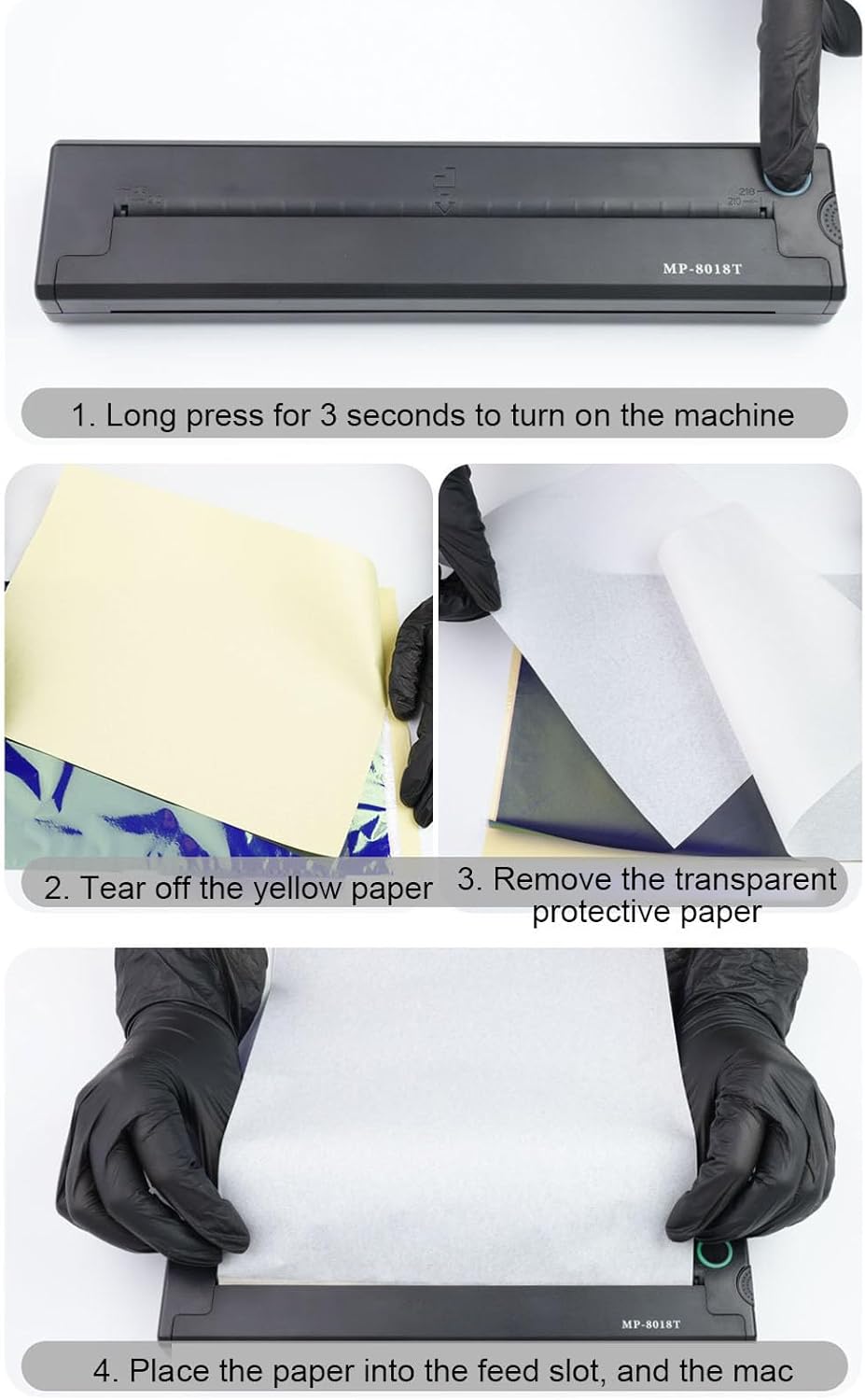
Image: Step-by-step instruction showing to long press the power button for 3 seconds to activate the printer.
3. Loading Thermal Paper
The printer supports thermal printing paper and template paper (210mm or 218mm width). Follow these steps to load the paper correctly:
- If using template paper, tear off the yellow backing paper.
- Remove the transparent protective paper layer.
- Carefully place the prepared paper into the feed slot of the printer, ensuring it is aligned straight.

Image: A hand tearing off the yellow backing from a sheet of thermal transfer paper.

Image: A hand carefully peeling off the transparent protective layer from the thermal transfer paper.

Image: A hand guiding the thermal paper into the printer's paper feed slot for printing.
4. Connecting Wirelessly
The Jectse MP-8018T connects to your device via Bluetooth. Download the dedicated mobile application (refer to the product packaging or manufacturer's website for app details) on your iOS device or laptop. Enable Bluetooth on your device, open the app, and follow the on-screen instructions to pair with your printer.
Operating Instructions
1. Using the Mobile Application
The printer's application provides a user-friendly interface for managing your prints. You can upload images, text, or designs, edit them, and customize settings before printing. The app includes a rich material library and intelligent optimization tools to assist in creating accurate designs.
2. Printing Process
Once your design is ready in the application and the printer is connected wirelessly, initiate the print command from the app. The printer will quickly process and output your design with clear lines and uniform ink distribution.

Image: The top section illustrates the wireless connection for quick drawing output. The bottom section displays examples of printed designs with clear lines and uniform ink, including a fish, mandala, tiger, and cat.
3. Types of Printing
The Jectse MP-8018T is versatile, supporting various printing needs:
- Pattern Templates: Ideal for creating stencil patterns for various applications.
- Photos: Print pet photos, family pictures, or any images on thermal transfer paper.
- Documents: Suitable for printing documents, inventory lists, and business checks.
Maintenance
Cleaning the Print Head
To ensure optimal print quality, periodically clean the print head. Use a soft, lint-free cloth lightly dampened with isopropyl alcohol. Gently wipe the print head surface. Ensure the printer is turned off and completely dry before use.
Battery Care
To prolong the life of the 2000mAh battery:
- Avoid fully discharging the battery frequently.
- Store the printer in a cool, dry place when not in use for extended periods.
- Charge the printer regularly, even if not in frequent use, to maintain battery health.
Troubleshooting
Common Issues and Solutions
- Printer Not Turning On:
Ensure the battery is charged. Connect the printer to a power source and try again. Long press the power button for 3 seconds. - Unable to Connect Wirelessly:
Make sure Bluetooth is enabled on your device and the printer. Restart both the printer and your device. Ensure the printer is within range. Re-pair the device through the mobile application. - Poor Print Quality:
Check if the thermal paper is loaded correctly and is suitable for thermal printing. Clean the print head as described in the Maintenance section. Ensure the design resolution in the app is adequate. - Paper Jam:
Turn off the printer immediately. Carefully open the paper compartment and gently remove any jammed paper. Ensure paper is loaded straight and not wrinkled. - Printer Not Responding:
Try resetting the printer by turning it off and on. If the issue persists, contact customer support.
Specifications
| Feature | Detail |
|---|---|
| Model | MP-8018T |
| Package Dimensions | 12.6 x 9.84 x 5.12 inches |
| Item Weight | 4.1 pounds |
| Connectivity | Wireless (Bluetooth) |
| Battery Capacity | 2000mAh |
| Printing Technology | Direct Thermal |
| Supported Paper Width | 210mm, 218mm Thermal Transfer Paper |
| Manufacturer | Jectse |
Warranty and Support
Warranty Information
Please refer to the warranty card included with your product or visit the official Jectse website for detailed warranty terms and conditions. Keep your proof of purchase for warranty claims.
Customer Support
If you encounter any issues not covered in this manual or require further assistance, please contact Jectse customer support. Contact details can typically be found on the product packaging, the official Jectse website, or through your retailer.