
1. Introduction
Thank you for choosing the ROYALAXE F98-XRQK Wireless Mechanical Keyboard. This keyboard is designed for versatility and performance, featuring a 98% layout with a number pad, hot-swappable switches, RGB backlighting, and triple connectivity modes (Bluetooth 5.0, 2.4GHz wireless, and USB-C wired). This manual provides detailed instructions for setup, operation, maintenance, and troubleshooting to ensure optimal use of your new keyboard.
2. Product Features
- 98% Layout with Number Pad: Space-saving design that retains the full functionality of a number pad for productivity and gaming.
- Integrated Media Control Knob: Allows for quick and intuitive volume and playback control.
- Hot-Swappable Sockets: Equipped with 5-pin hot-swappable sockets, supporting both 3-pin and 5-pin mechanical switches for easy customization without soldering.
- Triple Connectivity Modes: Supports Bluetooth (BT 5.0), 2.4GHz wireless, and USB-C wired connections for versatile compatibility with PC, Mac, and laptops.
- RGB Backlighting: Features multiple customizable lighting effects to enhance your setup.
- Long Battery Life: Powered by a 4000mAh rechargeable battery, offering approximately 80 hours of standby time without backlighting.
3. Package Contents
Please ensure all items are present in the package:
- ROYALAXE F98-XRQK Wireless Mechanical Keyboard
- USB-C Cable
- 2.4GHz Wireless Receiver (Dongle)
- Keycap Puller / Switch Puller Tool
- User Manual
4. Setup
4.1 Unboxing and Initial Inspection
Carefully remove the keyboard and all accessories from the packaging. Inspect for any signs of damage.

Image: ROYALAXE F98-XRQK Keyboard with multiple device connectivity options, illustrating its multi-device compatibility.

Image: Detailed view of the ROYALAXE F98-XRQK keyboard's dimensions and the location of the connectivity switch and 2.4G wireless dongle compartment.
4.2 Charging the Keyboard
Before first use, it is recommended to fully charge the keyboard.
- Connect the provided USB-C cable to the keyboard's USB-C port.
- Connect the other end of the USB-C cable to a USB power source (e.g., computer USB port, wall adapter).
- The charging indicator light will show the charging status. It will typically turn off or change color when fully charged.
5. Operating Instructions
5.1 Power On/Off
Locate the power switch on the back or side of the keyboard. Slide it to the "ON" position to power on the keyboard. Slide it to "OFF" when not in use to conserve battery.
5.2 Connectivity Modes
The ROYALAXE F98-XRQK supports three connection modes: Bluetooth, 2.4GHz Wireless, and USB-C Wired.

Image: The ROYALAXE F98-XRQK keyboard demonstrating its ability to connect to five different devices via Bluetooth, 2.4G Wireless, and USB-C Wired connections.
5.2.1 2.4GHz Wireless Connection
- Locate the 2.4GHz wireless receiver (dongle) in its storage compartment, usually on the underside of the keyboard.
- Plug the 2.4GHz receiver into an available USB port on your computer.
- Slide the keyboard's mode switch to the 2.4G wireless position (often indicated by a wireless icon).
- The keyboard should automatically connect. If not, press Fn + R to activate 2.4G pairing mode.
5.2.2 Bluetooth Connection
The keyboard supports up to three Bluetooth devices.
- Slide the keyboard's mode switch to the Bluetooth position (often indicated by a BT icon).
- Press and hold Fn + Q, Fn + W, or Fn + E for 3-5 seconds until the corresponding key (Q, W, or E) flashes rapidly. This indicates pairing mode.
- On your device (PC, Mac, laptop, tablet), go to Bluetooth settings and search for "ROYALAXE F98-XRQK" (or similar).
- Select the keyboard to pair. The flashing light will become solid when connected.
- To switch between paired Bluetooth devices, simply press Fn + Q, Fn + W, or Fn + E.
5.2.3 USB-C Wired Connection
- Connect the provided USB-C cable to the keyboard's USB-C port.
- Connect the other end of the USB-C cable to your computer's USB port.
- Slide the keyboard's mode switch to the USB-C wired position (often indicated by a USB icon).
- The keyboard will be recognized as a standard USB keyboard and is ready for use.
5.3 Mac/Windows Layout Switching
The keyboard supports switching between Windows and Mac layouts.
- To switch to Mac layout: Press Fn + Q (for Mac mode, which correctly maps Cmd/Ctrl).
- To switch to Windows layout: Press Fn + W.

Image: The ROYALAXE F98-XRQK keyboard configured for Mac layout, showing key remapping for Apple users.
5.4 RGB Backlighting Control
Adjust the RGB backlighting effects, brightness, and speed using the following shortcuts:
- Change lighting effect: Use the dedicated knob (press to cycle effects, rotate to adjust parameters).
- Adjust brightness: Press Fn + Up Arrow (increase) / Fn + Down Arrow (decrease).
- Adjust speed: Press Fn + Left Arrow (decrease) / Fn + Right Arrow (increase).

Image: The ROYALAXE F98-XRQK keyboard displaying various RGB backlighting patterns and the key combinations for controlling them.
5.5 Media Control Knob
The multi-function knob located on the top right of the keyboard provides quick access to media controls.
- Rotate the knob clockwise to increase volume.
- Rotate the knob counter-clockwise to decrease volume.
- Press the knob to mute/unmute audio.
- Press Fn + F11 to decrease volume.
- Press Fn + F12 to increase volume.
5.6 Hot-Swappable Switches
The F98-XRQK features hot-swappable sockets, allowing you to change mechanical switches without soldering.
- Using the provided keycap puller, gently remove the keycap from the switch you wish to replace.
- Using the provided switch puller, carefully grip the switch and pull it straight up to remove it from the PCB.
- Align the pins of the new switch with the holes on the PCB. Ensure the pins are straight.
- Gently press the new switch into place until it clicks securely.
- Replace the keycap.
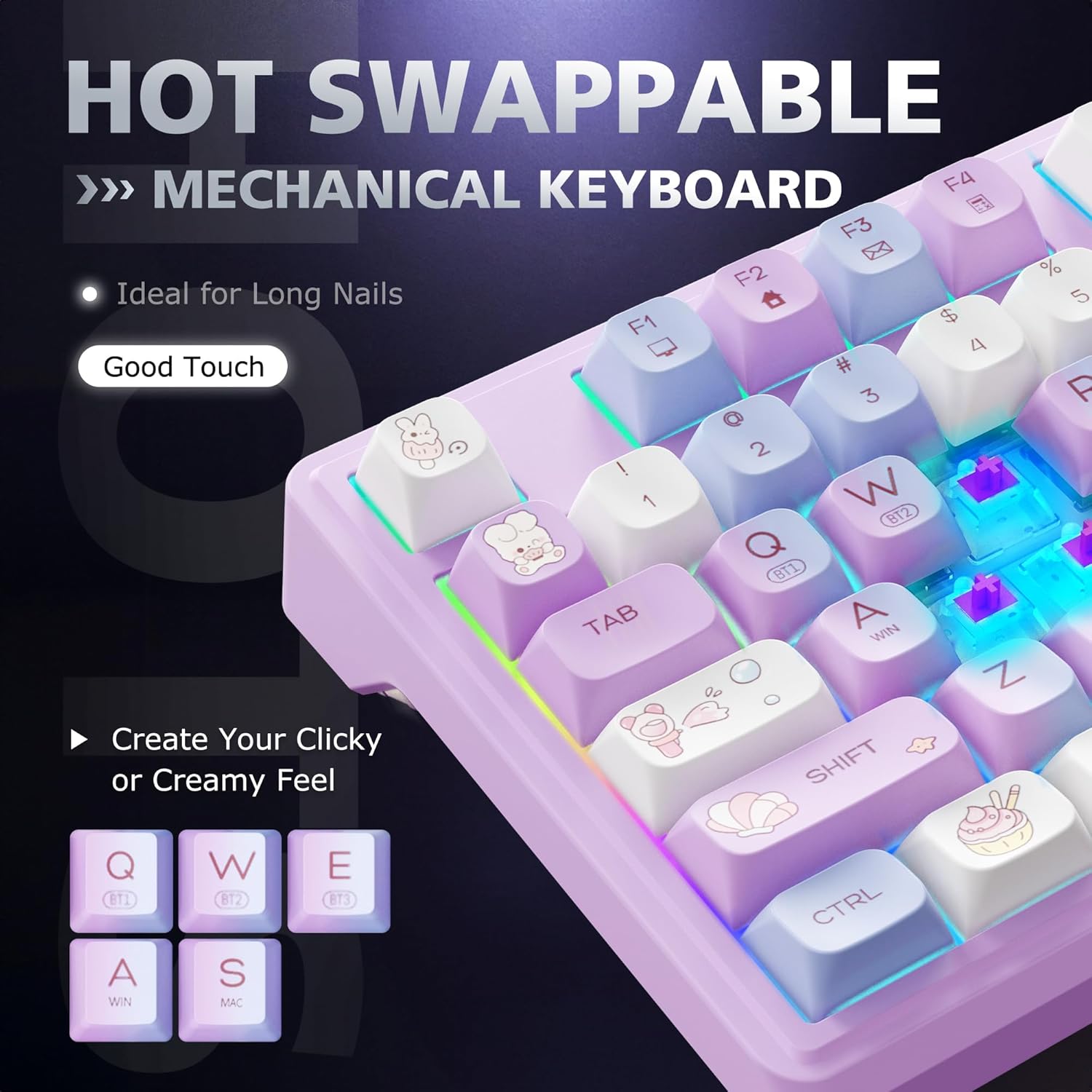
Image: A close-up view of the ROYALAXE F98-XRQK keyboard with several keycaps and switches removed, demonstrating the hot-swappable feature.
6. Maintenance
- Cleaning: Use a soft, dry cloth to wipe the keyboard surface. For deeper cleaning, remove keycaps and use compressed air to clear debris.
- Battery Care: Avoid fully discharging the battery frequently. Charge the keyboard regularly to maintain battery health.
- Storage: Store the keyboard in a cool, dry place away from direct sunlight and extreme temperatures.
7. Troubleshooting
| Problem | Solution |
|---|---|
| Keyboard not responding in wireless mode. |
|
| RGB backlighting not working or stuck. |
|
| Keys not registering or double-typing. |
|
| Keyboard not recognized by Mac/Windows. |
|
8. Specifications
| Feature | Detail |
|---|---|
| Brand | ROYALAXE |
| Model Number | F98-XRQK |
| Connectivity Technology | 2.4GHz Wireless, Bluetooth 5.0, USB-C Wired |
| Compatible Devices | Laptop, Mac, PC, Windows |
| Keyboard Layout | 98% (101-key) QWERTY |
| Switch Type | Hot-Swappable Mechanical |
| Backlighting | RGB |
| Battery Capacity | 4000mAh |
| Product Dimensions (L x W x H) | 40.9L x 14W x 4.4H centimetres |
| Item Weight | 83 Grams |
| Material | Plastic, Metal |
9. Warranty and Support
The ROYALAXE F98-XRQK Wireless Mechanical Keyboard comes with a standard manufacturer's warranty. For specific warranty details, please refer to the warranty card included in your package or contact ROYALAXE customer support.
For technical support or inquiries, please visit the official ROYALAXE website or contact their customer service team.


