1. Introduction
This manual provides essential instructions for the setup, operation, maintenance, and troubleshooting of your Lenovo Idea Tab 11" Tablet. Please read this guide thoroughly to ensure proper use and to maximize the performance and longevity of your device.

Image: The Lenovo Idea Tab 11" Tablet, shown with its accompanying stylus pen and folio case, powered on and displaying the current time.
2. What's in the Box
Verify that all items are present in your product packaging:
- Lenovo Idea Tab 11" Tablet
- Lenovo Tab Pen
- Folio Case
- USB-A to USB-C Charging Cable
- 1 Pen Nib Replacement
- MicroSD Tray Ejection Pin
- Quick Start Guide, Safety & Warranty Guide

Image: A visual representation of the items included in the Lenovo Idea Tab package, detailing the tablet, folio case, pen, and accessories.
3. Setup
3.1 Initial Charging and Power On
- Connect the USB-C charging cable to the tablet's USB-C port and the other end to a compatible power adapter. Charge the tablet for at least 30 minutes before first use.
- Press and hold the Power button (located on the side of the tablet) until the Lenovo logo appears on the screen.
3.2 Initial Setup Wizard
Follow the on-screen prompts to complete the initial setup:
- Select your preferred language.
- Connect to a Wi-Fi network.
- Sign in with your Google account or create a new one.
- Review and accept the terms and conditions.
3.3 Attaching the Folio Case
Align the tablet with the folio case and gently press it into place. The case is designed to protect the tablet and can often be folded to act as a stand.
3.4 Using the Lenovo Tab Pen
The Lenovo Tab Pen is designed for immediate use with the tablet. No pairing is typically required for basic functionality. For advanced features or if the pen is not responsive, ensure it is charged (if applicable) and check tablet settings for pen input options.
4. Operating Instructions
4.1 Basic Navigation
- Touch Gestures: Tap to select, swipe to scroll, pinch to zoom.
- Home Screen: Access apps, widgets, and notifications.
- App Drawer: Swipe up from the bottom of the screen to view all installed applications.
4.2 Using the Lenovo Tab Pen
The Lenovo Tab Pen enhances interaction with your tablet. Use it for precise input, drawing, note-taking, and navigating the interface. Specific applications may offer advanced pen features.

Image: The Lenovo Idea Tab demonstrating the use of the Tab Pen for interacting with AI-powered writing and editing functions on the screen.
4.3 Display Settings
Adjust display settings via the 'Settings' app:
- Brightness: Manually adjust or enable adaptive brightness.
- Resolution: The tablet features a 2560 x 1600 pixel display.
- Refresh Rate: The display supports up to 90 Hz for smoother visuals.
4.4 Connectivity
- Wi-Fi: Connect to wireless networks using 802.11a/b/g/n/ac standards. Access Wi-Fi settings in the 'Settings' app.
- Bluetooth: Pair with Bluetooth devices like headphones or keyboards. Manage Bluetooth connections in 'Settings'.
4.5 Storage Management
Your tablet comes with 128 GB of internal storage. To expand storage, insert a microSD card into the designated slot using the provided ejection pin. Manage storage and view usage in 'Settings > Storage'.
4.6 Camera Usage
The tablet is equipped with an 8 MP rear camera. Open the 'Camera' app to capture photos and videos. Tap the screen to focus and press the shutter button to take a picture.
5. Maintenance
5.1 Cleaning
- Screen: Use a soft, lint-free cloth, slightly dampened with water or a screen cleaner. Avoid harsh chemicals.
- Body: Wipe with a soft, dry cloth.
- Pen: Keep the pen tip clean and free of debris.
5.2 Software Updates
Regularly check for and install software updates to ensure optimal performance and security. Go to 'Settings > System > System update' to check for available updates for Android 15.
5.3 Battery Care
- Avoid extreme temperatures.
- Do not fully discharge the battery frequently.
- For long-term storage, charge the battery to about 50-60%.
6. Troubleshooting
6.1 Common Issues and Solutions
- Tablet not turning on: Ensure the tablet is charged. Connect the charger and wait a few minutes, then try pressing the Power button again.
- Screen unresponsive: Perform a forced restart by holding the Power button for approximately 10-15 seconds until the device restarts.
- Wi-Fi connection issues: Check if Wi-Fi is enabled in settings. Restart your Wi-Fi router and the tablet. Ensure you are within range of the network.
- Lenovo Tab Pen not working: If the pen is battery-powered, ensure it is charged. If it's a passive pen, check for any physical damage. Restart the tablet.
- Slow performance: Close unused applications. Clear app caches in 'Settings > Apps'. Consider uninstalling unnecessary apps.
6.2 Factory Reset
If persistent issues occur, a factory reset may resolve them. Warning: A factory reset will erase all data from your tablet. Back up important data before proceeding. To perform a factory reset, go to 'Settings > System > Reset options > Erase all data (factory reset)'.
7. Specifications
Key technical specifications for the Lenovo Idea Tab 11" Tablet:
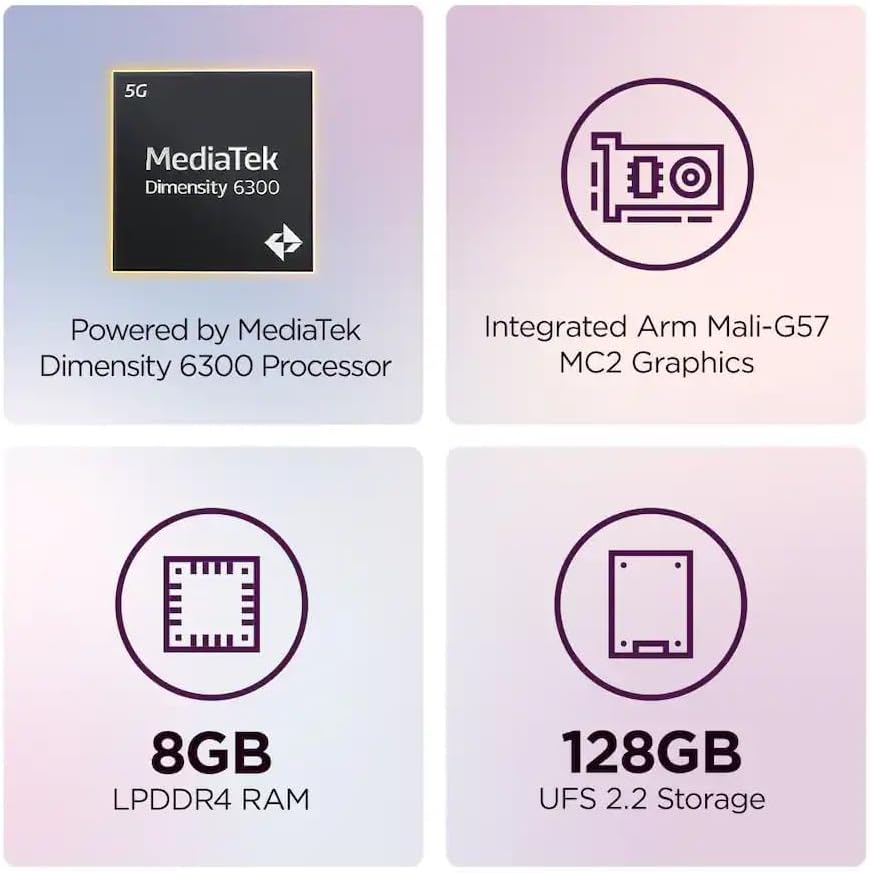
Image: A graphic summary of the Lenovo Idea Tab's core specifications, highlighting its processor, RAM, storage, and graphics capabilities.
| Feature | Specification |
|---|---|
| Model Number | ZAFR0928US-ZG38C06984 |
| Display Size | 11 Inches |
| Screen Resolution | 2560 x 1600 pixels |
| Max Refresh Rate | 90 Hz |
| Operating System | Android 15 |
| Processor Brand | MediaTek Dimensity 6300 |
| RAM | 8 GB |
| Flash Memory Size | 128 GB |
| Rear Webcam Resolution | 8 MP |
| Wireless Type | 802.11a, 802.11ac, 802.11b, 802.11g, 802.11n |
| Item Weight | 2.7 pounds |
| Product Dimensions | 8.31 x 4.91 x 0.33 inches |
| Color | Luna Grey |
8. Warranty and Support
Your Lenovo Idea Tab 11" Tablet is covered by a limited warranty. Please refer to the 'Quick Start Guide, Safety & Warranty Guide' included in your package for detailed warranty terms and conditions.
For technical support, service, or additional information, please visit the official Lenovo support website or contact their customer service. You can find more information at the Lenovo Store on Amazon.


