
Introduction
The ScanSnap iX2400 is a high-performance document scanner designed to streamline your paper-to-digital workflow. This manual provides essential information for setting up, operating, maintaining, and troubleshooting your scanner to ensure optimal performance and efficient document management. It features fast duplex scanning, a 100-sheet automatic document feeder, and stable USB connectivity.
1. Setup Guide
1.1 Unpacking and Initial Placement
Carefully remove the ScanSnap iX2400 scanner and all accessories from its packaging. Place the scanner on a stable, flat surface with adequate space for document feeding and output. The compact design allows it to fit in various office or home environments.
1.2 Connecting the Scanner
The iX2400 uses a wired USB connection for stable and reliable performance. Connect the provided USB-C cable from the scanner to an available USB port on your computer (Mac or PC). Then, connect the power cable and adapter to the scanner and a power outlet.

Image: The ScanSnap iX2400 scanner with its USB-C port visible, illustrating the wired connection for stable performance.
1.3 Software Installation
To utilize the full capabilities of your ScanSnap iX2400, install the ScanSnap Home software. This all-in-one software helps manage, edit, and organize your scanned data. Download the appropriate installation package from the official ScanSnap website for your operating system (Windows or macOS). Follow the on-screen instructions to complete the installation.

Image: A computer screen displaying the ScanSnap Home software interface, designed for automatic organization of scanned documents.
2. Operating Instructions
2.1 Powering On and Loading Documents
Open the scanner's lid to automatically power on the device. The scanner will be ready for use in approximately 2 seconds. Load your documents face down and facing the rear into the automatic document feeder (ADF). The ADF has a capacity of up to 100 sheets. Adjust the paper guides to fit the width of your documents.
2.2 One-Touch Scanning
Press the large blue 'Scan' button on the scanner. The iX2400 will begin scanning documents at speeds up to 45 pages per minute, even for double-sided documents. The Quick Menu feature allows you to quickly scan and drag-and-drop files to your preferred computer applications.

Image: A close-up view of the ScanSnap iX2400's prominent one-touch scan button, highlighting its simplicity of use.
2.3 Supported Document Types
The ScanSnap iX2400 is versatile and can handle a wide range of document types, including:
- Standard documents (Letter/A4)
- Business cards
- Receipts (use the included receipt guide for smaller items)
- Photos
- Plastic cards (e.g., ID cards, insurance cards)

Image: The ScanSnap iX2400 scanning a variety of items including documents, plastic cards, receipts, business cards, and photos.
2.4 Automatic Image Cleanup Features
The scanner automatically enhances image quality and organizes your scans with features such as:
- Automatic document size and color depth detection
- Removal of streaks and blank pages
- De-skewing and automatic rotation
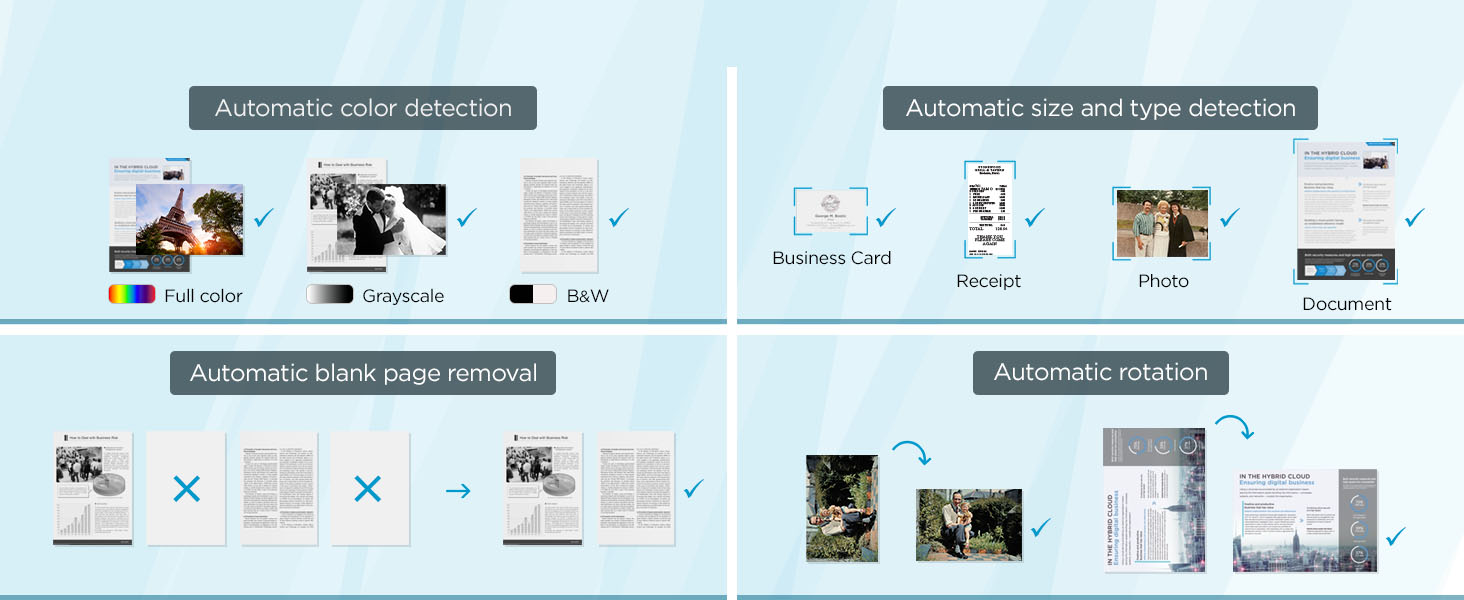
Image: A visual representation of the ScanSnap iX2400's automatic image cleanup capabilities, including blank page removal, auto rotation, and auto sizing.
3. Maintenance
3.1 Cleaning the Scanner
Regular cleaning ensures consistent scan quality and extends the life of your scanner. Use a soft, lint-free cloth to wipe the exterior of the scanner. For internal components like rollers and glass, refer to the ScanSnap Home software's maintenance section or the online support resources for detailed instructions on using approved cleaning kits.
3.2 Roller and Pad Replacement
Over time, the feed rollers and separation pads may wear out, leading to paper feeding issues. Consult the ScanSnap Home software or the manufacturer's website for information on checking the consumable counter and ordering replacement parts. Follow the provided instructions for proper replacement.
4. Troubleshooting
4.1 Paper Jams
If a paper jam occurs, the scanner will pause. Open the scanner lid and carefully remove any jammed paper. Ensure no torn pieces remain inside. Close the lid, and the scanner should resume scanning from where it left off. Always ensure documents are free of staples, paper clips, and tears before feeding.
4.2 Connectivity Issues
If the scanner is not recognized by your computer:
- Verify the USB-C cable is securely connected to both the scanner and the computer.
- Ensure the scanner is powered on (lid open, blue light illuminated).
- Try connecting the scanner directly to a USB port on your PC, bypassing any USB hubs, as some hubs may interfere with recognition.
- Restart your computer and the scanner.
4.3 Image Quality Concerns
If scans appear skewed, have streaks, or are unclear:
- Skewed Images: Ensure documents are properly aligned in the feeder and the paper guides are adjusted correctly.
- Streaks or Unclear Images: Clean the scanner's internal components, especially the glass and rollers, as dust or debris can affect scan quality.
- Incorrect Color/Blank Pages: Verify that the automatic image cleanup features are enabled in the ScanSnap Home software.
5. Specifications
| Scanner Type | Document, Business Card, Photo, Receipt, ID Card, Insurance Card |
| Brand | ScanSnap |
| Model Name | iX2400 |
| Connectivity Technology | USB |
| Product Dimensions (D x W x H) | 6.26"D x 11.5"W x 6.34"H |
| Resolution | 600 dpi |
| Item Weight | 7.1 Pounds |
| Wattage | 17 watts |
| Standard Sheet Capacity | 100 |
| Optical Sensor Technology | CIS |
| Paper Size | Letter/A4 |
| Minimum System Requirements | Microsoft Windows 11 (64-bit), Windows 10 (32-bit / 64-bit), ARM, Intel or Intel-compatible processors; macOS Monterey 12 or later, Intel or Apple processors |
6. Warranty Information
The ScanSnap iX2400 comes with a 1 Year Manufacturer Warranty. For detailed terms and conditions, please refer to the warranty documentation included with your product or visit the official ScanSnap support website.
7. Support and Resources
For further assistance, software updates, and additional resources, please visit the official ScanSnap support website. You can also find FAQs and community forums to help with common questions and issues.
- Online Support: www.scansnap.com
- ScanSnap Home Software: Access comprehensive help and guides directly within the application.


