
1. Introduction
The Bemkia Wireless CarPlay and Android Auto Adapter is designed to convert your vehicle's existing wired CarPlay or Android Auto system into a wireless connection. This device allows for seamless integration of your smartphone's features, including navigation, music, and calls, directly onto your car's infotainment screen without the need for physical cables.

Image 1.1: The Bemkia Wireless CarPlay and Android Auto Adapter, showcasing its compact design and included USB-A and USB-C cables.
2. Package Contents
Please verify that all items are present in the package:
- 1x Bemkia Wireless CarPlay and Android Auto Adapter
- 1x USB-A to USB-C Cable
- 1x USB-C to USB-A Cable
- 1x User Manual
Video 2.1: Unboxing the Bemkia Wireless CarPlay and Android Auto Adapter, showing the adapter, cables, and user manual.
3. Compatibility
This adapter is compatible with vehicles equipped with factory-wired CarPlay (model year 2016 and newer). It supports iPhone devices running iOS 12 or later (iPhone 5S and newer) and Android phones compatible with Android Auto (Android 11 and newer).
To check if your car model is compatible with CarPlay, please visit the official Apple website: Apple CarPlay Compatible Models.

Image 3.1: Visual representation of device and vehicle compatibility for the adapter, including various iPhone models and car brands.
4. Setup Instructions
Follow these steps to set up your Bemkia Wireless CarPlay and Android Auto Adapter:
- Step 1: Prepare Your Phone
Ensure that both Bluetooth and Wi-Fi functions are enabled on your smartphone. It is recommended to temporarily disconnect from any other Wi-Fi networks or turn off mobile hotspots before pairing to avoid conflicts. - Step 2: Connect the Adapter
Plug the wireless adapter into your car's USB port. Use the appropriate USB-A or USB-C cable provided, depending on your car's port type. The adapter's LED light will illuminate blue upon successful connection. - Step 3: Pair with Your Phone
On your car's infotainment screen, a guide will appear displaying the Bluetooth name (e.g., 'Smartbox-8950') and firmware version. On your phone, navigate to Bluetooth settings, find the adapter's Bluetooth name, and tap to connect. Accept any pairing requests. Once paired, CarPlay or Android Auto will launch automatically.

Image 4.1: Illustration of plugging the wireless adapter into the car's USB port using either a USB-A or USB-C cable.

Image 4.2: Screenshots demonstrating how to enable Bluetooth and Wi-Fi on a smartphone and the Bluetooth pairing request.
Video 4.1: A step-by-step guide on connecting the K8 Wireless CarPlay adapter, including unboxing, plugging in, and Bluetooth pairing.
5. Operating Instructions
Once successfully paired, the adapter will automatically connect to your phone each time you start your car. The system maintains all original car controls, including the touchscreen, steering wheel buttons, and voice assistant functionality (e.g., Siri).
- Automatic Reconnection: After initial setup, the adapter will automatically establish a wireless connection with your paired smartphone when the car is started.
- Seamless Integration: Enjoy navigation, music streaming, hands-free calling, and messaging directly from your car's display.
- Original Controls: Continue to use your car's native controls, such as rotary knobs, steering wheel buttons, and the touchscreen, to interact with CarPlay or Android Auto. Voice commands are also fully supported.
- High Performance: Equipped with a dual-core chip and 1GB RAM, the adapter ensures fast boot-up times (8-12 seconds) and smooth, lag-free operation for streaming and navigation.
- Stable Connection: Bluetooth 5.3 and Wi-Fi 5.8GHz technologies provide a robust and stable connection, minimizing interruptions even in areas with weak signal.

Image 5.1: The CarPlay interface displayed on a car's screen, highlighting the use of original car controls like rotary knobs, touchscreen, and steering wheel buttons.
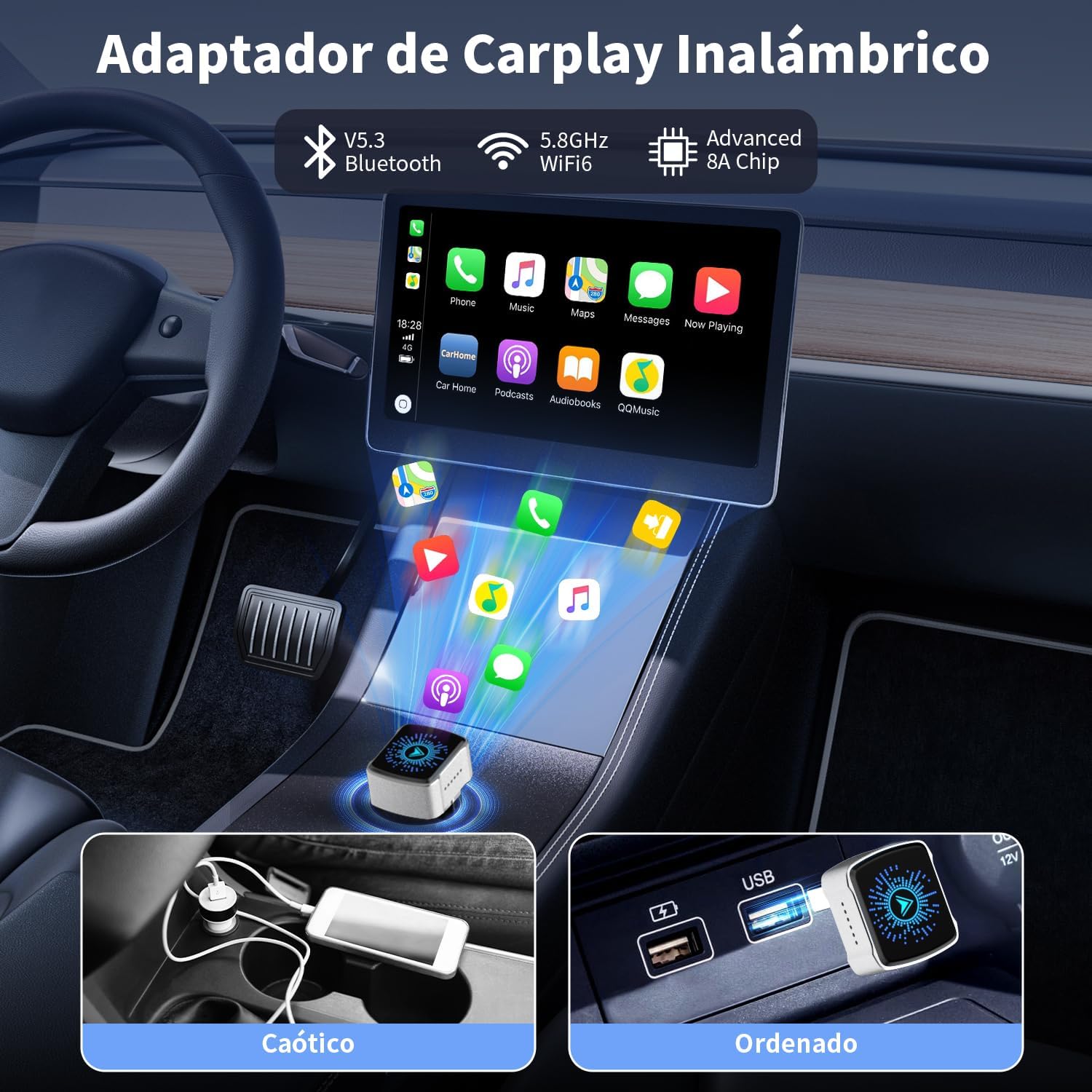
Image 5.2: A visual comparison illustrating the difference between a cluttered wired connection and an organized, wireless setup using the adapter.
6. Product Features and Design
The Bemkia adapter features a premium, ultra-compact design for discreet integration into your vehicle.
- Premium & Compact Design: Constructed with an aluminum casing and 2.5D curved glass, the adapter is mini-sized (2.5 x 2.15 x 1.5 cm) and resistant to heat and vibrations.
- Universal USB Compatibility: Includes both USB-A and USB-C cables to ensure compatibility with various car models.
- Efficient Heat Dissipation: Designed with heat dissipation holes to maintain optimal performance and longevity.

Image 6.1: Close-up view of the adapter's exquisite craftsmanship, highlighting its 2.5D curved glass, aluminum casing, heat dissipation holes, and ultra-compact dimensions.
7. Troubleshooting
If you encounter issues, consider the following:
- No Connection: Ensure your car's wired CarPlay/Android Auto is functional before connecting the adapter. Verify that Bluetooth and Wi-Fi are active on your phone and that you have selected the correct Bluetooth device name for the adapter.
- Intermittent Connection: Check for potential interference from other wireless devices. Ensure the adapter is securely plugged into the car's USB port.
- Lag or Performance Issues: Restart your phone and the car's infotainment system. Ensure your phone's operating system is up to date.
- Firmware Updates: The manufacturer provides free firmware updates. Refer to the official Bemkia support channels for instructions on how to update the adapter's firmware, which can resolve compatibility or performance issues.
8. Specifications
| Feature | Detail |
|---|---|
| Brand | Bemkia |
| Model | K8 |
| Product Dimensions | 2.15 x 1.5 x 2.5 cm |
| Product Weight | 50 g |
| Compatible Devices | Cars with factory-wired CarPlay (2016+), iPhone (iOS 12+), Android phones (Android Auto compatible) |
| Connectivity | Bluetooth 5.3, Wi-Fi 5.8GHz |
| Connector Type | USB Type-A, USB Type-C |
| RAM | 1GB |
| Chip | Dual-Core |
9. Warranty and Support
Bemkia offers lifetime support and free firmware updates for this product. For technical assistance, warranty claims, or to access the latest firmware, please refer to the contact information provided in your product packaging or visit the official Bemkia website.