
Introduction
This manual provides essential instructions for the safe and efficient use of your Ulefone Armor 34 5G Rugged Smartphone and the accompanying Endoscope E02. Please read this manual thoroughly before operating the device.
Setup
1. Unboxing and Initial Inspection
Carefully unpack all components. Verify that all items listed in the packaging contents are present and undamaged. If any items are missing or damaged, contact customer support.
2. SIM Card and Storage Expansion Installation
Locate the SIM/SD card tray on the side of the device. Use the provided SIM ejector tool to open the tray. Insert your Nano-SIM cards and/or a microSD card (up to 2TB) into the designated slots. Ensure the tray is securely closed to maintain water and dust resistance.
3. Initial Charging
Before first use, fully charge the device. Connect the provided 66W fast charger to the charging port. The device features a 25500mAh battery. A full charge may take several hours. The device supports 10W reverse charging, allowing it to act as a power bank for other devices.

Image: The Ulefone Armor 34's large 25500mAh battery, illustrating 66W fast charging and 10W reverse charging capabilities. This image highlights the device's power features, including its ability to charge other devices.
4. Powering On/Off
To power on, press and hold the Power button until the Ulefone logo appears. To power off, press and hold the Power button, then select 'Power off' from the options.
5. Connecting the Endoscope E02
The Endoscope E02 connects to the uSmart Expansion Connector on the device. Align the connector pins and gently push the endoscope cable into the port until it is secure. The device will automatically detect the endoscope. Refer to the endoscope's specific application for operation.

Image: The Ulefone Endoscope E02 cable with its magnetic connector and included accessories like hooks and a magnet. This image shows the physical components of the endoscope accessory.
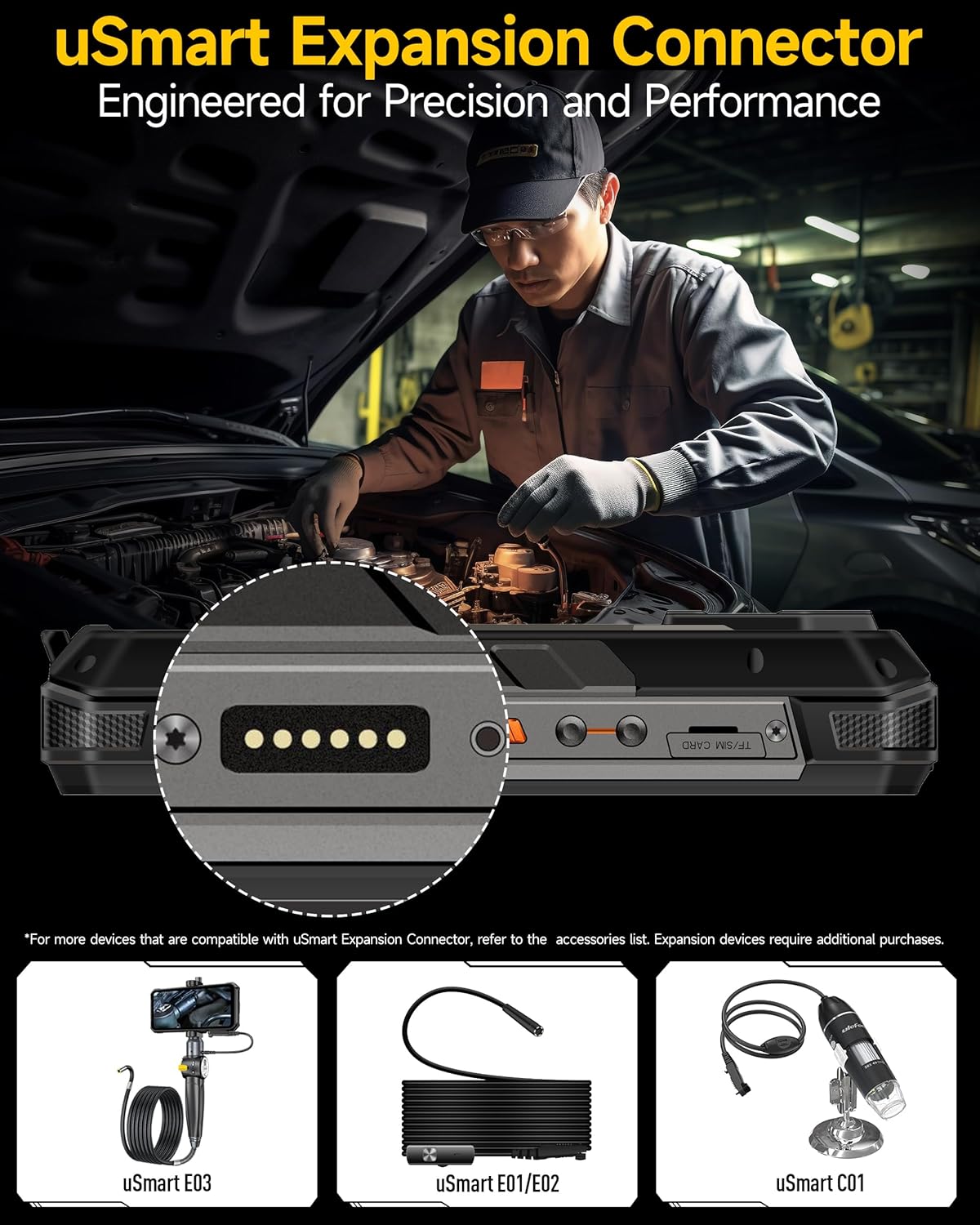
Image: A close-up view of the Ulefone Armor 34's uSmart Expansion Connector, showing the pogo pins for connecting accessories like the endoscope. The image also displays other compatible uSmart devices.
Operating Instructions
1. Display and Navigation
The Ulefone Armor 34 features a 6.95-inch FHD+ display with a 120Hz refresh rate. Navigate the Android 15 operating system using touch gestures. Swipe, tap, and pinch to interact with applications and menus.

Image: The Ulefone Armor 34 showcasing its 6.95-inch FHD+ 120Hz display, highlighting its resolution, brightness, and pixel density. The image emphasizes the visual quality of the screen.
2. Camera Functions
The device is equipped with a versatile camera system:
- 64MP Night Vision Camera: Utilizes 4 IR LEDs and an OV64B sensor for enhanced visibility in low-light conditions. Access this mode through the camera application.
- 50MP Primary Camera: Features a 1/1.3" ultra-large sensor for high-resolution photos.
- 50MP Ultra-wide Camera: Offers a 117.3° field of view for capturing broader scenes.
- 32MP Front Camera: For selfies and video calls.
Open the Camera app to select different modes and settings.

Image: A detailed view of the Ulefone Armor 34's rear camera module, highlighting the 64MP Night Vision camera with its 4 IR LEDs, the 50MP primary sensor, and the 50MP ultra-wide macro camera. Examples of photos taken in different modes are also shown.
3. Endoscope E02 Operation
Once connected, open the dedicated endoscope application on your smartphone. The Endoscope E02 features dual cameras (front and side) and 7 adjustable LED lights. Use the app to switch between cameras, adjust LED brightness, and capture images or videos of hard-to-reach areas.
4. Versatile LED Light
The device includes a powerful 1100LM LED light (6.5W, IPX8 waterproof). This can be used as a flashlight or an emergency warning light. Access its functions through the quick settings panel or a dedicated app. The warning light offers constant and blink modes with red and blue LEDs.
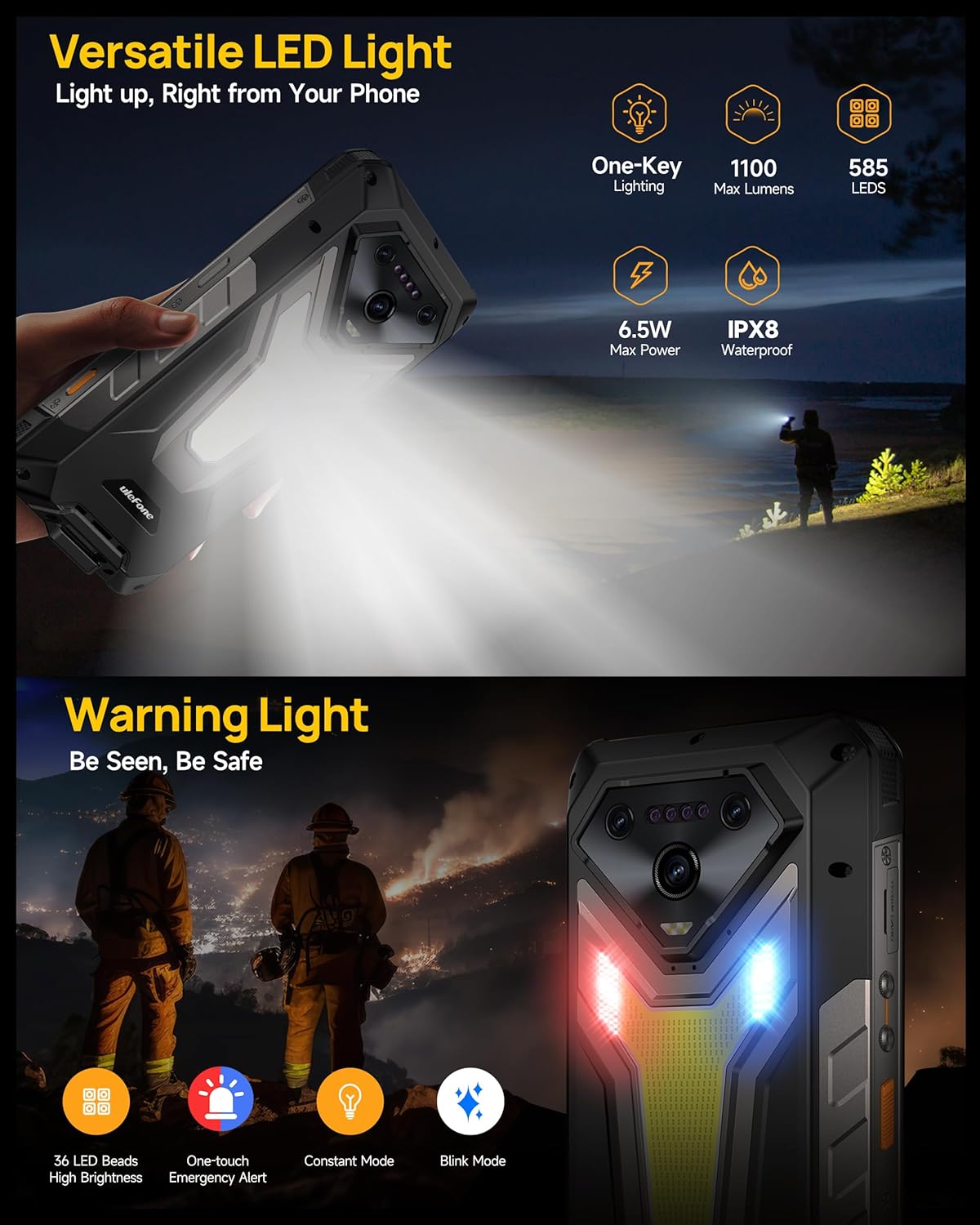
Image: The Ulefone Armor 34 demonstrating its versatile LED light, showing its brightness (1100 lumens) and power (6.5W). It also illustrates the warning light feature with red and blue LEDs for emergency situations.
5. Reverse Charging
To use your Armor 34 as a power bank, connect another device using a compatible USB-C to USB-C cable or an OTG adapter with a standard USB cable. Enable reverse charging in the settings menu if it doesn't start automatically.
Maintenance
1. Cleaning
To clean the device, wipe it with a soft, damp cloth. Avoid using harsh chemicals or abrasive materials. Ensure all port covers are securely closed before cleaning with water. For the endoscope, gently clean the camera lens with a soft, lint-free cloth.
2. Water and Dust Resistance
The Ulefone Armor 34 is IP68/IP69K rated and MIL-STD-810H certified for ruggedness. This means it is resistant to dust, water immersion (up to 2 meters for 30 minutes), and drops. However, these ratings are not permanent and resistance may decrease over time with normal wear. Ensure all port covers are tightly sealed before exposing the device to water or dust.
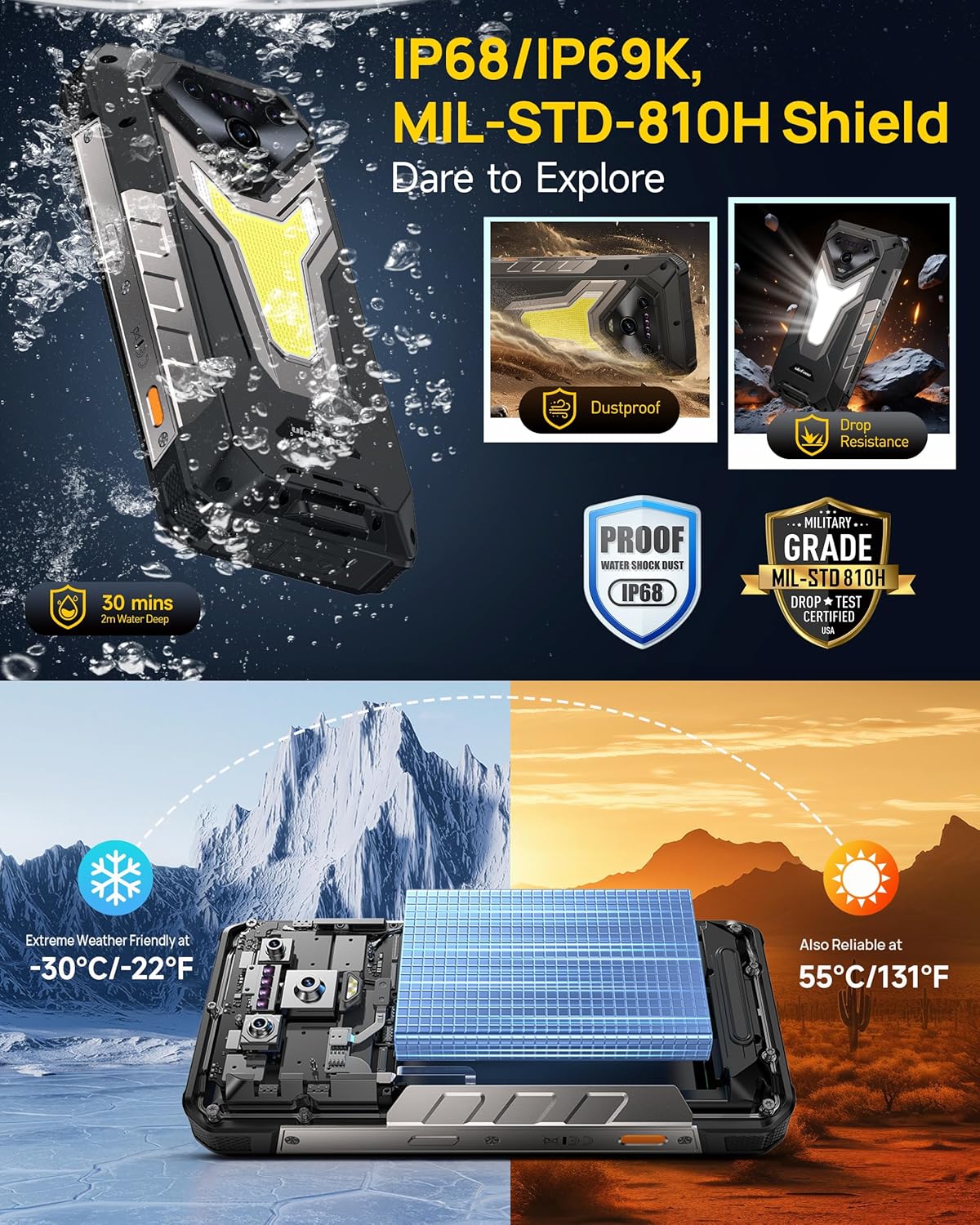
Image: The Ulefone Armor 34 demonstrating its rugged features, including IP68/IP69K water and dust resistance, MIL-STD-810H drop resistance, and extreme temperature tolerance from -30°C to 55°C.
3. Battery Care
To prolong battery life, avoid exposing the device to extreme temperatures for extended periods. Charge the device regularly, but avoid constantly keeping it at 100% or letting it fully discharge to 0% frequently.
4. Software Updates
Regularly check for and install software updates to ensure optimal performance, security, and access to new features. Updates can typically be found in the device's settings menu under 'System' or 'About phone'.
Troubleshooting
Device Not Powering On
- Ensure the battery is charged. Connect the charger and wait a few minutes before attempting to power on.
- Press and hold the Power button for at least 10-15 seconds to perform a forced restart.
Charging Issues
- Verify the charger and cable are securely connected and undamaged.
- Try a different compatible charger and cable.
- Ensure the charging port is clean and free of debris.
Endoscope Not Detected/Working
- Ensure the Endoscope E02 is correctly and firmly connected to the uSmart Expansion Connector.
- Restart the smartphone.
- Check if the dedicated endoscope application is installed and updated.
Poor Network Connectivity
- Check if your SIM card is properly inserted and activated.
- Ensure mobile data or Wi-Fi is enabled.
- Restart the device.
- Check network settings (APN, preferred network type).
Device Freezing/Unresponsive
- Perform a forced restart by holding the Power button.
- If issues persist, consider performing a factory reset (back up your data first).
Specifications
| Model | Ulefone Armor 34 |
| Operating System | Android 15 |
| Processor | MediaTek Dimensity 7300, MediaTek NPU 655 |
| RAM | 32GB (16GB LPDDR5 + 16GB Expanded RAM) |
| Internal Storage | 512GB UFS3.1 (Expandable up to 2TB via microSD) |
| Display | 6.95-inch FHD+ (1080 x 2460), 120Hz Refresh Rate, 600 nits Peak Brightness, 387 PPI, Corning Gorilla Glass 5 |
| Battery | 25500mAh, 66W Fast Charging, 10W Reverse Charging |
| Rear Cameras | 50MP Primary (1/1.3" sensor), 50MP Ultra-wide (117.3° FOV), 64MP Night Vision (OV64B sensor, 4 IR LEDs) |
| Front Camera | 32MP |
| Endoscope | uSmart E02: Dual Cameras, 7 Adjustable LED Lights |
| Ruggedness | IP68/IP69K, MIL-STD-810H Certified, -30°C to 55°C Operating Temperature |
| LED Light | 1100LM, 6.5W, IPX8, Warning Light (Red/Blue) |
| Connectivity | Dual 5G, Wi-Fi, Bluetooth (specific versions not provided) |

Image: An infographic detailing the Ulefone Armor 34's internal specifications, including the MediaTek Dimensity 7300 SoC, 32GB RAM (16GB LPDDR5 + 16GB expanded), 512GB ROM, and MediaTek NPU 655 for enhanced AI performance.
Warranty Information
Ulefone products typically come with a limited manufacturer's warranty. The duration and terms of the warranty may vary by region and retailer. Please refer to the warranty card included in your product packaging or visit the official Ulefone website for detailed warranty information. Keep your proof of purchase for warranty claims.
Customer Support
For technical assistance, troubleshooting, or service inquiries, please contact Ulefone customer support. You can usually find contact information on the official Ulefone website or through your retailer. When contacting support, please have your product model (Armor 34) and ASIN (B0FWC3JFBB) ready.
Official Ulefone Website: www.ulefone.com


