
Yealink SIP-T73U
Yealink SIP-T73U IP Phone User Manual
Model: SIP-T73U | Brand: Yealink
1. Product Overview
The Yealink SIP-T73U is an advanced IP phone designed for professional communication environments. It features a large 3.7-inch display and supports up to 12 VoIP accounts. Equipped with Yealink's Optima Voice HD technology and the Opus wideband codec, the SIP-T73U delivers exceptional audio clarity. This model includes two USB ports, supports Power over Ethernet (PoE), and is compatible with EHS headsets. It also supports expansion modules with color screens and integrates Bluetooth and Wi-Fi connectivity. The unified firmware ensures consistent performance across the T7U series.
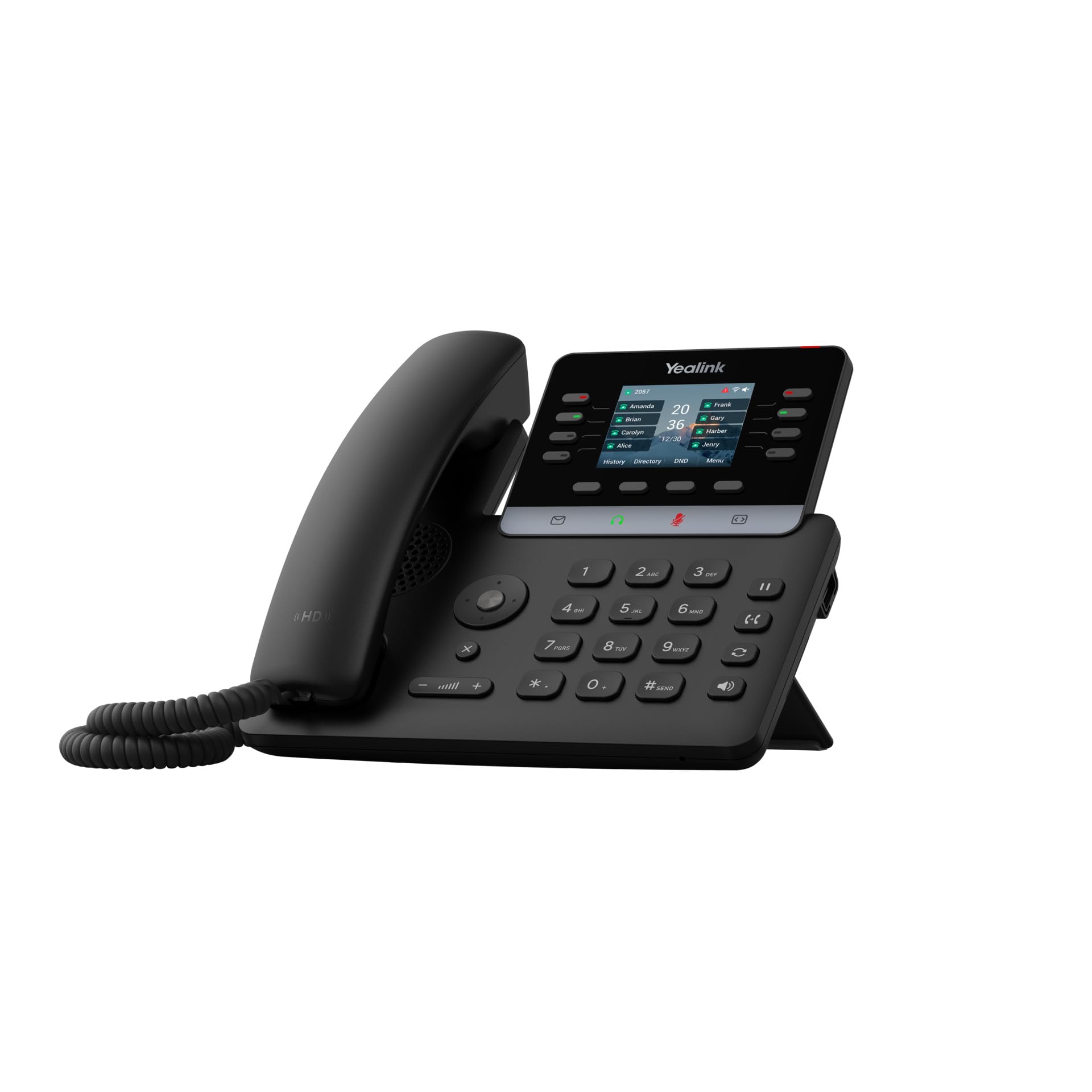
Figure 1: Yealink SIP-T73U IP Phone in a typical office setting.
2. Package Contents
Before installation, please verify that all items are present in your package:
- Yealink SIP-T73U IP Phone unit
- Handset with coiled cord
- Ethernet cable (LAN cable)
- Quick Start Guide
- Power Adapter (if not using PoE)
Note: The power adapter may not be included if the phone is designed primarily for Power over Ethernet (PoE) deployments.
3. Key Features
- Supports up to 12 VoIP accounts.
- One-touch speed dial, redial, call transfer, call waiting.
- Call forwarding, call hold, group listening, emergency call.
- Mute, auto answer, Do Not Disturb (DND), hotline.
- 5-way conference calling.
- Direct IP call without SIP proxy.
- Customizable ringtones (select/import/delete).
- Manual or automatic date and time setting.
- Dial plan, XML browser, Action URL/URI.
- RTCP-XR (RFC3611), VQ-RTCPXR (RFC6035) support.
- Two USB ports (2.0 compatible).

Figure 2: Front view of the Yealink SIP-T73U, highlighting the display and keypad.
4. Setup Guide
- Connect the Handset: Plug the coiled cord into the handset port on the phone base and into the handset.
- Connect the Network:
- Connect one end of the Ethernet cable to the INTERNET port on the phone.
- Connect the other end of the Ethernet cable to a network switch or router.
- If using PoE, the phone will power on automatically.
- Connect Power (if not using PoE): If PoE is not available, connect the power adapter to the DC 5V port on the phone and then to a power outlet.
- Initial Boot-up: The phone will power on and begin the boot-up sequence. This may take a few minutes.
- Configuration: Once booted, the phone will attempt to obtain network settings via DHCP and connect to your VoIP server. You may need to manually configure SIP account details via the phone's menu or a web interface, as provided by your VoIP service provider or IT administrator.

Figure 3: Side view of the Yealink SIP-T73U, illustrating port locations for connections.
5. Operating Instructions
5.1 Making Calls
- Dialing: Pick up the handset or press the Speaker button. Enter the phone number using the keypad and press the Dial or Send soft key.
- Speed Dial: Press a pre-configured speed dial key or use the directory.
- Redial: Press the Redial soft key to call the last dialed number.
5.2 Answering Calls
- When the phone rings, pick up the handset or press the Speaker button.
- Alternatively, press the Answer soft key.
5.3 Call Management
- Hold: During a call, press the Hold soft key. Press it again to resume.
- Transfer: During a call, press the Transfer soft key, dial the new number, and press Transfer again (blind transfer) or wait for the other party to answer before pressing Transfer (attended transfer).
- Conference: During a call, press the Conf soft key, dial the number of the third party, and press Conf again to join all parties.
- Mute: Press the Mute button to mute your microphone. Press again to unmute.

Figure 4: Angled view of the Yealink SIP-T73U, showcasing the ergonomic design and display visibility.
6. Maintenance
- Cleaning: Use a soft, dry cloth to clean the phone's surface. Do not use abrasive cleaners or solvents.
- Environment: Keep the phone away from direct sunlight, heat sources, and excessive moisture.
- Firmware Updates: Regularly check for and apply firmware updates provided by Yealink or your service provider to ensure optimal performance and security.
- Cable Management: Ensure all cables are securely connected and not under strain.
7. Troubleshooting
7.1 No Dial Tone
- Check if the Ethernet cable is securely connected to both the phone and the network.
- If not using PoE, ensure the power adapter is correctly connected and the phone is receiving power.
- Verify network connectivity and ensure your VoIP service is active.
7.2 Cannot Make or Receive Calls
- Confirm that your SIP account is registered. Check the phone's display for registration status.
- Ensure the phone has an IP address. If not, check network settings.
- Contact your VoIP service provider or IT administrator for account-specific issues.
7.3 Poor Audio Quality
- Check your network connection for stability and bandwidth.
- Ensure there is no interference from other electronic devices.
- Try adjusting the volume on the handset or speaker.
8. Specifications
| Brand | Yealink |
| Model | SIP-T73U |
| Color | Black |
| Phone Type | Corded |
| Material | Plastic |
| Power Source | Electric Cable (PoE compatible) |
| Dialer Type | Single Keypad |
| Dimensions (L x W x H) | 10.2 x 23.1 x 23.7 cm (4.0 x 9.1 x 9.3 inches) |
| Item Weight | 450 Grams (0.99 lbs) |
| Compatible Devices | Ethernet Network, VoIP Services |
| Conference Call Capability | Basic (5-way conference) |
| Multi-line Operation | Yes |
| Caller ID | Yes |
| International Article Code | 06938818320680 |
9. Warranty and Support
9.1 Warranty Information
This product is covered by a warranty in accordance with current applicable laws. For specific warranty terms and conditions, please refer to the documentation provided at the time of purchase or contact your vendor.
9.2 Technical Support
For technical assistance, troubleshooting, or further inquiries, please contact your VoIP service provider or the authorized Yealink reseller from whom you purchased the product. You can also visit the official Yealink website for support resources, FAQs, and firmware downloads:
Related documentsSIP-T73U


Ask a question about this manual
Ask about setup, troubleshooting, compatibility, parts, safety, or missing instructions. Manuals+ will review the question and use this page’s manual context to help answer it.