
Introduction
The KAMING AI Box Wireless CarPlay & Android Auto Adapter (Model Z2) transforms your wired CarPlay or Android Auto system into a wireless one, offering enhanced multimedia and navigation capabilities. This device supports both Apple CarPlay (iOS 9+) and Android Auto (Android 10+) and is compatible with a wide range of car models that feature OEM wired CarPlay. It integrates a 4-core upgraded smart IC chip with 5G/2.4G dual-band technology for stable and responsive performance, allowing access to streaming services like Netflix and YouTube directly on your car's display.
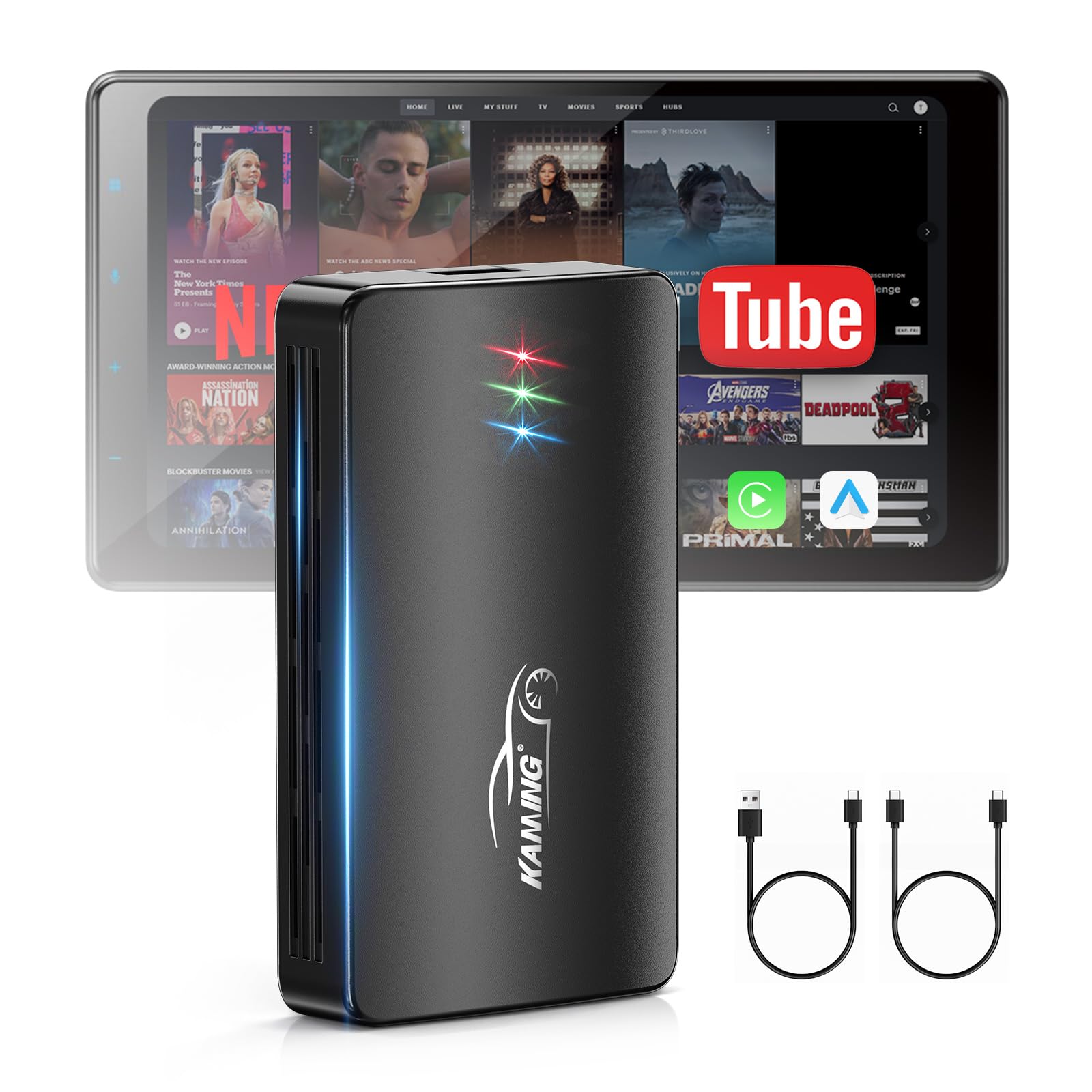
Image: The KAMING AI Box connected in a car, displaying the user interface on the car's screen.
Setup Instructions
What's Included
- 1 x KAMING AI Box Wireless CarPlay & Android Auto Adapter
- 1 x USB-C to A Cable
- 1 x USB-C to C Cable
- 1 x User Manual
Initial Connection
The KAMING AI Box is designed for true plug-and-play functionality. After the initial setup, the adapter will automatically pair with your car and phone within seconds upon starting your vehicle. Simply connect the device to your car's existing wired CarPlay USB port. For optimal performance, ensure your phone's previous Bluetooth/Wi-Fi connection to the car is disconnected before initiating the setup process.

Image: Connecting the KAMING AI Box to the car's USB port for plug-and-play operation.

Image: Detailed view of the KAMING AI Box ports and indicator lights, along with included cables.
Pairing with Your Phone (CarPlay)
Follow these steps to pair your iPhone with the KAMING AI Box for Wireless CarPlay:
- Connect the Z2 box to your car's USB port.
- On your car's screen, click the 'CarPlay' icon.
- On your iPhone, turn on both Wi-Fi and Bluetooth simultaneously.
- Search for the Z2 box's Bluetooth name (e.g., 'BT-XXXX') in your iPhone's Bluetooth settings and pair.
- After successful pairing, your car's screen will automatically switch to CarPlay.
Video: Demonstrates the process of connecting and using the Apple CarPlay Adapter.
Pairing with Your Phone (Android Auto)
Follow these steps to pair your Android phone with the KAMING AI Box for Wireless Android Auto:
- Connect the Z2 box to your car's USB port.
- On your car's screen, click the 'Auto' icon.
- On your Android phone, turn on both Wi-Fi and Bluetooth simultaneously.
- Search for the Z2 box's Bluetooth name (e.g., 'BT-XXXX') in your Android phone's Bluetooth settings and pair.
- After successful pairing, your car's screen will automatically switch to Android Auto.
Operating Instructions
Wireless CarPlay and Android Auto Functionality
The KAMING AI Box supports both Apple CarPlay and Android Auto, providing a seamless wireless connection to your smartphone. It is compatible with iPhones (iOS 9+) and Android phones (Android 10+) and works with approximately 95% of cars equipped with OEM wired CarPlay. The device features a powerful 5G dual-band chip with a 4-core upgraded smart IC, enhancing Wi-Fi signals, reducing call delays, minimizing music noise, and providing ultra-responsive GPS navigation without lag or dropouts.

Image: The KAMING AI Box highlighting its 3-in-1 capabilities for Wireless CarPlay, Android Auto, and Android 11 OS.
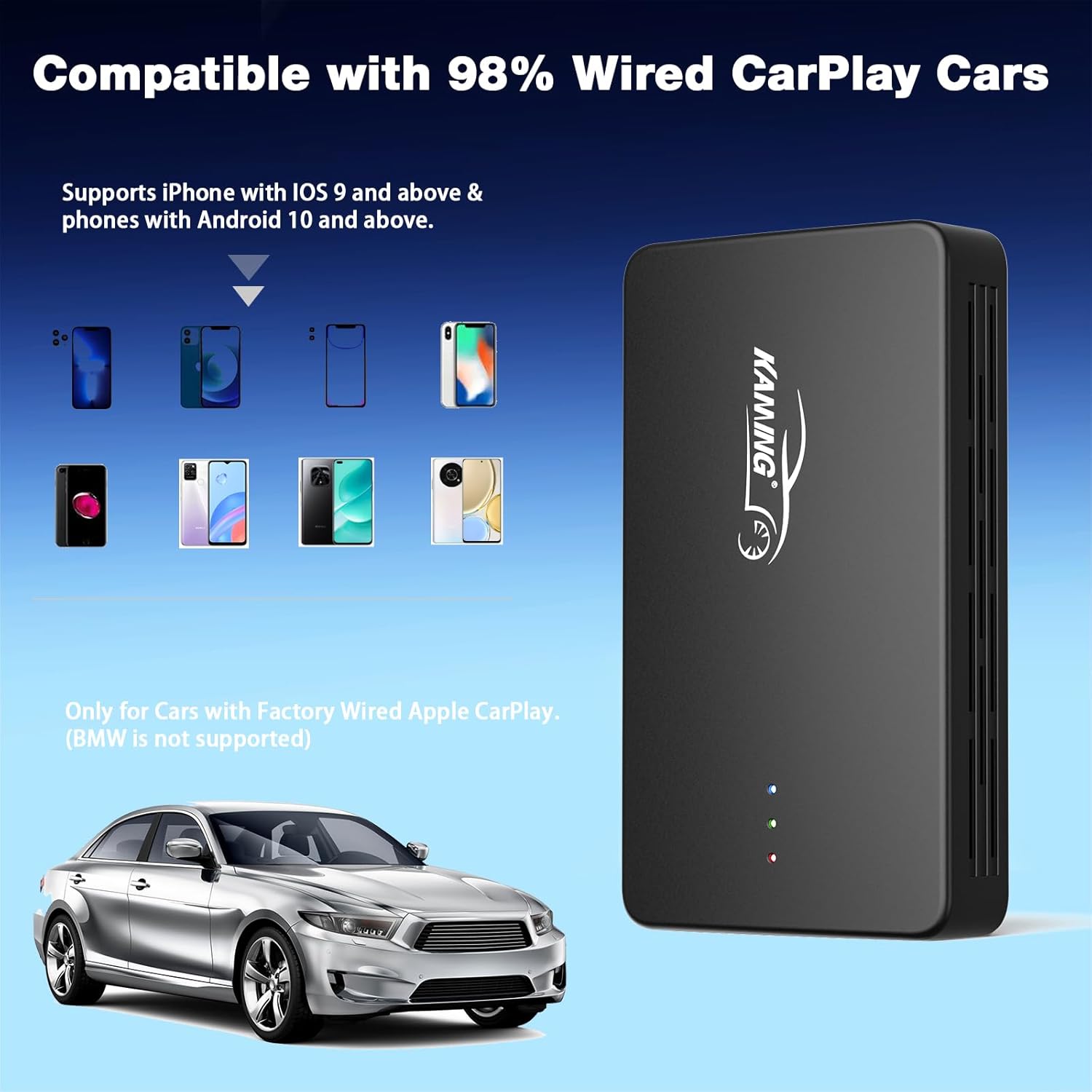
Image: Compatibility overview for the KAMING AI Box with different phone models and car types.
Multimedia Features
This wireless adapter allows you to watch online videos from built-in Netflix and YouTube applications directly on your car's display. You can also play offline videos or music via a USB drive, making it ideal for road trips and daily commutes. The device ensures a smooth and enjoyable media experience.
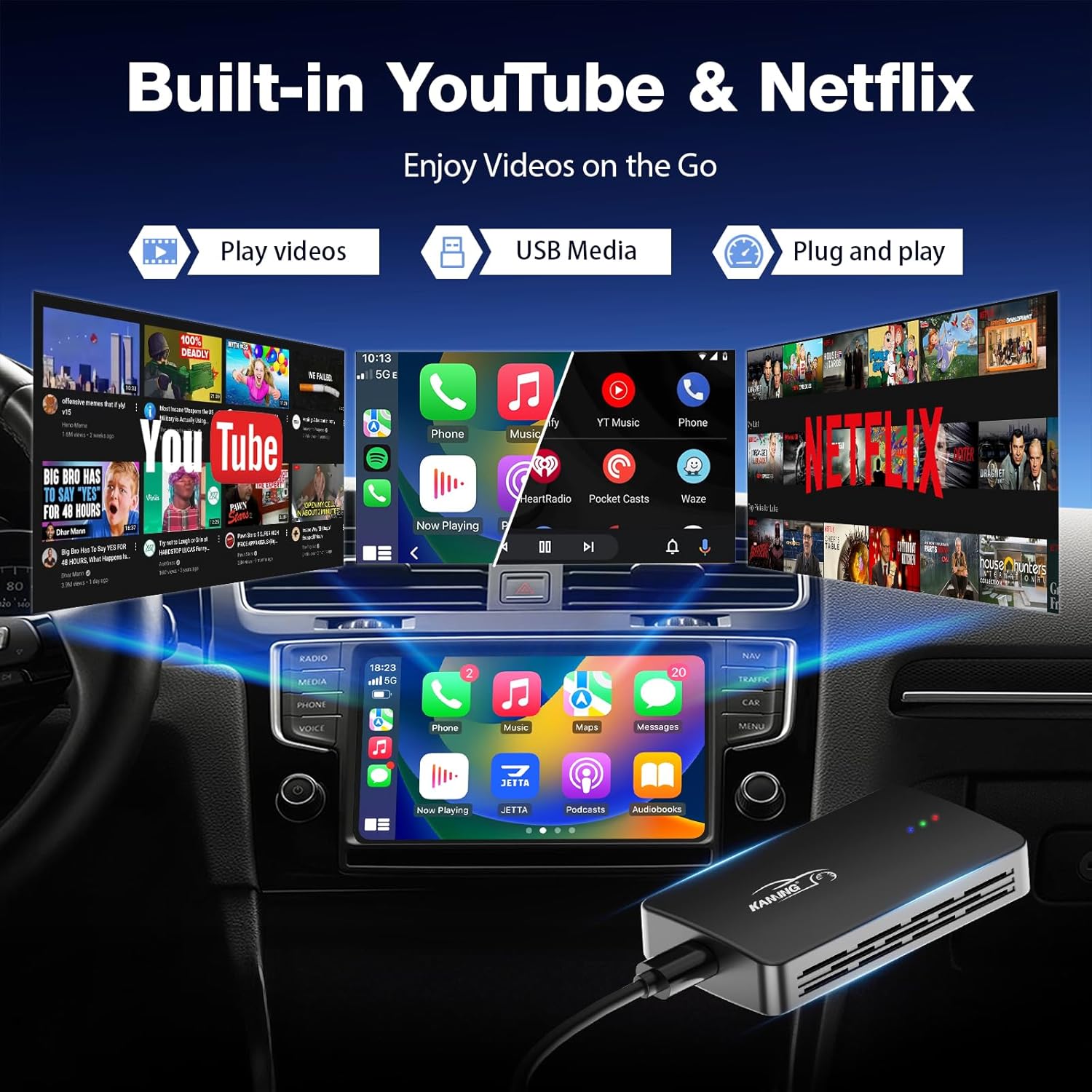
Image: Car display showing built-in YouTube and Netflix applications.

Image: USB drive playback feature, allowing access to media and apps.
Control and Convenience
The adapter maintains full compatibility with your car's existing controls, including Siri voice control, touch screen, physical knobs, and steering wheel controls. This ensures a smooth and intuitive user experience without interruptions. The compact design of the adapter helps keep your car interior neat and clutter-free, and eliminates the wear and tear on your phone's charging port from constant plugging and unplugging.
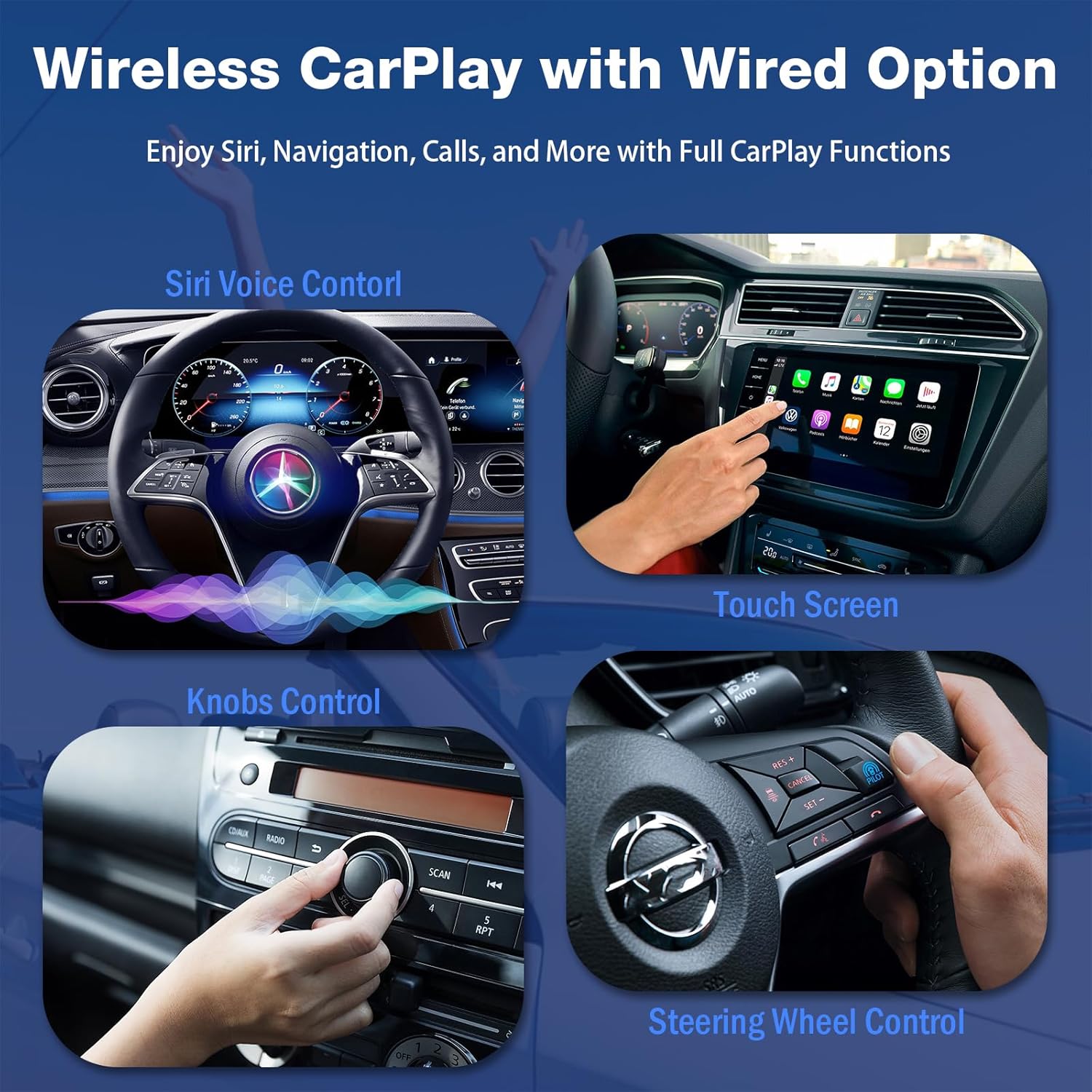
Image: Various control methods supported by the wireless CarPlay system.
Installing Additional Applications
The KAMING AI Box allows for the installation of additional applications via a USB flash drive. To install new apps:
- Create a folder named 'zxwapk' on your computer.
- Download the APK files of the apps you wish to install and place them into the 'zxwapk' folder.
- Copy the entire 'zxwapk' folder onto a USB flash drive.
- Insert the USB flash drive into the USB port of the Z2 box.
- The system will automatically detect and prompt you to install the applications. Follow the on-screen instructions to complete the installation.
- Once installation is complete, the new apps will be accessible on your car's screen.
Video: Guide on how to install additional applications onto the Wireless CarPlay Adapter using a USB drive.
Maintenance
To ensure the longevity and optimal performance of your KAMING AI Box, follow these simple maintenance guidelines:
- Keep the device clean and free from dust and debris. Use a soft, dry cloth for cleaning.
- Avoid exposing the device to extreme temperatures, direct sunlight for prolonged periods, or high humidity.
- Do not attempt to disassemble or repair the device yourself, as this will void the warranty.
- Ensure proper ventilation around the device when in use to prevent overheating.
Troubleshooting
If you encounter any issues with your KAMING AI Box, please try the following steps:
- No Connection: Ensure the device is securely plugged into the car's USB port. Verify that your phone's Wi-Fi and Bluetooth are both enabled. Try restarting both your phone and the car's infotainment system.
- Intermittent Connection: Check for any interference from other wireless devices. Ensure the device is not obstructed. Try re-pairing your phone with the AI Box.
- App Issues: If an app is not functioning correctly, try restarting the AI Box. Ensure the app's APK file was correctly installed and is the latest version.
- Slow Performance: Close any unnecessary background applications on your phone. Ensure your phone has a strong Wi-Fi signal if streaming online content.
If the problem persists after attempting these troubleshooting steps, please contact customer support for further assistance.
Product Specifications
| Feature | Detail |
|---|---|
| Model Name | Z2 |
| Item Weight | 5.9 ounces |
| Package Dimensions | 4.8 x 3.5 x 1.54 inches |
| Connectivity Technology | Bluetooth, Wi-Fi (5G/2.4G Dual-Band) |
| Special Feature | Wireless CarPlay, Wireless Android Auto, USB Playback, Built-in Netflix/YouTube/TikTok |
| Color | Black |
Warranty and Customer Support
Warranty Information
The KAMING AI Box Wireless CarPlay & Android Auto Adapter comes with a 1-year warranty from the date of purchase. This warranty covers manufacturing defects and ensures the product meets its specified performance standards under normal use. Please retain your proof of purchase for warranty claims.
Customer Support
KAMING provides lifetime professional customer support, available 24/7. If you have any questions, require assistance with setup, or encounter any issues with your device, please do not hesitate to contact our support team. We are committed to helping you achieve a smarter, safer, and more enjoyable driving experience.