
Introduction
Thank you for choosing the NOUUI Wireless Headset with Microphone (Model NU-HS013). This manual provides essential information for setting up, operating, and maintaining your new headset. Please read it carefully to ensure optimal performance and longevity of your device.
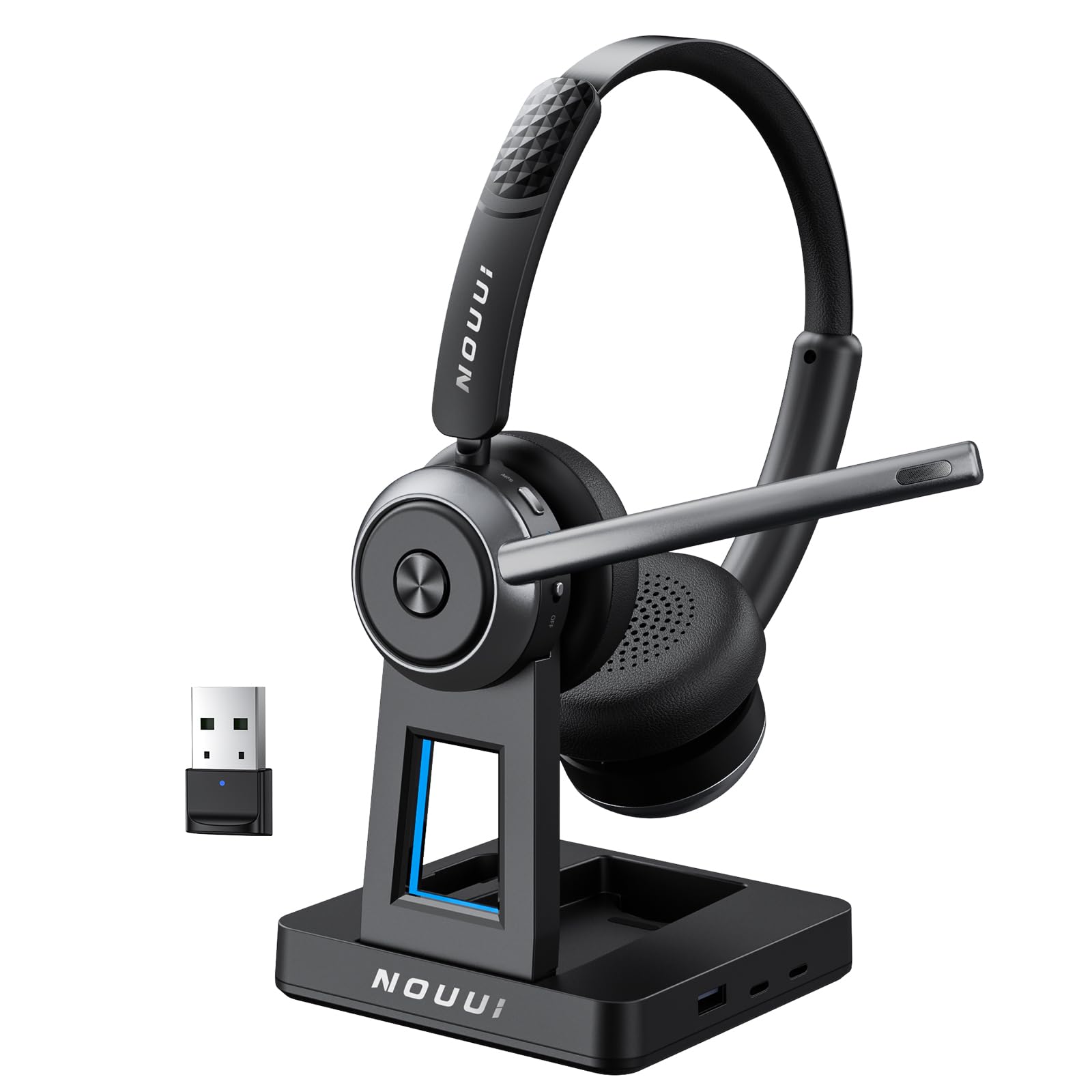
Image: The NOUUI Wireless Headset with Microphone and its charging base.
Setup
1. Package Contents
Verify that all items are present in the package:
- Wireless Headset with Mic
- Charging Station
- Type C Cable
- USB Dongle
2. Charging the Headset
Before first use, fully charge the headset. The headset offers two charging methods:
- Via USB-C Cable: Connect the provided Type C cable to the headset and a power source.
- Via Charging Base: Place the headset on the charging base. The base also includes a slot to securely store the USB dongle.
A full charge takes approximately 2 hours and provides up to 65 hours of battery life.

Image: The NOUUI headset resting on its charging base, with the USB dongle stored in its slot.
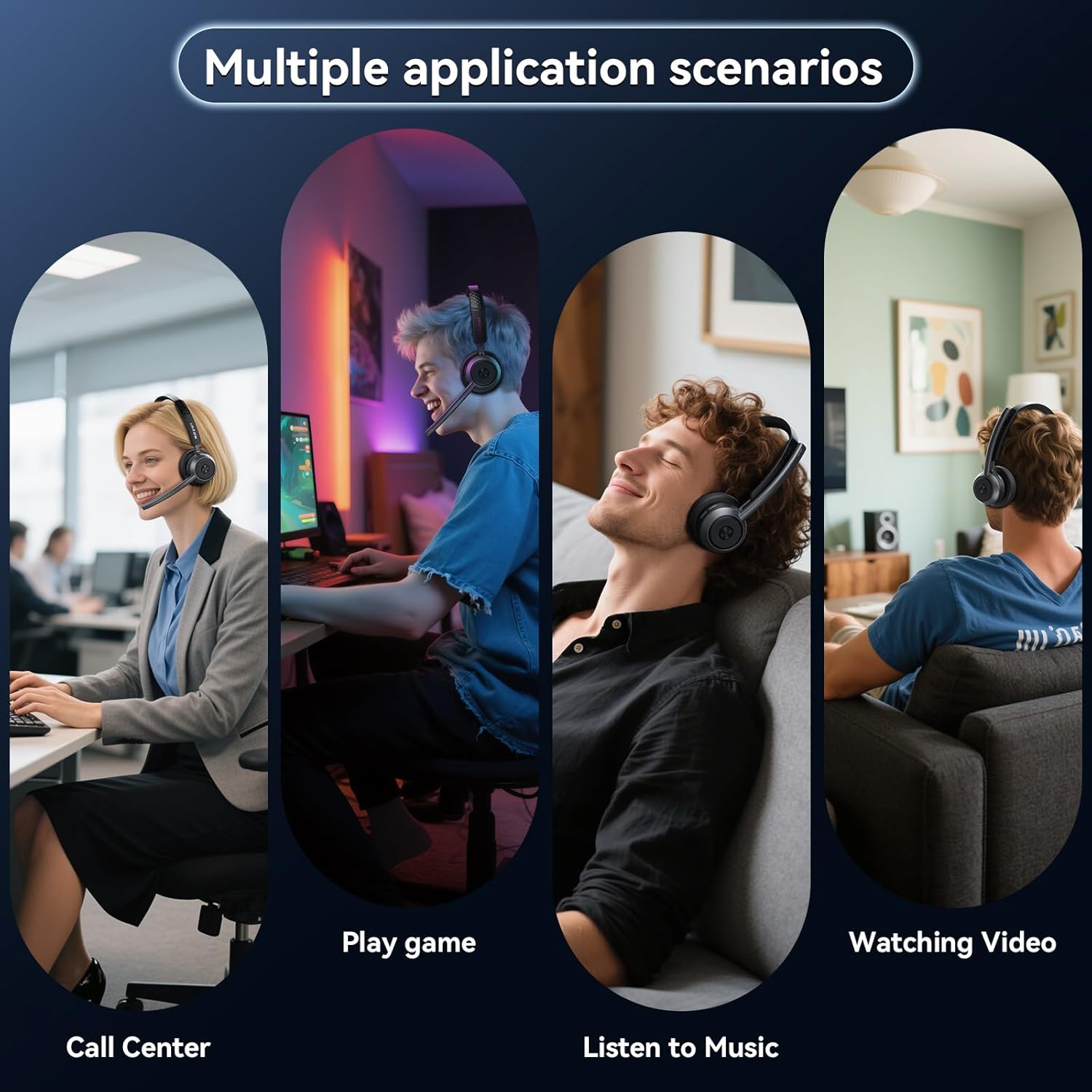
Image: An illustration highlighting the headset's 65-hour super long battery life, indicating a single charge can last for a week.
3. Connecting the Headset
The headset supports dual connection methods:
- Bluetooth 5.4 (for phones/tablets):
- Ensure the headset is powered on.
- Activate Bluetooth on your device (phone, tablet).
- Search for "NU-HS013" in the list of available devices and select it to pair.
- The headset will confirm successful pairing.
- 2.4G USB Dongle (for computers/PCs):
- Plug the included 2.4G USB dongle into an available USB port on your computer.
- The computer should automatically recognize the dongle and install necessary drivers.
- Ensure the headset is powered on. It will automatically connect to the dongle.
- On your computer's sound settings, select "NU-HS013" as both the input (microphone) and output (speaker) device for optimal performance.
Note: The headset connects to one device at a time.
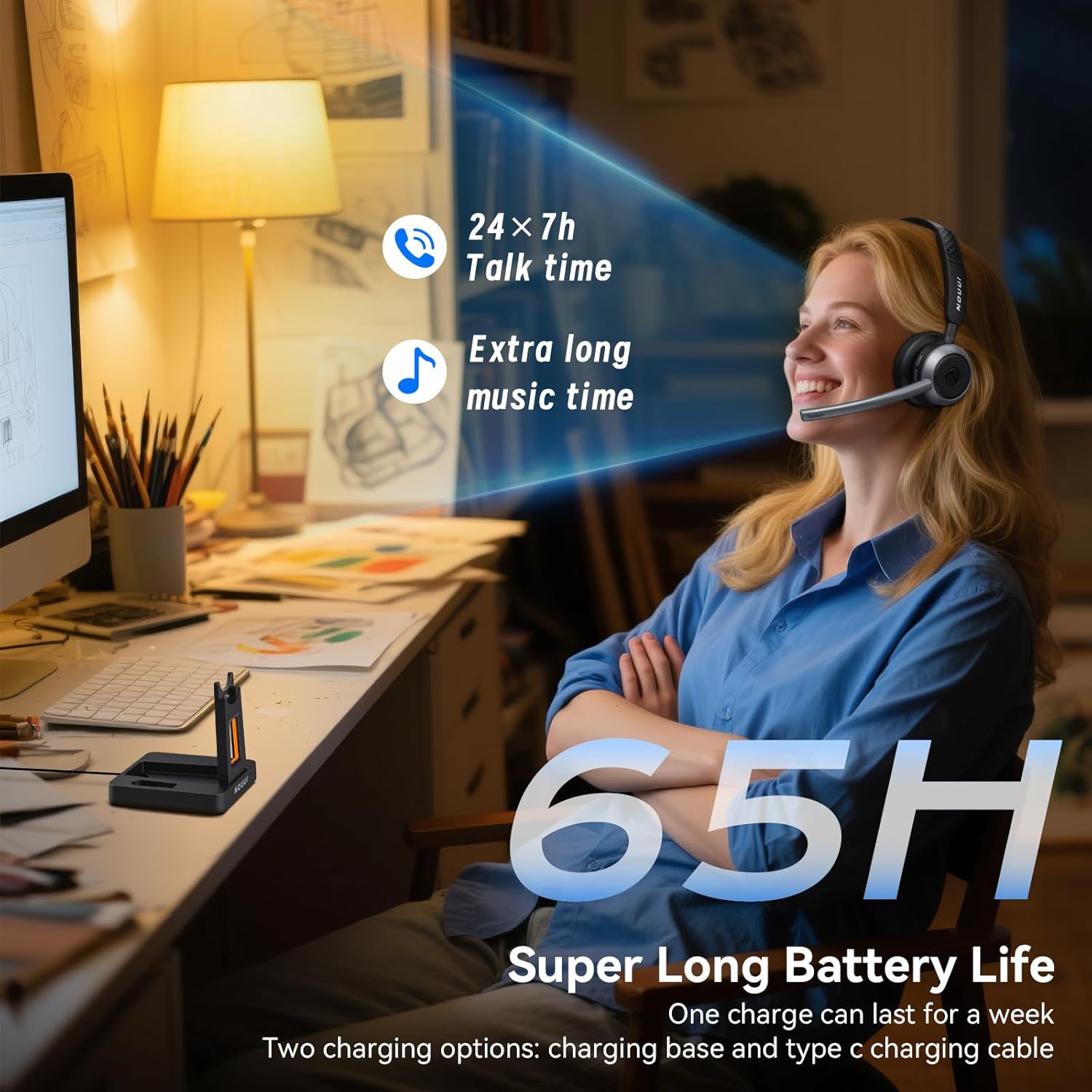
Image: An illustration showing the two connection methods: Bluetooth 5.4 for mobile devices and a 2.4G USB dongle for computers.

Image: Screenshot of Windows Sound Settings, demonstrating how to select the NOUUI headset as the audio input and output device.
Operating Instructions
1. Power On/Off
- Power On: Press and hold the Power button for 3 seconds.
- Power Off: Press and hold the Power button for 3 seconds.
2. Call Management
- Answer/End Call: Press the Multi-Function Button (MFB) once.
- Reject Call: Press and hold the MFB for 2 seconds.
3. Volume Control
- Volume Up: Press the '+' button.
- Volume Down: Press the '-' button.
4. Mute Function
During a call, press the Mute button on the microphone boom to mute or unmute your microphone. A red indicator light may appear on the microphone to confirm mute status.

Image: A close-up view of the mute button located on the headset's earcup.
5. Microphone Adjustment
The microphone boom is 270° rotatable, allowing you to wear the headset with the microphone on either your left or right side. Adjust the microphone position for optimal voice pickup, ensuring it is close to your mouth but not directly in front of it.

Image: Displays the headset's soft protein ear pads, adjustable headband, and 270° rotatable microphone for all-day comfort.
Key Features
- AI Noise Cancelling Microphone: Equipped with an ENC chip and AI noise reduction, the microphone blocks up to 99.9% of background noise, ensuring clear and professional voice transmission in various environments such as offices, call centers, or home settings.
- Extended Battery Life: Enjoy up to 65 hours of talk time on a single 2-hour charge, suitable for a full week of work, meetings, or travel without frequent recharging.
- Stable Dual-Connection: Connect via Bluetooth 5.4 for fast, stable, low-latency connections up to 50ft with phones and tablets. Alternatively, use the 2.4G USB dongle for a reliable connection with Windows laptops and PCs without Bluetooth.
- Immersive Stereo Sound: Delivers rich, balanced stereo sound with minimal distortion, ensuring clear audio for calls, training videos, and music. The binaural design helps block external noise, enhancing focus.
- All-Day Comfort: Designed with soft protein-leather ear cushions, a lightweight frame, and an adjustable headband to minimize pressure and provide comfort during extended wear (8+ hours).
- Wide Compatibility: Fully compatible with popular communication platforms including Zoom, Microsoft Teams, Webex, Skype, and Google Meet.
- Multiple Application Scenarios: Suitable for various uses including call centers, gaming, listening to music, and watching videos.

Image: A person using the headset in an office environment, with a graphic illustrating how AI noise cancellation filters out background noise for clear calls.

Image: The NOUUI headset surrounded by logos of various communication applications like Zoom, Teams, and Skype, indicating broad compatibility.

Image: A collage showing the headset being used in different scenarios: a call center, gaming, listening to music, and watching videos.
Maintenance
1. Cleaning
- Wipe the headset and charging base with a soft, dry cloth.
- Do not use abrasive cleaners or solvents.
- Keep the charging contacts on the headset and base clean and free of debris.
2. Storage
When not in use, store the headset on its charging base or in a cool, dry place away from direct sunlight and extreme temperatures.
Troubleshooting
| Problem | Possible Cause | Solution |
|---|---|---|
| Headset does not power on | Low battery | Charge the headset using the USB-C cable or charging base. |
| No audio / Poor audio quality | Not connected / Incorrect audio output selected | Ensure the headset is paired via Bluetooth or connected via USB dongle. Check your device's audio settings to select "NU-HS013" as the output device. |
| Microphone not working | Microphone muted / Incorrect audio input selected | Press the Mute button to unmute. Check your device's audio settings to select "NU-HS013" as the input device. |
| Cannot pair via Bluetooth | Headset not in pairing mode / Device Bluetooth off | Ensure the headset is discoverable. Turn off and on your device's Bluetooth. Try restarting both devices. |
| USB dongle not connecting | Dongle not properly inserted / Driver issue | Re-insert the USB dongle. Try a different USB port. Check computer's device manager for driver status. |
Specifications
| Feature | Detail |
|---|---|
| Model Name | NU-HS013 |
| Connectivity Technology | Wireless (Bluetooth 5.4, 2.4G USB Dongle) |
| Bluetooth Version | 5.4 |
| Bluetooth Range | 15 Meters (50 feet) |
| Noise Control Features | AI Noise Cancellation (ENC chip) |
| Battery Life | Up to 65 Hours |
| Charging Time | 2 Hours |
| Charging Interface | USB-C, Charging Station |
| Microphone | 270° Rotatable Boom Mic |
| Ear Placement | On Ear |
| Included Components | Wireless Headset with Mic, Charging Station, Type C Cable, USB Dongle |
| Compatible Devices | Computers, Tablets, Phones |
| Product Dimensions | 4.88 x 4.8 x 1.77 inches |
| Item Weight | 1.04 pounds |
| UPC | 797606436530 |
Warranty and Support
NOUUI products are designed for reliability and performance. This product comes with a standard manufacturer's warranty. For detailed warranty information, product support, or service inquiries, please refer to the contact information provided on the product packaging or the official NOUUI website.
Please retain your proof of purchase for warranty claims.