
Introduction
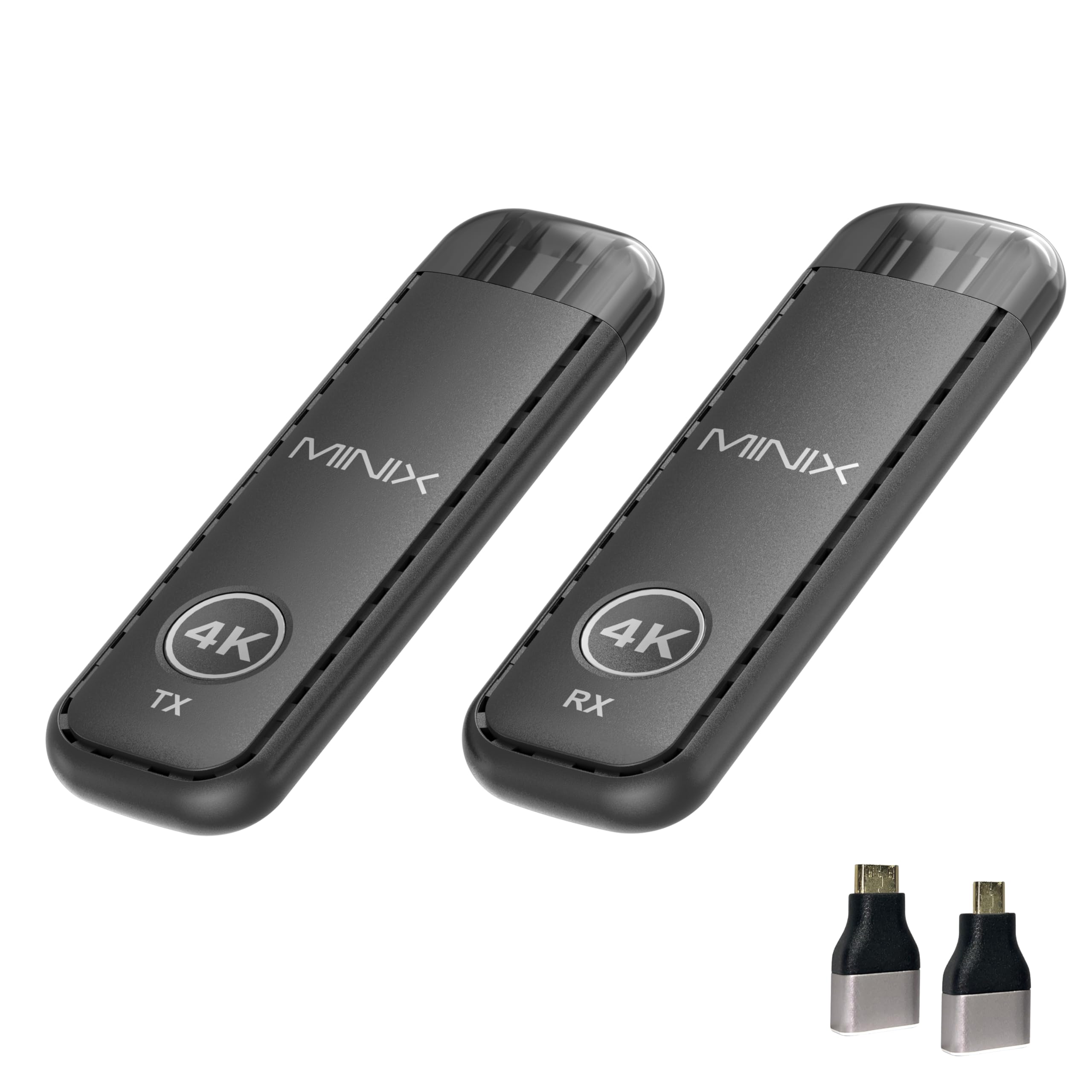
The MINIX H4K is a wireless HDMI transmitter and receiver system designed for seamless audio and video transmission. It supports 4K decoding and 1080P@60Hz output, offering a plug-and-play solution for various display needs without the requirement for Wi-Fi, apps, or complex setup. This manual provides detailed instructions for setting up, operating, and maintaining your device.
What's in the Box
- User Manual x 1
- USB-A to USB-C Power Cable x 2
- HDMI Extension Cable x 1
- Mini HDMI to HDMI Adapter x 1
- Micro HDMI to HDMI Adapter x 1

Setup Instructions
1. Connect the Receiver (RX)
- Connect the USB-C power supply port of the receiver to the charging cable and plug it into a power adapter (Voltage 5V, current 2A).
- Connect the HD port of the receiver to the video input port of the display device, such as a monitor or TV.
- Adjust the HD Signal source of the monitor or TV until the boot screen is displayed.
2. Connect the Transmitter (TX)
- Connect the transmitter to your computer or other device with an HDMI video output function.
- After the indicator light on the transmitter enters the fast flash state, wait for approximately ten seconds to complete casting.

Operating the Device
Display Modes
The MINIX H4K supports two primary display modes to suit your needs:
- Mirror Mode: Duplicates your source device's screen onto the connected display. Ideal for presentations or sharing content directly.
- Extend Mode: Extends your desktop, allowing you to use the connected display as a secondary monitor for multitasking.

One-Click Disconnect/Reconnect
To disconnect or reconnect the display, simply press the button on the transmitter. This feature ensures privacy and security during presentations or when switching between content sources.

Key Features
- Easy Plug & Play Setup: Enjoy instant wireless HDMI connection with no apps, Wi-Fi, or setup required. The MINIX H4K automatically pairs transmitter and receiver in seconds, delivering smooth 1080P@60Hz and 4K decoding.
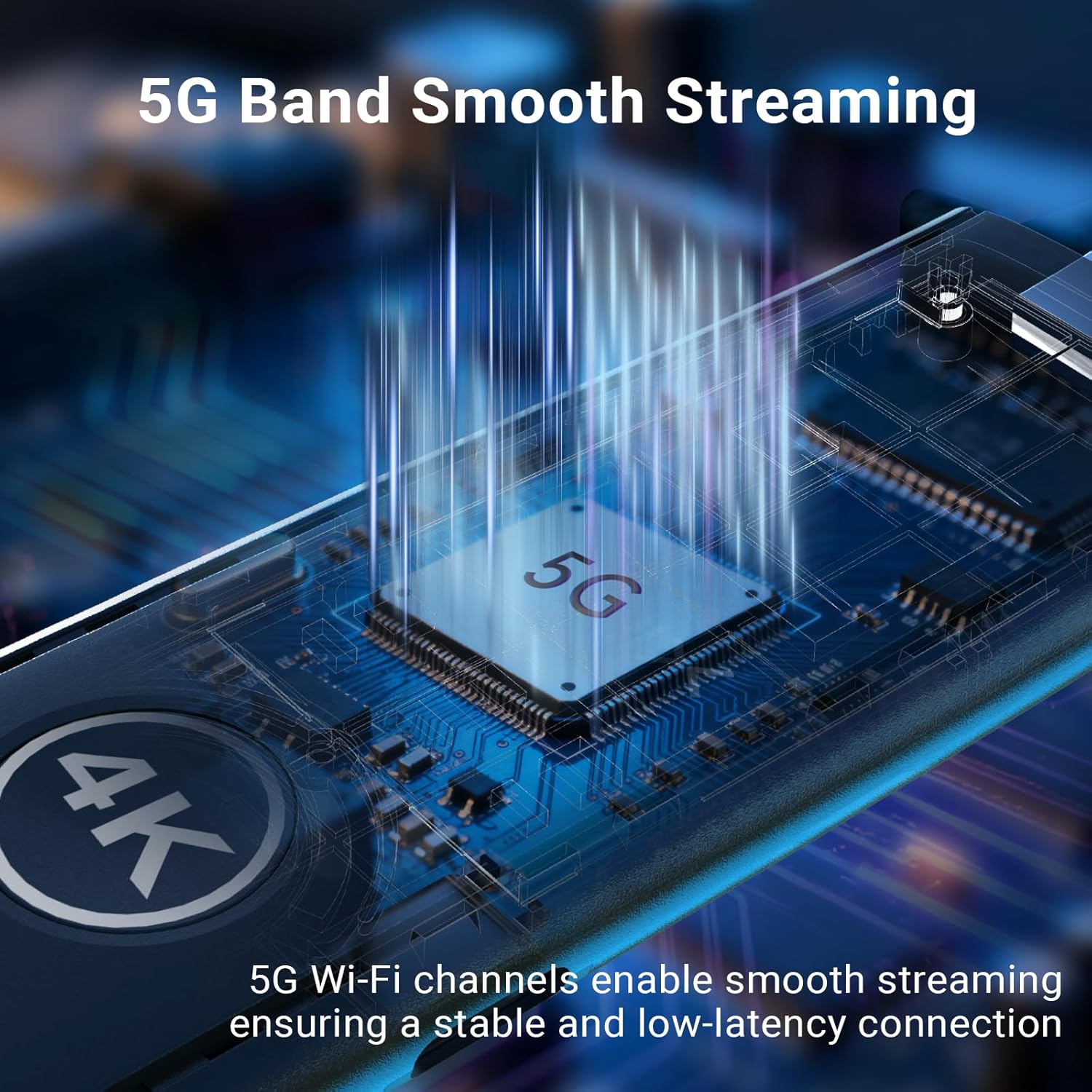
- Stable Dual-Band Signal: Featuring a next-gen dual-band chip, the H4K offers strong anti-interference performance and stable wireless streaming up to 50 meters (164 feet). Even in complex environments, the signal remains smooth and reliable for consistent audio and video delivery.
- Ultra-Low Latency Video: Experience professional-grade image quality with ultra-low delay of under 0.1 seconds. Enjoy synchronized audio and video without lag or distortion.
- Dual Display Modes: Switch freely between mirror mode and extend mode to suit your needs.
- Compact & Reliable Design: Lightweight, portable, and engineered for reliability, the MINIX H4K ensures stable operation and long-term durability.


Application Scenarios
The MINIX H4K is suitable for a variety of environments and uses:
- Business Meetings & Presentations: Share content wirelessly in conference rooms without cable clutter.
- Educational Settings: Project lessons and educational content in classrooms.
- Home Entertainment: Stream movies and videos from laptops or other devices to your TV or projector for a home theater experience.
- Outdoor Use: Connect to projectors for outdoor viewing events.
- Camera Monitoring: Provides real-time wireless preview from cameras to a larger display.

Specifications
| Feature | Detail |
|---|---|
| Brand | MINIX |
| Connectivity Technology | HDMI |
| Connector Type | HDMI |
| Special Feature | Wireless |
| Resolution | 4K |
| Supported Internet Services | TV |
| Controller Type | Button Control |
| Form Factor | TV Stick |
| Color | Black |
| Model Name | H4K |
| Compatible Devices | Gaming Console, Laptop, Personal Computer, Television |
| Video Output Resolution | 1920x1080 Pixels |
| Video Codec | H.265/HEVC |
| Manufacturer | MINIX Group Company Limited |
| Item Weight | 56.8 Grams |
| Item Dimensions L x W x H | 3.94"L x 1.3"W x 0.47"H |
Maintenance
To ensure optimal performance and longevity of your MINIX H4K, follow these guidelines:
- Keep the device clean and free from dust. Use a soft, dry cloth for cleaning.
- Avoid exposing the device to extreme temperatures or humidity.
- Do not attempt to disassemble or repair the device yourself. Refer to professional service if needed.
- Ensure proper ventilation around the device during operation to prevent overheating. The device features 52 heat dissipation holes for this purpose.
Troubleshooting
No Signal on Display
- Ensure both the transmitter (TX) and receiver (RX) are properly powered and connected to their respective devices.
- Verify that the display device (TV/monitor/projector) is set to the correct HDMI input source.
- Check if the indicator light on the transmitter is flashing rapidly, indicating it's attempting to connect or is connected.
- Try disconnecting and reconnecting both units.
Poor Video Quality or Lag
- Ensure the distance between the transmitter and receiver is within the specified range (up to 50 meters / 164 feet) and there are no significant obstructions.
- Minimize interference from other wireless devices operating on similar frequencies.
- Confirm that the power supply for both units meets the required specifications (5V, 2A).
Audio/Video Sync Issues
- The device is designed for ultra-low latency (under 0.1 seconds). If sync issues occur, try restarting both the source device and the MINIX H4K units.
Warranty and Support
The MINIX H4K comes with a 1 Year Manufacturer Warranty.
For technical support or warranty claims, please contact MINIX Technology Limited through their official channels or refer to the contact information provided in the packaging.
You can also visit the MINIX Store on Amazon for more information and support.
For offline maintenance service, please visit our official website.


