
1. Introduction
This manual provides essential information for setting up, operating, maintaining, and troubleshooting your Google Pixel 10 Pro XL smartphone. Please read this guide thoroughly to ensure optimal performance and longevity of your device.
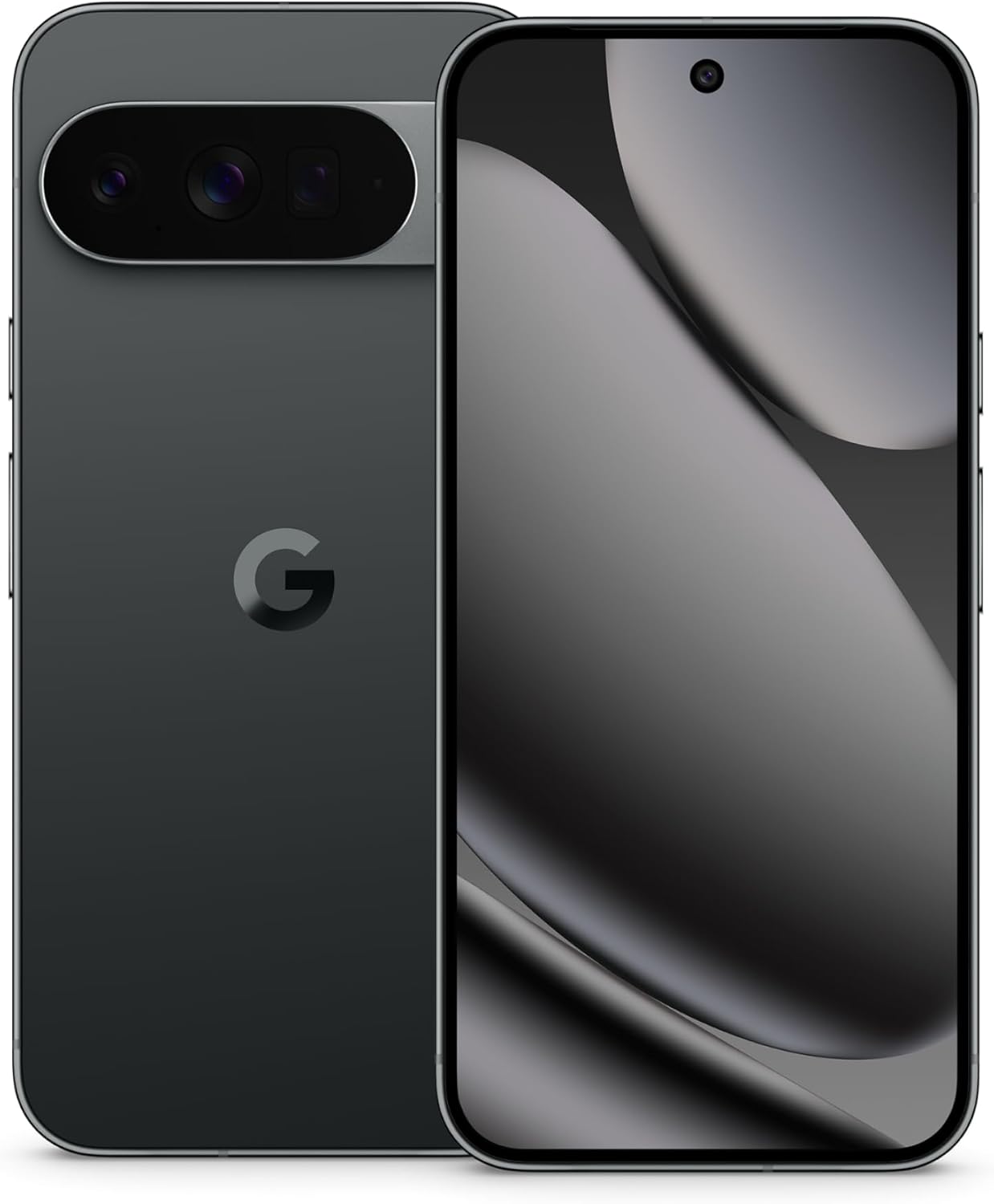
Image: The Google Pixel 10 Pro XL in Obsidian, showcasing its sleek design and camera bar.
2. Setup
2.1. What's in the Box
Upon opening your Google Pixel 10 Pro XL package, you should find the following items:
- Google Pixel 10 Pro XL Cell Phone
- USB Type-C Cable
Please note that other accessories, such as a power adapter or headphones, may be sold separately.
2.2. Unboxing and Initial Inspection
Carefully remove the phone and accessories from the packaging. Inspect the device for any visible damage before proceeding with setup.
Video: An unboxing demonstration of the Google Pixel 10 Pro XL. This video illustrates the packaging contents and the initial appearance of the device.
2.3. Powering On and Initial Setup
- Press and hold the Power button (located on the right side of the device) until the Google logo appears.
- Follow the on-screen prompts to select your language, connect to a Wi-Fi network, and accept the terms and conditions.
- Sign in with your Google Account or create a new one. This is essential for accessing Google services and the Play Store.
- Transfer data from your old device (optional). The setup wizard will guide you through options like Quick Switch Adapter or cloud backup.
2.4. SIM Card Activation (eSIM)
The Google Pixel 10 Pro XL supports eSIM technology, eliminating the need for a physical SIM card. During phone setup, you will be prompted to activate your eSIM. For more details, visit g.co/pixel/esim.
3. Operating Your Device
3.1. Basic Navigation
Your Pixel 10 Pro XL runs on Android 16, offering intuitive gesture navigation. Swipe up from the bottom to go home, swipe up and hold for recent apps, and swipe from the left or right edge to go back.
3.2. Camera System
The device features a Triple Rear Camera System. Open the Camera app to access various modes, including Photo, Video, Portrait, and Night Sight.

Image: The Pixel 10 Pro XL's 100x Pro Res Zoom in action, capturing distant subjects with clarity.
Utilize the 100x Pro Res Zoom for detailed distant shots. The upgraded 50 MP camera also supports Super Steady Videos for stable cinematic footage.

Image: The Pixel 10 Pro XL's Super Steady Video feature, ensuring smooth recording even during dynamic scenes.
3.3. Gemini AI Assistant
Your Pixel 10 Pro XL integrates the Gemini AI Assistant. Access it by saying "Hey Google" or by swiping from a corner (configurable). Gemini can assist with tasks, answer questions, and provide real-time information.

Image: The Gemini Live feature on the Pixel 10 Pro XL, allowing users to share their camera view for real-time AI assistance.
3.4. Battery Management
The device is equipped with a fast-charging battery designed to last 24+ hours on a single charge. To optimize battery life:
- Adjust screen brightness.
- Enable Battery Saver mode when needed.
- Close unused apps running in the background.
For faster charging, use a compatible USB Type-C fast charger (sold separately).
3.5. Display
Experience vibrant visuals on the 6.8" Super Actua Display. This display offers high brightness and clarity for various viewing conditions.

Image: Details of the Pixel 10 Pro XL's Super Actua display and its robust build quality.
4. Maintenance
4.1. Cleaning Your Device
To clean your Pixel 10 Pro XL:
- Use a soft, lint-free cloth.
- Avoid abrasive materials or harsh chemicals.
- For stubborn smudges, slightly dampen the cloth with water.
4.2. Software Updates (Pixel Drops)
Google regularly releases software updates, known as "Pixel Drops," to enhance features, improve performance, and provide security patches. Ensure your device is connected to Wi-Fi and has sufficient battery life before installing updates.

Image: The Pixel Drops program, illustrating how the phone receives ongoing software enhancements.
4.3. Battery Care
To prolong the lifespan of your battery:
- Avoid extreme temperatures.
- Do not consistently drain the battery to 0% or charge it to 100% if not necessary.
- Use certified charging accessories.
5. Troubleshooting
5.1. Common Issues
- Device not responding: Press and hold the Power button for about 30 seconds to force a restart.
- Connectivity problems (Wi-Fi/Bluetooth): Try toggling Wi-Fi or Bluetooth off and on. If the issue persists, restart your device or reset network settings.
- Apps crashing: Clear the cache and data for the problematic app in Settings > Apps. If it continues, uninstall and reinstall the app.
5.2. Factory Reset
A factory reset will erase all data from your phone and restore it to its original factory settings. This can resolve persistent software issues but should be used as a last resort. Backup your data before proceeding.
- Go to Settings > System > Reset options.
- Select "Erase all data (factory reset)".
- Confirm your decision and enter your PIN/password if prompted.
6. Specifications
The Google Pixel 10 Pro XL is engineered for advanced performance and user experience.

Image: An illustration of the Pixel 10 Pro XL's internal components, emphasizing its powerful processor and memory.
| Feature | Detail |
|---|---|
| Model Name | Pixel 10 Pro XL |
| Operating System | Android 16 |
| Processor | Google Tensor (3.78 GHz CPU Speed) |
| RAM | 16 GB |
| Internal Storage | 256 GB (Maximum 256 GB Flash Memory Supported) |
| Display Size | 6.8 Inches Super Actua Display |
| Display Resolution | 3292 x 3292 |
| Battery Capacity | 5200 mAh (Battery Power Rating: 5200) |
| Connectivity | Bluetooth, NFC, Wi-Fi, USB Type-C |
| Dimensions (Product) | 6.4 x 3 x 0.3 inches |
| Item Weight | 12.3 ounces (0.35 Kilograms) |
| Color | Obsidian |
| Wireless Carrier | Unlocked for All Carriers |
7. Warranty and Support
7.1. Limited Warranty
Your Google Pixel 10 Pro XL is covered by a limited warranty from Google. This warranty typically covers defects in materials and workmanship under normal use. For specific terms and conditions, including duration and coverage details, please refer to the warranty information provided with your purchase or visit the official Google support website.
7.2. Customer Support
For further assistance, technical support, or warranty claims, please contact Google Support:
- Online Support: Visit the official Google Pixel Help Center (support.google.com/pixelphone).
- Community Forums: Engage with other Pixel users and experts for solutions.
When contacting support, have your device's serial number and proof of purchase ready.


