1. Product Overview
The Beelink ME Mini PC is a compact and versatile computing device designed for various applications, including network-attached storage (NAS), file serving, private cloud hosting, and general desktop use. It features an Intel N95 processor, 12GB LPDDR5 RAM, and a 1TB M.2 PCIe 3.0x1 SSD, with extensive storage expansion capabilities.
Key Features
- High Capacity Storage: Equipped with 6 M.2 NVMe SSD slots (2230/2242/2280), each supporting up to 4TB, for a total potential capacity of 24TB. Includes a pre-installed 1TB SSD.
- Multiple System Support: Powered by an Intel N95 CPU (4C/4T, up to 3.4GHz) and 12GB LPDDR5 RAM, supporting Windows and Linux operating systems. Ideal for use as a mini computer or a home media center with applications like JellyFin, KODI, or Plex.
- Efficient Cooling and Quiet Operation: Features a vertical airflow cooling design and a silent fan (average 1500 rpm), maintaining low noise levels (33-35 dB) during operation.
- Advanced Networking: Dual 2.5G LAN ports (Intel i226v) support soft routing, Wake On LAN, RTC Wake, and Auto Power On. Integrated WiFi 6 and Bluetooth 5.2 provide high-speed wireless connectivity.

Image 1.1: The Beelink ME Mini PC supports diverse applications, including home theater, NAS, soft routing, data center, online learning, and office tasks.
2. Product Components and Interfaces
Familiarize yourself with the physical components and available ports on your Beelink ME Mini PC.
Internal Structure
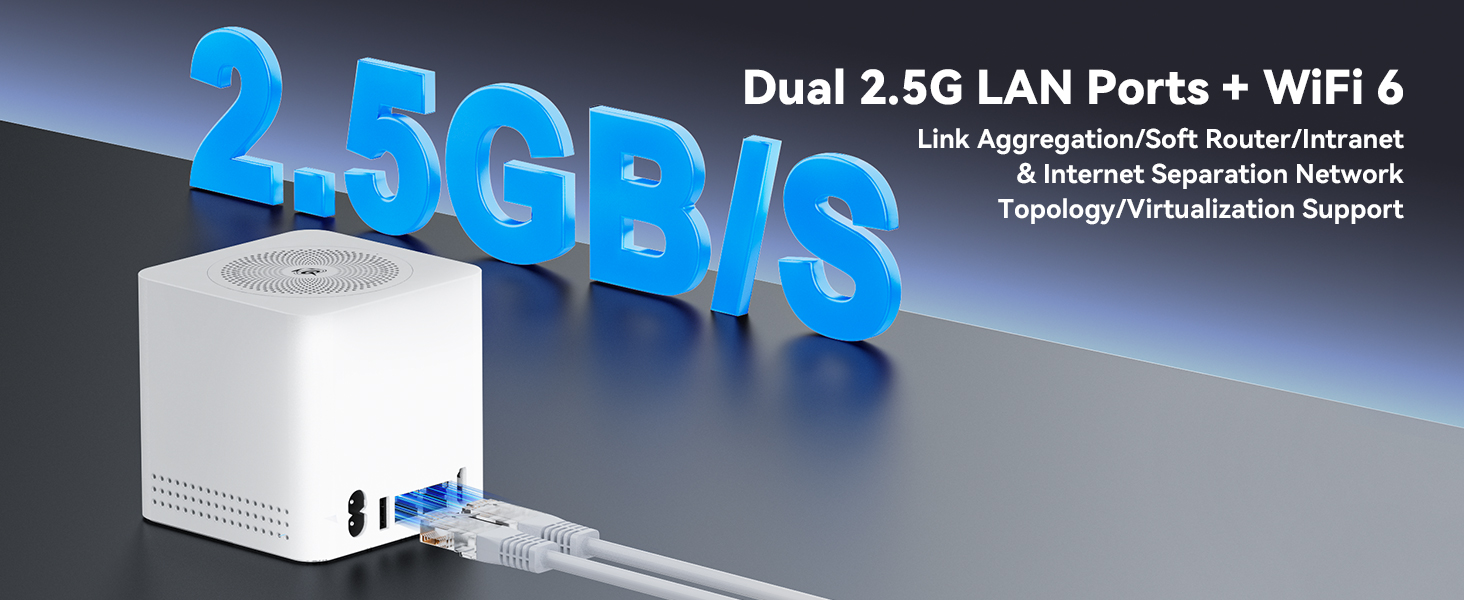
Image 2.1: Exploded view illustrating the internal components, including the full-aluminum heat sink, silent fan, built-in 45W power supply unit, Intel N95 CPU, WiFi 6 module, and multiple M.2 SSD slots.
- M.2 SSD Slots: Six slots for M.2 2280 PCIe 3.0 SSDs. One slot supports PCIe 3.0x2 (compatible with SATA3), and five slots support PCIe 3.0 x1.
- Full-Aluminum Heat Sink: Designed for efficient heat dissipation.
- Silent Fan: Contributes to quiet operation.
- Built-in 45W Power Supply Unit: Integrated power solution.
- Intel N95 CPU: The core processing unit.
- WiFi 6 Module: For high-speed wireless connectivity.
External Interfaces

Image 2.2: Front and rear views detailing the available ports and indicators.
- Type-C (10Gbps) Port: For high-speed data transfer and connectivity.
- Power Indicator Light (White ON): Indicates the device is powered on.
- Power Button: To power on/off the device.
- Sleep Indicator Light (Orange ON): Indicates the device is in sleep mode.
- USB 3.2 10Gbps Port: For connecting high-speed USB devices.
- AC Power Port: For connecting the power cable.
- USB 2.0 (Always-On Support) Port: For connecting standard USB devices, potentially providing power even when off.
- LAN 2.5G (Intel i226-v) Ports (x2): Dual 2.5 Gigabit Ethernet ports for high-speed wired network connections.
- HDMI (Max 4K 60Hz) Port: For connecting to a display.
3. Initial Setup
3.1 Connecting the Mini PC
- Connect to Power: Insert the AC power cable into the AC Power Port (6) on the rear of the device, then plug the other end into a power outlet.
- Connect to Display: Use an HDMI cable to connect the HDMI port (9) on the rear of the Mini PC to your monitor or TV.
- Connect Peripherals: Connect your USB keyboard and mouse to the available USB ports (5 or 7).
- Network Connection (Optional): For a wired connection, connect an Ethernet cable from your router or switch to one of the LAN 2.5G ports (8). For wireless, ensure WiFi is enabled during OS setup.
- Power On: Press the Power Button (3) on the front of the device. The Power Indicator Light (2) will illuminate white.
3.2 Operating System Initial Configuration
Upon first boot, the pre-installed operating system (e.g., Windows 11) will guide you through the initial setup process. Follow the on-screen instructions to configure language, region, network settings, user accounts, and other preferences.
3.3 Storage Expansion (M.2 SSD Installation)
The Beelink ME Mini PC supports up to six M.2 NVMe SSDs for significant storage expansion. The device comes with one 1TB SSD pre-installed in the fourth slot (M.2 PCIe 3.0x2 compatible with SATA3). The remaining five slots are M.2 PCIe 3.0 x1.
- Step 1: Prepare the Device: Ensure the Mini PC is powered off and disconnected from all cables.
- Step 2: Remove Bottom Cover: Carefully remove the four screws located on the bottom of the Mini PC. Once the screws are removed, gently take off the bottom cover.
- Step 3: Install M.2 SSD: Locate an available M.2 SSD slot. Insert the M.2 SSD into the slot at an angle, then gently push it down and secure it with the provided screw.
- Step 4: Reattach Cover: Place the bottom cover back onto the device, align it, and secure it with the four screws. Insert the silicone plugs if provided.

Image 3.1: Steps for accessing the internal M.2 SSD slots by removing the bottom cover.
4. Operating Instructions
4.1 Power Management
- Power On: Press the power button.
- Power Off: Use the operating system's shutdown function. Alternatively, press and hold the power button for 5 seconds for a forced shutdown (not recommended for regular use).
- Sleep Mode: The device will enter sleep mode after a period of inactivity, indicated by an orange sleep indicator light. Press any key on the keyboard or move the mouse to wake it up.
- Wake On LAN (WOL): This feature allows the Mini PC to be powered on remotely via a network signal. Ensure WOL is enabled in the BIOS/UEFI settings and your network adapter properties.
- RTC Wake: Real-Time Clock Wake allows you to schedule the Mini PC to power on at a specific time. Configure this in the BIOS/UEFI settings.
- Auto Power On: The device can be configured to automatically power on after a power outage. This setting is typically found in the BIOS/UEFI.
4.2 Network Connectivity
- Wired Connection: Connect an Ethernet cable to one of the dual 2.5G LAN ports. The operating system should automatically detect and configure the connection.
- Wireless Connection (WiFi 6): Access your operating system's network settings, select your desired WiFi network, and enter the password.
- Bluetooth 5.2: Enable Bluetooth in your operating system settings to pair with compatible devices such as keyboards, mice, or headphones.
- Soft Routing: The dual 2.5G LAN ports enable advanced network management and optimization through soft routing functionality. This typically involves installing specialized software or operating systems (e.g., pfSense, OpenWRT) to manage network traffic, create firewalls, or set up VPNs.
4.3 Using as a NAS/Media Center
With its extensive storage and processing capabilities, the Beelink ME Mini PC is well-suited for network-attached storage (NAS) and media center applications.
- NAS Setup: Install a NAS operating system (e.g., FreeNAS, OpenMediaVault, unRAID) or use built-in Windows/Linux file sharing features. Configure shared folders and user permissions for network access.
- Media Center: Install media server software such as JellyFin, KODI, or Plex. These applications allow you to organize and stream your media (movies, music, photos) to various devices on your network or remotely.
5. Maintenance
5.1 Cleaning
- Exterior: Use a soft, dry cloth to wipe the exterior of the Mini PC. Avoid liquid cleaners directly on the device.
- Ventilation: Periodically check the ventilation holes for dust accumulation. Use compressed air to gently clear any dust from the vents to maintain optimal airflow and cooling performance.
5.2 Software Updates
Regularly update your operating system, drivers, and installed software to ensure optimal performance, security, and compatibility. Refer to your operating system's documentation for specific update procedures.
5.3 Heat Dissipation
The Beelink ME Mini PC utilizes a vertical airflow cooling design. Ensure the device is placed in an area with adequate ventilation and that the top and bottom vents are not obstructed. Avoid placing the device in enclosed spaces or near heat sources.
6. Troubleshooting
This section addresses common issues you might encounter with your Beelink ME Mini PC.
6.1 No Power / Device Not Starting
- Check Power Connection: Ensure the AC power cable is securely connected to both the Mini PC and a working power outlet.
- Power Button: Confirm you are pressing the power button firmly. The power indicator light should turn white.
- Power Outlet: Test the power outlet with another device to ensure it is functional.
6.2 No Display Output
- HDMI Cable: Verify the HDMI cable is securely connected to both the Mini PC and the monitor/TV. Try a different HDMI cable if available.
- Monitor Input: Ensure your monitor/TV is set to the correct HDMI input source.
- Monitor Functionality: Test your monitor/TV with another device to confirm it is working correctly.
6.3 Network Connectivity Issues
- Wired Connection: Check if the Ethernet cable is properly connected and if the LAN indicator lights on the Mini PC are active. Restart your router/modem.
- Wireless Connection: Ensure WiFi is enabled in your operating system. Verify the correct WiFi network is selected and the password is entered accurately. Restart your wireless router.
- Driver Issues: Ensure network drivers are up to date.
6.4 Operating System Problems (e.g., Automatic Repair Loop)
If you encounter issues like an automatic repair loop or system instability, consider the following:
- Safe Mode: Attempt to boot into Safe Mode to diagnose and resolve software conflicts or driver issues.
- System Restore: If available, use a system restore point to revert your system to a previous working state.
- Reinstallation: As a last resort, you may need to reinstall the operating system. Back up your data before proceeding.
- BIOS/UEFI Settings: Incorrect BIOS/UEFI settings can sometimes cause boot issues. Resetting to default settings might help.
7. Technical Specifications
| Feature | Specification |
|---|---|
| Model Name | ME mini 12G/1T/N95 |
| Processor | Intel N95 (4C/4T, up to 3.4 GHz) |
| RAM | 12 GB LPDDR5 |
| Internal Storage | 1 TB M.2 PCIe 3.0x1 SSD (pre-installed) |
| SSD Slots | 6 x M.2 NVMe SSD slots (1x PCIe 3.0x2, 5x PCIe 3.0x1), up to 4TB per slot (24TB total) |
| Graphics Coprocessor | Intel Graphics (Integrated) |
| Max Screen Resolution | 7680x4320 |
| LAN Ports | Dual 2.5G LAN (Intel i226-v) |
| Wireless Connectivity | WiFi 6, Bluetooth 5.2 |
| USB Ports | 1x Type-C (10Gbps), 1x USB 3.2 (10Gbps), 1x USB 2.0 (Always-On Support) |
| Video Output | HDMI (Max 4K 60Hz) |
| Operating System | OS (Supports Windows/Linux) |
| Item Weight | Approx. 2.51 pounds (1.14 kg) |
| Package Dimensions | 5.51 x 5.04 x 5 inches (14 x 12.8 x 12.7 cm) |
8. Warranty and Support
8.1 Warranty Information
Beelink provides a 1-Year-free warranty for the ME Mini PC. This warranty covers manufacturing defects and hardware malfunctions under normal use conditions. Please retain your proof of purchase for warranty claims.
8.2 Technical Support
Beelink offers lifetime technical support and 24/7 after-sales service. If you encounter any issues or have questions regarding your Mini PC, please do not hesitate to contact Beelink customer support. All Beelink products have passed strict inspections and hold FCC, RoHS, and CE Certifications.
For support, please refer to the contact information provided with your product packaging or visit the official Beelink website.


